
AutoCAD Electrical
БесплатноНе проверенEnables AI assistants to control AutoCAD Electrical 2025 via natural language, exposing 46 tools for drawing, electrical schematics, wiring, component placement

Описание
Enables AI assistants to control AutoCAD Electrical 2025 via natural language, exposing 46 tools for drawing, electrical schematics, wiring, component placement, and report generation.
README
MCP server + local AI web dashboard for AutoCAD Electrical 2025 — control AutoCAD with plain language via Claude, Ollama, or any OpenAI-compatible model.
License: AGPL v3 Python 3.11+ AutoCAD Electrical 2025 Ollama
Screenshots
| English UI | Spanish UI |
|---|---|
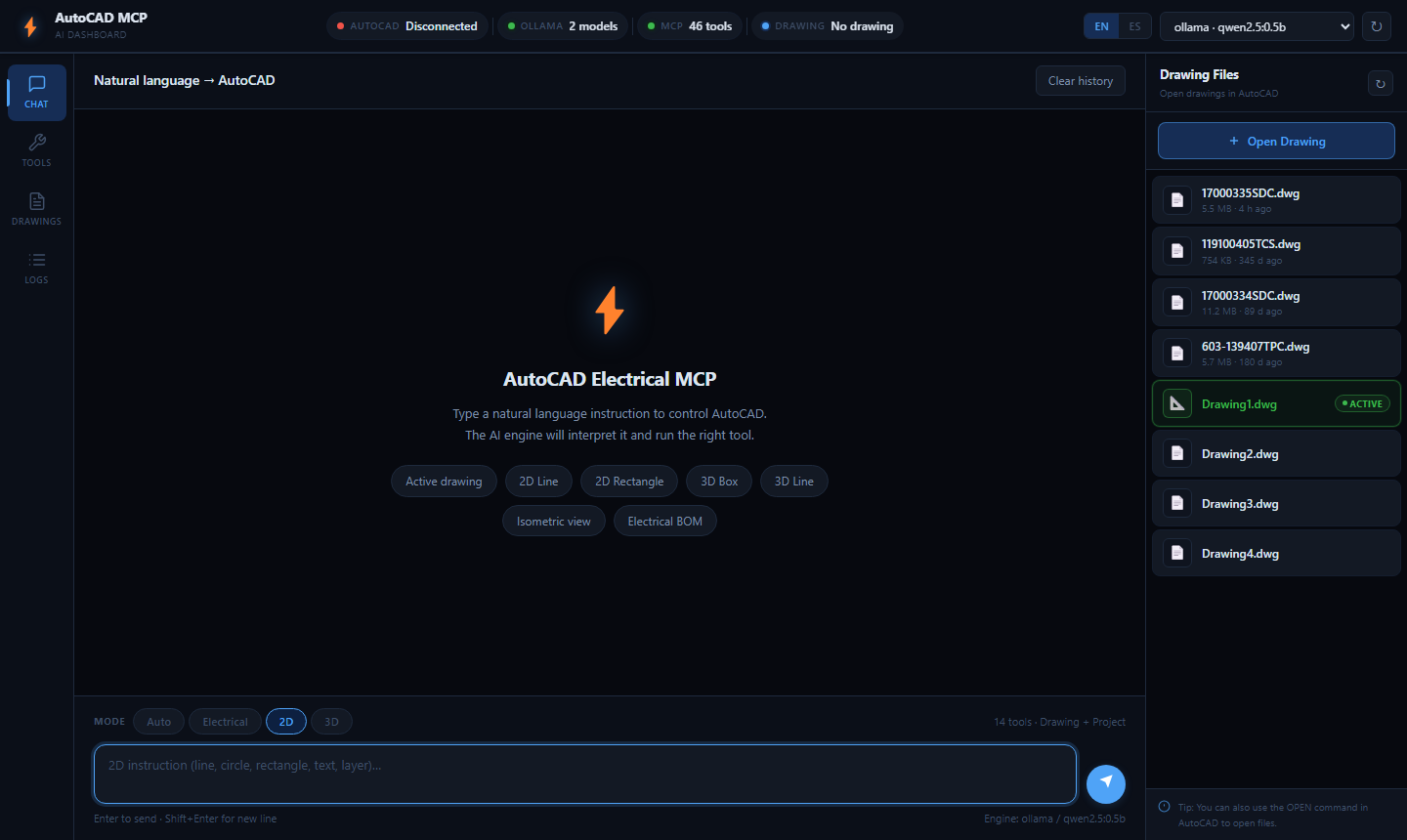 |
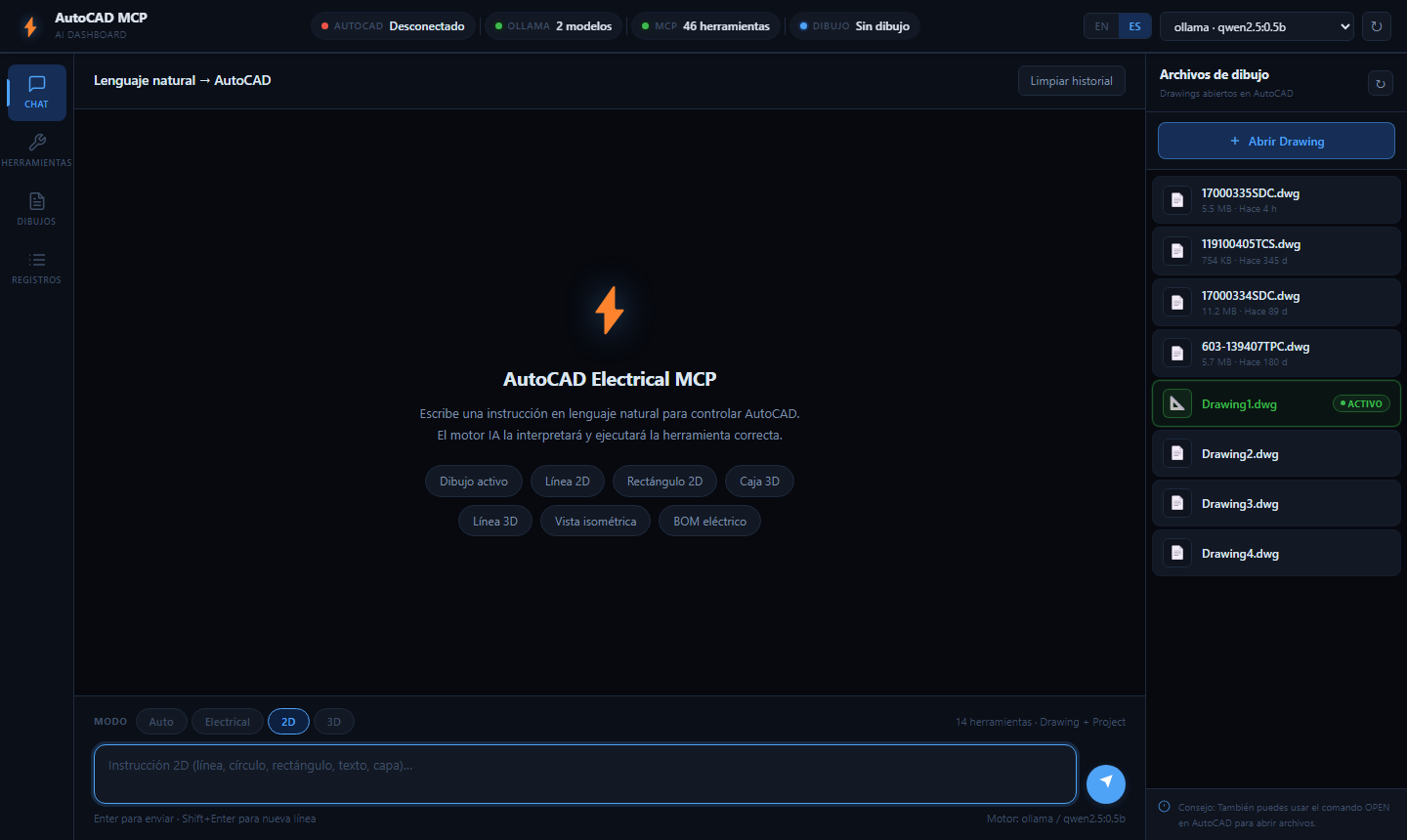 |
| Drawing Files Panel | Active Drawing Highlighted |
|---|---|
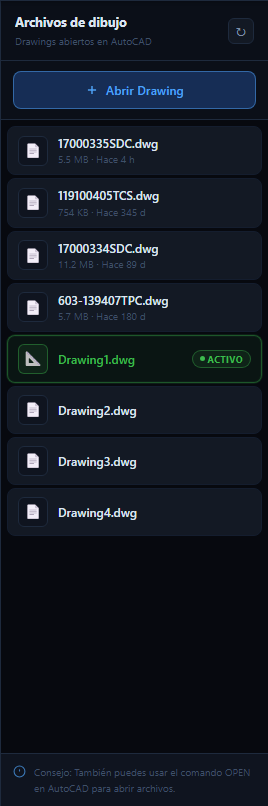 |
 |
Overview
AUTOCAD-ELECTRICAL-MCP bridges AI models and AutoCAD Electrical 2025. It exposes 46 AutoCAD operations as Model Context Protocol (MCP) tools, enabling AI assistants to draw, annotate, wire, and generate reports directly inside AutoCAD — using natural language.
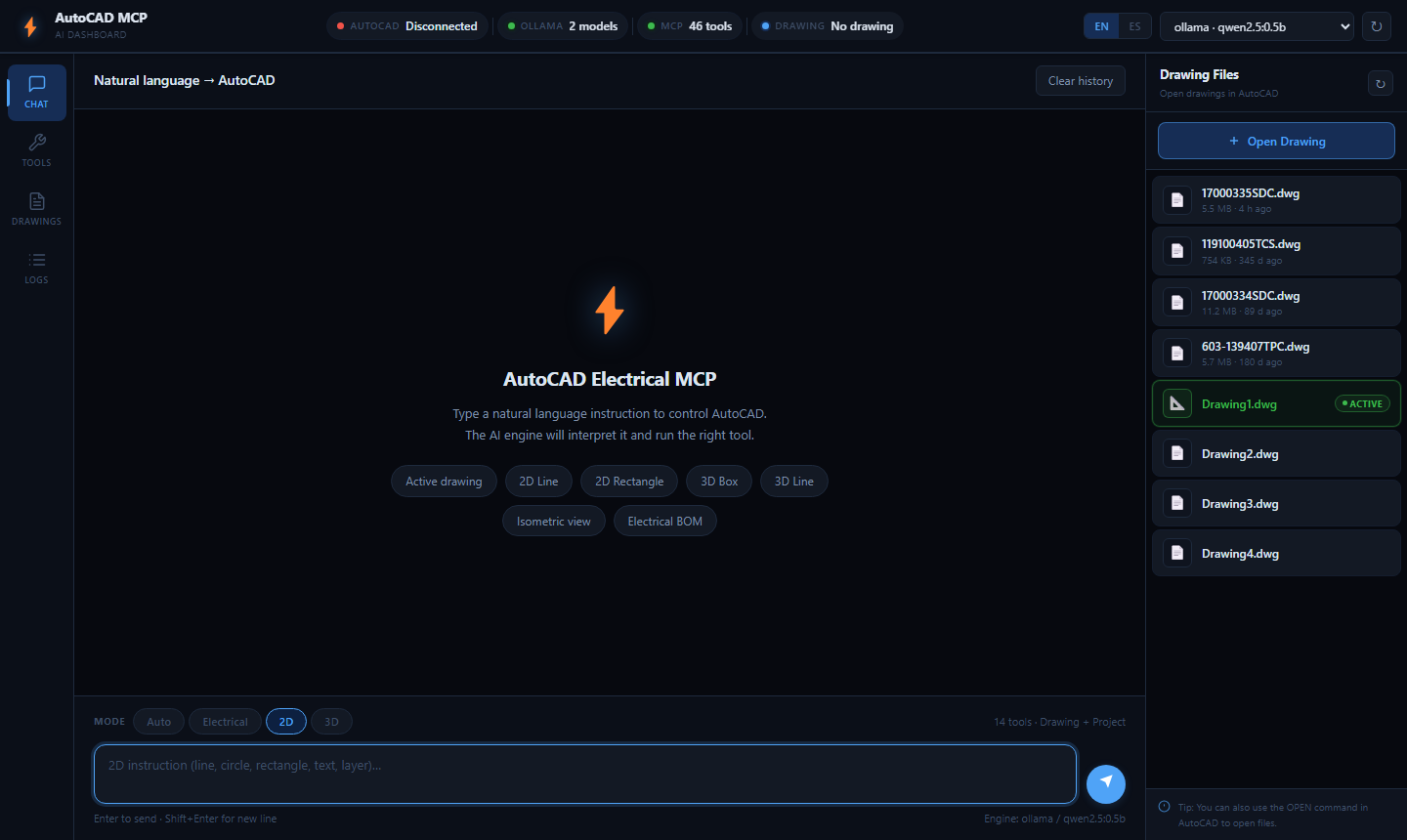
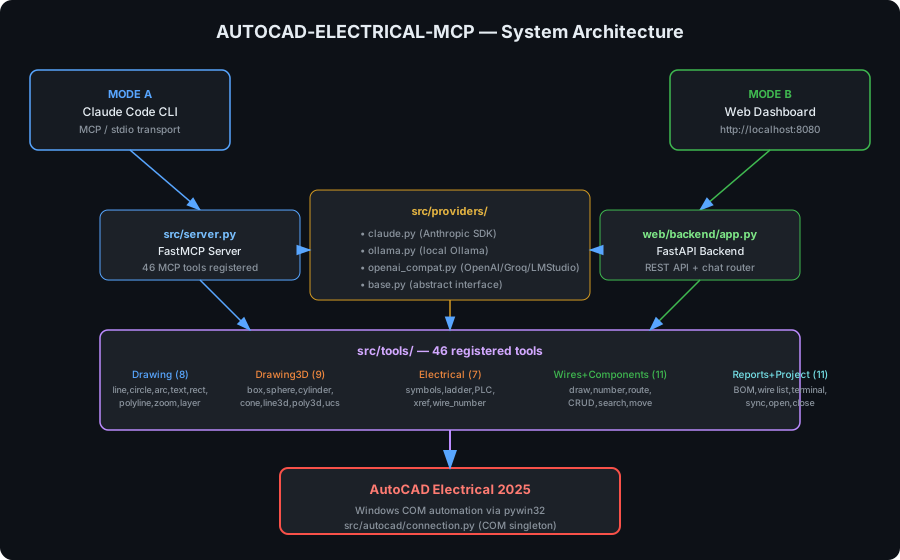
Two fully independent operation modes share the same tool core:
| Mode | Client | AI Engine | Requires |
|---|---|---|---|
| Mode A — Claude Code | Claude Code CLI | Claude API | Anthropic API key |
| Mode B — Web Dashboard | Browser localhost:8080 |
Ollama (local) | Ollama installed |
Features
- 46 MCP tools — 2D drawing, 3D modelling, electrical schematics, wires, components, reports, project management
- Drawing modes — Auto · Electrical · 2D · 3D — each exposes a focused tool subset to the AI
- Compound drawings — single prompt generates multi-step objects (3D screw, full electrical schematic with rails, cables, and symbols)
- Keyword pre-router — common phrases bypass the LLM entirely for instant, reliable execution
- 34 tool-name aliases — corrects AI hallucinations transparently (
draw_cube→draw_box) - Multi-provider AI — Ollama, Claude, OpenAI, Groq, LM Studio
- Smart fallback — on timeout, queries installed models and retries with the smallest available
- Local web dashboard (FastAPI + vanilla JS) — works fully offline, no API key needed
- COM automation via pywin32 — direct, reliable connection to AutoCAD Electrical 2025
- Zero-dependency frontend — no Node.js, no npm, no build step
- Bilingual UI — English / Español, auto-detected from browser, instant switch, persisted in
localStorage - PWA — installable as a standalone desktop app (Chrome / Edge) with its own icon and taskbar entry
- Drawing Files panel — persistent right sidebar listing all open DWGs with file size, last-modified time, and active drawing highlighted in green
- Service worker — cache-versioned static assets, offline API fallback, cache-first with stale-while-revalidate
Web Interface
The web dashboard is a FastAPI + vanilla JS single-page app served locally at http://127.0.0.1:8080.
Running locally
# Start the web server (opens browser automatically)
python start_web.py

# Or specify host/port explicitly
python start_web.py --host 127.0.0.1 --port 8080 --no-browser
The dashboard has a persistent three-column layout: left sidebar navigation · main content · right Drawing Files panel.
Main panels (left sidebar)
| Panel | Description |
|---|---|
| Chat | Natural-language instructions with drawing-mode selector (Auto / Electrical / 2D / 3D) |
| Tools | Searchable browser of all 46 tools grouped by category |
| Drawings | Open, list, activate, and track recently used DWG files |
| Logs | Real-time system log with level filter |
Drawing Files panel (always visible, right side)
The right panel is always visible alongside the main content. It shows all DWG files currently open in AutoCAD:
- File name, file size, and time since last save for each drawing
- The active drawing is highlighted with a green border and an ● ACTIVO / ● ACTIVE badge
- Click any drawing to activate it instantly
- + Abrir Drawing / + Open Drawing button opens the drawing form in the main panel
- Auto-refreshes every 15 seconds; click ↻ to refresh manually
Drawing Selection
The Drawings panel lets you manage DWG files directly from the web interface.
How it works
- Click Drawings in the left sidebar
- The panel fetches all drawings currently open in AutoCAD
- The active drawing is highlighted in green — all AI instructions execute against it
- To activate a different drawing, click Activate on any card in the list
- To open a drawing from the project folder, click + Open Drawing and type a sheet number or filename (e.g.
Sheet_03orPanel_Control.dwg) - Recently activated drawings are stored locally and appear in the Recent Drawings section for quick access
How activation works
Under the hood, "activate" calls open_drawing(name) which:
- Searches for the drawing among AutoCAD's already-open documents — if found, sets it as
ActiveDocument - If not found among open docs, scans the same directory as the current drawing for matching
.dwgfiles and opens them
AutoCAD must be running with at least one drawing open for this to work.
Language Support
The interface supports English and Español. Switch with the EN / ES toggle in the top-right corner.
Behaviour
- Language is auto-detected from the browser on first load (
navigator.language) - Spanish is used if the browser reports
es-*; English otherwise - Manual selection is saved to
localStorageand persists across sessions - The switch is instant — no page reload required
- The AI assistant receives the selected language and responds in that language
Adding a new language
- Open web/frontend/js/i18n.js
- Copy the
enblock and add a new key, e.g.fr: { ... } - Translate all string values (keep AutoCAD, DWG, MCP, Ollama untranslated)
- Add a
<button class="lang-btn" data-lang="fr">FR</button>inside.lang-switcherinindex.html
No build step, no dependencies — just edit the JS object and add the button.
PWA Support
The web interface is a full Progressive Web App (PWA). You can install it as a standalone desktop application — no browser chrome, its own taskbar icon, launches like any native app.
What's included
| File | Purpose |
|---|---|
web/frontend/manifest.json |
App name, icons, colors, display mode |
web/frontend/sw.js |
Service worker — caches static assets, offline fallback |
web/frontend/icons/icon-192.png |
Standard icon 192×192 |
web/frontend/icons/icon-512.png |
Standard icon 512×512 |
web/frontend/icons/icon-512-maskable.png |
Maskable icon (safe-zone padding) |
web/frontend/icons/favicon.png |
Browser tab favicon 32×32 |
Installing on Desktop (Chrome / Edge — Windows & Mac)
- Start the web server:
python start_web.py - Open
http://127.0.0.1:8080in Chrome or Edge - An "Install App" button appears in the top-right corner of the dashboard
- Click it — the browser shows the native install dialog
- Click Install — the app opens as a standalone window with its own taskbar / Dock icon
Shortcut: In Chrome/Edge you can also click the install icon (⊕) in the address bar, or go to
⋮ → Install AutoCAD MCP.
After installation the app:
- Opens as a standalone window (no browser address bar)
- Appears in the Windows Start Menu / taskbar with its own icon
- Loads static assets from cache when the server is not yet running
- Automatically reconnects to the backend when the server starts
Regenerating icons
Icons are generated by a pure-Python script — no external dependencies:
python scripts/generate_icons.py
Tool Categories
| Category | Tools | Operations |
|---|---|---|
| Drawing (2D) | 8 | Lines, circles, arcs, text, rectangles, polylines, layers, zoom |
| Drawing (3D) | 9 | Box, sphere, cylinder, cone, torus, extrude, revolve, 3D line, UCS/view |
| Electrical | 7 | Symbols, ladders, PLC modules, cross-references, wire numbers |
| Wires | 5 | Wire draw, numbering, routing, attributes, from-to |
| Components | 6 | CRUD, search, move, bulk update |
| Reports | 5 | BOM, wire list, terminal plan, PLC I/O list, project summary |
| Project | 6 | Drawing open/close, list, sync, project info |
| Total | 46 |
Drawing Modes
The web UI exposes four modes that control which tool subset the AI sees:
| Mode | Tools visible | Use when |
|---|---|---|
auto |
46 (all) | Unsure, or mixing 2D/3D/electrical |
electrical |
46 (all) | Electrical schematics, ladders, symbols |
2d |
14 (Drawing + Project) | Flat drawings, annotations |
3d |
23 (Drawing + Drawing3D + Project) | Solid models, perspectives |
Compound Drawings
Single prompts that trigger multi-step execution plans:
| Phrase | Steps | Result |
|---|---|---|
"dibuja un tornillo 3D" / "draw a 3D screw" |
5 | Cylinder shaft + cone tip + cylinder head, SE isometric view |
"esquema eléctrico" / "electrical schematic" |
31 | L1/L2 rails, cable rungs, NO contacts, motor circle, labels, title block |
Architecture
┌────────────────────────────────────────────────────────────────┐
│  MODE A                             MODE B                      │
│  Claude Code CLI                    Browser (localhost:8080)    │
│        │                                   │                   │
│        │ MCP / stdio                        │ HTTP / REST      │
│        ▼                                   ▼                   │
│  src/server.py (FastMCP)       web/backend/app.py (FastAPI)    │
│        │                                   │                   │
│        └──────────────┬────────────────────┘                   │
│                       ▼                                         │
│            web/backend/chat.py                                  │
│            ├── Keyword pre-router (34 aliases)                  │
│            ├── Compound drawing planner                         │
│            └── LLM orchestrator (mode-aware prompts)           │
│                       │                                         │
│              src/tools/ (46 tools)                              │
│              ├── drawing.py     (8)                             │
│              ├── drawing3d.py   (9)                             │
│              ├── electrical.py  (7)                             │
│              ├── wires.py       (5)                             │
│              ├── components.py  (6)                             │
│              ├── reports.py     (5)                             │
│              └── project.py     (6)                             │
│                       │                                         │
│         src/providers/ ← AI routing (Ollama, Claude, OpenAI)   │
│                       │                                         │
│         src/autocad/connection.py  (COM singleton)             │
│                       │                                         │
│              AutoCAD Electrical 2025                            │
└────────────────────────────────────────────────────────────────┘
Requirements
- Windows 10/11 (64-bit) — COM automation is Windows-only
- Python 3.11+
- AutoCAD Electrical 2025 running with an open drawing
- Mode A only: Anthropic API key
- Mode B only: Ollama installed and running
Installation
# 1. Clone
git clone https://github.com/Igualguana/AUTOCAD-ELECTRICAL-MCP.git
cd AUTOCAD-ELECTRICAL-MCP

# 2. Install dependencies
pip install -e .

# 3. Configure environment
cp .env.example .env
# Edit .env — add your ANTHROPIC_API_KEY if using Mode A
Ollama setup (Mode B — local AI)
# Install from https://ollama.com then:
ollama serve                   # start the server
ollama pull qwen2.5:0.5b       # fast, runs on 4 GB RAM
# or
ollama pull qwen2.5:7b         # better quality, needs ~6 GB RAM
Recommended:
qwen2.5:0.5b(397 MB) works well for the keyword pre-router and is reliable on machines with limited RAM. For the full LLM path useqwen2.5:7bor larger.
Usage
Mode A — Claude Code (MCP)
- Open AutoCAD Electrical 2025 with a drawing
- Copy
mcp_config.json, set"cwd"to your project folder, then register:
claude mcp add-from-config mcp_config.json
- Give natural-language instructions in Claude Code:
Draw a line from 0,0 to 200,100 on layer WIRES
Insert a normally-open contact WD_NOPEN at 50,150
List all components in the drawing
Generate the project BOM as CSV
Manual server start (for testing):
python -m src.server
Mode B — Web Dashboard (Ollama)
- Open AutoCAD Electrical 2025 with a drawing
- Start Ollama:
ollama serve - Launch the web interface:
# Windows one-click
start_web.bat

# or Python
python start_web.py
- Open
http://127.0.0.1:8080 - Choose a drawing mode (2D / 3D / Electrical / Auto) and type an instruction
Example prompts:
dibuja una línea de 0,0 a 100,50          → draw_line
crea una caja 3D de 80×80×80              → draw_box
dibuja un tornillo 3D                      → 5-step compound (screw)
esquema eléctrico                          → 31-step compound (schematic)
cambia a vista isométrica SE               → zoom_3d_view SE_ISOMETRIC
genera el BOM del proyecto                 → generate_bom
Configuration
Edit config.yaml:
active_provider: ollama        # ollama | claude | openai | groq | lmstudio

providers:
  ollama:
    base_url: http://localhost:11434
    model: qwen2.5:0.5b        # change to any installed model
    timeout: 30
  claude:
    api_key: ${ANTHROPIC_API_KEY}
    model: claude-sonnet-4-6
  openai:
    api_key: ${OPENAI_API_KEY}
    model: gpt-4o-mini
Switch provider from CLI:
python scripts/switch_model.py -p ollama -m qwen2.5:7b
python scripts/switch_model.py --status
Project Structure
AUTOCAD-ELECTRICAL-MCP/
├── src/
│   ├── server.py              # MCP server (FastMCP, stdio, 46 tools)
│   ├── config.py              # YAML + .env config loader
│   ├── autocad/
│   │   ├── connection.py      # COM singleton with retry logic
│   │   ├── detector.py        # AutoCAD variant detection (2023/2025/Electrical)
│   │   └── utils.py           # Geometry, layer, attribute helpers
│   ├── providers/
│   │   ├── base.py            # Abstract BaseProvider interface
│   │   ├── claude.py          # Anthropic SDK adapter
│   │   ├── ollama.py          # Ollama HTTP adapter + model library
│   │   └── openai_compat.py   # OpenAI / Groq / LM Studio adapter
│   └── tools/
│       ├── drawing.py         # 8 2D drawing tools
│       ├── drawing3d.py       # 9 3D solid tools
│       ├── electrical.py      # 7 electrical tools
│       ├── wires.py           # 5 wire tools
│       ├── components.py      # 6 component tools
│       ├── reports.py         # 5 report tools
│       └── project.py         # 6 project tools
├── web/
│   ├── backend/
│   │   ├── app.py             # FastAPI — REST endpoints
│   │   ├── chat.py            # Keyword router + compound planner + LLM dispatch
│   │   └── state.py           # Log buffer and chat history
│   └── frontend/
│       ├── index.html         # Single-page dashboard (3-column layout)
│       ├── manifest.json      # PWA manifest — name, icons, display mode
│       ├── sw.js              # Service worker — cache-versioned static assets
│       ├── css/style.css      # Dark premium theme + right panel styles
│       ├── icons/             # PWA icons (192×192, 512×512, maskable, favicon)
│       └── js/
│           ├── api.js         # Backend API client
│           ├── i18n.js        # Internationalisation engine (EN / ES)
│           └── main.js        # UI state, drawing panel, right panel, mode selector
├── docs/
│   └── images/
│       ├── architecture.svg        # System architecture diagram
│       ├── dashboard-overview.svg  # Web dashboard UI mockup
│       ├── tools-panel.svg         # Tools panel with all 46 tools
│       ├── dashboard-main.png      # Screenshot — main dashboard
│       ├── right-panel-drawings.png# Screenshot — Drawing Files panel
│       ├── drawing-active.png      # Screenshot — active drawing highlighted
│       ├── ui-english.png          # Screenshot — English interface
│       └── ui-spanish.png          # Screenshot — Spanish interface
├── scripts/
│   ├── install.py             # Automated setup
│   ├── generate_icons.py      # Pure-Python PWA icon generator (no Pillow)
│   ├── test_connection.py     # AutoCAD COM diagnostic
│   ├── switch_model.py        # CLI provider/model switcher
│   └── ollama_manager.py      # Ollama model library manager
├── tests/
│   └── test_tools.py          # Unit + integration tests
├── config.yaml                # Main configuration
├── mcp_config.json            # MCP registration template (edit cwd)
├── .env.example               # Environment variable template
├── start_web.py               # Web interface launcher
├── start_web.bat              # Windows one-click launcher
└── pyproject.toml             # Package metadata and dependencies
Running Tests
# Unit tests (no AutoCAD required)
python -m pytest tests/ -v -m "not integration"

# Integration tests (AutoCAD Electrical 2025 must be running)
python -m pytest tests/ -v -m integration

# COM connection diagnostic
python scripts/test_connection.py
Web API Reference
| Method | Endpoint | Description |
|---|---|---|
| GET | /api/status |
AutoCAD, Ollama, MCP status |
| GET | /api/tools |
All 46 tools grouped by category |
| POST | /api/chat |
Natural-language → AI → AutoCAD |
| POST | /api/execute |
Direct tool execution (no AI) |
| GET | /api/providers |
Configured AI providers |
| POST | /api/providers/switch |
Switch active provider |
| GET | /api/logs |
System log entries |
| DELETE | /api/logs |
Clear log buffer |
| GET | /api/history |
Chat history |
| DELETE | /api/history |
Clear chat history |
| GET | /api/drawing/info |
Active drawing and project info |
| GET | /api/drawings |
All open DWGs with file_size and last_modified |
| POST | /api/drawings/open |
Open or activate a drawing by name / sheet number |
| GET | /api/docs |
Interactive Swagger documentation |
Validated Test Results
| Test | Prompt | Mode | Tool invoked | Result |
|---|---|---|---|---|
| T1 | dibujame un cuadrado 3D |
3d | draw_box 100×100×100 |
✓ |
| T2 | crea una caja de 80x80x80 |
3d | draw_box 80×80×80 |
✓ |
| T3 | dibuja una línea 3D de 0,0,0 a 100,100,100 |
3d | draw_line_3d |
✓ |
| T4 | crea un rectángulo en 2D de 0,0 a 150,75 |
2d | draw_rectangle |
✓ |
| T5 | cambia a vista isométrica SE |
3d | zoom_3d_view SE_ISOMETRIC |
✓ |
| T6 | dibuja un círculo radio 50 |
2d | draw_circle r=50 |
✓ |
| T7 | crea una esfera radio 30 |
3d | draw_sphere r=30 |
✓ |
Next Improvements / Roadmap
Near-term
- Undo/redo support —
undo_lasttool via AutoCAD COMUndo()call - Layer panel in dashboard — list, create, toggle visibility of layers
- Direct tool execution panel — run any tool directly from the UI without AI
- Prompt history — persist and recall previous instructions
- Streaming responses — show LLM thinking in real time via SSE
macOS / cross-platform support (next major phase)
AutoCAD for Mac dropped COM automation, so a different bridge is required. Planned approach:
- AutoCAD Script/LISP bridge — write
.scr/.lspfiles, inject via AutoCAD's-scriptCLI flag orLISPcommand (works on macOS) - REST proxy on Windows — for users with a Windows VM: run this server on Windows, expose a REST endpoint, connect from macOS
- DXF-based approach — generate DXF files programmatically (using
ezdxf) for platforms where COM is unavailable - AutoCAD Web API — use Autodesk Platform Services (APS/Forge) for cloud-based drawing manipulation
Contributions to macOS support are especially welcome — see CONTRIBUTING.
Long-term
- Plugin marketplace — install community tools without code changes
- Voice input via Whisper
- Drawing diff / version control integration
- Multi-drawing batch operations
Contributing
Contributions are welcome under the terms of AGPL-3.0.
- Fork the repository
- Create a feature branch:
git checkout -b feature/your-feature - Commit with clear messages
- Open a pull request describing what you changed and why
Please ensure unit tests pass before submitting:
python -m pytest tests/ -v -m "not integration"
License
This project is licensed under the GNU Affero General Public License v3.0 (AGPL-3.0).
You are free to use, modify, and distribute this software. Any modified version run as a network service must make its full source code available to users of that service.
See the LICENSE file for the complete license text.
Author
Randy Igualguana
Copyright © 2026 Randy Igualguana
Built with Model Context Protocol · FastMCP · FastAPI · pywin32 · Ollama
Установка AutoCAD Electrical
У этого сервера нет опубликованного пакета — он собирается из исходников. Открой репозиторий и следуй инструкции в README.
▸ github.com/igualguana/autocad-electrical-mcpFAQ
AutoCAD Electrical MCP бесплатный?
Да, AutoCAD Electrical MCP бесплатный — установка в пару кликов через Unyly без оплаты.
Нужен ли API-ключ для AutoCAD Electrical?
Нет, AutoCAD Electrical работает без API-ключей и переменных окружения.
AutoCAD Electrical — hosted или self-hosted?
Self-hosted: сервер запускается локально на твоей машине командой из раздела установки.
Как установить AutoCAD Electrical в Claude Desktop, Claude Code или Cursor?
Открой AutoCAD Electrical на unyly.org, выбери вкладку своего клиента (Claude Desktop, Claude Code, Cursor) и нажми Install — конфиг сгенерируется автоматически, без правки JSON.
Похожие MCP
Fetch
Web content fetching and conversion for efficient LLM usage.
AWS KB Retrieval
Retrieval from AWS Knowledge Base using Bedrock Agent Runtime.
 автор: modelcontextprotocol
Spring AI MCP Server
Provides auto-configuration for setting up an MCP server in Spring Boot applications.
llm-analysis-assistant
A very streamlined mcp client that supports calling and monitoring stdio/sse/streamableHttp, and can also view request responses through the /logs page. It also
 автор: xuzexin-hz
Compare AutoCAD Electrical with
Не уверен что выбрать?
Найди свой стек за 60 секунд
Автор?
Embed-бейдж для README
Похожее
Все в категории ai