
Chrome Browser Control (cheikh2shift)
БесплатноНе проверенControls Chrome browser through a companion extension using Go and WebSocket for tab navigation, content extraction, and interaction.

Описание
Controls Chrome browser through a companion extension using Go and WebSocket for tab navigation, content extraction, and interaction.
README
[!WARNING] Ensure port 9223 is blocked from external traffic. execute_script allows execution of arbitrary JS code.
Chrome MCP Controller
A MCP (Model Context Protocol) server that allows AI agents (like godex) to control Chrome tabs via a browser extension.
Installation
Quick Install (Linux/macOS)
curl -sSL https://raw.githubusercontent.com/cheikh2shift/chrome-mcp/main/install.sh | sh
Or install a specific version:
curl -sSL https://raw.githubusercontent.com/cheikh2shift/chrome-mcp/main/install.sh | sh -s v0.0.1
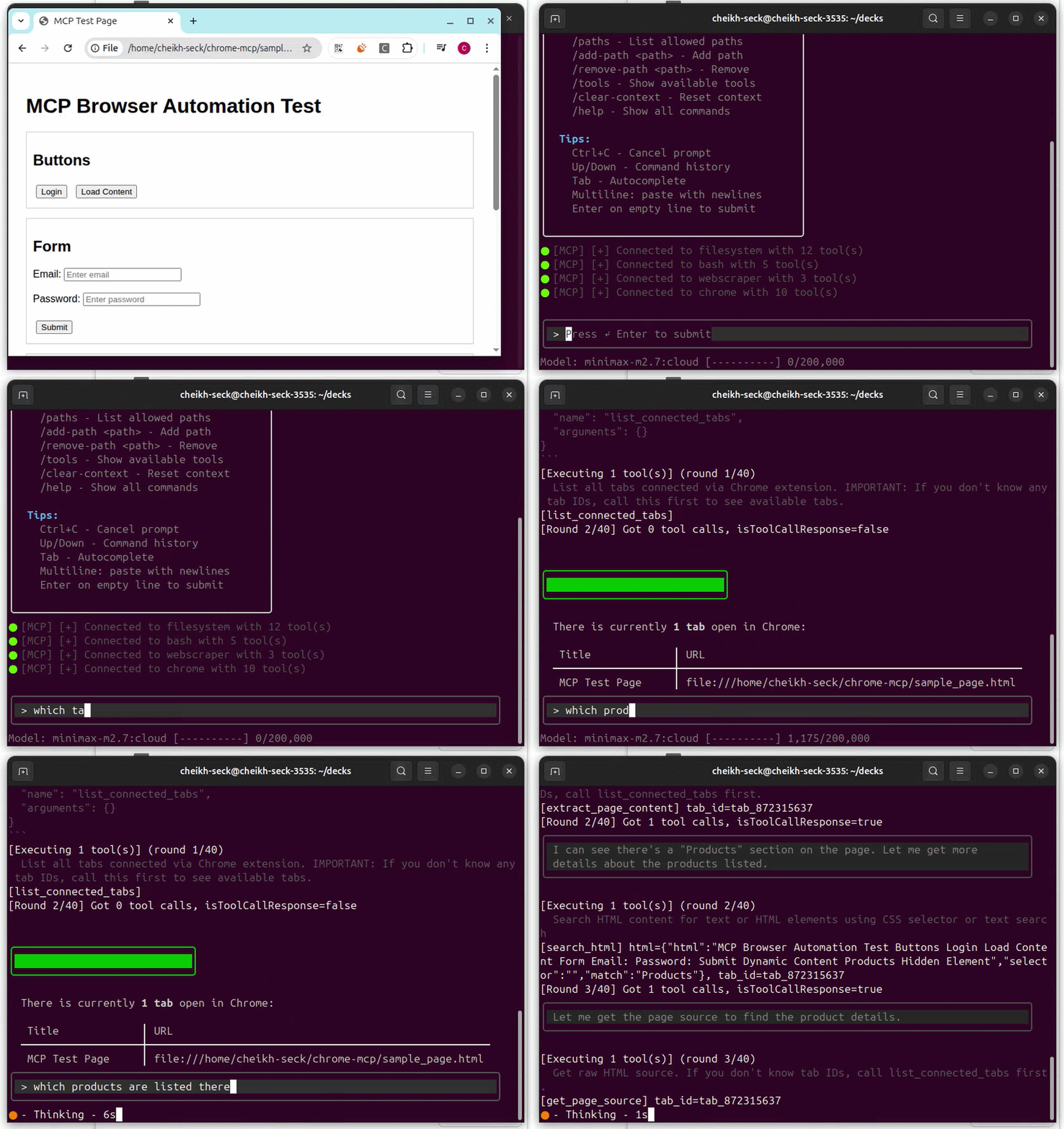
Architecture
┌─────────────────────────────────────────────────────────────────────────────────┐
│                          MCP Mode (for godex)                                   │
│  ┌─────────────┐    stdio     ┌──────────────┐         ┌──────────────────────┐ │
│  │   godex     │◄────────────►│  chrome-mcp  │◄──WS─-─►│    Daemon Server     │ │
│  │  (AI Agent) │              │              │  /ws/mcp│    (port 9223)       │ │
│  └─────────────┘              └──────────────┘         └──────────┬───────────┘ │
└────────────────────────────────────────────────────────────┬──────┴─────────────┘

┌───────────────────────────────────────────────────────────────────────────────┐
│                        Chrome Extension                                       │
│  ┌─────────────────────┐         WebSocket         ┌────────────────────────┐ │
│  │   background.js     │◄──────────────────────────│    Daemon Server       │ │
│  │   (service worker)  │   /ws/extension push      │    (port 9223)         │ │
│  └──────────┬──────────┘                           └───────────┬────────────┘ │
│             │ chrome.tabs.sendMessage                          │              │
│             ▼                                                  │              │
│  ┌─────────────────────┐                                       │              │
│  │     content.js      │◄──────────────────────────────────────┘              │
│  │  (page context)     │  DOM operations via content script                   │
│  └─────────────────────┘                                                      │
│             │                                                                 │
│             │ chrome.debugger.sendCommand (DevTools Protocol)                 │
│             ▼                                                                 │
│  ┌─────────────────────┐                                                      │
│  │    execute_script   │  JS execution via DevTools Protocol                  │
│  └─────────────────────┘                                                      │
└───────────────────────────────────────────────────────────────────────────────┘
How It Works
- godex starts chrome-mcp → Automatically starts daemon server in background
- Daemon → HTTP + WebSocket server on port 9223
- MCP → Daemon → Opens dedicated WebSocket connection (
/ws/mcp) - Extension → Daemon → Opens WebSocket connection (
/ws/extension) for push commands - Command Flow → Daemon pushes command to extension via WebSocket, extension executes and returns result directly back through the same WebSocket connection
Manual Install
# Build from source
git clone https://github.com/cheikh2shift/chrome-mcp.git
cd chrome-mcp
go build -o chrome-mcp ./cmd/chrome-mcp
sudo mv chrome-mcp /usr/local/bin/
Chrome Extension
- Open Chrome and navigate to
chrome://extensions/ - Enable "Developer mode" (toggle in top right)
- Click "Load unpacked"
- Select the
extension/folder from this repository
Usage
Start Daemon (Automatic)
When chrome-mcp runs in MCP mode (for godex), it automatically starts the daemon:
chrome-mcp --port 9223  # MCP mode, auto-starts daemon
chrome-mcp --server     # Run only HTTP server (no MCP)
chrome-mcp --kill       # Kill the daemon
Chrome Extension
- Click the Chrome MCP Controller extension icon
- Navigate to tabs you want to control
- Click "Connect" on each tab you want to control
- Extension connects via WebSocket for instant command delivery
Use with godex
Add to your ~/.godex/providers.yaml:
providers:
  - name: ollama
    type: ollama
    endpoint: http://localhost:11434
    model: minimax-m2.7:cloud
    description: Ollama with Chrome MCP
    mcp_servers:
      - name: chrome
        command: "/usr/local/bin/chrome-mcp"
        transport: "stdio"
        start: true

default_provider: ollama
Integration with AI Assistants
[!IMPORTANT] Before configuring any AI assistant, ensure chrome-mcp is installed on your system:
# Quick install
curl -sSL https://raw.githubusercontent.com/cheikh2shift/chrome-mcp/main/install.sh | sh

# Or build from source
git clone https://github.com/cheikh2shift/chrome-mcp.git
cd chrome-mcp
go build -o chrome-mcp ./cmd/chrome-mcp
sudo mv chrome-mcp /usr/local/bin/
Claude Desktop (Claude Code)
Add chrome-mcp to your Claude Desktop configuration at ~/.config/Claude/claude_desktop_config.json:
{
  "mcpServers": {
    "chrome": {
      "command": "chrome-mcp",
      "args": ["--debug"]
    }
  }
}
Then restart Claude Desktop. The Chrome MCP tools will be available in your conversations.
Codex
Add chrome-mcp using the Codex CLI:
codex mcp add chrome -- chrome-mcp --debug
Or add the following to ~/.codex/config.toml
[mcp_servers.chrome]
command = "./chrome-mcp"
args = ["--debug"]
Then restart Codex. The Chrome MCP tools will be available in your sessions.
Zed
Add chrome-mcp to your Zed settings.json:
{
  "context_servers": {
    "chrome": {
      "command": {
        "path": "chrome-mcp"
      }
    }
  }
}
Then restart Zed. The Chrome MCP tools will be available in your sessions.
Verify Installation
To verify chrome-mcp is working correctly with your AI assistant:
# Run the test script
./test.sh

# Or manually test
npx @modelcontextprotocol/inspector --cli --method "tools/list" chrome-mcp
This opens the MCP Inspector where you can test the available tools.
Available Tools
| Tool | Description |
|---|---|
list_connected_tabs |
List all tabs connected to the MCP server |
get_tab_info |
Get detailed information about a specific tab |
get_page_structure |
Get structured DOM overview (efficient for LLM context) |
extract_page_content |
Extract readable text, links, forms, images |
get_page_source |
Get raw HTML source (use sparingly) |
find_elements |
Find DOM elements using CSS/XPath selectors |
execute_script |
Execute JavaScript in the target tab |
get_element_details |
Get detailed element info (styles, bounding rect) |
wait_for_element |
Wait for element to appear |
Example Usage
# List connected tabs
list_connected_tabs

# Get page structure
get_page_structure tab_id="tab_123456" max_depth=3

# Extract content from specific element
extract_page_content tab_id="tab_123456" selector="main"

# Execute JavaScript
execute_script tab_id="tab_123456" script="return document.title"

# Find elements
find_elements tab_id="tab_123456" selector="button.submit"

# Get element details
get_element_details tab_id="tab_123456" selector="#search-input"

# Wait for element
wait_for_element tab_id="tab_123456" selector=".loading" timeout_ms=5000

# Take screenshot
take_screenshot tab_id="tab_123456"
Efficient Page Parsing
For long HTML pages, use these strategies:
- Use
get_page_structurewith lowmax_depth(3-5) to understand layout - Use
extract_page_contentto get readable text without HTML noise - Use
find_elementswith specific selectors to locate elements - Use
get_element_detailsfor targeted element information
This approach prevents overwhelming the LLM context with raw HTML.
JS Execution
JavaScript runs via the Chrome DevTools Protocol (not content script). Example scripts:
// Click an element
document.querySelector('#submit-btn').click();

// Fill a form
document.querySelector('#email').value = '[email protected]';

// Extract data
return Array.from(document.querySelectorAll('.item')).map(el => el.innerText);

// Interact with React/Vue
const input = document.querySelector('input[data-testid="search"]');
input.value = 'query';
input.dispatchEvent(new Event('input', { bubbles: true }));
Configuration
Command line options:
--port 9223- HTTP/WebSocket server port (default: 9223)--debug- Enable debug logging--kill- Kill the background daemon--server- Run only HTTP server (no MCP mode)
License
MIT
Установка Chrome Browser Control (cheikh2shift)
У этого сервера нет опубликованного пакета — он собирается из исходников. Открой репозиторий и следуй инструкции в README.
▸ github.com/cheikh2shift/chrome-mcpFAQ
Chrome Browser Control (cheikh2shift) MCP бесплатный?
Да, Chrome Browser Control (cheikh2shift) MCP бесплатный — установка в пару кликов через Unyly без оплаты.
Нужен ли API-ключ для Chrome Browser Control (cheikh2shift)?
Нет, Chrome Browser Control (cheikh2shift) работает без API-ключей и переменных окружения.
Chrome Browser Control (cheikh2shift) — hosted или self-hosted?
Self-hosted: сервер запускается локально на твоей машине командой из раздела установки.
Как установить Chrome Browser Control (cheikh2shift) в Claude Desktop, Claude Code или Cursor?
Открой Chrome Browser Control (cheikh2shift) на unyly.org, выбери вкладку своего клиента (Claude Desktop, Claude Code, Cursor) и нажми Install — конфиг сгенерируется автоматически, без правки JSON.
Похожие MCP
Playwright
Browser automation, scraping, screenshots
 автор: Microsoft
Puppeteer
Browser automation and web scraping.
 автор: modelcontextprotocol
opentabs-dev/opentabs
Plugin-based MCP server + Chrome extension that gives AI agents access to web applications through the user's authenticated browser session. 100+ plugins with a
 автор: opentabs-dev
robhunter/agentdeals
1,500+ developer infrastructure deals, free tiers, and startup programs across 54 categories. Search deals, compare vendors, plan stacks, and track pricing chan
 автор: robhunter
Compare Chrome Browser Control (cheikh2shift) with
Не уверен что выбрать?
Найди свой стек за 60 секунд
Автор?
Embed-бейдж для README
Похожее
Все в категории browse