
Cygnus Ssh
БесплатноНе проверенEnables AI assistants to manage remote servers via SSH with 43 specialized tools for command execution, file editing, directory operations, and background tasks

Описание
Enables AI assistants to manage remote servers via SSH with 43 specialized tools for command execution, file editing, directory operations, and background tasks across Linux, macOS, and Windows.
README

cygnus-ssh-mcp
The most powerful SSH MCP server for AI assistants
PyPI version Python License: GPL v3 Tests
Give Claude, OpenCode, or any MCP-compatible AI assistant full control of your Linux, macOS, and Windows servers with 46 specialized tools
Prerequisites · Installation · Quick Start · Features · Documentation
Why cygnus-ssh-mcp?
cygnus-ssh-mcp is an MCP server - usable from Claude Desktop, Claude Code, OpenCode, or any other MCP-compatible client - that connects your AI assistant directly to your remote servers over SSH, exposing 46 purpose-built tools instead of one generic command-runner. It turns natural-language requests into real systems administration - connecting by alias, editing files, managing background processes, handling sudo - across Linux, macOS, and Windows targets alike.
Doing that properly means solving a pile of genuinely hard, per-platform problems
that a naive ssh wrapper never has to face - and that this project hit and fixed
the hard way. Getting a real PID back from a Windows
target instead of a meaningless local channel number. Recovering the actual exit
code when Win32-OpenSSH silently flattens it to 1. Reading file contents via SFTP
instead of Get-Content, because PowerShell's console encodes stdout in its OEM
code page and corrupts anything non-ASCII. Killing a sudo'd background process
without either leaving its privileged child orphaned or blindly firing SIGKILL at
the wrong PID. None of this shows up until you actually run these tools against
real Linux, macOS, and Windows targets under real conditions - which is exactly how
every one of these was found and fixed here, not guessed at from documentation.
| What you get | Basic SSH MCP | cygnus-ssh-mcp |
|---|---|---|
| Run commands | ✅ | ✅ |
| Pre-configured hosts with aliases | ❌ | ✅ |
| Sudo support (Linux/macOS) | Limited | ✅ |
| Windows Server support | ❌ | ✅ |
| Background task management | ❌ | ✅ |
| Line-level file editing | ❌ | ✅ |
| Command history with output | ❌ | ✅ |
| Recursive directory operations | ❌ | ✅ |
| Archive create/extract | ❌ | ✅ |
| Full Unicode support | Varies | ✅ |
Beyond Linux, macOS, and Windows, cygnus-ssh-mcp can also reach further -
routers, NAS boxes, and other non-standard SSH targets connect too, via a
flex platform type and a capability probe that detects what each device's
shell can actually do. See Connecting to Alternate Platforms below.
[!WARNING] Alternate-platform (
flex) support is a work in progress. It's been verified against several real devices, but the space of routers/NAS/embedded systems is huge - expect rough edges on hardware that hasn't been tried yet.
Prerequisites: SSH on Your Target Servers
cygnus-ssh-mcp connects over standard SSH - it doesn't provide SSH itself, so each server you want to manage needs an SSH server already installed and running.
Linux - usually pre-installed on server distros; if not:
sudo apt install openssh-server   # Debian/Ubuntu
sudo systemctl enable --now ssh
macOS - enable Remote Login in System Preferences → Sharing, or from the terminal:
sudo systemsetup -setremotelogin on
Windows (Server 2019+, or Windows 10/11) - OpenSSH Server is an optional feature:
Add-WindowsCapability -Online -Name OpenSSH.Server~~~~0.0.1.0
Start-Service sshd
Set-Service -Name sshd -StartupType 'Automatic'
See Windows Support for Windows Server 2016 and other edge cases.
Installation
Pick one of the two options below - they're independent tools that don't share storage, so commands from one won't see or affect what the other did.
Option A: pip (a persistent install)
pip install cygnus-ssh-mcp
Uninstalling or upgrading:
pip uninstall cygnus-ssh-mcp
pip install --upgrade cygnus-ssh-mcp
Option B: uvx (no install at all)
[!NOTE] What's
uvx? It's part of uv (a fast Python package manager) -uvx <package>downloads a package into a disposable, isolated cache and runs it immediately, without installing it into your system Python, a project, or anywherepipcan see. Nothing lingers afterward for you to manage. It's the easiest option if you just want your MCP client to launch this server without thinking about Python environments at all.
uvx cygnus-ssh-mcp
There's nothing to "uninstall" - uvx re-resolves and re-fetches the latest
version on every run anyway. To force a fresh fetch or clear its cache instead:
uvx --refresh cygnus-ssh-mcp   # force this run to ignore the cache
uv cache clean                 # clear uv's entire package cache
If you want a uvx-style setup that does persist (so it doesn't re-fetch every
time) and can be upgraded deliberately, use uv tool install cygnus-ssh-mcp
instead - manage that with uv tool uninstall cygnus-ssh-mcp / uv tool upgrade cygnus-ssh-mcp. This is still separate from pip (Option A) - don't mix pip
commands with anything set up via uv/uvx, they can't see each other.
Quick Start
1. Add your hosts
You don't need to create anything by hand - the first time the server starts, it
automatically creates an empty host config file at ~/.mcp_ssh_hosts.toml (secure
0o600 permissions) if nothing is there yet. Just open that file (or use
ssh_conn_add_host from within your AI assistant) and add entries like:
# Minimal (password auth) - only required fields
["[email protected]"]
password = "your_password"
port = 22

# With alias and sudo (most common setup)
["[email protected]"]
password = "your_password"
port = 22
sudo_password = "sudo_pass"        # optional: for use_sudo operations
alias = "prod"                     # optional: connect by alias
description = "Production server"  # optional: for documentation

# SSH key authentication
["[email protected]"]
keyfile = "~/.ssh/id_ed25519"
port = 22
alias = "staging"

# Windows Server (requires OpenSSH)
["[email protected]"]
password = "your_password"
port = 22
alias = "win-prod"
Required fields: port + (password OR keyfile)
Optional fields: alias, description, sudo_password, key_passphrase
sudo_password is optional if your account uses password auth - when omitted, the
regular password is reused for use_sudo operations too. It's only required if
your sudo password differs from your login password, or if you're using SSH key
auth (keyfile) with no password field at all - in that case, either set
sudo_password explicitly or configure passwordless sudo on the server.
[!TIP] Host file locations: Default is
~/.mcp_ssh_hosts.toml. Falls back to./mcp_ssh_hosts.tomlif not found. Use--config /path/to/hosts.tomlfor a custom location. If a file already exists at whichever path is used, it is never overwritten or reset - auto-creation only ever happens when nothing is there yet.
[!WARNING] Watch for hidden file extensions. If you create this file yourself in Notepad or TextEdit, Windows and macOS both hide known extensions by default - a file you named
mcp_ssh_hosts.tomlcan silently actually be saved asmcp_ssh_hosts.toml.txt, and the server will never find it. Turn on "show file extensions" in Explorer/Finder, or verify from a terminal:ls -la ~/.mcp_ssh_hosts.toml*(macOS/Linux) ordir %USERPROFILE%\.mcp_ssh_hosts.toml*(Windows) - either should show exactly one file, with no extra extension after.toml.
2. Add to your MCP client
Most MCP clients (Claude Desktop, Claude Code, OpenCode, Cursor, Cline, Windsurf,
and others) use the same mcpServers JSON shape shown below - only the config
file's name and location differ per client. Claude Desktop is used as the concrete
example here; see the Claude Code note further down for one client that differs,
or check your own client's docs for its config file's path.
[!WARNING] Python must be on
PATHfor"command": "cygnus-ssh-mcp"(below) to work at all. This is the most common reason an MCP client fails to start the server (or the tool list never appears) - and with Python often installed in several different places on one machine, it's easy to hit. Check first with:python --version # Windows/macOS/Linux python3 --version # macOS/Linux, if the above isn't foundIf that fails with "not recognized"/"command not found", Python isn't on
PATH- fix that first (reinstall Python with "Add to PATH" checked on Windows, or add it to your shell profile), or work around it entirely by finding the full path to the installed executable instead:where cygnus-ssh-mcp(Windows) orwhich cygnus-ssh-mcp(macOS/Linux), then use that directly ascommand:{ "mcpServers": { "ssh": { "command": "C:\\Users\\yourname\\AppData\\Local\\Programs\\Python\\Python312\\Scripts\\cygnus-ssh-mcp.exe", "args": ["--config", "C:\\Users\\yourname\\.mcp_ssh_hosts.toml"] } } }
For Claude Desktop, edit claude_desktop_config.json:
{
  "mcpServers": {
    "ssh": {
      "command": "cygnus-ssh-mcp"
    }
  }
}
Or with a custom hosts file location:
{
  "mcpServers": {
    "ssh": {
      "command": "cygnus-ssh-mcp",
      "args": ["--config", "/path/to/my_hosts.toml"]
    }
  }
}
On Windows, use an absolute path with escaped backslashes (JSON needs \\, not
a single \):
{
  "mcpServers": {
    "ssh": {
      "command": "cygnus-ssh-mcp",
      "args": ["--config", "C:\\Users\\yourname\\.mcp_ssh_hosts.toml"]
    }
  }
}
Using Claude Code instead of Claude Desktop?
It reads its own project-level .mcp.json file (in your project root) rather than
claude_desktop_config.json, and its schema supports a couple of extra fields
Desktop doesn't have:
{
  "mcpServers": {
    "cygnus_ssh": {
      "command": "cygnus-ssh-mcp",
      "args": ["--config", "/path/to/.mcp_ssh_hosts.toml"],
      "working_dir": "/path/to/your/project",
      "auto_start": true
    }
  }
}
working_dir- the directory the server process runs from. Claude Desktop has no equivalent - it doesn't expose a configurable working directory at all, which is exactly why the Desktop examples above always use absolute paths.auto_start- whether Claude Code starts this server automatically. Claude Desktop always auto-starts every configured server; there's no toggle for it.
Everything else - the --config argument, and the PATH/backslash caveats from the
warning above - applies the same way to both clients.
3. Start managing servers
[!NOTE]
PRODin the examples below is just an example alias (alias = "prod"in the hosts file from step 1) - it's not a magic name. If a host doesn't have an alias configured, refer to it by its fulluser@hostkey instead, e.g. "Connect to [email protected] and..." or "Connect to [email protected] and...".Depending on which LLM/client you're using, it may not automatically realize it should reach for this MCP server - if it tries to answer without connecting, or claims it can't access remote servers, explicitly tell it to use the SSH MCP tools (e.g. "use the ssh MCP to connect to PROD and...").
Just say:
"Connect to PROD and tell me about the machine - hardware, status, everything"
"Connect to the GPU box and tell me how many graphics cards it has and how much total VRAM"
"Edit /etc/nginx/nginx.conf and change worker_connections to 2048"
"Find all .log files larger than 100MB in /var/log"
It handles multi-step jobs just as easily - install packages, edit configs, open firewall ports, and restart services, all in one request:
"Install PostgreSQL, set it to listen on all interfaces, add a pg_hba.conf rule for remote connections, open port 5432 in the firewall, and create a database called analytics"
"Set up a full LAMP stack, download the latest WordPress, configure wp-config.php with a new database, and get the site running at /var/www/wordpress"
"Get a Let's Encrypt certificate for example.com, configure nginx to serve it over HTTPS, and redirect all HTTP traffic to it"
"My Node app in /opt/api keeps crashing - check the logs, find out why, and set it up as a systemd service that restarts automatically"
"Audit PROD's security - check what ports are open, what's actually listening on them, whether the firewall rules match, and flag anything that looks like it shouldn't be exposed to the internet"
Platform Support
cygnus-ssh-mcp works from any client (Windows, Linux, macOS) to any target server:
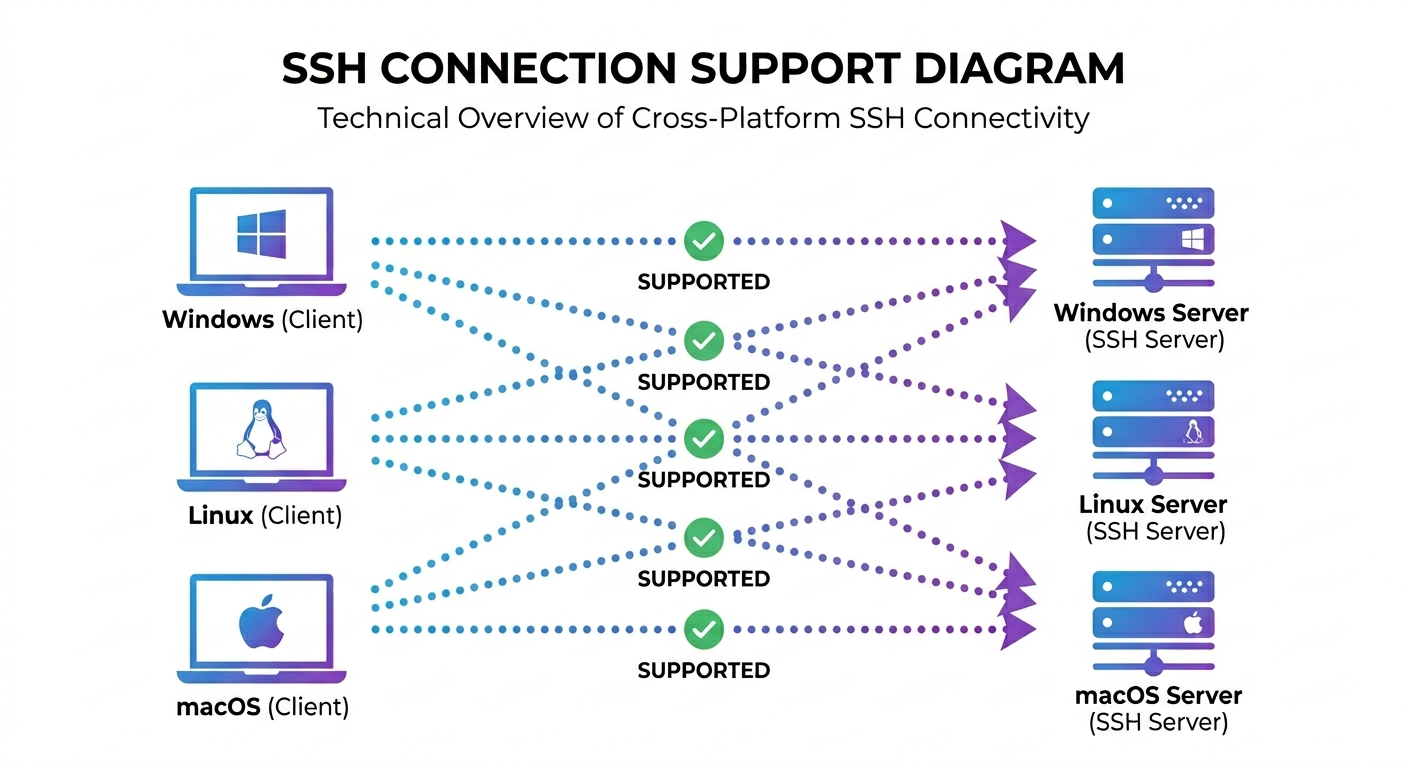
| From (Client) | To (Target) | Status |
|---|---|---|
| Windows | Linux | ✅ Tested |
| Windows | Windows | ✅ Tested |
| Linux | Linux | ✅ Tested |
| Linux | Windows | ✅ Tested |
| macOS | Any | ✅ Supported |
Windows targets require OpenSSH Server installed and running.
Connecting to Alternate Platforms
[!WARNING] This is a work in progress. It's been verified against several real devices below, but routers/NAS/embedded systems vary enormously - expect to hit devices that don't work yet, and please open an issue if you do.
Beyond Linux, macOS, and Windows, cygnus-ssh-mcp connects to any SSH target
that responds to a basic shell command - routers, NAS boxes, BSD-kernel
appliances, and other embedded Linux devices. These report os_type: "flex".
On connect, a one-time capability probe checks the specific shell/coreutils
features this project's tools depend on (GNU find -printf, stat -c, du -sb, tar --strip-components, ps -o pgid=, xargs -0, and more) - many
embedded/BusyBox-based devices only support a smaller flag set than full GNU
coreutils. The results come back from ssh_conn_connect as capabilities
and, for anything missing, capability_warnings. A tool that needs a missing
capability fails with a clear error naming exactly what's unavailable and,
where one exists, a concrete fallback - nothing silently degrades.
Verified against:
| Device | Result |
|---|---|
| Alpine Linux (BusyBox) | Connects as linux; no bash/GNU find/ps -o pgid= - gated tools fail with clear fallback messages, everything else works |
| OpenWrt | Connects as linux; root-only, most GNU extensions absent |
| FreeBSD | Connects as flex; no bash by default, sudo/task tooling adapted to use sh |
| Synology DSM (NAS) | Connects as linux; full GNU coreutils and working sudo - behaves like a normal Linux server |
Known limitation: some devices reject SSH shell access entirely for an
account, even one with admin-level permissions - this shows up as every
command (even a bare echo) failing immediately after a successful login. No
capability probe can fix that; ssh_conn_connect explains the situation
in that failure rather than a generic error.
Full details, capability list, and current gaps: docs/26-alternate-platforms.md.
Features
Host Configuration
Stop typing credentials. Connect by alias.
["[email protected]"]
password = "secret"
port = 22
alias = "web"
Then just: "Connect to WEB"
Supports password, SSH key, and encrypted keys with passphrase.
Update a field on an existing host without losing the rest (ssh_host_update), or
switch every host tool to an alternate config file for the session
(ssh_host_use_config) - handy for keeping separate host lists per project or
environment.
Line-Level File Editing
Edit config files with surgical precision—no download/upload needed.
# Replace a single line
ssh_file_replace_line(
    file_path="/etc/nginx/nginx.conf",
    match_line="worker_connections 1024;",
    new_line="worker_connections 4096;"
)

# Insert lines after a match
ssh_file_insert_lines_after_match(
    file_path="/etc/hosts",
    match_line="# Custom entries",
    lines_to_insert=["192.168.1.10 app.local", "192.168.1.11 db.local"]
)
Safety built-in: Operations fail if the match isn't unique—no accidental mass edits.
Background Task Management
Launch long-running processes and check back later.
# Start a backup (returns immediately)
ssh_task_launch(command="./backup.sh", stdout_log="/var/log/backup.log")

# Check status anytime
ssh_task_status(pid=12345)  # → 'running' or 'exited'

# Kill if needed
ssh_task_kill(pid=12345, force=True)
Comprehensive Sudo Support
Every tool supports use_sudo. Password is handled automatically.
ssh_file_write(file_path="/etc/app/config.yaml", content="...", use_sudo=True)
ssh_dir_mkdir(path="/opt/myapp", use_sudo=True)
ssh_archive_extract(archive_path="/backup.tar.gz", destination_path="/", use_sudo=True)
Three-Way Timeout System
Never get stuck on a hanging command - and never lose track of a long one either.
ssh_cmd_run(
    command="./long_script.sh",
    io_timeout=60.0,        # Check back in if silent for 60s (does NOT kill it)
    wait_timeout=20.0,      # Or check back in every 20s regardless of activity
    runtime_timeout=3600.0  # Hard safety cap - the only one that actually kills it
)
io_timeout and wait_timeout never kill the remote command - they hand off to
background monitoring so you can check back later (ssh_cmd_check_status), read
output collected so far (ssh_cmd_output), or decide to end it early
(ssh_cmd_kill). Only runtime_timeout ever terminates anything.
Full Unicode Support
Write and read files with emojis, international text, and special characters—on all platforms.
✅ ❌ 🎉 • → ≥ ∞ │ ┌ ─ 你好 مرحبا Привет café naïve
How it works: ssh_file_read and ssh_file_write use SFTP for direct binary transfer, completely bypassing shell encoding issues. This means Unicode works perfectly even on Windows targets where PowerShell's console encoding would normally corrupt special characters.
Windows Server Support
Full support for Windows targets with OpenSSH Server:
- PowerShell & CMD command execution
- Windows path handling (backslashes, drive letters, UNC paths)
- Administrator detection — shows if session has elevated privileges
- SFTP-based file operations — Unicode-safe, no encoding issues
Note: use_sudo is ignored on Windows (no sudo equivalent). For elevated operations, connect with an Administrator account.
And Much More...
- Command history with output retention and pattern filtering
- Recursive directory operations: search, copy, delete with dry-run
- Archive operations: create and extract tar.gz
- System info: OS version, memory, disk, CPU, uptime
- Pattern search: regex and plain text in files
- Alternate host config files: switch host lists per project/environment without restarting
All 46 Tools
Connection & Host Management (12 tools)
| Tool | Description |
|---|---|
ssh_conn_connect |
Connect using pre-configured host (by key or alias) |
ssh_conn_is_connected |
Check if SSH connection is active |
ssh_conn_status |
Get connection status (user, host, OS, cwd) |
ssh_conn_host_info |
Get detailed system information |
ssh_conn_verify_sudo |
Verify sudo access |
ssh_conn_add_host |
Add new host to configuration |
ssh_host_list |
List all configured hosts |
ssh_host_update |
Update fields on an existing host (rotate password, change port, etc.) in place |
ssh_host_remove |
Remove host from configuration |
ssh_host_use_config |
Switch to an alternate host config file for the session |
ssh_host_disconnect |
Disconnect current session |
list_tools |
List all available tools |
Command Execution (6 tools)
| Tool | Description |
|---|---|
ssh_cmd_run |
Execute command with I/O, wait, and runtime timeouts |
ssh_cmd_kill |
Terminate running command |
ssh_cmd_check_status |
Check command status |
ssh_cmd_output |
Retrieve output from command |
ssh_cmd_history |
Get command history with filtering |
ssh_cmd_clear_history |
Clear command history |
Background Tasks (3 tools)
| Tool | Description |
|---|---|
ssh_task_launch |
Launch command in background |
ssh_task_status |
Check if task is running |
ssh_task_kill |
Send signal to task |
File Operations (12 tools)
| Tool | Description |
|---|---|
ssh_file_stat |
Get file metadata |
ssh_file_read |
Read file contents via SFTP (Unicode-safe) |
ssh_file_write |
Create/overwrite/append file |
ssh_file_copy |
Copy file |
ssh_file_move |
Move or rename file |
ssh_file_transfer |
Upload or download files |
ssh_file_find_lines_with_pattern |
Search for pattern in file |
ssh_file_get_context_around_line |
Get context around match |
ssh_file_replace_line |
Replace single line |
ssh_file_replace_line_multi |
Replace with multiple lines |
ssh_file_insert_lines_after_match |
Insert lines after match |
ssh_file_delete_line_by_content |
Delete line by content |
Directory Operations (11 tools)
| Tool | Description |
|---|---|
ssh_dir_mkdir |
Create directory |
ssh_dir_remove |
Remove directory |
ssh_dir_list_files_basic |
Basic directory listing |
ssh_dir_list_advanced |
Recursive listing with metadata |
ssh_dir_search_glob |
Search files by pattern |
ssh_dir_search_files_content |
Search text in files |
ssh_dir_calc_size |
Calculate directory size |
ssh_dir_delete |
Delete with dry-run support |
ssh_dir_batch_delete_files |
Batch delete by pattern |
ssh_dir_copy |
Copy directory recursively |
ssh_dir_transfer |
Upload or download whole directories (archive-based) |
Archive Operations (2 tools)
| Tool | Description |
|---|---|
ssh_archive_create |
Create tar.gz archive |
ssh_archive_extract |
Extract archive |
Documentation
Full docs site: cygnussystems.github.io/cygnus-ssh-mcp — searchable, with navigation. Or browse the raw files directly in docs/:
- Overview
- Installation
- Platform Compatibility
- Windows Support
- Alternate Platforms (flex)
- Host Configuration
- Tools Reference
- Command Execution
- Process Management
- Logging
- Claude Desktop Setup
Use Cases
- DevOps Automation — Deploy, configure, and manage servers via AI
- Log Analysis — Search and analyze logs across multiple servers
- Configuration Management — Edit configs with precision line operations
- Backup & Recovery — Create archives, transfer files, restore backups
- System Monitoring — Check status, verify services, monitor processes
- Security Auditing — Search for sensitive patterns, verify configurations
License
GPL-3.0 — Free and open source.
Built by Cygnus Systems
Star this repo if you find it useful!
Установить Cygnus Ssh в Claude Desktop, Claude Code, Cursor
unyly install cygnus-ssh-mcpСтавит в Claude Desktop, Claude Code, Cursor и VS Code — сам разбирается с npx, uvx и сборкой из исходников.
Впервые? Поставь CLI: curl -fsSL https://unyly.org/install | sh
Или настроить вручную
Выполни в терминале:
claude mcp add cygnus-ssh-mcp -- uvx cygnus-ssh-mcpFAQ
Cygnus Ssh MCP бесплатный?
Да, Cygnus Ssh MCP бесплатный — установка в пару кликов через Unyly без оплаты.
Нужен ли API-ключ для Cygnus Ssh?
Нет, Cygnus Ssh работает без API-ключей и переменных окружения.
Cygnus Ssh — hosted или self-hosted?
Self-hosted: сервер запускается локально на твоей машине командой из раздела установки.
Как установить Cygnus Ssh в Claude Desktop, Claude Code или Cursor?
Открой Cygnus Ssh на unyly.org, выбери вкладку своего клиента (Claude Desktop, Claude Code, Cursor) и нажми Install — конфиг сгенерируется автоматически, без правки JSON.
Похожие MCP
Fetch
Web content fetching and conversion for efficient LLM usage.
AWS KB Retrieval
Retrieval from AWS Knowledge Base using Bedrock Agent Runtime.
 автор: modelcontextprotocol
Spring AI MCP Server
Provides auto-configuration for setting up an MCP server in Spring Boot applications.
llm-analysis-assistant
A very streamlined mcp client that supports calling and monitoring stdio/sse/streamableHttp, and can also view request responses through the /logs page. It also
 автор: xuzexin-hz
Compare Cygnus Ssh with
Не уверен что выбрать?
Найди свой стек за 60 секунд
Автор?
Embed-бейдж для README
Похожее
Все в категории ai