
Infographic
БесплатноНе проверенRenders infographics from DSL syntax into PNG images using AntV Infographic. Supports various templates, image customization, and multiple transport modes (stdi

Описание
Renders infographics from DSL syntax into PNG images using AntV Infographic. Supports various templates, image customization, and multiple transport modes (stdio, HTTP, SSE).
README
MCP server for rendering infographics using @antv/infographic.
Usage Preview
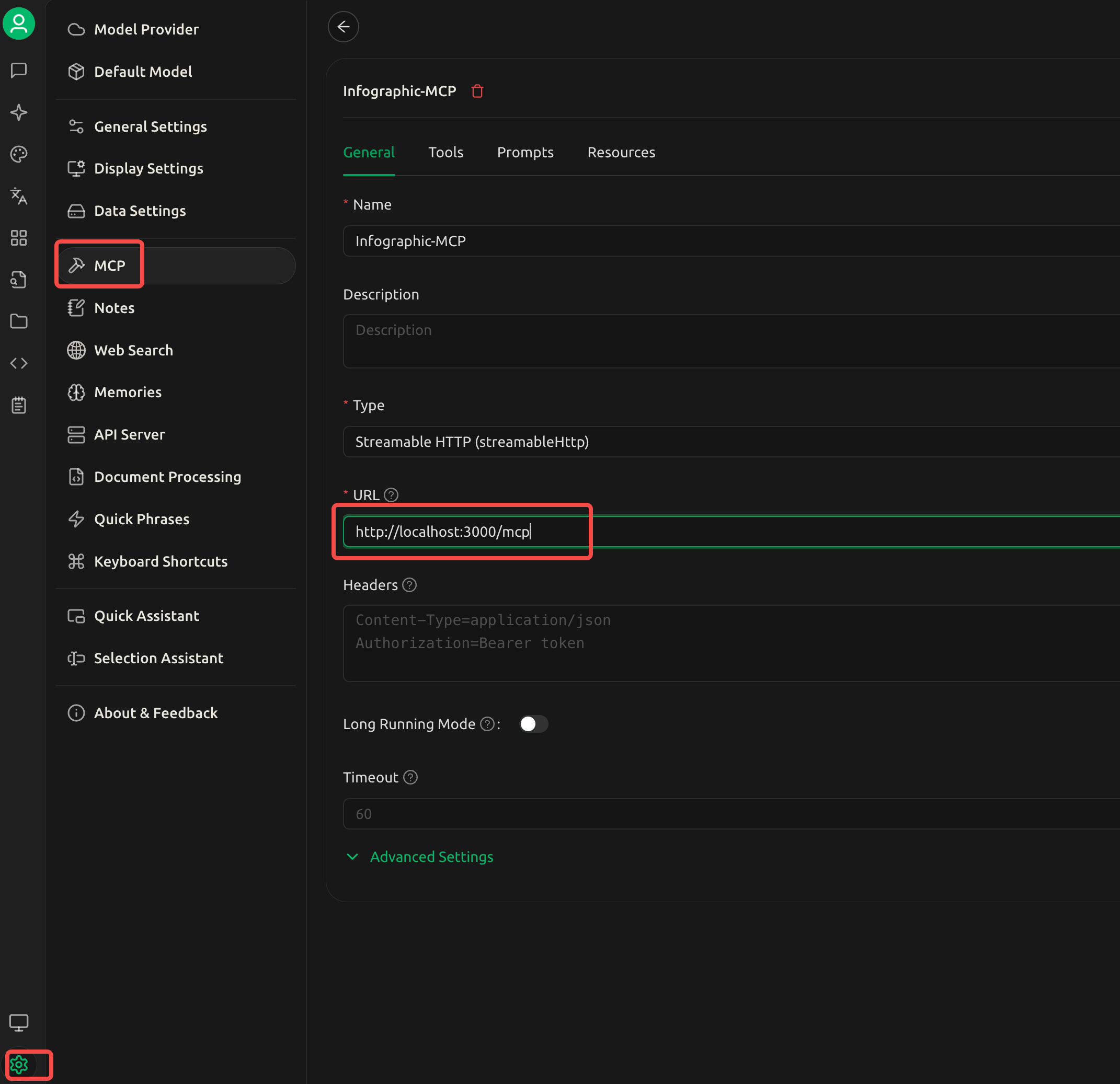
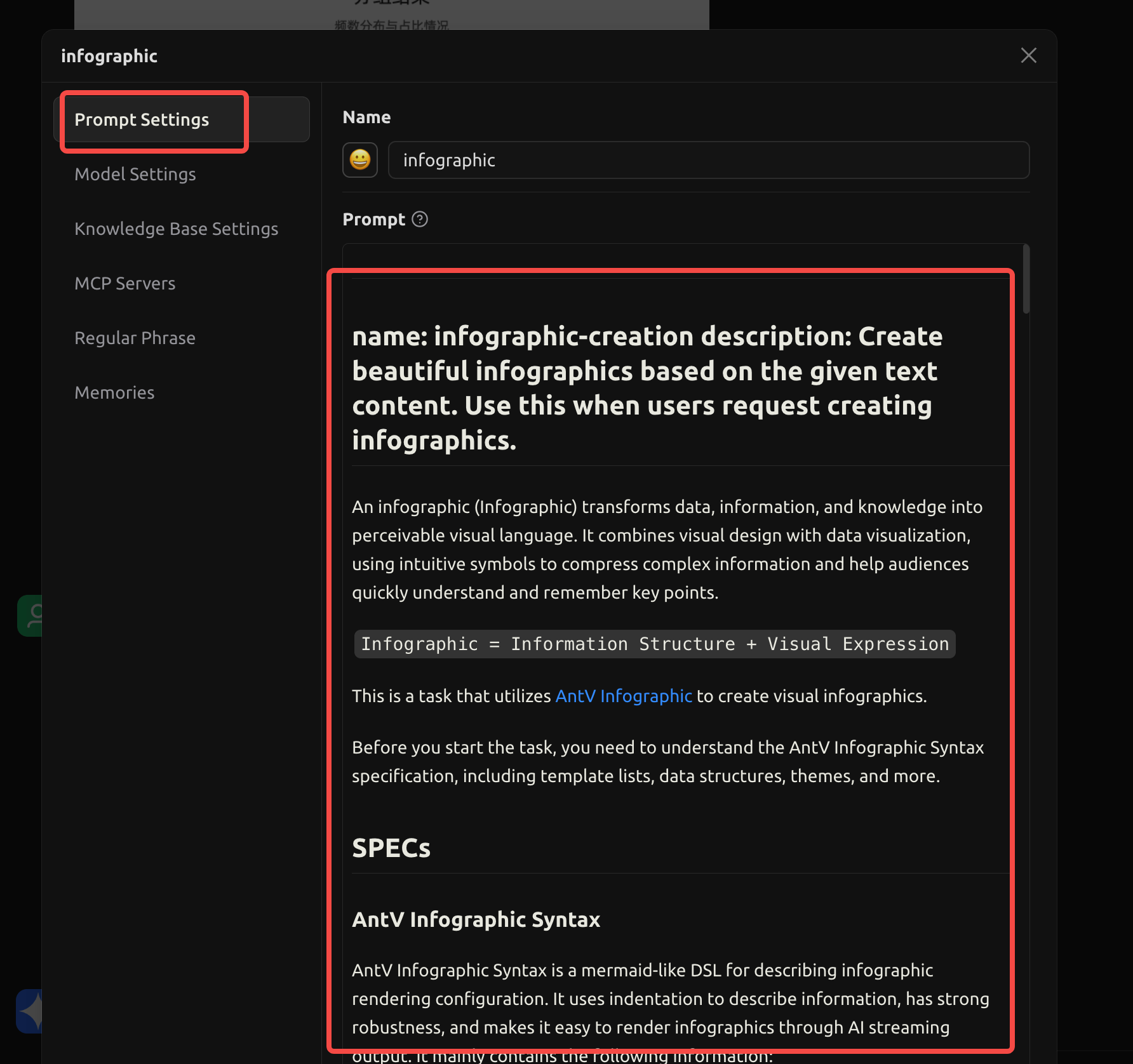
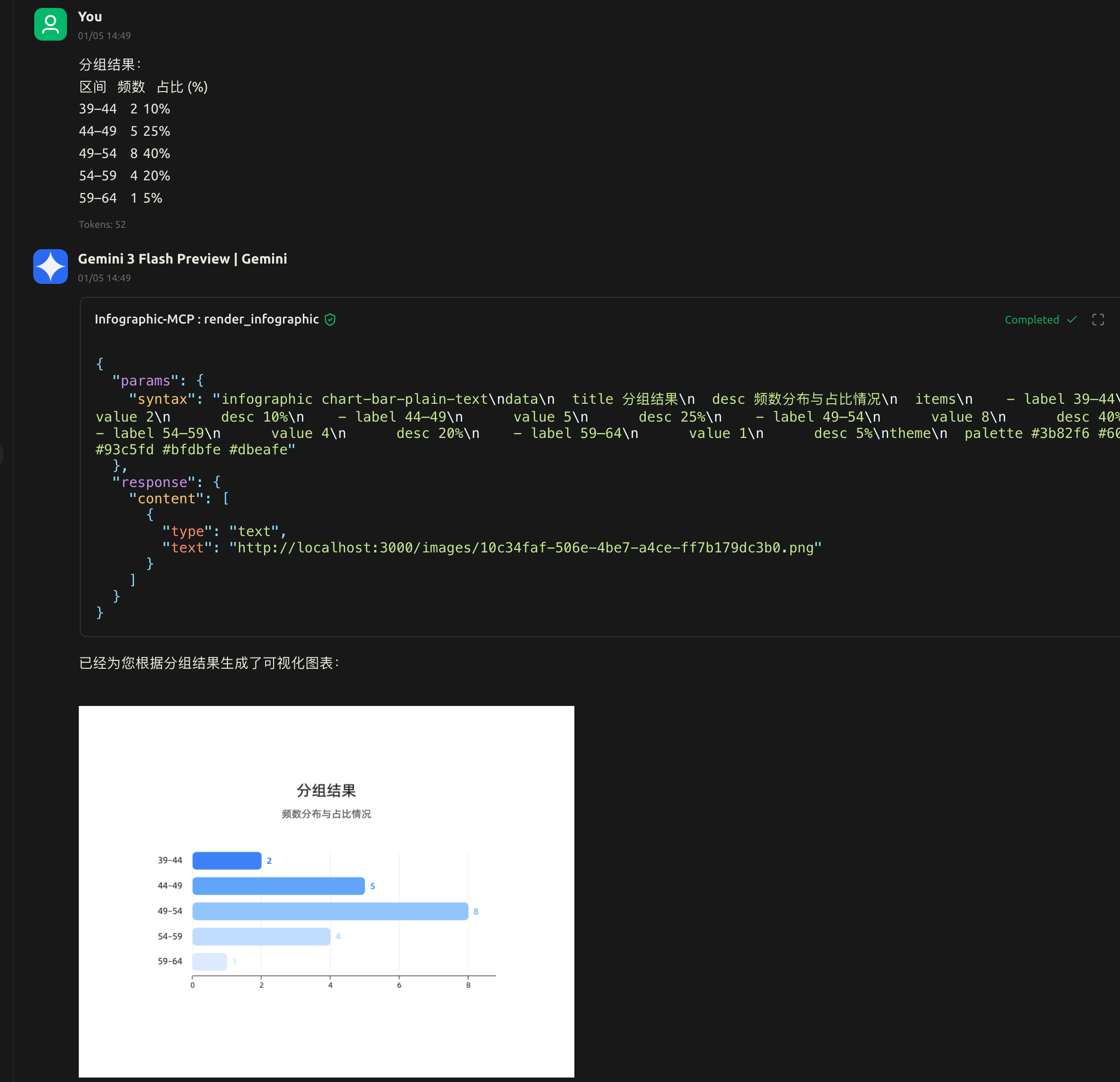
Installation
npm install
npm run build
Quick Start
Stdio Mode (Default)
# Run directly
node dist/index.js

# Or with npx
npx .
HTTP Mode
node dist/index.js --http --port 3000
SSE Mode
node dist/index.js --sse --port 3000
Command Line Options
| Option | Description | Default |
|---|---|---|
--http |
Use Streamable HTTP transport | - |
--sse |
Use SSE transport | - |
--port <number> |
Server port (for HTTP/SSE) | 3000 |
--url=<url> |
Return image URL instead of base64 | - |
--output=<dir> |
Image output directory | ./images |
--token=<token> |
API token for authentication | - |
URL Mode Example
# Images saved to ./images/, return URL like http://localhost:3000/images/uuid.png
node dist/index.js --http --port 3000 --url=http://localhost:3000/images

# Custom output directory
node dist/index.js --http --port 3000 --url=http://example.com/img --output=./public/img
Authentication
# Enable token authentication
node dist/index.js --http --port 3000 --token=my-secret-token
Request with token:
# Via Authorization header (recommended)
curl -X POST http://localhost:3000/mcp \
  -H "Authorization: Bearer my-secret-token" \
  -H "Content-Type: application/json" \
  -d '{"jsonrpc":"2.0",...}'

# Via query parameter
curl "http://localhost:3000/sse?token=my-secret-token"
Note: Static image files (
/images/*) are served without authentication.
MCP Configuration
Cursor / Claude Desktop
{
  "mcpServers": {
    "infographic": {
      "command": "node",
      "args": ["/path/to/infographic-mcp/dist/index.js"]
    }
  }
}
With URL Mode
{
  "mcpServers": {
    "infographic": {
      "command": "node",
      "args": [
        "/path/to/infographic-mcp/dist/index.js",
        "--http",
        "--port", "3000",
        "--url=http://localhost:3000/images"
      ]
    }
  }
}
Using npx (after npm publish)
{
  "mcpServers": {
    "infographic": {
      "command": "npx",
      "args": ["infographic-mcp"]
    }
  }
}
Tool: render_infographic
Renders an infographic from DSL syntax and returns a PNG image.
Parameters
| Parameter | Type | Required | Default | Description |
|---|---|---|---|---|
syntax |
string | Yes | - | Infographic DSL syntax string |
width |
number | No | 800 | Image width in pixels |
height |
number | No | 600 | Image height in pixels |
background |
string | No | "white" |
Background color ("white", "#f5f5f5", "transparent") |
Returns
- Default: PNG image as base64 (
type: "image") - With
--url: Image URL as text (type: "text")
DSL Syntax
The DSL uses space-separated key-value format (NOT YAML colon format):
infographic <template-name>
data
  title My Title
  desc My Description
  items
    - label Item 1
      desc Description 1
      value 100
      icon mdi/icon-name
    - label Item 2
      desc Description 2
theme
  palette #3b82f6 #8b5cf6 #f97316
Example
infographic list-row-horizontal-icon-arrow
data
  title Product Launch Steps
  items
    - label Step 1
      desc Planning phase
      icon mdi/rocket-launch
    - label Step 2
      desc Development phase
      icon mdi/code-tags
    - label Step 3
      desc Launch phase
      icon mdi/flag-checkered
Available Templates
list-row-horizontal-icon-arrowsequence-zigzag-steps-underline-textsequence-horizontal-zigzag-underline-textsequence-circular-simplecompare-binary-horizontal-simple-foldquadrant-quarter-simple-cardlist-grid-badge-cardchart-column-simplechart-bar-plain-textchart-pie-plain-textchart-pie-donut-plain-texthierarchy-tree-curved-line-rounded-rect-node- And ~200 more templates
See AntV Infographic Gallery for all templates.
Docker
Docker Compose
docker-compose up -d
Build
docker build -t infographic-mcp .
Run
# Stdio mode
docker run -i --rm infographic-mcp

# HTTP mode
docker run -p 3000:3000 --rm infographic-mcp --http --port 3000

# HTTP mode with URL
docker run -p 3000:3000 --rm infographic-mcp --http --port 3000 --url=http://localhost:3000/images
MCP Config (Docker)
{
  "mcpServers": {
    "infographic": {
      "command": "docker",
      "args": ["run", "-i", "--rm", "infographic-mcp"]
    }
  }
}
Development
# Development mode (stdio)
npm run dev

# Development mode (HTTP)
npm run dev:http

# Development mode (SSE)
npm run dev:sse

# Run tests
npm test

# Build
npm run build
License
MIT
Установка Infographic
У этого сервера нет опубликованного пакета — он собирается из исходников. Открой репозиторий и следуй инструкции в README.
▸ github.com/byebyebruce/inforgraphic-mcpFAQ
Infographic MCP бесплатный?
Да, Infographic MCP бесплатный — установка в пару кликов через Unyly без оплаты.
Нужен ли API-ключ для Infographic?
Нет, Infographic работает без API-ключей и переменных окружения.
Infographic — hosted или self-hosted?
Self-hosted: сервер запускается локально на твоей машине командой из раздела установки.
Как установить Infographic в Claude Desktop, Claude Code или Cursor?
Открой Infographic на unyly.org, выбери вкладку своего клиента (Claude Desktop, Claude Code, Cursor) и нажми Install — конфиг сгенерируется автоматически, без правки JSON.
Похожие MCP
Omni Video
An MCP server that transforms LLM-enabled IDEs into professional video editors by pre-processing footage into text proxies, generating motion graphics via HTML/
 автор: buildwithtaza
ARA
Generate images, video and audio from any AI agent — one connector.
 автор: ARA
YouTube
Transcripts, channel stats, search
 автор: YouTube
EverArt
AI image generation using various models.
 автор: modelcontextprotocol
Compare Infographic with
Не уверен что выбрать?
Найди свой стек за 60 секунд
Автор?
Embed-бейдж для README
Похожее
Все в категории media