
Popup Ui
БесплатноНе проверенEnables AI assistants to present interactive choices to users via browser popups, supporting single and multiple selections with optional custom input.

Описание
Enables AI assistants to present interactive choices to users via browser popups, supporting single and multiple selections with optional custom input.
README
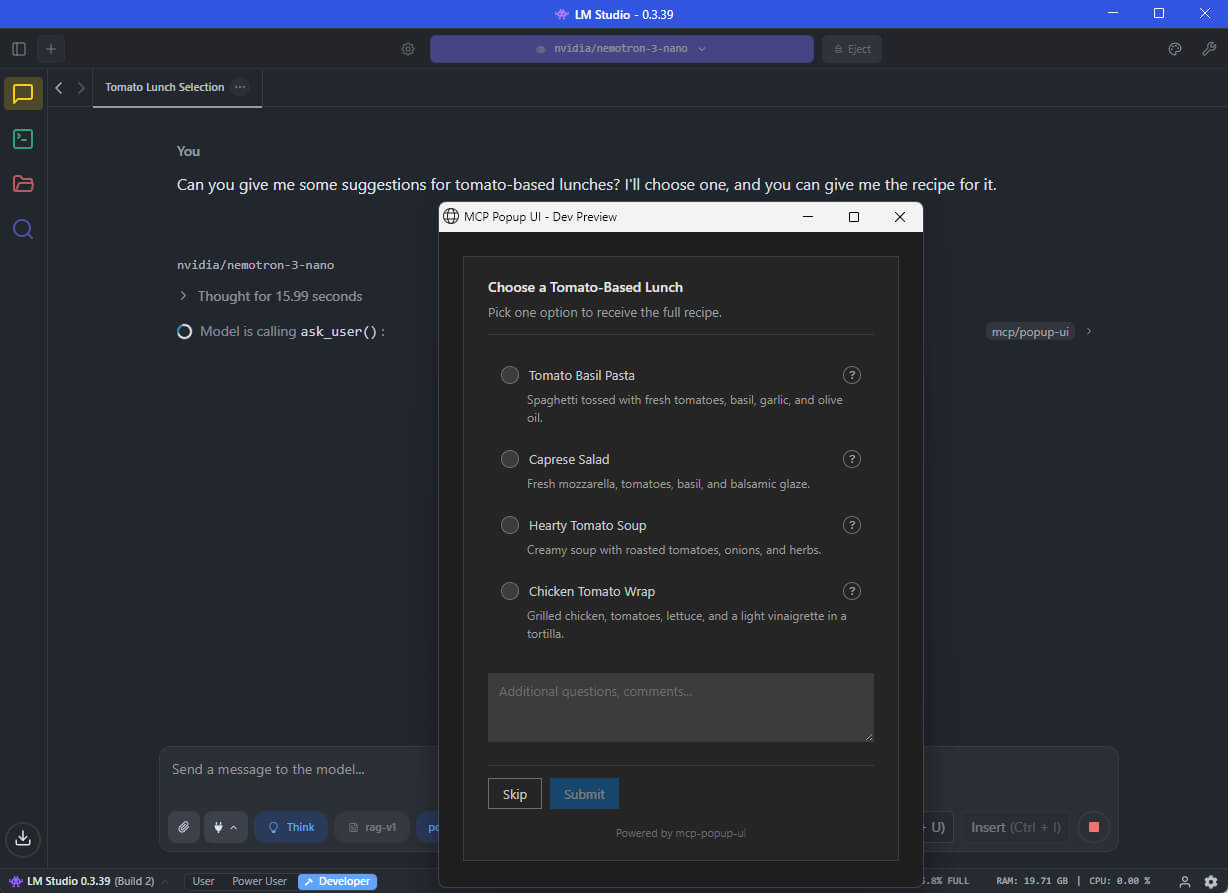
An MCP (Model Context Protocol) server that lets AI assistants ask you questions through a visual popup in your browser - instead of just printing text options.
📢 A Note on the Future
This project started as an experimental solution to a gap in the MCP ecosystem: letting AI assistants collect user input through a visual interface rather than plain text. It works today with any MCP-compatible client.
The MCP specification now includes MCP Apps - an official extension that embeds interactive UIs directly in the chat conversation. This provides a better user experience (no browser popup, no context switching) and will eventually be the recommended approach.
For now, mcp-popup-ui remains useful because MCP Apps support is still limited to a few clients (Claude, VS Code Insiders, Goose, Postman, MCPJam). Once MCP Apps becomes widely available, consider migrating to an MCP Apps-based solution for the best experience.
What This Does
When you chat with an AI assistant (like GitHub Copilot, Claude, or a local LLM), the AI sometimes needs your input - for example, "Which framework do you want?" or "Select the features to include."
Without this tool, the AI would print a numbered list and ask you to type your choice. With mcp-popup-ui, a clean popup opens in your browser where you can click your selection directly.
Two tools are provided:
| Tool | Purpose | UI Element |
|---|---|---|
ask_user |
Pick exactly one option | Radio buttons |
ask_user_multiple |
Pick one or more options | Checkboxes |
Installation
Install globally via npm:
npm install -g mcp-popup-ui
Or run directly without installing:
npx y- mcp-popup-ui
Requirements: Node.js 18 or higher.
Setup
Choose the setup guide for your AI application:
VS Code (GitHub Copilot)
Open your project folder in VS Code
Create or edit the file
.vscode/mcp.json:{ "servers": { "popup-ui": { "command": "npx", "args": ["mcp-popup-ui"] } } }Restart VS Code or reload the window
LM Studio
Open LM Studio settings
Navigate to the MCP Servers section
Add a new server with these settings:
{
  "mcp-popup-ui": {
    "command": "npx",
    "args": ["mcp-popup-ui"]
  }
}
Enable the server and start a new chat
Ollama (via Open WebUI or similar)
Ollama itself does not natively support MCP. However, you can use it with frontends that support MCP, such as Open WebUI with MCP plugins. The configuration depends on your specific frontend - consult its documentation for adding MCP servers.
Claude Desktop
Add to your Claude Desktop configuration file:
- Windows:
%APPDATA%\Claude\claude_desktop_config.json - macOS:
~/Library/Application Support/Claude/claude_desktop_config.json
{
  "mcpServers": {
    "popup-ui": {
      "command": "npx",
      "args": ["mcp-popup-ui"]
    }
  }
}
Restart Claude Desktop after saving.
Copilot Instructions (Optional)
To ensure the AI uses the popup tools automatically instead of listing options in text, add this to your project's .github/copilot-instructions.md:
## User Input Collection

Use MCP tools for user choices:

- `ask_user` - single selection (radio buttons)
- `ask_user_multiple` - multiple selection (checkboxes)

Use these tools when presenting options like framework choices, implementation approaches, or any list of alternatives.
Tool Reference
ask_user
Displays a popup with radio buttons. The user picks exactly one option.
Parameters:
| Parameter | Required | Description |
|---|---|---|
options |
Yes | Array of options (minimum 2). Each option has a label (required), optional description, and optional recommended flag. |
title |
No | Heading displayed above the options |
description |
No | Additional text displayed below the title |
allow_other |
No | If true, adds a text field for custom input |
other_label |
No | Label for the custom input option (default: "Other") |
Example call:
{
  "options": [
    { "label": "React", "description": "Component-based UI library" },
    { "label": "Vue", "description": "Progressive JavaScript framework" },
    { "label": "Svelte", "description": "Compile-time framework", "recommended": true }
  ],
  "title": "Choose a Frontend Framework",
  "description": "Select one framework for your project."
}
Response:
{
  "action": "submit",
  "selection": "Svelte"
}
If the user clicks Skip:
{
  "action": "skip"
}
ask_user_multiple
Displays a popup with checkboxes. The user picks one or more options.
Parameters:
| Parameter | Required | Description |
|---|---|---|
options |
Yes | Array of options (minimum 2). Each option has a label (required), optional description, and optional recommended flag. |
title |
No | Heading displayed above the options |
description |
No | Additional text displayed below the title |
allow_other |
No | If true, adds a text field for custom input |
other_label |
No | Label for the custom input option (default: "Other") |
Example call:
{
  "options": [
    { "label": "TypeScript", "recommended": true },
    { "label": "ESLint" },
    { "label": "Prettier" },
    { "label": "Jest" }
  ],
  "title": "Select Project Features",
  "description": "Choose all features to include."
}
Response:
{
  "action": "submit",
  "selections": ["TypeScript", "ESLint", "Prettier"]
}
Additional Features
- Skip button: Users can skip any question without selecting an option
- Comments field: Users can add additional notes with their selection
- Explanation request: Users can ask for more details about an option before deciding
- Markdown support: Option descriptions support Markdown formatting
Documentation
- Tool Design Best Practices - Research on LLM tool design patterns
Contributing
See CONTRIBUTING.md for development setup and guidelines.
License
MIT
Установка Popup Ui
У этого сервера нет опубликованного пакета — он собирается из исходников. Открой репозиторий и следуй инструкции в README.
▸ github.com/jens-duttke/mcp-popup-uiFAQ
Popup Ui MCP бесплатный?
Да, Popup Ui MCP бесплатный — установка в пару кликов через Unyly без оплаты.
Нужен ли API-ключ для Popup Ui?
Нет, Popup Ui работает без API-ключей и переменных окружения.
Popup Ui — hosted или self-hosted?
Self-hosted: сервер запускается локально на твоей машине командой из раздела установки.
Как установить Popup Ui в Claude Desktop, Claude Code или Cursor?
Открой Popup Ui на unyly.org, выбери вкладку своего клиента (Claude Desktop, Claude Code, Cursor) и нажми Install — конфиг сгенерируется автоматически, без правки JSON.
Похожие MCP
LibreOffice Tools
Enables AI agents to read, write, and edit Office documents via LibreOffice with token-efficient design. Supports multiple formats including DOCX, XLSX, PPTX, a
 автор: passerbyflutter
dannote/figma-use
Full Figma control: create shapes, text, components, set styles, auto-layout, variables, export. 80+ tools.
 автор: dannote
Logo.dev
Search and retrieve company logos by brand or domain. Customize size, format, and theme to match your design needs. Accelerate design, prototyping, and content
 автор: NOVA-3951
PIX4Dmatic
Enables GUI automation for controlling PIX4Dmatic on Windows through MCP. Supports launching, focusing, capturing screenshots, sending hotkeys, clicking UI elem
 автор: jangjo123
Compare Popup Ui with
Не уверен что выбрать?
Найди свой стек за 60 секунд
Автор?
Embed-бейдж для README
Похожее
Все в категории design