
SJTU
БесплатноНе проверенWraps the SJTU Zhiyuan No.1 API as a local MCP server, allowing direct use of SJTU models in Claude Code and Codex without custom integration scripts.

Описание
Wraps the SJTU Zhiyuan No.1 API as a local MCP server, allowing direct use of SJTU models in Claude Code and Codex without custom integration scripts.
README
English | 中文





Turn your SJTU Zhiyuan No.1 API key into something you can actually use in Claude Code and Codex.
SJTU MCP wraps the SJTU-hosted model API as a local MCP server, so you can call these models directly from your normal agent workflow instead of hand-writing integration scripts over and over again.
Why This Exists
Have you already applied for an SJTU Zhiyuan No.1 API key, but still found it hard to actually use in practice?
This project exists to solve exactly that problem:
- you already have API access
- you want to use it from
Claude CodeorCodex - but the SJTU endpoint itself does not plug directly into these agent tools out of the box
- you do not want to rewrite the integration layer every time
Highlights
- Supports
Claude Code - Supports
Codex - Supports both text and vision tasks
- Uses the SJTU OpenAI-compatible endpoint
- Fits naturally into existing MCP workflows
Contents
Quick Start
For most users, the simplest path is:
git clonethis repocdinto the project directory- install it once
- add it as a global MCP server in
Claude CodeorCodex
git clone https://github.com/EternalWavee/sjtu-mcp.git
cd sjtu-mcp
pip install -e .
After installation, your MCP client can start the server automatically when needed. In normal use, you do not need to manually run the server command every time.
Environment Variables
Required:
SJTU_API_KEY
Optional:
SJTU_API_BASE_URLSJTU_DEFAULT_TEXT_MODELSJTU_DEFAULT_REASONING_MODELSJTU_DEFAULT_VISION_MODELSJTU_REQUEST_TIMEOUT
How to use them:
- .env.example is only a template showing which variables you need
- in actual use, put these values into the
envblock of your MCP configuration
Claude Code
Recommended: User Scope
Use this if you want sjtu available in all your Claude Code projects on this machine.
claude mcp add sjtu --scope user -- python -m sjtu_mcp.server
Then:
- open
~/.claude.json - find the
sjtuentry - copy the
envsection from examples/claude-project.mcp.json - replace
your-api-keywith your real key
Verify:
claude mcp list
Project Scope
Use this if you want to commit a shared config into the repo for teammates.
How to use it:
- copy examples/claude-project.mcp.json into your project root as
.mcp.json - replace
your-api-keywith your real key - adjust default models and timeout if needed
Windows / macOS example:
{
  "mcpServers": {
    "sjtu": {
      "command": "python",
      "args": ["-m", "sjtu_mcp.server"],
      "env": {
        "SJTU_API_BASE_URL": "https://models.sjtu.edu.cn/api/v1",
        "SJTU_API_KEY": "your-api-key",
        "SJTU_DEFAULT_TEXT_MODEL": "deepseek-chat",
        "SJTU_DEFAULT_REASONING_MODEL": "deepseek-reasoner",
        "SJTU_DEFAULT_VISION_MODEL": "qwen3vl",
        "SJTU_REQUEST_TIMEOUT": "180"
      }
    }
  }
}
Local Scope
Use this if you only want the server for the current project and do not want to commit the config.
claude mcp add sjtu --scope local -- python -m sjtu_mcp.server
Then add the same env values to the corresponding MCP config entry.
Codex
Recommended: Global Setup
Use this if you want sjtu available in all your Codex projects on this machine.
codex mcp add sjtu -- python -m sjtu_mcp.server
Then:
- open your own
~/.codex/config.toml - copy the content from examples/codex-config.toml
- replace
your-api-keywith your real key - save and reload Codex or reload MCP
Verify:
codex mcp list
Config File Setup
If you already manage ~/.codex/config.toml directly, you can use this template:
[mcp_servers.sjtu]
command = "python"
args = ["-m", "sjtu_mcp.server"]

[mcp_servers.sjtu.env]
SJTU_API_BASE_URL = "https://models.sjtu.edu.cn/api/v1"
SJTU_API_KEY = "your-api-key"
SJTU_DEFAULT_TEXT_MODEL = "deepseek-chat"
SJTU_DEFAULT_REASONING_MODEL = "deepseek-reasoner"
SJTU_DEFAULT_VISION_MODEL = "qwen3vl"
SJTU_REQUEST_TIMEOUT = "180"
Tools
sjtu_modelssjtu_textsjtu_visionsjtu_cheap_task
Example
Input
请调用 sjtu_vision 分析图片里面的内容 .assets/test.png

Output
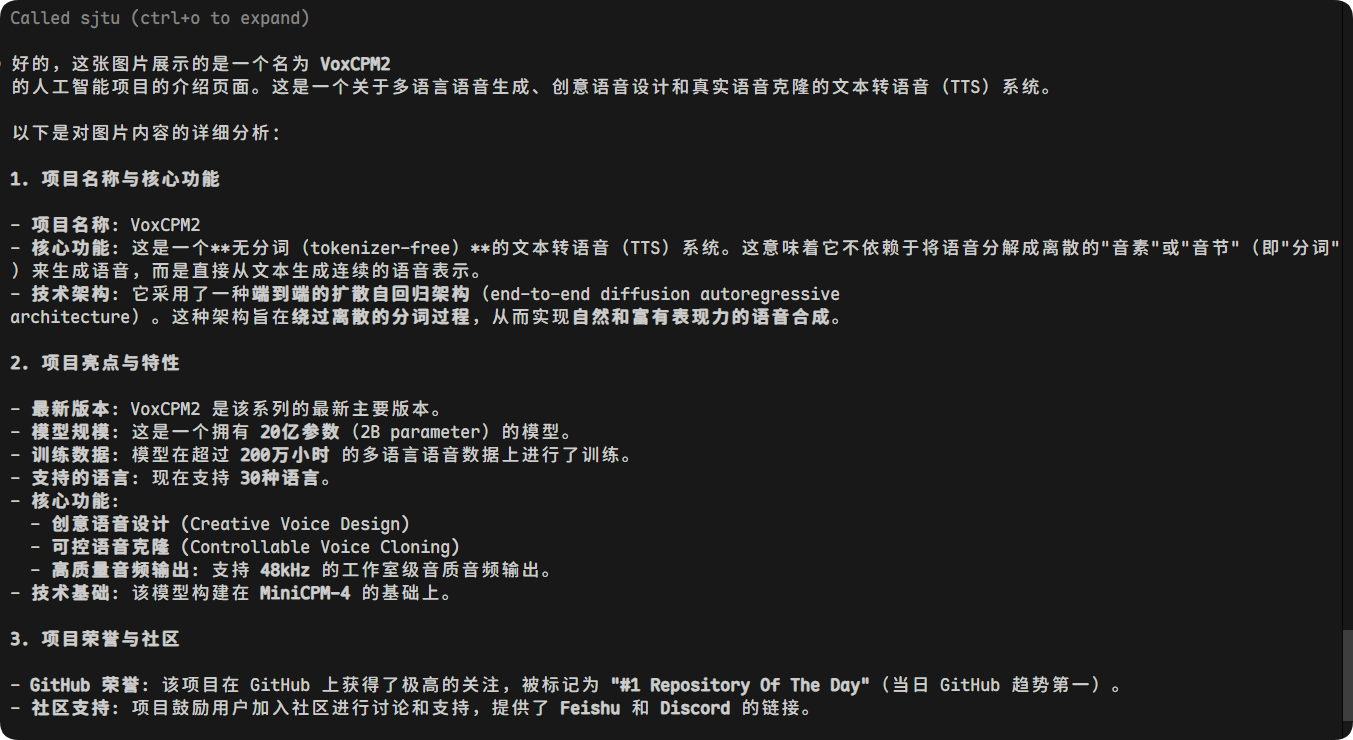
Suggested Model Usage
deepseek-chat- default for summaries, rewrites, cleanup, and low-risk text tasks
minimaxorglm-5- useful for lightweight rewriting, classification, or extraction
deepseek-reasoner- better for tasks that truly need multi-step reasoning
qwen3vl- a strong starting point for screenshots, OCR-style extraction, and image understanding
qwen3coder- useful for code-adjacent utility tasks
Notes
- This server currently assumes the SJTU endpoint supports OpenAI-compatible
/modelsand/chat/completions. - Local images are encoded as data URLs before sending.
- If your campus endpoint has model-specific quirks, extend the routing in src/sjtu_mcp/server.py.
Установить SJTU в Claude Desktop, Claude Code, Cursor
unyly install sjtu-mcpСтавит в Claude Desktop, Claude Code, Cursor и VS Code — сам разбирается с npx, uvx и сборкой из исходников.
Впервые? Поставь CLI: curl -fsSL https://unyly.org/install | sh
Или настроить вручную
Выполни в терминале:
claude mcp add sjtu-mcp -- uvx --from git+https://github.com/EternalWavee/sjtu-mcp sjtu-mcpПошаговые гайды: как установить SJTU
FAQ
SJTU MCP бесплатный?
Да, SJTU MCP бесплатный — установка в пару кликов через Unyly без оплаты.
Нужен ли API-ключ для SJTU?
Нет, SJTU работает без API-ключей и переменных окружения.
SJTU — hosted или self-hosted?
Self-hosted: сервер запускается локально на твоей машине командой из раздела установки.
Как установить SJTU в Claude Desktop, Claude Code или Cursor?
Открой SJTU на unyly.org, выбери вкладку своего клиента (Claude Desktop, Claude Code, Cursor) и нажми Install — конфиг сгенерируется автоматически, без правки JSON.
Похожие MCP
GitHub
PRs, issues, code search, CI status
 автор: GitHub
Filesystem
Secure file operations with configurable access controls.
Memory
Knowledge graph-based persistent memory system.
Template MCP Server
A CLI tool to create a new Model Context Protocol server project with TypeScript support, dual transport options, and an extensible structure
 автор: mcpdotdirect
Compare SJTU with
Не уверен что выбрать?
Найди свой стек за 60 секунд
Автор?
Embed-бейдж для README
Похожее
Все в категории development