

Описание
MCP Server with ArcGIS Pro Add-In
README
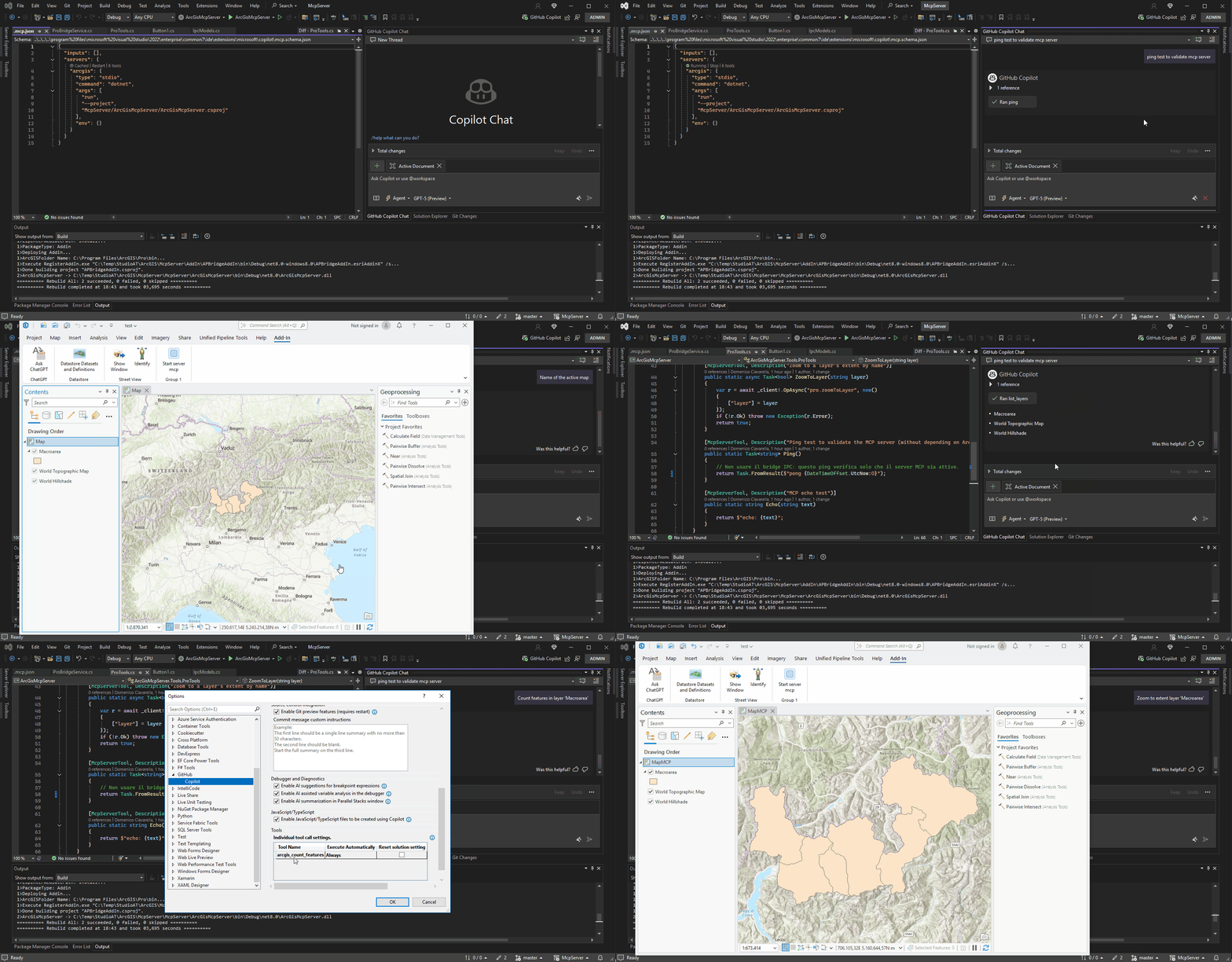
This repository demonstrates how to integrate a Model Context Protocol (MCP) server with an ArcGIS Pro Add-In. The goal is to expose ArcGIS Pro functionality as MCP tools so that GitHub Copilot (in Agent mode) or any MCP client can interact with your GIS environment.
Overview
- ArcGIS Pro Add-In (C# with ArcGIS Pro SDK): runs in-process with ArcGIS Pro and exposes GIS operations through a local IPC channel (Named Pipes).
- MCP Server (.NET 8 console app): defines MCP tools, communicates with the Add-In via Named Pipes, and is configured as an MCP server in Visual Studio through
.mcp.json.
This can allow Copilot (Agent Mode) to query maps, list layers, count features, zoom to layers, and more — directly in ArcGIS Pro.
Prerequisites
- Visual Studio 2022 17.14 or later (for MCP Agent Mode support)
- ArcGIS Pro SDK for .NET
- ArcGIS Pro installed (same machine)
- .NET 8 SDK
Solution Structure
ArcGisProMcpSample/
+- ArcGisProBridgeAddIn/           # ArcGIS Pro Add-In project (in-process)
¦  +- Config.daml
¦  +- Module.cs
¦  +- ProBridgeService.cs          # Named Pipe server + command handler
¦  +- IpcModels.cs                 # IPC request/response DTOs
+- ArcGisMcpServer/                # MCP server project (.NET 8)
¦  +- Program.cs
¦  +- Tools/ProTools.cs            # MCP tool definitions (bridge client)
¦  +- Ipc/BridgeClient.cs          # Named Pipe client
¦  +- Ipc/IpcModels.cs             # Shared IPC DTOs
+- .mcp.json                       # MCP server manifest for VS Copilot
ArcGIS Pro Add-In
The Add-In starts a Named Pipe server on ArcGIS Pro launch. It handles operations like:
pro.getActiveMapNamepro.listLayerspro.countFeaturespro.zoomToLayer
Example: Module.cs (in sample is in a button)
protected override bool Initialize()
{
    _service = new ProBridgeService("ArcGisProBridgePipe");
    _service.Start();
    return true; // initialization successful
}

protected override bool CanUnload()
{
    _service?.Dispose();
    return true;
}
Example: ProBridgeService handler
case "pro.countFeatures":
{
    if (req.Args == null ||
        !req.Args.TryGetValue("layer", out string? layerName) ||
        string.IsNullOrWhiteSpace(layerName))
        return new(false, "arg 'layer' required", null);

    int count = await QueuedTask.Run(() =>
    {
        var fl = MapView.Active?.Map?.Layers
            .OfType<FeatureLayer>()
            .FirstOrDefault(l => l.Name.Equals(layerName, StringComparison.OrdinalIgnoreCase));
        if (fl == null) return 0;
        using var fc = fl.GetFeatureClass();
        return (int)fc.GetCount();
    });

    return new(true, null, new { count });
}
MCP Server (.NET 8)
The MCP server uses the official ModelContextProtocol NuGet package.
Program.cs
await Host.CreateDefaultBuilder(args)
    .ConfigureServices(services =>
    {
        services.AddSingleton(new BridgeClient("ArcGisProBridgePipe"));
        services.AddMcpServer()
            .WithStdioServerTransport()
            .WithToolsFromAssembly(typeof(ProTools).Assembly);
    })
    .RunConsoleAsync();
Example tool
[McpServerToolType]
public static class ProTools
{
    private static BridgeClient _client;
    public static void Configure(BridgeClient client) => _client = client;

    [McpServerTool(Title = "Count features in a layer", Name = "pro.countFeatures")]
    public static async Task<object> CountFeatures(string layer)
    {
        var r = await _client.OpAsync("pro.countFeatures", new() { ["layer"] = layer });
        if (!r.Ok) throw new Exception(r.Error);
        var count = ((System.Text.Json.JsonElement)r.Data).GetProperty("count").GetInt32();
        return new { layer, count };
    }
}
.mcp.json Manifest
Place in solution root (.mcp.json):
{
  "servers": {
    "arcgis": {
      "type": "stdio",
      "command": "dotnet",
      "args": [
        "run",
        "--project",
        "McpServer/ArcGisMcpServer/ArcGisMcpServer.csproj"
      ]
    }
  }
}
Running in Visual Studio
- Open the solution in Visual Studio 2022 (=17.14).
- Ensure ArcGIS Pro is running with the Add-In loaded (so the Named Pipe exists).
- In VS, open Copilot Chat Agent Mode.
- Copilot reads
.mcp.jsonand starts the MCP server. - Type in chat:
pro.listLayers? returns the layers in the active mappro.countFeatures layer=Buildings? returns the feature count
Next Steps
- Extend tools with operations like
pro.selectByAttribute,pro.getCurrentExtent,pro.exportLayer. - Add retry/timeout logic for IPC communication.
- Containerize the MCP server for deployment. ...
Установка ArcGIS Pro AddIn
У этого сервера нет опубликованного пакета — он собирается из исходников. Открой репозиторий и следуй инструкции в README.
▸ github.com/nicogis/MCP-Server-ArcGIS-Pro-AddInFAQ
ArcGIS Pro AddIn MCP бесплатный?
Да, ArcGIS Pro AddIn MCP бесплатный — установка в пару кликов через Unyly без оплаты.
Нужен ли API-ключ для ArcGIS Pro AddIn?
Нет, ArcGIS Pro AddIn работает без API-ключей и переменных окружения.
ArcGIS Pro AddIn — hosted или self-hosted?
Self-hosted: сервер запускается локально на твоей машине командой из раздела установки.
Как установить ArcGIS Pro AddIn в Claude Desktop, Claude Code или Cursor?
Открой ArcGIS Pro AddIn на unyly.org, выбери вкладку своего клиента (Claude Desktop, Claude Code, Cursor) и нажми Install — конфиг сгенерируется автоматически, без правки JSON.
Похожие MCP
Fetch
Web content fetching and conversion for efficient LLM usage.
AWS KB Retrieval
Retrieval from AWS Knowledge Base using Bedrock Agent Runtime.
 автор: modelcontextprotocol
Spring AI MCP Server
Provides auto-configuration for setting up an MCP server in Spring Boot applications.
llm-analysis-assistant
A very streamlined mcp client that supports calling and monitoring stdio/sse/streamableHttp, and can also view request responses through the /logs page. It also
 автор: xuzexin-hz
Compare ArcGIS Pro AddIn with
Не уверен что выбрать?
Найди свой стек за 60 секунд
Автор?
Embed-бейдж для README
Похожее
Все в категории ai