
ariadng/metatrader-mcp-server
БесплатноНе проверенEnable AI LLMs to execute trades using MetaTrader 5 platform

Описание
Enable AI LLMs to execute trades using MetaTrader 5 platform
README
MetaTrader MCP Server
📑 Table of Contents
- What is This?
- Features
- Who Is This For?
- Important Disclaimer
- Prerequisites
- Quick Start
- Trading Assistant Skill
- Usage Examples
- Available Operations
- WebSocket Quote Server
- Advanced Configuration
- Roadmap
- Development
- Contributing
- Documentation
- Getting Help
- License
🌟 What is This?
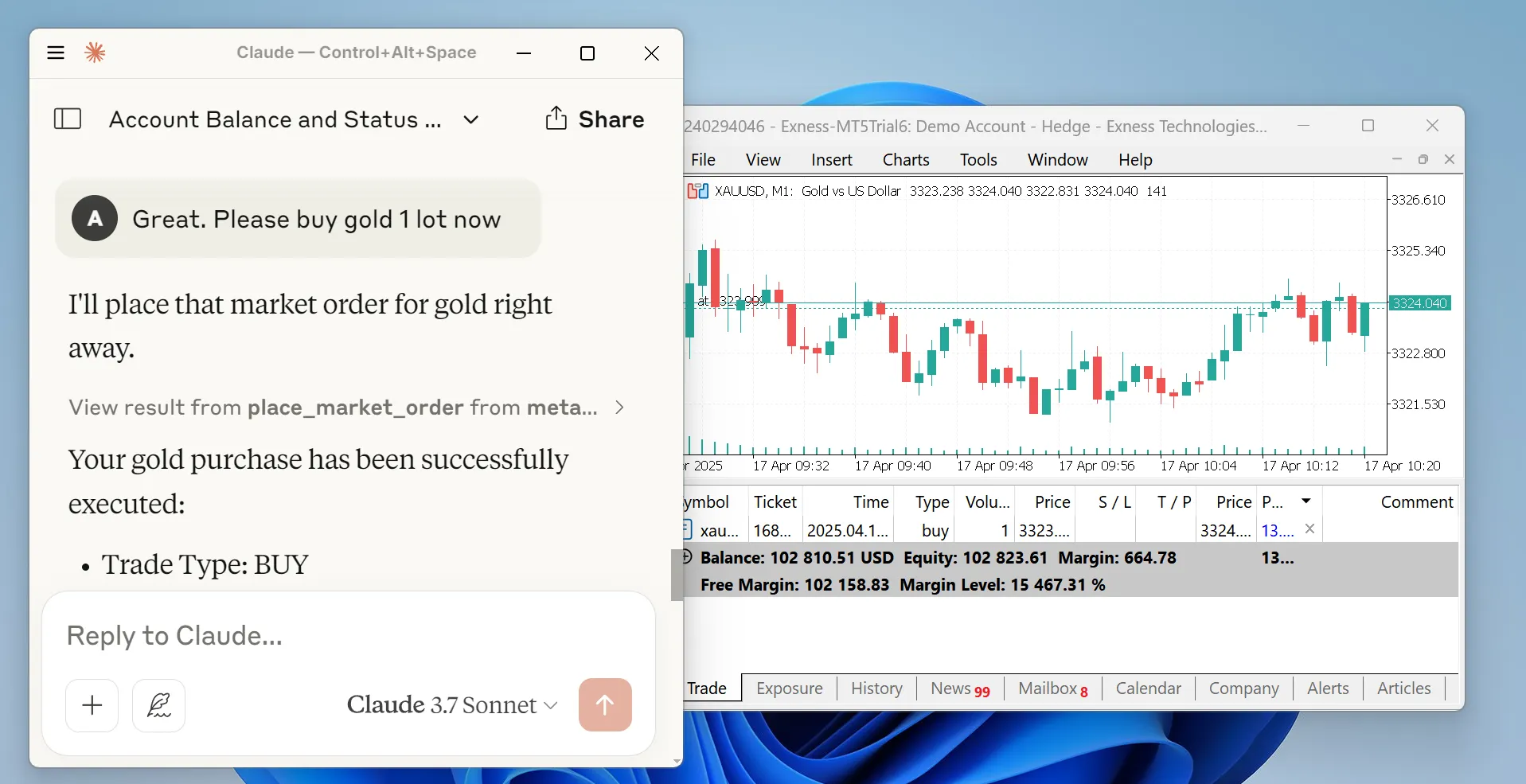
MetaTrader MCP Server is a bridge that connects AI assistants (like Claude, ChatGPT) to the MetaTrader 5 trading platform. Instead of clicking buttons, you can simply tell your AI assistant what to do:
"Show me my account balance" "Buy 0.01 lots of EUR/USD" "Close all profitable positions"
The AI understands your request and executes it on MetaTrader 5 automatically.
How It Works
You → AI Assistant → MCP Server → MetaTrader 5 → Your Trades
✨ Features
- 🗣️ Natural Language Trading - Talk to AI in plain English to execute trades
- 🤖 Multi-AI Support - Works with Claude Desktop, ChatGPT (via Open WebUI), and more
- 📊 Full Market Access - Get real-time prices, historical data, and symbol information
- 💼 Complete Account Control - Check balance, equity, margin, and trading statistics
- ⚡ Order Management - Place, modify, and close orders with simple commands
- 🔒 Secure - All credentials stay on your machine
- 🌐 Flexible Interfaces - Use as MCP server, REST API, or WebSocket stream
- 📖 Well Documented - Comprehensive guides and examples
🎯 Who Is This For?
- Traders who want to automate their trading using AI
- Developers building trading bots or analysis tools
- Analysts who need quick access to market data
- Anyone interested in combining AI with financial markets
⚠️ Important Disclaimer
Please read this carefully:
Trading financial instruments involves significant risk of loss. This software is provided as-is, and the developers accept no liability for any trading losses, gains, or consequences of using this software.
By using this software, you acknowledge that:
- You understand the risks of financial trading
- You are responsible for all trades executed through this system
- You will not hold the developers liable for any outcomes
- You are using this software at your own risk
This is not financial advice. Always trade responsibly.
📋 Prerequisites
Before you begin, make sure you have:
- Python 3.10 or higher - Download here
- MetaTrader 5 terminal - Download here
- MT5 Trading Account - Demo or live account credentials
- Login number
- Password
- Server name (e.g., "MetaQuotes-Demo")
🚀 Quick Start
Step 1: Install the Package
Open your terminal or command prompt and run:
pip install metatrader-mcp-server
Step 2: Enable Algorithmic Trading
- Open MetaTrader 5
- Go to
Tools→Options - Click the
Expert Advisorstab - Check the box for
Allow algorithmic trading - Click
OK
Step 3: Choose Your Interface
Pick one based on how you want to use it:
Option A: Use with Claude Desktop (Local STDIO)
Find your Claude Desktop config file:
- Windows:
%APPDATA%\Claude\claude_desktop_config.json - Mac:
~/Library/Application Support/Claude/claude_desktop_config.json
- Windows:
Open the file and add this configuration:
{
  "mcpServers": {
    "metatrader": {
      "command": "metatrader-mcp-server",
      "args": [
        "--login",     "YOUR_MT5_LOGIN",
        "--password",  "YOUR_MT5_PASSWORD",
        "--server",    "YOUR_MT5_SERVER",
        "--transport", "stdio"
      ]
    }
  }
}
Optional: Specify Custom MT5 Terminal Path
If your MT5 terminal is installed in a non-standard location, add the --path argument:
{
  "mcpServers": {
    "metatrader": {
      "command": "metatrader-mcp-server",
      "args": [
        "--login",     "YOUR_MT5_LOGIN",
        "--password",  "YOUR_MT5_PASSWORD",
        "--server",    "YOUR_MT5_SERVER",
        "--transport", "stdio",
        "--path",      "C:\\Program Files\\MetaTrader 5\\terminal64.exe"
      ]
    }
  }
}
Replace
YOUR_MT5_LOGIN,YOUR_MT5_PASSWORD, andYOUR_MT5_SERVERwith your actual credentialsRestart Claude Desktop
Start chatting! Try: "What's my account balance?"
Option B: Use with Open WebUI (For ChatGPT and other LLMs)
- Start the HTTP server:
metatrader-http-server --login YOUR_LOGIN --password YOUR_PASSWORD --server YOUR_SERVER --host 0.0.0.0 --port 8000
Optional: Specify Custom MT5 Terminal Path
If your MT5 terminal is installed in a non-standard location, add the --path argument:
metatrader-http-server --login YOUR_LOGIN --password YOUR_PASSWORD --server YOUR_SERVER --path "C:\Program Files\MetaTrader 5\terminal64.exe" --host 0.0.0.0 --port 8000
Open your browser to
http://localhost:8000/docsto see the API documentationIn Open WebUI:
- Go to Settings → Tools
- Click Add Tool Server
- Enter
http://localhost:8000 - Save
Now you can use trading tools in your Open WebUI chats!
Option C: Real-Time Quotes via WebSocket
Stream live tick data (bid, ask, spread, volume) over WebSocket for dashboards, bots, or monitoring:
metatrader-quote-server --login YOUR_LOGIN --password YOUR_PASSWORD --server YOUR_SERVER
Connect with any WebSocket client:
websocat ws://localhost:8765
You'll receive a connected message followed by continuous tick updates as JSON. See WebSocket Quote Server for full details.
Option D: Remote MCP Server (SSE)
Run the MCP server on a Windows VPS (where MT5 is installed) and connect to it remotely from Claude Desktop or Claude Code.
Server-side (on the Windows VPS):
metatrader-mcp-server --login YOUR_LOGIN --password YOUR_PASSWORD --server YOUR_SERVER
This starts the SSE server on 0.0.0.0:8080 by default. Customize with --host and --port:
metatrader-mcp-server --login YOUR_LOGIN --password YOUR_PASSWORD --server YOUR_SERVER --host 127.0.0.1 --port 9000
Client-side (Claude Desktop config on your local machine):
{
  "mcpServers": {
    "metatrader": {
      "url": "http://VPS_IP:8080/sse"
    }
  }
}
Replace VPS_IP with your server's IP address.
Security Warning: The MCP protocol does not include authentication. When exposing the SSE server over a network, use a firewall to restrict access by IP, or place it behind a reverse proxy with authentication, or use an SSH tunnel.
🤖 Trading Assistant Skill (Claude Code / Claude Desktop)
A pre-built Trading Terminal Assistant skill is included in the claude-skill/ directory. It provides Claude with structured knowledge about all 32 trading tools, output formatting, and MetaTrader 5 domain expertise.
Installing for Claude Code
Option 1: Symlink (recommended)
Create a symlink from the standard Claude Code skills directory to claude-skill/:
cd metatrader-mcp-server
mkdir -p .claude
ln -s ../claude-skill .claude/skills
The skill will be auto-discovered and available as /trading.
Option 2: Copy
Copy the skill files into the Claude Code skills directory:
cd metatrader-mcp-server
mkdir -p .claude/skills
cp -r claude-skill/trading .claude/skills/trading
Installing for Claude Desktop
For Claude Desktop, copy the skill to the global Claude skills directory:
# macOS
mkdir -p ~/Library/Application\ Support/Claude/skills
cp -r claude-skill/trading ~/Library/Application\ Support/Claude/skills/trading

# Windows
mkdir "%APPDATA%\Claude\skills"
xcopy /E claude-skill\trading "%APPDATA%\Claude\skills\trading\"
What the Skill Does
- Direct Execution: Executes trades immediately when requested, no extra confirmation needed
- Workflows: Knows how to chain tools for complex operations (e.g., place market order then set SL/TP)
- Formatting: Presents account data, positions, orders, and prices in clean terminal-style tables
- Domain Knowledge: Understands MT5 order types, timeframes, symbol formats, and filling modes
Usage
Once installed, invoke with /trading or just ask trading-related questions naturally:
/trading
> Show me my account dashboard
> Buy 0.1 lots of EURUSD with SL at 1.0800
> Close all profitable positions
> Show me GBPUSD H4 candles
📡 WebSocket Quote Server
The WebSocket Quote Server streams real-time tick data from MetaTrader 5 to any WebSocket client. It's ideal for live dashboards, algorithmic trading frontends, and real-time monitoring.
Starting the Server
metatrader-quote-server --login YOUR_LOGIN --password YOUR_PASSWORD --server YOUR_SERVER
The server starts on ws://0.0.0.0:8765 by default.
Customization
metatrader-quote-server \
  --login YOUR_LOGIN \
  --password YOUR_PASSWORD \
  --server YOUR_SERVER \
  --host 127.0.0.1 \
  --port 9000 \
  --symbols "EURUSD,GBPUSD,XAUUSD" \
  --poll-interval 200
Configuration
| Flag | Env Var | Default | Description |
|---|---|---|---|
--host |
QUOTE_HOST |
0.0.0.0 |
Host to bind |
--port |
QUOTE_PORT |
8765 |
Port to bind |
--symbols |
QUOTE_SYMBOLS |
XAUUSD,USOIL,GBPUSD,USDJPY,EURUSD,BTCUSD |
Comma-separated symbols to stream |
--poll-interval |
QUOTE_POLL_INTERVAL_MS |
100 |
Tick polling interval in milliseconds |
CLI flags take precedence over environment variables, which take precedence over defaults.
Message Format
On connect — server sends a connected message with the symbol list, followed by any cached ticks:
{"type": "connected", "symbols": ["XAUUSD", "EURUSD", "GBPUSD"], "poll_interval_ms": 100}
Tick updates — sent whenever bid, ask, or volume changes:
{"type": "tick", "symbol": "XAUUSD", "bid": 2345.67, "ask": 2345.89, "spread": 0.22, "volume": 1234, "time": "2026-03-14T10:30:45+00:00"}
Errors — sent if a symbol cannot be fetched:
{"type": "error", "symbol": "INVALID", "message": "Symbol not found or data unavailable"}
Example: Connecting with Python
import asyncio
import json
from websockets.asyncio.client import connect

async def main():
    async with connect("ws://localhost:8765") as ws:
        async for message in ws:
            tick = json.loads(message)
            if tick["type"] == "tick":
                print(f"{tick['symbol']}: {tick['bid']}/{tick['ask']} (spread: {tick['spread']})")

asyncio.run(main())
Design Notes
- Change detection: Only broadcasts when bid, ask, or volume actually changes, reducing unnecessary traffic.
- Late joiners: New clients receive cached ticks immediately on connect, so they don't have to wait for the next change.
- MT5 thread safety: All MT5 SDK calls are serialized through a single-thread executor to prevent concurrent access issues.
- Multiple clients: Any number of WebSocket clients can connect simultaneously.
💡 Usage Examples
With Claude Desktop
Once configured, you can chat naturally:
Check Your Account:
You: "Show me my account information"
Claude: Returns balance, equity, margin, leverage, etc.
Get Market Data:
You: "What's the current price of EUR/USD?"
Claude: Shows bid, ask, and spread
Place a Trade:
You: "Buy 0.01 lots of GBP/USD with stop loss at 1.2500 and take profit at 1.2700"
Claude: Executes the trade and confirms
Manage Positions:
You: "Close all my losing positions"
Claude: Closes positions and reports results
Analyze History:
You: "Show me all my trades from last week for EUR/USD"
Claude: Returns trade history as a table
With HTTP API
# Get account info
curl http://localhost:8000/api/v1/account/info

# Get current price
curl "http://localhost:8000/api/v1/market/price?symbol_name=EURUSD"

# Place a market order
curl -X POST http://localhost:8000/api/v1/order/market \
  -H "Content-Type: application/json" \
  -d '{
    "symbol": "EURUSD",
    "volume": 0.01,
    "type": "BUY",
    "stop_loss": 1.0990,
    "take_profit": 1.1010
  }'

# Get all open positions
curl http://localhost:8000/api/v1/positions

# Close a specific position
curl -X DELETE http://localhost:8000/api/v1/positions/12345
As a Python Library
from metatrader_client import MT5Client

# Connect to MT5
config = {
    "login": 12345678,
    "password": "your_password",
    "server": "MetaQuotes-Demo"
}
client = MT5Client(config)
client.connect()

# Get account statistics
stats = client.account.get_trade_statistics()
print(f"Balance: ${stats['balance']}")
print(f"Equity: ${stats['equity']}")

# Get current price
price = client.market.get_symbol_price("EURUSD")
print(f"EUR/USD Bid: {price['bid']}, Ask: {price['ask']}")

# Place a market order
result = client.order.place_market_order(
    type="BUY",
    symbol="EURUSD",
    volume=0.01,
    stop_loss=1.0990,
    take_profit=1.1010
)
print(result['message'])

# Close all positions
client.order.close_all_positions()

# Disconnect
client.disconnect()
📚 Available Operations
Account Management
get_account_info- Get balance, equity, profit, margin level, leverage, currency
Market Data
get_symbols- List all available trading symbolsget_symbol_price- Get current bid/ask price for a symbolget_candles_latest- Get recent price candles (OHLCV data)get_candles_by_date- Get historical candles for a date rangeget_symbol_info- Get detailed symbol information
Order Execution
place_market_order- Execute instant BUY/SELL ordersplace_pending_order- Place limit/stop orders for future executionmodify_position- Update stop loss or take profitmodify_pending_order- Modify pending order parameters
Position Management
get_all_positions- View all open positionsget_positions_by_symbol- Filter positions by trading pairget_positions_by_id- Get specific position detailsclose_position- Close a specific positionclose_all_positions- Close all open positionsclose_all_positions_by_symbol- Close all positions for a symbolclose_all_profitable_positions- Close only winning tradesclose_all_losing_positions- Close only losing trades
Pending Orders
get_all_pending_orders- List all pending ordersget_pending_orders_by_symbol- Filter pending orders by symbolcancel_pending_order- Cancel a specific pending ordercancel_all_pending_orders- Cancel all pending orderscancel_pending_orders_by_symbol- Cancel pending orders for a symbol
Trading History
get_deals- Get historical completed tradesget_orders- Get historical order records
🔧 Advanced Configuration
Using Environment Variables
Instead of putting credentials in the command line, create a .env file:
LOGIN=12345678
PASSWORD=your_password
SERVER=MetaQuotes-Demo

# Optional: Specify custom MT5 terminal path (auto-detected if not provided)
# MT5_PATH=C:\Program Files\MetaTrader 5\terminal64.exe
Then start the server without arguments:
metatrader-http-server
The server will automatically load credentials from the .env file.
MCP Transport Configuration
The MCP server supports multiple transport modes:
| Flag | Env Var | Default | Description |
|---|---|---|---|
--transport |
MCP_TRANSPORT |
sse |
Transport type: sse, stdio, streamable-http |
--host |
MCP_HOST |
0.0.0.0 |
Host to bind (SSE/HTTP only) |
--port |
MCP_PORT |
8080 |
Port to bind (SSE/HTTP only) |
CLI flags take precedence over environment variables, which take precedence over defaults.
Custom Port and Host (HTTP API)
metatrader-http-server --host 127.0.0.1 --port 9000
Connection Parameters
The MT5 client supports additional configuration:
config = {
    "login": 12345678,
    "password": "your_password",
    "server": "MetaQuotes-Demo",
    "path": None,               # Path to MT5 terminal executable (default: auto-detect)
    "timeout": 60000,           # Connection timeout in milliseconds (default: 60000)
    "portable": False,          # Use portable mode (default: False)
    "max_retries": 3,           # Maximum connection retry attempts (default: 3)
    "backoff_factor": 1.5,      # Delay multiplier between retries (default: 1.5)
    "cooldown_time": 2.0,       # Seconds to wait between connections (default: 2.0)
    "debug": True               # Enable debug logging (default: False)
}
Configuration Options:
- login (int, required): Your MT5 account login number
- password (str, required): Your MT5 account password
- server (str, required): MT5 server name (e.g., "MetaQuotes-Demo")
- path (str, optional): Full path to the MT5 terminal executable. If not specified, the client will automatically search standard installation directories
- timeout (int, optional): Connection timeout in milliseconds. Default: 60000 (60 seconds)
- portable (bool, optional): Enable portable mode for the MT5 terminal. Default: False
- max_retries (int, optional): Maximum number of connection retry attempts. Default: 3
- backoff_factor (float, optional): Exponential backoff factor for retry delays. Default: 1.5
- cooldown_time (float, optional): Minimum time in seconds between connection attempts. Default: 2.0
- debug (bool, optional): Enable detailed debug logging for troubleshooting. Default: False
🗺️ Roadmap
| Feature | Status |
|---|---|
| MetaTrader 5 Connection | ✅ Complete |
| Python Client Library | ✅ Complete |
| MCP Server | ✅ Complete |
| Claude Desktop Integration | ✅ Complete |
| HTTP/REST API Server | ✅ Complete |
| Open WebUI Integration | ✅ Complete |
| OpenAPI Documentation | ✅ Complete |
| PyPI Package | ✅ Published |
| SSE Transport Support | ✅ Complete |
| Google ADK Integration | 🚧 In Progress |
| WebSocket Quote Server | ✅ Complete |
| Docker Container | 📋 Planned |
🛠️ Development
Setting Up Development Environment
# Clone the repository
git clone https://github.com/ariadng/metatrader-mcp-server.git
cd metatrader-mcp-server

# Install in development mode
pip install -e .

# Install development dependencies
pip install pytest python-dotenv

# Run tests
pytest tests/
Project Structure
metatrader-mcp-server/
├── src/
│   ├── metatrader_client/      # Core MT5 client library
│   │   ├── account/            # Account operations
│   │   ├── connection/         # Connection management
│   │   ├── history/            # Historical data
│   │   ├── market/             # Market data
│   │   ├── order/              # Order execution
│   │   └── types/              # Type definitions
│   ├── metatrader_mcp/         # MCP server implementation
│   ├── metatrader_openapi/     # HTTP/REST API server
│   └── metatrader_quote/       # WebSocket quote streamer
├── tests/                      # Test suite
├── docs/                       # Documentation
└── pyproject.toml             # Project configuration
🤝 Contributing
Contributions are welcome! Here's how you can help:
- Report Bugs - Open an issue
- Suggest Features - Share your ideas in issues
- Submit Pull Requests - Fix bugs or add features
- Improve Documentation - Help make docs clearer
- Share Examples - Show how you're using it
Contribution Guidelines
- Fork the repository
- Create a feature branch (
git checkout -b feature/amazing-feature) - Make your changes
- Write or update tests
- Ensure tests pass (
pytest) - Commit your changes (
git commit -m 'Add amazing feature') - Push to the branch (
git push origin feature/amazing-feature) - Open a Pull Request
📖 Documentation
- Developer Documentation - Detailed technical docs
- API Reference - Complete API documentation
- Examples - Code examples and tutorials
- Roadmap - Feature development timeline
🆘 Getting Help
- Issues: GitHub Issues
- Discussions: GitHub Discussions
- LinkedIn: Connect with me
Common Issues
"Connection failed"
- Ensure MT5 terminal is running
- Check that algorithmic trading is enabled
- Verify your login credentials are correct
"Module not found"
- Make sure you've installed the package:
pip install metatrader-mcp-server - Check your Python version is 3.10 or higher
"Order execution failed"
- Verify the symbol exists on your broker
- Check that the market is open
- Ensure you have sufficient margin
📝 License
This project is licensed under the MIT License - see the LICENSE file for details.
🙏 Acknowledgments
- Built with FastMCP for MCP protocol support
- Uses MetaTrader5 Python package
- Powered by FastAPI for the REST API
📊 Project Stats
- Version: 0.5.1
- Python: 3.10+
- License: MIT
- Status: Active Development
Установка ariadng/metatrader-mcp-server
У этого сервера нет опубликованного пакета — он собирается из исходников. Открой репозиторий и следуй инструкции в README.
▸ github.com/ariadng/metatrader-mcp-serverFAQ
ariadng/metatrader-mcp-server MCP бесплатный?
Да, ariadng/metatrader-mcp-server MCP бесплатный — установка в пару кликов через Unyly без оплаты.
Нужен ли API-ключ для ariadng/metatrader-mcp-server?
Нет, ariadng/metatrader-mcp-server работает без API-ключей и переменных окружения.
ariadng/metatrader-mcp-server — hosted или self-hosted?
Self-hosted: сервер запускается локально на твоей машине командой из раздела установки.
Как установить ariadng/metatrader-mcp-server в Claude Desktop, Claude Code или Cursor?
Открой ariadng/metatrader-mcp-server на unyly.org, выбери вкладку своего клиента (Claude Desktop, Claude Code, Cursor) и нажми Install — конфиг сгенерируется автоматически, без правки JSON.
Похожие MCP
Stripe
Payments, customers, subscriptions
 автор: Stripe
malamutemayhem/unclick-agent-native-endpoints
110+ tools for AI agents spanning social media, finance, gaming, music, AU-specific services, and utilities. Zero-config local tools plus platform connectors. n
 автор: malamutemayhem
whiteknightonhorse/APIbase
Unified API hub for AI agents with 56+ tools across travel (Amadeus, Sabre), prediction markets (Polymarket), crypto, and weather. Pay-per-call via x402 micropa
 автор: whiteknightonhorse
trackerfitness729-jpg/sitelauncher-mcp-server
Deploy live HTTPS websites in seconds. Instant subdomains ($1 USDC) or custom .xyz domains ($10 USDC) on Base chain. Templates for crypto tokens and AI agent pr
 автор: trackerfitness729-jpg
Compare ariadng/metatrader-mcp-server with
Не уверен что выбрать?
Найди свой стек за 60 секунд
Автор?
Embed-бейдж для README
Похожее
Все в категории finance