
Bashterm Mcp Server
БесплатноНе проверенMCP server that executes commands in visible VSCode terminal tabs. Supports Windows, macOS and Linux.

Описание
MCP server that executes commands in visible VSCode terminal tabs. Supports Windows, macOS and Linux.
README
Run AI-generated shell commands in real, visible VSCode terminals.
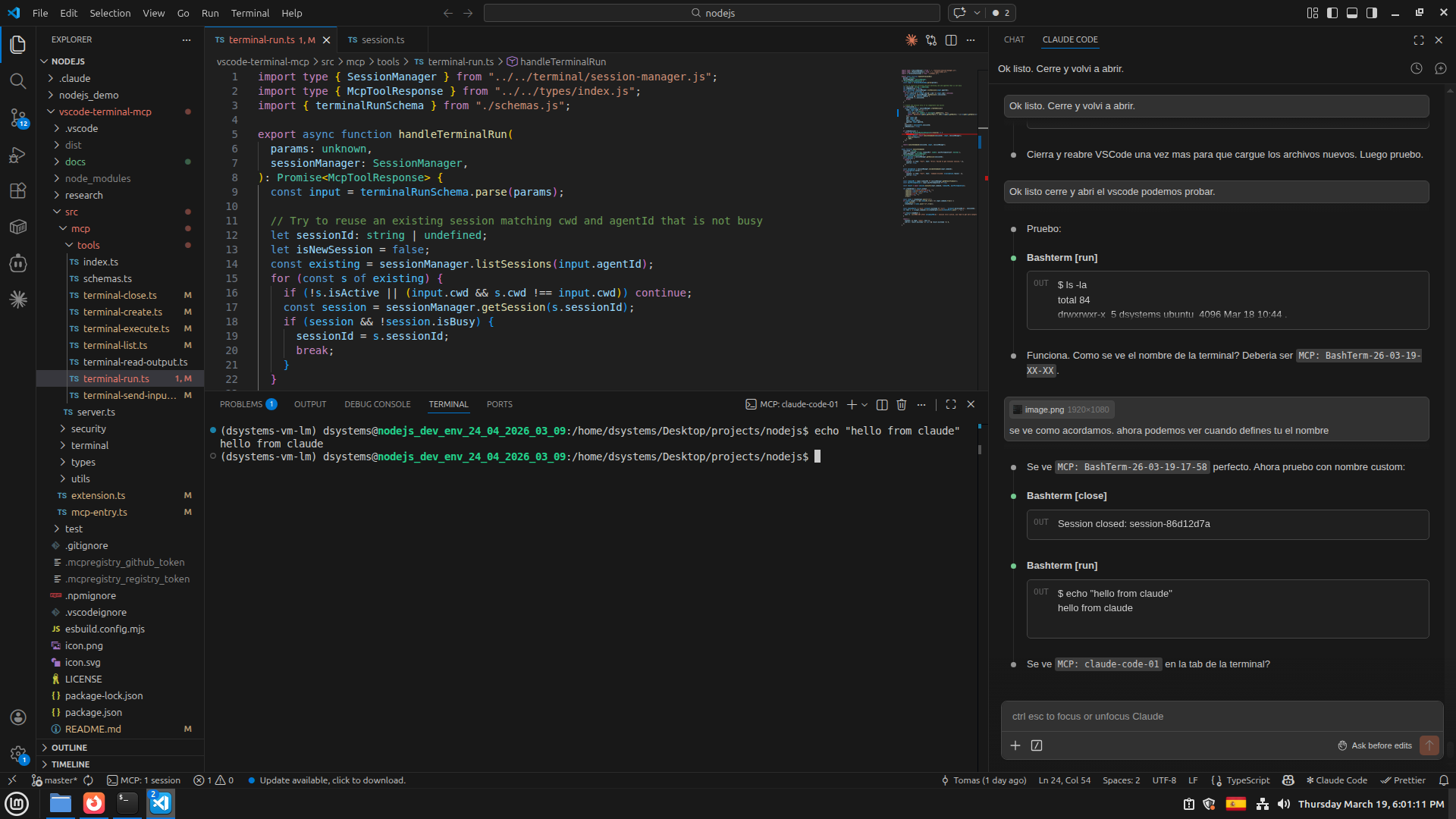
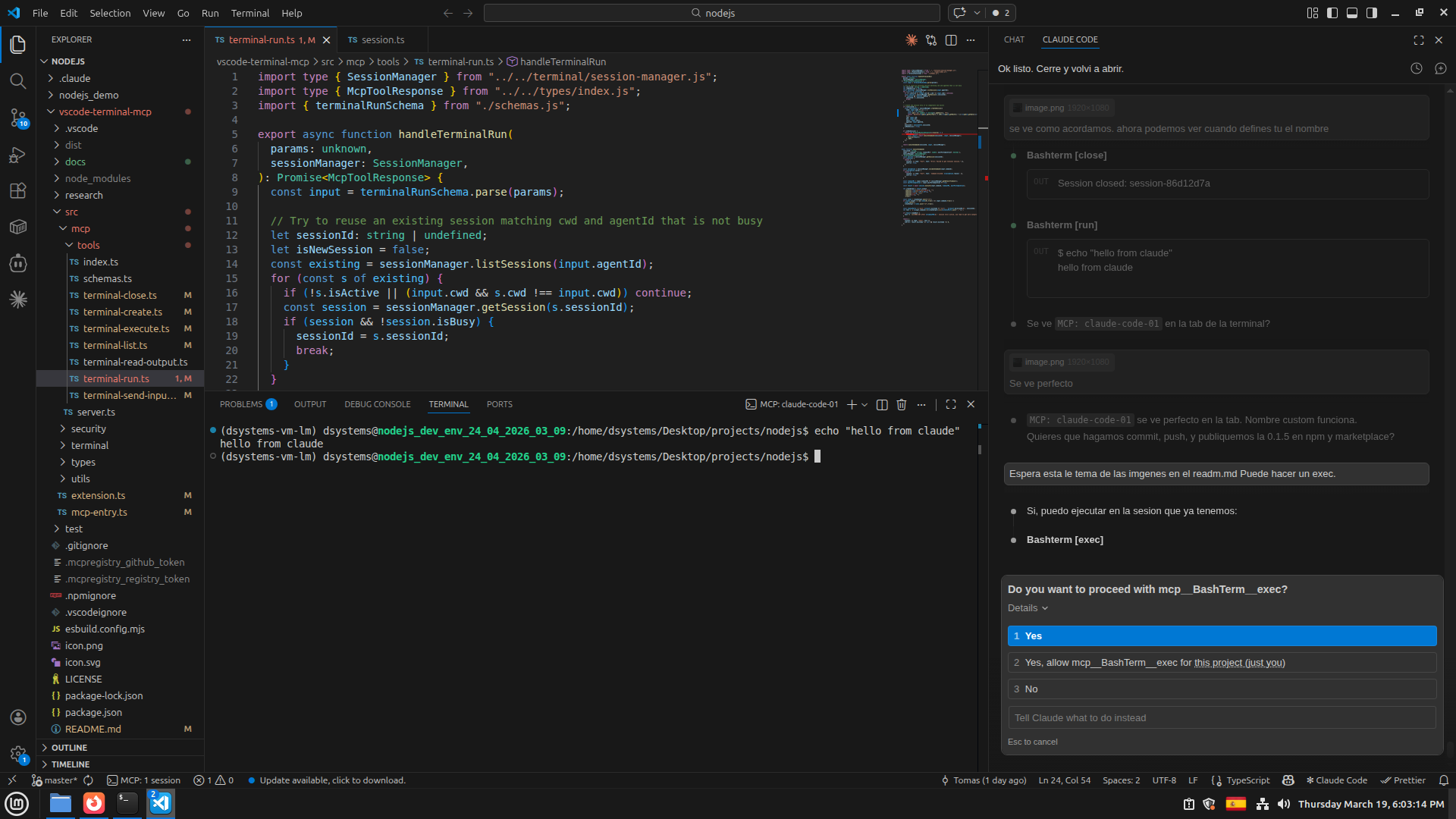
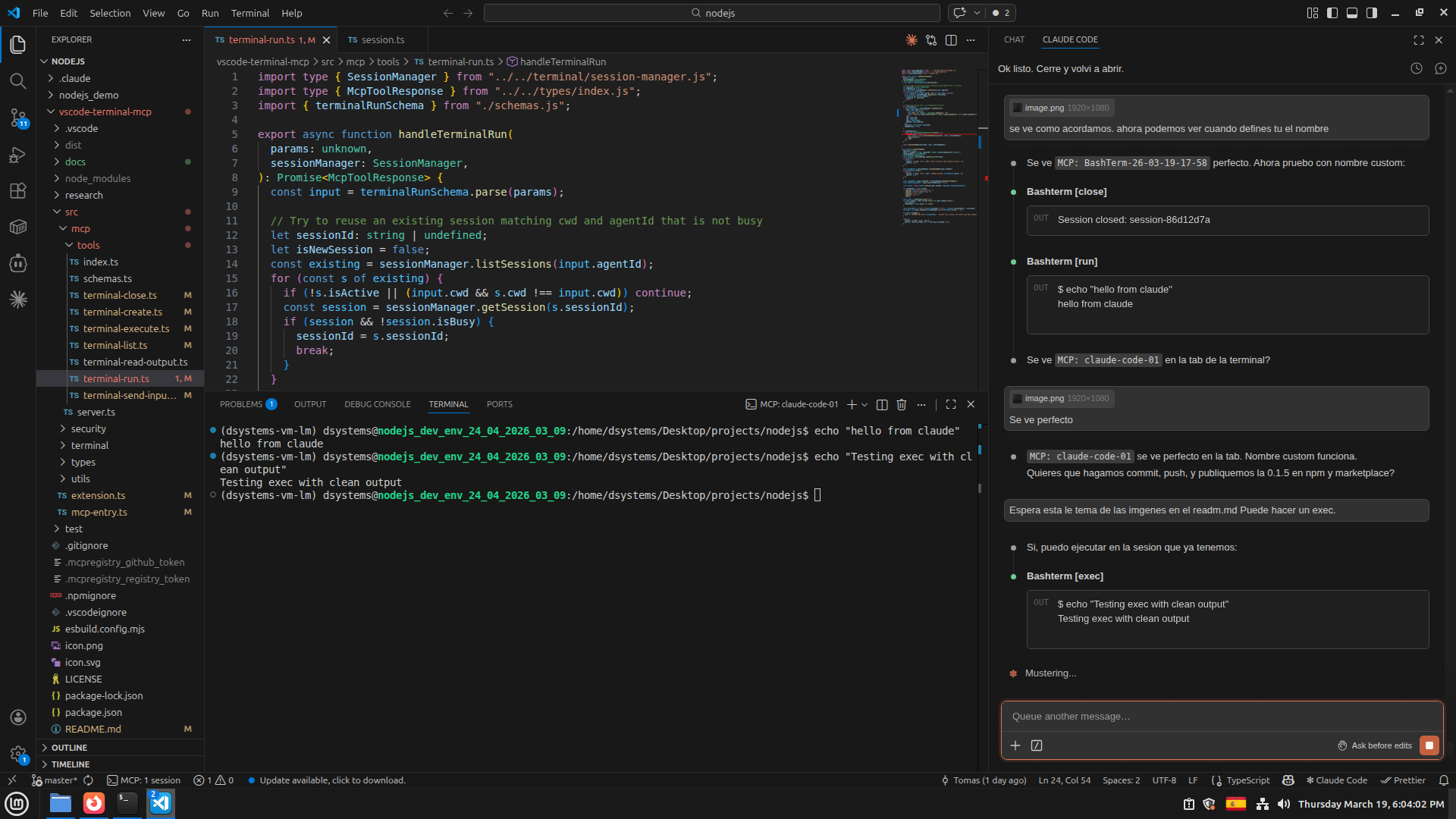
BashTerm MCP turns Claude Code command execution into something you can see, inspect, interrupt, and continue. Instead of hidden shell calls, commands open in normal VSCode terminal tabs with live output, scrollback, interactive input, reusable sessions, and safety controls.
Why BashTerm MCP
- Visible by default: Every command runs in a real VSCode terminal tab, so you can watch builds, tests, logs, and failures as they happen.
- Claude Code ready: The extension registers its MCP server automatically and can guide Claude Code away from the hidden built-in
Bashtool. - Long-task friendly: Start commands without blocking the agent, then read output incrementally while the process keeps running.
- Interactive when needed: Answer prompts, drive REPLs, confirm commands, or send Ctrl+C-style input through the same terminal session.
- Session reuse: Keep context in a terminal instead of creating a fresh process for every command.
- Parallel-agent isolation: Use
agentIdto keep multiple AI workers in separate, readable terminals. - Practical guardrails: Block dangerous command prefixes, restrict working directories, cap output buffers, and auto-close idle sessions.
- Safe rollback: Disable the Claude Code auto-hook or run a restore command to return to Claude Code's default Bash behavior.
Prerequisites
| Dependency | Version | Check | How to install |
|---|---|---|---|
| VSCode | ≥ 1.99 | code --version |
code.visualstudio.com |
| Node.js | ≥ 20 | node --version |
See platform-specific guide below |
| Claude Code | latest | claude --version |
npm install -g @anthropic-ai/claude-code |
Installing Node.js
Windows:
# Option 1: fnm (recommended — fast, supports version switching)
winget install Schniz.fnm
fnm install 22          # Install LTS
fnm use 22
node --version          # Verify

# Option 2: Official installer
# Visit https://nodejs.org/ and download the LTS installer.
Linux / macOS:
# Option 1: fnm (recommended)
curl -fsSL https://fnm.vercel.app/install | bash
fnm install 22          # Install LTS
fnm use 22
node --version          # Verify

# Option 2: nvm
curl -o- https://raw.githubusercontent.com/nvm-sh/nvm/v0.40.3/install.sh | bash
nvm install 22
nvm use 22
node --version          # Verify

# Option 3: system package manager (may ship older versions)
sudo apt install nodejs      # Debian / Ubuntu
sudo dnf install nodejs      # Fedora
brew install node            # macOS Homebrew
Node.js is required: the extension's MCP server registration in
contributes.mcpServersuses the systemnodeto launch the MCP bridge process. Make surenodeis on your PATH.Claude Code users: after installing the extension, it automatically writes a PreToolUse hook to
~/.claude/settings.jsonthat guides Claude Code to use BashTerm MCP tools. If you use another MCP client, configure the MCP server connection manually.
Install
- Install BashTerm MCP from the VSCode Marketplace.
- Open VSCode.
- Use Claude Code normally.
The extension automatically registers the MCP server through contributes.mcpServers, so tools such as run, exec, read, and input are available without manual MCP JSON setup.
Manual MCP Server Setup
Note: Starting from v0.5.3, the extension automatically writes
~/.claude/mcp.json(user-level) and the per-project~/.claude.jsonentry when it activates, so manual setup is usually unnecessary. The steps below remain as a fallback.
If Claude Code does not automatically discover the MCP server registered by the VSCode extension, or the auto-configuration did not work, follow these steps.
If Claude Code CLI is not installed yet, install and verify it first:
npm install -g @anthropic-ai/claude-code
claude --version
Then add BashTerm MCP:
claude mcp add BashTerm -- npx bashterm-mcp-server@latest
Install the BashTerm MCP VSCode extension first and keep VSCode open. This command installs the MCP bridge, which connects to the local socket registered by the VSCode extension host; if the extension is not running, it cannot create or control visible terminals.
Restart Claude Code after adding it, then the BashTerm MCP server should be available.
Claude Code Integration
BashTerm MCP writes a user-level PreToolUse hook to ~/.claude/settings.json that redirects complex Bash commands to BashTerm MCP tools. It also writes ~/.claude/mcp.json (user-level MCP server config) and the per-project entry in ~/.claude.json, so BashTerm MCP is available across all projects without manual setup.
You stay in control:
- Enable the hook with
BashTerm MCP: Enable Claude Code Hookfrom the Command Palette. - Turn automatic hook configuration off with
bashterm-mcp-server.autoConfigureClaudeCode. - Restore default Bash with
BashTerm MCP: Restore Claude Code Default Bashfrom the Command Palette. This also removes the BashTerm MCP entry from~/.claude/mcp.jsonand~/.claude.json. - Run
BashTerm MCP: Show Diagnosticsto inspect the active socket, discovery registry, Node path, workspace, and selected MCP bridge target.
If you restore the default Bash behavior and want it to stay restored after VSCode restarts, also set bashterm-mcp-server.autoConfigureClaudeCode to false.
Screenshots
Common Workflows
Run a Command
Ask Claude Code:
Run npm test
BashTerm MCP creates or reuses a visible terminal, runs the command, and returns clean output with the exit code.
Watch a Long Build
Start npm run build without waiting, then monitor progress
The agent can launch the command with waitForCompletion: false, then poll output with read while you watch the same terminal live in VSCode.
Handle Interactive Prompts
Run npm init and answer the prompts
The agent can start the process, read the prompt, send input, and continue step by step in the visible terminal.
Separate Parallel Agents
Have one agent run tests while another runs the linter
Each agent can receive its own agentId, keeping terminal sessions and output streams separate.
Tools
| Tool | What it does |
|---|---|
run |
Create or reuse a terminal and run a command in one step. |
create |
Open a visible terminal tab and return a sessionId. |
exec |
Run a command in an existing session and capture output. |
read |
Read session output with offset-based pagination or tail mode. |
input |
Send text to an interactive process. |
list |
List active sessions, optionally filtered by agentId. |
close |
Close a session and its terminal tab. |
Configuration
Configure BashTerm MCP from VSCode settings under bashterm-mcp-server.*.
| Setting | Type | Default | Description |
|---|---|---|---|
bashterm-mcp-server.autoConfigureClaudeCode |
boolean | true |
Automatically configure Claude Code to prefer BashTerm MCP over the built-in Bash tool. |
bashterm-mcp-server.blockedCommands |
string[] | `["rm -rf /", "mkfs", "dd if=", ":(){ : | :& };:"]` |
bashterm-mcp-server.allowedDirectories |
string[] | [] |
Allowed working directories. Empty means unrestricted. |
bashterm-mcp-server.defaultTimeoutMs |
number | 30000 |
Default command timeout in milliseconds. |
bashterm-mcp-server.maxConcurrentSessions |
number | 10 |
Maximum number of concurrent terminal sessions. |
bashterm-mcp-server.maxOutputLines |
number | 10000 |
Maximum output lines buffered per session. |
bashterm-mcp-server.idleTimeoutMs |
number | 300000 |
Auto-close idle sessions after this many milliseconds. 0 disables it. |
bashterm-mcp-server.windowsPreferredPowerShell |
string | "powershell" |
PowerShell executable used by the Windows V2 planner when PowerShell syntax is detected. Options: powershell, pwsh. Ordinary Windows commands default to cmd. |
Commands
Run these from the VSCode Command Palette:
| Command | What it does |
|---|---|
BashTerm MCP: Enable Claude Code Hook |
Enables autoConfigureClaudeCode, writes the Claude Code PreToolUse hook, and asks you to restart Claude Code. |
BashTerm MCP: Restore Claude Code Default Bash |
Removes the BashTerm MCP hook from ~/.claude/settings.json, and the MCP server entry from ~/.claude/mcp.json and ~/.claude.json. |
BashTerm MCP: Show Diagnostics |
Opens the BashTerm MCP output panel with platform, Node, workspace, socket, discovery registry, and selected MCP bridge details. |
For CLI-level troubleshooting, run the MCP bridge directly:
node /path/to/extension/dist/mcp-entry.js --status
The status output is JSON and shows whether the bridge found a registered VSCode extension socket or fell back because no usable discovery entry was available.
When It Helps Most
BashTerm MCP is especially useful when the agent needs to run commands you care about observing: tests, package installs, dev servers, migrations, scaffolding tools, deploy scripts, and any command that might ask for input or run longer than a few seconds.
Changelog
See CHANGELOG.md for release history.
License
MIT
Установить Bashterm Mcp Server в Claude Desktop, Claude Code, Cursor
unyly install bashterm-mcp-serverСтавит в Claude Desktop, Claude Code, Cursor и VS Code — сам разбирается с npx, uvx и сборкой из исходников.
Впервые? Поставь CLI: curl -fsSL https://unyly.org/install | sh
Или настроить вручную
Выполни в терминале:
claude mcp add bashterm-mcp-server -- npx -y bashterm-mcp-serverFAQ
Bashterm Mcp Server MCP бесплатный?
Да, Bashterm Mcp Server MCP бесплатный — установка в пару кликов через Unyly без оплаты.
Нужен ли API-ключ для Bashterm Mcp Server?
Нет, Bashterm Mcp Server работает без API-ключей и переменных окружения.
Bashterm Mcp Server — hosted или self-hosted?
Self-hosted: сервер запускается локально на твоей машине командой из раздела установки.
Как установить Bashterm Mcp Server в Claude Desktop, Claude Code или Cursor?
Открой Bashterm Mcp Server на unyly.org, выбери вкладку своего клиента (Claude Desktop, Claude Code, Cursor) и нажми Install — конфиг сгенерируется автоматически, без правки JSON.
Похожие MCP
GitHub
PRs, issues, code search, CI status
 автор: GitHub
Filesystem
Secure file operations with configurable access controls.
Memory
Knowledge graph-based persistent memory system.
Template MCP Server
A CLI tool to create a new Model Context Protocol server project with TypeScript support, dual transport options, and an extensible structure
 автор: mcpdotdirect
Compare Bashterm Mcp Server with
Не уверен что выбрать?
Найди свой стек за 60 секунд
Автор?
Embed-бейдж для README
Похожее
Все в категории development