
Chatlab
БесплатноНе проверенLLM chat app for integration tests using llama-stack-client, llama, Ollama, MCP, Tools

Описание
LLM chat app for integration tests using llama-stack-client, llama, Ollama, MCP, Tools
README
This document provides step-by-step instructions for setting up the development environment and running the application.
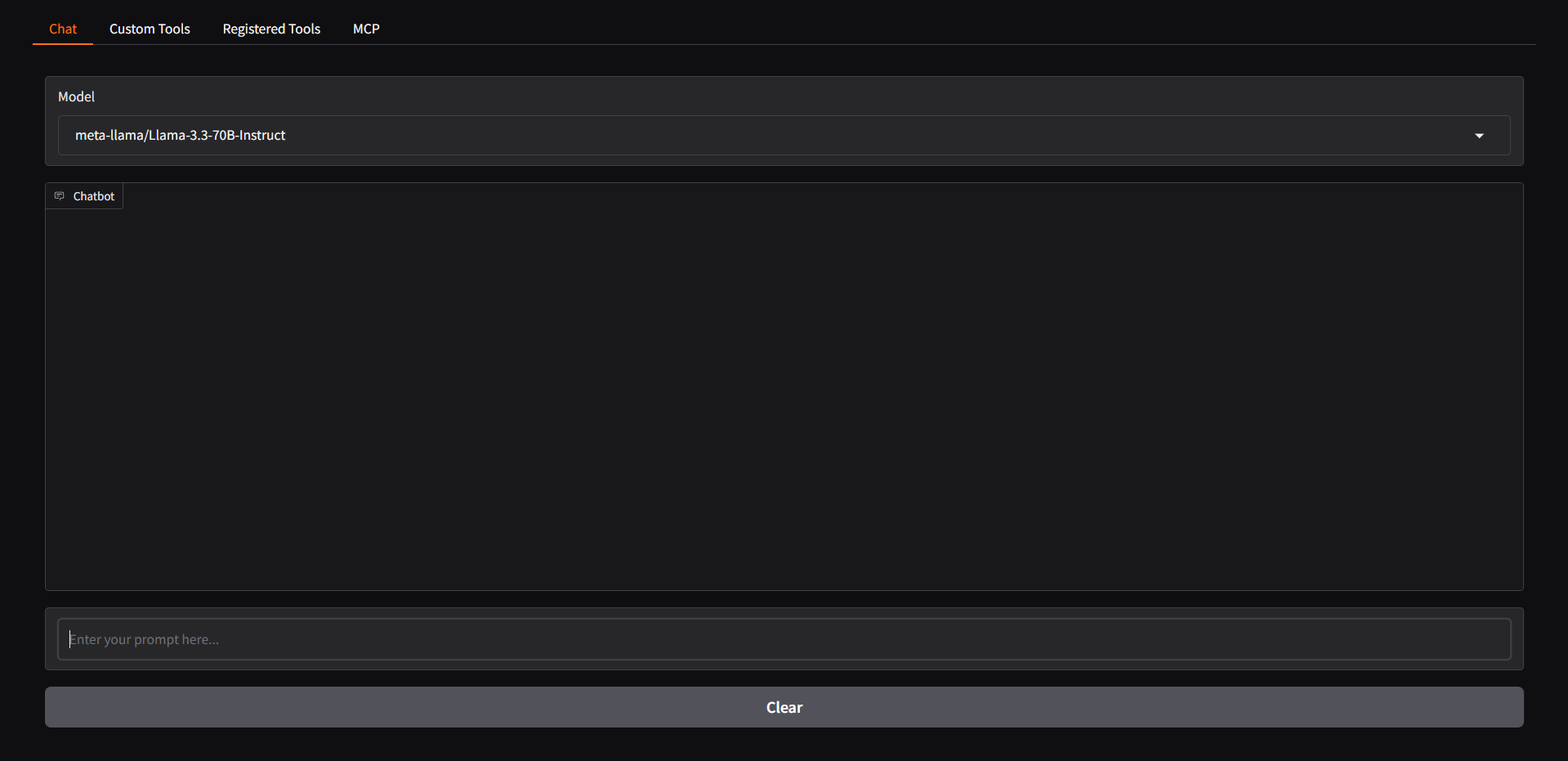
Screenshot
Prerequisites
Before starting, ensure that you have all the necessary tools installed on your system.
Installation Steps
1. Installing and Running Ollama (skip if you will use Together.ai API)
Ollama is required to provide model inference capabilities.
- Download and install Ollama from https://ollama.com/
- Start the Ollama service with the command:
ollama serveollama pull llama3.2:3b
2. Setting Up LLama-Stack
LLama-Stack will be used to manage our inference environment.
- Install the
uvpackage manager - Set up a virtual environment (venv)
- Run the following command inside the virtual environment:
orINFERENCE_MODEL=llama3.2:3b llama stack build --template ollama --image-type venv --runINFERENCE_MODEL=meta-llama/Llama-3.3-70B-Instruct llama stack build --template together --image-type venv --run
3. Project Setup
Clone this repository and install the necessary dependencies:
Clone the repository:
git clone [https://github.com/ricardoborges/chatlab.git]
cd [chatlab]
Create a virtual environment and install dependencies:
uv venv
uv pip install -r myproject.toml
4. Running the Application
Create togetherAI account if you won't start Ollama local service. So, you would first get an API key from Together if you dont have one already.
How to get your API key: https://docs.google.com/document/d/1Vg998IjRW_uujAPnHdQ9jQWvtmkZFt74FldW2MblxPY/edit?tab=t.0
You will need this env variables in your .env file:
TAVILY_SEARCH_API_KEY= TOGETHER_API_KEY=
Or just ignore and set DEFAULT_STACK="Ollama" in main.py (if you will run local Ollama service)
Start the Gradio application with the following command:
gradio main.py
After running this command, the application interface will be available in your browser.
Troubleshooting
If you encounter any issues during installation, check:
- That the Ollama service is running
- That the virtual environment was activated correctly
- That all dependencies were successfully installed
Additional Resources
For more information about LLama-Stack, refer to the official documentation.
Установка Chatlab
У этого сервера нет опубликованного пакета — он собирается из исходников. Открой репозиторий и следуй инструкции в README.
▸ github.com/ricardoborges/chatlabFAQ
Chatlab MCP бесплатный?
Да, Chatlab MCP бесплатный — установка в пару кликов через Unyly без оплаты.
Нужен ли API-ключ для Chatlab?
Нет, Chatlab работает без API-ключей и переменных окружения.
Chatlab — hosted или self-hosted?
Self-hosted: сервер запускается локально на твоей машине командой из раздела установки.
Как установить Chatlab в Claude Desktop, Claude Code или Cursor?
Открой Chatlab на unyly.org, выбери вкладку своего клиента (Claude Desktop, Claude Code, Cursor) и нажми Install — конфиг сгенерируется автоматически, без правки JSON.
Похожие MCP
Gmail
Read, send and search emails from Claude
 автор: Google
Slack
Send, search and summarize Slack messages
 автор: Slack
Runbear
No-code MCP client for team chat platforms, such as Slack, Microsoft Teams, and Discord.
Discord Server
A community discord server dedicated to MCP by [Frank Fiegel](https://github.com/punkpeye)
Compare Chatlab with
Не уверен что выбрать?
Найди свой стек за 60 секунд
Автор?
Embed-бейдж для README
Похожее
Все в категории communication