
Claude Meeting
БесплатноНе проверенMCP Server to record, transcribe, and summarize any audio — meetings, YouTube, podcasts, lectures — with speaker identification and automatic meeting minutes. C

Описание
MCP Server to record, transcribe, and summarize any audio — meetings, YouTube, podcasts, lectures — with speaker identification and automatic meeting minutes. Cross-platform (macOS, Windows, Linux).
README
An MCP server that records and transcribes any audio — meetings, YouTube videos, podcasts, lectures, interviews, music — with speaker identification and automatic meeting minutes.
Works with any audio source on macOS, Windows, and Linux.
What is this?
This is a Model Context Protocol (MCP) server. MCP is an open standard that lets AI assistants like Claude use external tools. Once you install this server, Claude can:
- Record any audio from your computer (meetings, YouTube, podcasts, etc.) + microphone
- Transcribe the recording using Whisper AI (locally or via remote API)
- Identify speakers using pyannote diarization
- Generate meeting minutes with decisions, action items, and speaker attribution
- Extract text from any video or audio playing on your computer
You just talk to Claude naturally: "Record my meeting", "Transcribe this YouTube video", "Generate the minutes".
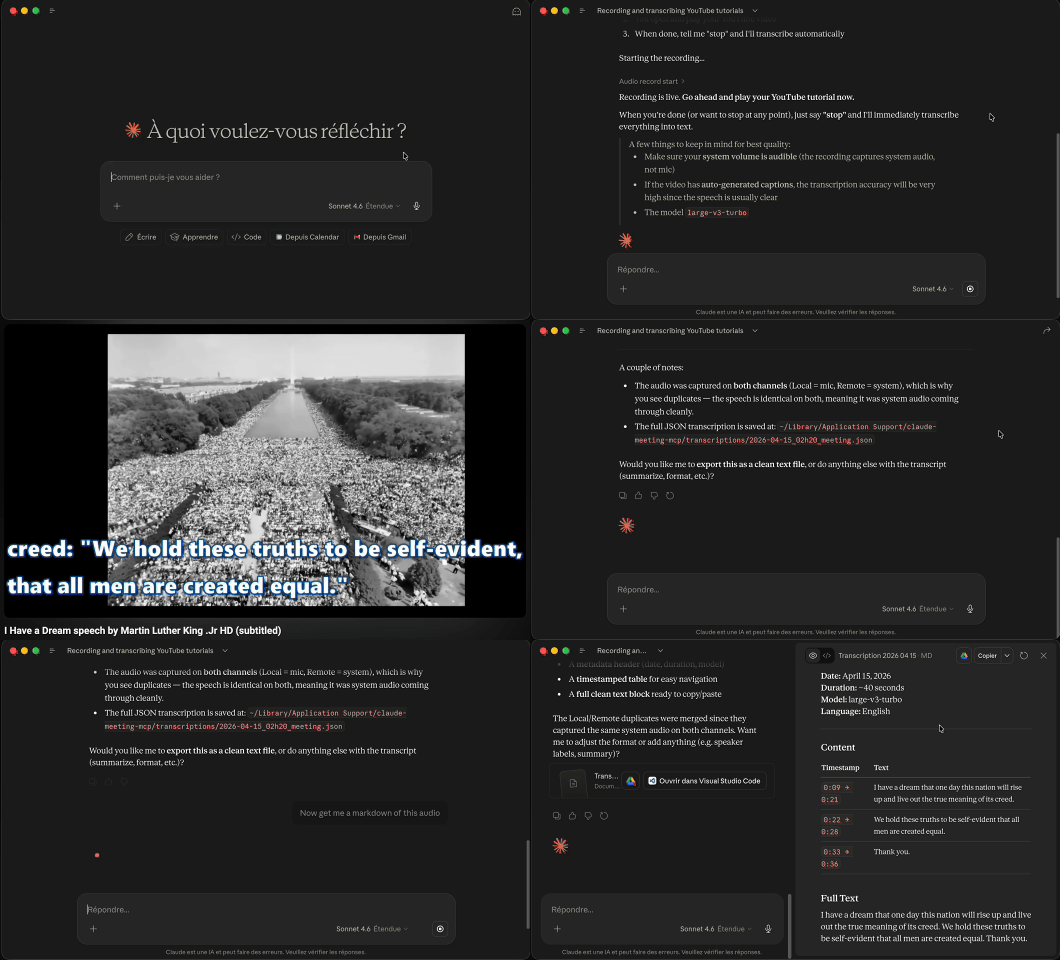
Demo
Quick Start (5 minutes)
Step 1: Install
# Clone the repository
git clone https://github.com/Aedelon/claude-meeting-mcp.git
cd claude-meeting-mcp

# Install Python dependencies (requires Python 3.11+ and uv)
uv sync

# macOS only: compile the audio capture binary
cd src/audiocap && swift build -c release && cd ../..
Don't have uv? Install it first: brew install uv (macOS) or pip install uv (any OS).
Step 2: Connect to Claude
Add this to your Claude configuration:
Claude Code (terminal):
claude mcp add claude-meeting-mcp -- uv --directory /path/to/claude-meeting-mcp run claude-meeting-mcp
Claude Desktop (Settings > Developer > Edit Config):
{
  "mcpServers": {
    "claude-meeting-mcp": {
      "command": "uv",
      "args": ["--directory", "/path/to/claude-meeting-mcp", "run", "claude-meeting-mcp"]
    }
  }
}
Replace /path/to/claude-meeting-mcp with the actual path where you cloned the repo.
Step 3: Use it
Open Claude and say:
"Record my meeting"
Claude will start recording. When the meeting is over:
"Stop and transcribe. The participants are Bruno, Alice, and me (Delanoe)"
Claude will stop the recording, transcribe it, and suggest generating meeting minutes.
Prerequisites
| OS | Requirements |
|---|---|
| macOS | Python 3.11+, uv, Xcode Command Line Tools (xcode-select --install) |
| Windows | Python 3.11+, uv |
| Linux | Python 3.11+, uv, libportaudio2 (sudo apt install libportaudio2) |
macOS: Audio Permission
On macOS, you must grant audio recording permission to your terminal:
- Go to System Settings > Privacy & Security > Screen & System Audio Recording
- Add your terminal app (Terminal.app, iTerm2, etc.)
- Important: Some terminals (PyCharm, VS Code built-in) don't trigger the permission popup — use Terminal.app for the first run
How It Works
Your meeting (Google Meet, Zoom, Teams, etc.)
    |
    v
[Audio Capture] ---- stereo WAV file ----> Left channel  = system audio (remote participants)
    |                                       Right channel = microphone (you / people in the room)
    v
[Audio Processing] -- normalize + compress + limit (both channels balanced)
    |
    v
[Transcription] ----- Whisper AI (local) or remote API
    |
    v
[Diarization] ------- pyannote identifies individual speakers per channel (optional)
    |
    v
[Meeting Minutes] --- Claude generates structured PV via MCP Sampling
    |
    v
Markdown file with: date, participants, topics, decisions, action items
Platform Support
| Feature | macOS (Apple Silicon) | macOS (Intel) | Windows | Linux |
|---|---|---|---|---|
| System audio capture | Core Audio Taps | Core Audio Taps | WASAPI loopback | PipeWire/PulseAudio |
| Microphone capture | Core Audio | Core Audio | sounddevice | sounddevice |
| Transcription (local) | mlx-whisper (fast, GPU) | faster-whisper (CPU) | faster-whisper (CPU/CUDA) | faster-whisper (CPU/CUDA) |
| Speaker diarization | pyannote-audio | pyannote-audio | pyannote-audio | pyannote-audio |
Usage Examples
Record and transcribe a simple 1-on-1 meeting
Talk to Claude:
You: "Record my meeting with Bruno"
Claude: → calls audio_record_start()
        "Recording started. I'll capture system audio and your microphone."

[... your meeting happens ...]

You: "We're done"
Claude: → calls audio_stop_and_transcribe(remote_speakers="Bruno", local_speakers="You")
        "Meeting transcribed: 45 minutes, 127 segments.
         Would you like me to generate meeting minutes?"

You: "Yes"
Claude: → calls audio_generate_pv(meeting_id="2026-04-15_14h00_meeting", participants="Bruno, You")
        "Meeting minutes generated and saved."
Record a meeting with multiple participants
You: "Start recording. I have a meeting with Bruno, Alice, and Charlie.
      Marc is in the room with me."

Claude: → calls audio_record_start()

[... meeting ...]

You: "Stop and transcribe"
Claude: → calls audio_stop_and_transcribe(
           remote_speakers="Bruno, Alice, Charlie",
           local_speakers="You, Marc"
         )
With diarization enabled, the system identifies individual voices within each channel.
Record and transcribe a YouTube video / podcast
You: "Record the audio from this YouTube tutorial"
Claude: → calls audio_record_start()
        "Recording started. Play your video — I'm capturing all system audio."

[... watch the video ...]

You: "Done"
Claude: → calls audio_stop_and_transcribe()
        "Transcribed: 12 minutes, 45 segments."
Transcribe an existing audio file
You: "Transcribe this file: /Users/me/Downloads/meeting.wav"
Claude: → calls audio_transcribe(file_path="/Users/me/Downloads/meeting.wav")
Review past meetings
You: "Show me my past meetings"
Claude: → calls transcriptions_list()
        "Here are your recent transcriptions:
         - 2026-04-15_14h00_meeting (45 min)
         - 2026-04-14_10h00_meeting (1h 20min)"

You: "Generate minutes for the one from yesterday"
Claude: → calls audio_generate_pv(meeting_id="2026-04-14_10h00_meeting")
Extract action items
You: "What are the action items from today's meeting?"
Claude: → uses extract_action_items prompt
        "Action items:
         - [ ] Bruno: send the invoice by Friday
         - [ ] Alice: update the database schema
         - [ ] You: schedule follow-up meeting next week"
Change settings
You: "Use a smaller transcription model"
Claude: → calls audio_configure(key="transcription.model", value="small")

You: "Enable speaker diarization"
Claude: → calls audio_configure(key="diarization.enabled", value="true")

You: "Switch to Groq for transcription"
Claude: → calls audio_configure(key="transcription.mode", value="remote")
       → calls audio_configure(key="transcription.remote.url",
           value="https://api.groq.com/openai/v1/audio/transcriptions")
Configuration
The configuration file is created automatically at the platform-appropriate location:
| OS | Path |
|---|---|
| macOS | ~/Library/Application Support/claude-meeting-mcp/config.toml |
| Linux | ~/.config/claude-meeting-mcp/config.toml |
| Windows | %APPDATA%\claude-meeting-mcp\config.toml |
Default configuration
[transcription]
model = "large-v3-turbo"   # tiny, base, small, medium, large-v3-turbo, large-v3
language = "en"             # meeting language (auto-detected if empty)
mode = "local"              # "local" (on your machine) or "remote" (API)

[transcription.remote]
url = ""                    # Any OpenAI-compatible /v1/audio/transcriptions API
api_key_env = "TRANSCRIPTION_API_KEY"   # name of the env var holding the API key

[recording]
sample_rate = 48000

[diarization]
enabled = false             # enable for multi-speaker meetings
backend = "pyannote"        # none, pyannote, whisperx

[pv]
auto_generate = true        # suggest PV generation after transcription
Transcription models
| Model | Size | Quality | Speed | Best for |
|---|---|---|---|---|
tiny |
39M | Basic | Fastest | Quick tests |
base |
74M | OK | Very fast | Drafts |
small |
244M | Good | Fast | Short meetings |
medium |
769M | Very good | Medium | Most meetings |
large-v3-turbo |
809M | Excellent | Fast | Recommended |
large-v3 |
1.5B | Best | Slow | Critical meetings |
Using a remote transcription API
Instead of running Whisper locally, you can use any API that implements the OpenAI /v1/audio/transcriptions endpoint:
| Service | URL | Notes |
|---|---|---|
| Groq | https://api.groq.com/openai/v1/audio/transcriptions |
Very fast, free tier |
| OpenAI | https://api.openai.com/v1/audio/transcriptions |
Official Whisper API |
| Deepgram | Compatible endpoint | Nova-2 model |
| Self-hosted | Your own URL | faster-whisper-server, etc. |
# Set your API key
export TRANSCRIPTION_API_KEY="your-key-here"
Then configure via Claude: "Switch to remote transcription using Groq"
Speaker diarization (multi-speaker)
For meetings with multiple participants, enable diarization to identify who said what:
# Install diarization dependencies
uv sync --extra diarization

# Set HuggingFace token (free, required for first model download)
export HF_TOKEN="your-huggingface-token"
Get a free token at huggingface.co/settings/tokens.
Then tell Claude: "Enable diarization"
MCP Tools Reference
Recording
| Tool | Description | Parameters |
|---|---|---|
audio_record_start |
Start recording system audio + microphone | None |
audio_record_stop |
Stop recording and save WAV file | None |
audio_stop_and_transcribe |
Stop + transcribe in one call (preferred) | local_speakers, remote_speakers, model |
Transcription
| Tool | Description | Parameters |
|---|---|---|
audio_transcribe |
Transcribe an existing WAV file | file_path (required), local_speakers, remote_speakers, model |
get_transcription |
Retrieve a past transcription | meeting_id |
transcriptions_list |
List all transcriptions | None |
Meeting Minutes (PV)
| Tool | Description | Parameters |
|---|---|---|
audio_generate_pv |
Generate minutes from a transcription | meeting_id (required), participants |
get_pv |
Retrieve generated minutes | meeting_id |
pvs_list |
List all generated minutes | None |
Other
| Tool | Description | Parameters |
|---|---|---|
audio_status |
Check server status and readiness | None |
recordings_list |
List all audio recordings | None |
audio_configure |
Change a configuration parameter | key, value |
audio_cleanup |
Remove recordings older than 30 days | None |
MCP Resources
| URI | Description |
|---|---|
transcription://{meeting_id} |
Read a transcription as text |
pv://{meeting_id} |
Read meeting minutes as text |
MCP Prompts
| Name | Description |
|---|---|
regenerate_pv |
Regenerate minutes with custom instructions |
extract_action_items |
Extract action items checklist from a meeting |
Multilingual Support
Interaction with Claude: works in any language. Claude understands your intent regardless of the language you speak. No configuration needed.
Transcription: Whisper supports 99 languages. Set the language in config to improve accuracy:
| Code | Language | Code | Language | Code | Language |
|---|---|---|---|---|---|
en |
English | fr |
French | es |
Spanish |
de |
German | it |
Italian | pt |
Portuguese |
ru |
Russian | zh |
Chinese | ja |
Japanese |
ko |
Korean | ar |
Arabic | nl |
Dutch |
pl |
Polish | tr |
Turkish | he |
Hebrew |
uk |
Ukrainian | hi |
Hindi | sv |
Swedish |
Full list: openai/whisper — supported languages
audio_configure("transcription.language", "fr")   # French meeting
audio_configure("transcription.language", "ja")   # Japanese meeting
Meeting minutes: generated in the same language as the transcription. If the meeting is in French, the PV will be in French.
Architecture
src/
├── claude_meeting_mcp/
│   ├── server.py              # MCP server: 13 tools, 2 resources, 2 prompts
│   ├── config.py              # TOML configuration with platformdirs
│   ├── recorder.py            # Recording orchestration (thread-safe)
│   ├── transcriber.py         # Whisper transcription (mlx/faster/remote, parallel)
│   ├── diarize.py             # Speaker diarization via pyannote-audio 3.1
│   ├── pv_generator.py        # Meeting minutes via MCP Sampling (map-reduce)
│   ├── storage.py             # File management with platformdirs
│   ├── schemas.py             # Data models (Segment, Transcription)
│   └── capture/               # Platform-specific audio capture
│       ├── audio_processing.py    # Normalize + compress + limit (vectorized)
│       ├── _macos.py              # Core Audio Taps via audiocap Swift CLI
│       ├── _windows.py            # WASAPI loopback + sounddevice
│       └── _linux.py              # PipeWire/PulseAudio + sounddevice
├── audiocap/                  # Swift CLI for macOS audio capture
│   ├── Package.swift
│   └── Sources/AudioCap/
│       ├── main.swift
│       ├── AudioTapManager.swift
│       ├── StereoRecorder.swift
│       └── RingBuffer.swift
Security
- Local by default — no audio data is sent to any cloud service
- Remote is opt-in — you choose the API and provide your own key
- Credentials via environment variables only (
HF_TOKEN,TRANSCRIPTION_API_KEY) — never hardcoded - Path traversal protection on all meeting_id inputs
- Thread-safe recording state (RLock)
- Sensitive files gitignored — .env, recordings, transcriptions, PVs
Troubleshooting
macOS: Recording captures silence on the system audio channel
Your terminal needs Screen & System Audio Recording permission. Go to System Settings > Privacy & Security > Screen & System Audio Recording and add your terminal app. Some terminals (PyCharm, VS Code built-in) never trigger the permission popup — use Terminal.app instead.
macOS: audiocap binary not found
Compile it: cd src/audiocap && swift build -c release
Transcription is slow
- Use a smaller model: "Use the small model" (Claude calls
audio_configure) - Or switch to a remote API: "Use Groq for transcription"
- On Apple Silicon, mlx-whisper uses the GPU — it's already fast
No whisper backend available
Run uv sync to install dependencies. On macOS Apple Silicon, mlx-whisper is installed automatically. On other platforms, faster-whisper is installed.
Diarization: HuggingFace token required
- Create a free account at huggingface.co
- Get a token at huggingface.co/settings/tokens
- Accept the model license at huggingface.co/pyannote/speaker-diarization-3.1
- Set:
export HF_TOKEN="your-token"
Linux: No monitor source found
Install PipeWire or PulseAudio: sudo apt install libportaudio2. If using PulseAudio without PipeWire, you may need: pactl load-module module-loopback.
Development
# Install dev dependencies
uv sync --extra dev

# Run tests
uv run pytest -v

# Lint
uv run ruff check src/ tests/

# Format
uv run ruff format src/ tests/
Licence
Apache 2.0 - Delanoe Pirard / Aedelon
Установка Claude Meeting
У этого сервера нет опубликованного пакета — он собирается из исходников. Открой репозиторий и следуй инструкции в README.
▸ github.com/Aedelon/claude-meeting-mcpFAQ
Claude Meeting MCP бесплатный?
Да, Claude Meeting MCP бесплатный — установка в пару кликов через Unyly без оплаты.
Нужен ли API-ключ для Claude Meeting?
Нет, Claude Meeting работает без API-ключей и переменных окружения.
Claude Meeting — hosted или self-hosted?
Self-hosted: сервер запускается локально на твоей машине командой из раздела установки.
Как установить Claude Meeting в Claude Desktop, Claude Code или Cursor?
Открой Claude Meeting на unyly.org, выбери вкладку своего клиента (Claude Desktop, Claude Code, Cursor) и нажми Install — конфиг сгенерируется автоматически, без правки JSON.
Похожие MCP
ARA
Generate images, video and audio from any AI agent — one connector.
 автор: ARA
Omni Video
An MCP server that transforms LLM-enabled IDEs into professional video editors by pre-processing footage into text proxies, generating motion graphics via HTML/
 автор: buildwithtaza
YouTube
Transcripts, channel stats, search
 автор: YouTube
EverArt
AI image generation using various models.
 автор: modelcontextprotocol
Compare Claude Meeting with
Не уверен что выбрать?
Найди свой стек за 60 секунд
Автор?
Embed-бейдж для README
Похожее
Все в категории media