
ContextCore
БесплатноНе проверенA local-first MCP server that indexes all your local files (text, code, images, audio, video) and provides hybrid search (BM25+embeddings) to retrieve only rele

Описание
A local-first MCP server that indexes all your local files (text, code, images, audio, video) and provides hybrid search (BM25+embeddings) to retrieve only relevant chunks for AI tools, reducing token usage by over 57%.
README




One MCP server for all your local files. Search everything, send only what matters to AI.
Stop pasting entire files into Claude. ContextCore indexes your notes, code, documents, images, audio, and video locally — then exposes a single MCP server that any AI tool can query. Instead of bloating your context window, Claude searches first and retrieves only the relevant chunks.
57% fewer tokens. Same answers. No cloud.
| Benchmark Setup | Baseline Context | ContextCore Context | Reduction |
|---|---|---|---|
| SciFact (top-5 retrieved docs vs chunked context) | 1,723.5 tokens/query | 733.4 tokens/query | 57.45% |
Works with: Claude Desktop · Claude Code · Cursor · Cline · OpenCode · any MCP-compatible tool
Why ContextCore?
Most developers working across large codebases or document collections hit the same wall: pasting everything into context is expensive, slow, and hits limits. RAG pipelines require infrastructure. Other memory tools are cloud-only or single-format.
ContextCore is a local-first MCP server that does hybrid search (BM25 + embeddings) across every file type you care about — and registers itself with your AI tools automatically. One install. One server. All your data.
It is not Supermemory. It does not sync to a cloud. Your files stay on your machine. What it gives you is supercharged retrieval across every local file format, surfaced directly inside Claude and other tools via MCP.
This is the one MCP to rule them all design: instead of managing separate MCP servers for different file types, you have one local server with a consistent search API across text, code, images, audio, and video.
How It Works
contextcore init— indexes your chosen folders (text, code, images, audio, video)- Registers as an MCP server with Claude Desktop, Claude Code, Cursor, or Cline
- When you ask Claude about your files, ContextCore intercepts with a
searchtool call - Only the top matching chunks are injected into context — not the whole file
The hybrid search combines BM25 (keyword) and embeddings (semantic) so it handles both exact lookups ("find the function called parse_config") and fuzzy concept searches ("where did I write about the retry logic?").
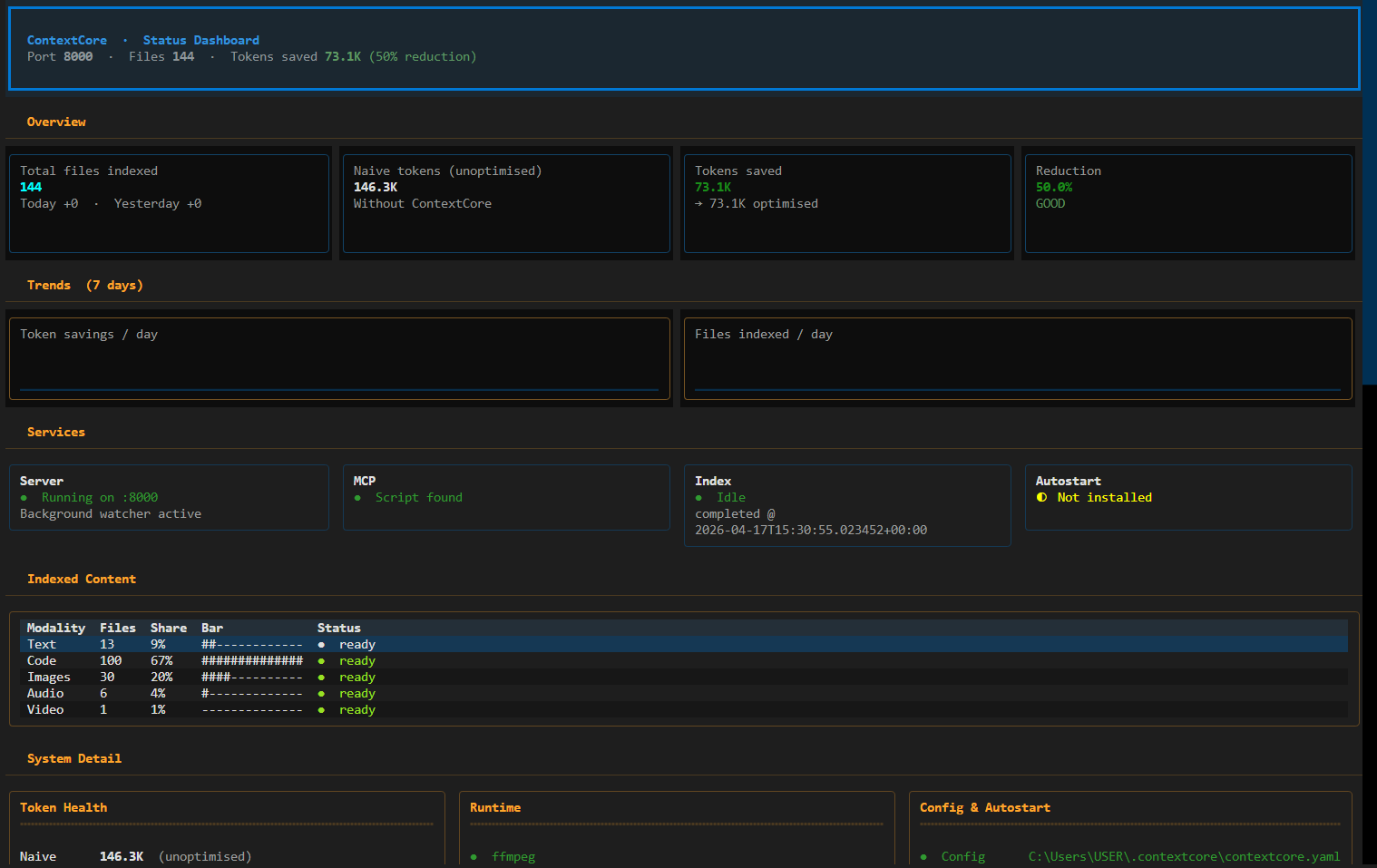
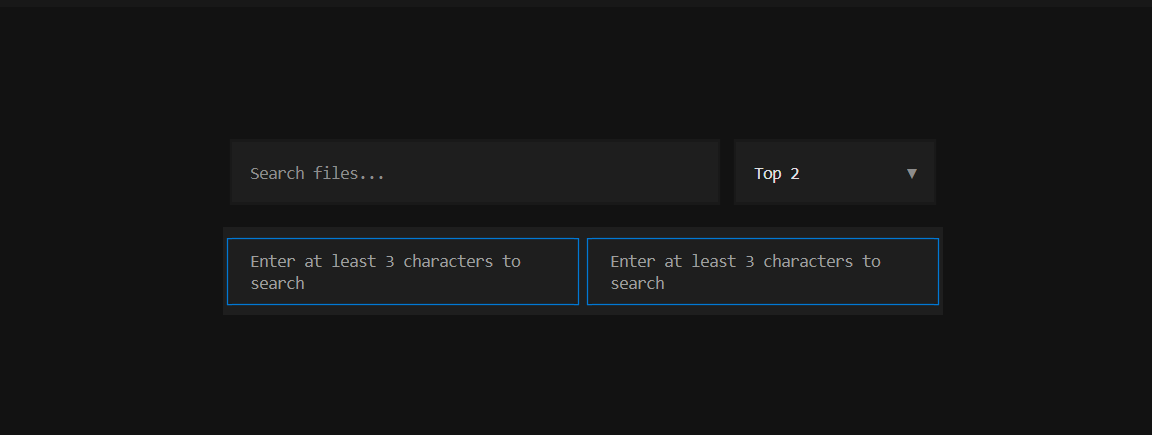
Install
Install from PyPI:
python -m pip install contextcore
Optional source install (for contributors):
git clone https://github.com/lucifer-ux/SearchEmbedSDK.git
cd SearchEmbedSDK
python -m pip install -e .
Then run the setup wizard:
contextcore init
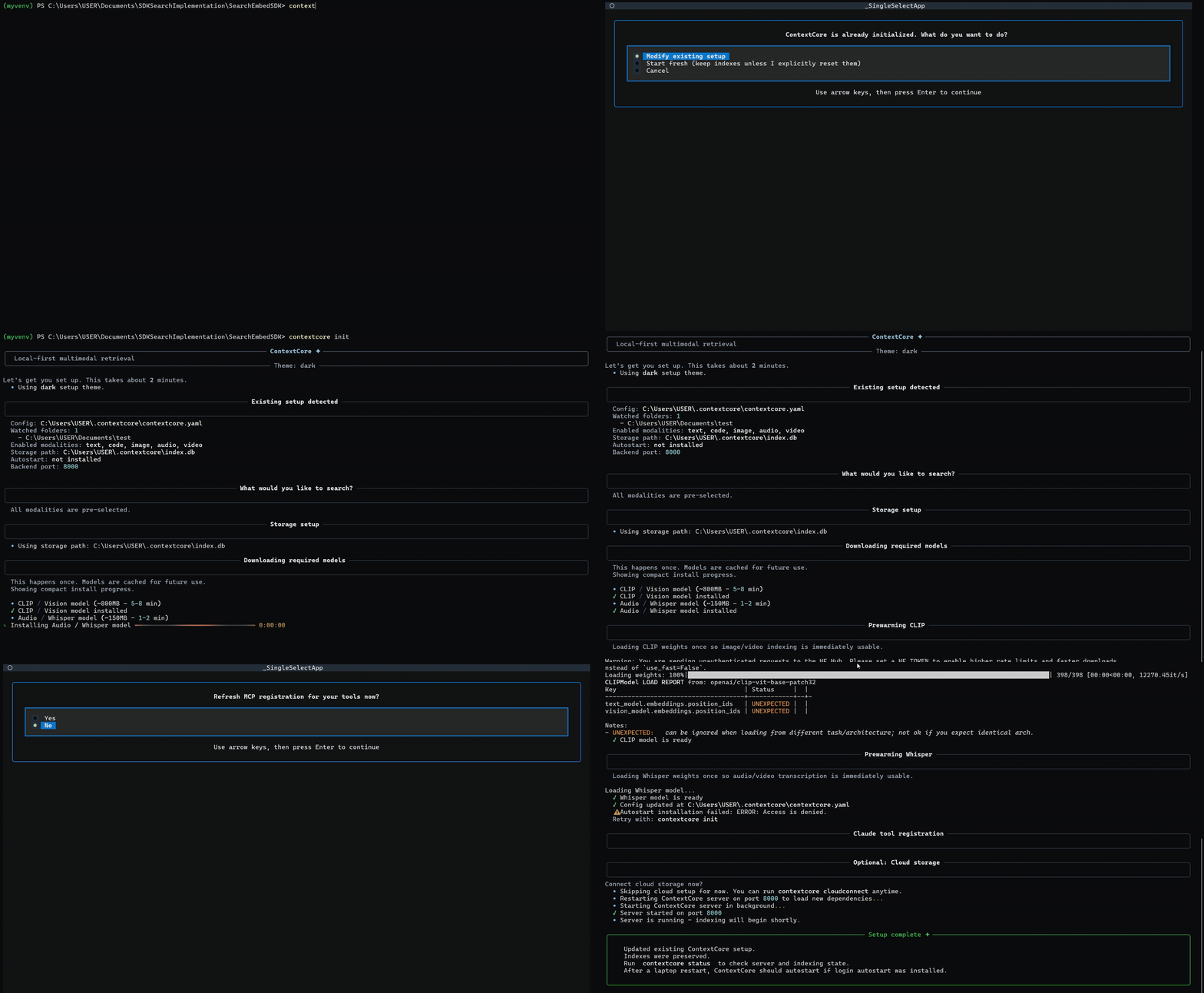
Gif is sped up to skip the installation parts.
That's it. ContextCore indexes your files, registers with your AI tools, and runs in the background. No config files to edit.
Optional Turso Storage for Text Search
ContextCore is local-first by default. If you want text_search_implementation_v2 to store and fetch its text index from Turso instead of the local SQLite file, configure Turso with environment variables or a .env file.
This currently applies only to text search storage. Image, audio, video, and code indexes still use their existing storage paths.
Create a .env file in the ContextCore repo root, your current working directory, or ~/.contextcore/.env:
TURSO_DATABASE_URL="libsql://..."
TURSO_AUTH_TOKEN="..."
CONTEXTCORE_TEXT_STORAGE_BACKEND="turso"
You can also point ContextCore at a specific env file:
export CONTEXTCORE_ENV_FILE="/path/to/contextcore.env"
Backend selection rules for text search:
CONTEXTCORE_TEXT_STORAGE_BACKEND=tursoorlibsqlforces Turso.CONTEXTCORE_TEXT_STORAGE_BACKEND=sqliteorlocalforces local SQLite.- If no backend is set but
TURSO_DATABASE_URLis present, text search uses Turso. - If no backend and no Turso URL are set, text search uses local SQLite under
CONTEXTCORE_STORAGE_DIR.
The .env loader accepts both KEY=value and export KEY=value lines. Real shell environment variables take precedence over .env values.
Prerequisites
- Python 3.10+
- Windows, macOS, or Linux
- Internet access for first-time model downloads
- Enough disk space for Python packages and model files
Optional but important:
ffmpegfor video indexing, can be improved- Claude Desktop or another MCP-capable tool if you want interactive AI integration
What ContextCore Does
ContextCore gives you:
- a CLI command:
contextcore - a local backend server, normally on
http://127.0.0.1:8000 - an MCP server script for Claude and similar tools
- local indexing for:
- text and documents
- images
- audio transcripts
- video embeddings and video context
- codebase context (structure, symbols, dependencies, file-level detail)
Codebase Context for Claude/OpenCode
ContextCore can expose your codebase context directly to MCP tools (for example, Claude Desktop and OpenCode) so the model can reason over your project without you pasting the entire directory into chat.
Use the code modality during setup (contextcore init) and ContextCore will provide indexed codebase context through MCP tools such as:
get_codebase_contextget_codebase_indexget_module_detailget_file_content
Recommended Setup
For real usage, the most reliable setup is:
- keep one dedicated Python virtual environment
- use that same Python environment for:
contextcore initcontextcore servemcp_server.pyin your Claude config
Do not test the backend in one venv and point Claude at a different venv. That is one of the most common causes of "it works in the terminal but not in Claude".
Verify Install
Run:
contextcore --help
If that fails, the package is not installed in the Python environment your shell is using. you can raise a bug otherwise
BEIR Benchmark (SciFact)
You can benchmark the current text retrieval stack on a BEIR dataset (starting with SciFact) without touching your existing index data. More datasets and more benchmarking criterias will be added soon.
Install optional benchmark dependency:
python -m pip install beir
Run benchmark:
contextcore benchmark --dataset scifact --top-k 10
Optional fast iteration with fewer queries:
contextcore benchmark --dataset scifact --top-k 10 --max-queries 50
Optional JSON output:
contextcore benchmark --dataset scifact --output-json .\benchmarks\scifact_run.json
Token reduction benchmark (tiktoken):
python -m pip install tiktoken
contextcore benchmark --dataset scifact --top-k 10 --measure-tokens --context-top-k 5
Compare retrieval systems (ContextCore vs BM25) and export publish-ready tables:
contextcore benchmark --dataset scifact --top-k 10 --measure-tokens --context-top-k 5 --systems contextcore_hybrid,bm25_only,trigram_only --report-csv .\benchmarks\scifact_compare.csv --report-md .\benchmarks\scifact_compare.md --output-json .\benchmarks\scifact_compare.json
Daily Commands
Show status
contextcore status
This shows:
- whether the backend server is running
- whether the MCP server script is present
- counts for text, images, audio, and video
- whether video runtime dependencies are available
Run indexing again
contextcore index
Or for a specific folder:
contextcore index "C:\Users\USER\Documents\test"
Start backend manually
contextcore serve
By default, ContextCore uses port 8000.
Background server shortcuts:
contextcore start
contextcore stop
contextcore restart
contextcore server status
Remove ContextCore from this machine
contextcore uninstall
Preview without deleting anything:
contextcore uninstall --dry-run
Fully remove local data and also uninstall the pip package:
contextcore uninstall --yes --remove-package
Diagnose setup problems
contextcore doctor
Report an issue to GitHub
contextcore report image search returned empty even though file exists
If you run contextcore report without text, it will prompt for a description.
For automatic issue creation, authenticate with either:
gh auth login
or set a token:
$env:CONTEXTCORE_GITHUB_TOKEN = "ghp_xxx"
Pull latest fixes
contextcore update
This command always targets the sdk_root saved during contextcore init,
so it works even if you run it from another folder.
If you do not want an automatic background-server restart after update:
contextcore update --no-restart
Register with a tool later
contextcore register claude-desktop
contextcore register claude-code
contextcore register cursor
contextcore register cline
Or use the standalone registrar script:
python register_mcp.py --list
python register_mcp.py --tool claude-code
python register_mcp.py --dry-run
python register_mcp.py --all
Install optional model stacks manually
contextcore install clip
contextcore install audio
contextcore install all
Expected Status Output
A healthy setup usually looks like:
Server
------------------------------------------------------------------------------
  [OK] Running on port 8000
  [OK] MCP server script found

Index Progress
------------------------------------------------------------------------------
  Text     > 0   ready
  Images   > 0   ready
  Audio    > 0   ready
  Video    > 0   ready
If Video shows missing ffmpeg, video indexing is not ready.
If Video shows model unavailable, the CLIP model is not ready in the active environment.
Claude Desktop Setup
Use the same Python executable that you used for the CLI and backend.
Example Claude MCP config:
{
  "mcpServers": {
    "contextcore": {
      "command": "C:\\Users\\USER\\Documents\\SDKSearchImplementation\\SearchEmbedSDK\\.venv\\Scripts\\python.exe",
      "args": [
        "C:\\Users\\USER\\Documents\\SDKSearchImplementation\\SearchEmbedSDK\\mcp_server.py"
      ],
      "cwd": "C:\\Users\\USER\\Documents\\SDKSearchImplementation\\SearchEmbedSDK",
      "env": {
        "CONTEXTCORE_API_BASE_URL": "http://127.0.0.1:8000",
        "CONTEXTCORE_MCP_TIMEOUT_SECONDS": "120"
      }
    }
  }
}
Important:
commandshould point to the Python inside the venv you are actively usingargsshould point to this repo'smcp_server.pycwdshould be the repo rootCONTEXTCORE_API_BASE_URLshould match the backend server port
After changing Claude config:
- fully quit Claude Desktop
- start the backend if it is not already running
- reopen Claude Desktop
MCP Tool Usage Guide (for any LLM client)
Use this call order in Claude/Cursor/OpenCode/Cline:
searchfirst for any user question about local files/content.fetch_contentaftersearchwhen deeper file detail is required.get_neighborsfor adjacent text/audio chunk context.list_sourcesfor index/source diagnostics.index_contentonly when user asks to reindex or results are stale/missing.prepare_file_for_tool/reveal_filewhen user wants to open/attach local files.
Guidelines:
- Default to
modality=allunless user explicitly asks for image/video/audio/text only. - If search is empty or low confidence, run
index_content, then retrysearch. - Do not hallucinate answers when retrieval is empty.
Claude Code Setup
Claude Code user config path:
~/.claude.json
If you do not see ContextCore under /mcp, add this manually:
{
  "mcpServers": {
    "contextcore": {
      "type": "stdio",
      "command": "/Users/<you>/.contextcore/.venv/bin/python",
      "args": [
        "/Users/<you>/.contextcore/mcp_server.py"
      ]
    }
  }
}
Typical values by OS:
- macOS/Linux
command:/Users/<you>/.contextcore/.venv/bin/python - macOS/Linux
args[0]:/Users/<you>/.contextcore/mcp_server.py - Windows
command:C:\\Users\\<you>\\.contextcore\\.venv\\Scripts\\python.exe - Windows
args[0]:C:\\Users\\<you>\\.contextcore\\mcp_server.py
To get exact values from your machine:
cd ~/.contextcore
echo "python: $(pwd)/.venv/bin/python"
echo "mcp_server: $(pwd)/mcp_server.py"
Windows PowerShell:
Set-Location $env:USERPROFILE\.contextcore
Write-Host "python: $((Get-Location).Path)\.venv\Scripts\python.exe"
Write-Host "mcp_server: $((Get-Location).Path)\mcp_server.py"
Then:
- ensure backend is running (
contextcore statusshould show port 8000) - restart Claude Code completely
- run
/mcpagain inside Claude Code
Deterministic path detection (recommended):
python detect_paths.py
python detect_paths.py --json
python detect_paths.py --mcp-config
python detect_paths.py --claude-json
python detect_paths.py --shell
python detect_paths.py --validate
This script resolves Python and mcp_server.py deterministically and validates
that your environment is usable before you paste config values.
Backend Health Check
You can verify the backend directly:
Invoke-WebRequest http://127.0.0.1:8000/health
If the backend is healthy, you should get a successful response.
Troubleshooting
1. contextcore command not found
Cause:
- venv not activated
- package not installed in the active Python environment
Fix:
python -m pip install contextcore
2. contextcore init fails on import errors
Cause:
- dependencies were not installed into the active venv
- wrong Python interpreter is being used
Fix:
python -m pip install --upgrade pip
python -m pip install --force-reinstall contextcore
If you are developing from source instead of PyPI:
pip install -r requirements.txt
pip install -e .
Then verify:
python -c "import questionary, typer, fastapi; print('ok')"
3. Server is healthy, but Claude says ContextCore is unavailable
Cause:
- Claude is using a different Python environment than the backend
- Claude config points at the wrong
python.exe cwdis missing or wrong- for Claude Code, MCP entry is missing from
~/.claude.json
Fix:
- use the same venv in both places
- update Claude config
command - add
cwd - restart Claude Desktop fully
- in Claude Code, run
/mcpand confirmcontextcoreis listed - if
/mcpis empty, add themcpServers.contextcoreentry shown in Claude Code Setup
4. Video says missing ffmpeg
Cause:
ffmpegis not installedffmpegexists but is not resolvable in the active runtime
Check:
where.exe ffmpeg
ffmpeg -version
If not found:
- Windows: install via
winget - macOS: install via
brew - Linux: install via package manager
Examples:
winget install Gyan.FFmpeg
brew install ffmpeg
sudo apt install ffmpeg
Then rerun:
contextcore init
or:
contextcore install all
5. Video says model unavailable
Cause:
- CLIP dependencies are installed but model files are not ready
- the wrong venv is being used
Fix:
contextcore install clip
Then recheck:
contextcore status
6. Audio is not indexing
Cause:
- Whisper is missing
- wrong venv
- unsupported or unreadable audio file
Fix:
contextcore install audio
contextcore index
7. Backend starts, but indexing results stay at zero
Check:
- does the watched folder actually contain supported files?
- does
contextcore.yamlpoint to the folder you think it does?
Your config usually lives at:
C:\Users\USER\.contextcore\contextcore.yaml
Verify:
organized_rootaudio_directoriesvideo_directories
Then run:
contextcore index
contextcore status
8. Port mismatch between backend and Claude
ContextCore should use port 8000 unless you override it.
Check backend:
contextcore status
Check Claude config:
"CONTEXTCORE_API_BASE_URL": "http://127.0.0.1:8000"
These must match.
9. Old background servers are still running
Find them:
Get-CimInstance Win32_Process | Where-Object {
  $_.CommandLine -match 'uvicorn unimain:app|mcp_server.py'
} | Select-Object ProcessId, ExecutablePath, CommandLine
Stop them:
Stop-Process -Id <PID> -Force
Then start cleanly:
contextcore serve
10. Git or IDE shows huge numbers of changes
Cause:
- virtual environments inside the workspace
- caches
- logs
- local config files
Do not create test venvs inside broad workspace roots unless they are ignored.
The repo already ignores common noise such as:
.venv/.venv-test/- storage DBs
__pycache__- logs
If your IDE still shows thousands of changes:
- refresh Source Control
- reload the IDE window
- verify your IDE workspace is rooted at the repo you actually want
If You Need Help
When diagnosing problems, the highest-signal commands are:
contextcore status
contextcore doctor
where.exe ffmpeg
Invoke-WebRequest http://127.0.0.1:8000/health
If something still fails, capture:
- the exact command you ran
- the full traceback or terminal output
- your
contextcore statusoutput - the Python path used by Claude in your MCP config
That is usually enough to isolate the issue quickly.
Publish to PyPI
ContextCore is now configured for packaging with pyproject.toml + twine.
One-time setup
python -m pip install --upgrade pip build twine wheel
Create your local PyPI credentials file:
- Copy ./.pypirc.example to
%USERPROFILE%\.pypirc - Replace token placeholders with real tokens
- Keep
%USERPROFILE%\.pypircprivate (never commit)
Build and publish
# Build artifacts into ./dist
python -m build --no-isolation

# Validate metadata and long description
python -m twine check dist/*

# Upload to PyPI
python -m twine upload dist/*
Or use the helper script:
# Upload to real PyPI
.\scripts\publish_pypi.ps1

# Upload to TestPyPI
.\scripts\publish_pypi.ps1 -Repository testpypi
Token setup (recommended)
In %USERPROFILE%\.pypirc use:
[pypi]
username = __token__
password = pypi-<your-real-token>
Alternative (without .pypirc):
$env:TWINE_USERNAME = "__token__"
$env:TWINE_PASSWORD = "pypi-<your-real-token>"
python -m twine upload dist/*
contibutors:- https://www.linkedin.com/in/abhishek-jaiswal-b67296191/ https://www.linkedin.com/in/shashwat-shukla-7b4946182/
Установить ContextCore в Claude Desktop, Claude Code, Cursor
unyly install contextcoreСтавит в Claude Desktop, Claude Code, Cursor и VS Code — сам разбирается с npx, uvx и сборкой из исходников.
Впервые? Поставь CLI: curl -fsSL https://unyly.org/install | sh
Или настроить вручную
Выполни в терминале:
claude mcp add contextcore -- uvx contextcoreFAQ
ContextCore MCP бесплатный?
Да, ContextCore MCP бесплатный — установка в пару кликов через Unyly без оплаты.
Нужен ли API-ключ для ContextCore?
Нет, ContextCore работает без API-ключей и переменных окружения.
ContextCore — hosted или self-hosted?
Self-hosted: сервер запускается локально на твоей машине командой из раздела установки.
Как установить ContextCore в Claude Desktop, Claude Code или Cursor?
Открой ContextCore на unyly.org, выбери вкладку своего клиента (Claude Desktop, Claude Code, Cursor) и нажми Install — конфиг сгенерируется автоматически, без правки JSON.
Похожие MCP
GitHub
PRs, issues, code search, CI status
 автор: GitHub
Filesystem
Secure file operations with configurable access controls.
Memory
Knowledge graph-based persistent memory system.
Template MCP Server
A CLI tool to create a new Model Context Protocol server project with TypeScript support, dual transport options, and an extensible structure
 автор: mcpdotdirect
Compare ContextCore with
Не уверен что выбрать?
Найди свой стек за 60 секунд
Автор?
Embed-бейдж для README
Похожее
Все в категории development