
Cursor Feedback
БесплатноНе проверенOne Cursor conversation, unlimited AI interactions - Save your monthly request quota! Interactive feedback loop for AI chat via MCP

Описание
One Cursor conversation, unlimited AI interactions - Save your monthly request quota! Interactive feedback loop for AI chat via MCP
README
Open VSX Version Open VSX Downloads npm
One conversation, unlimited AI interactions - If you're on a per-request plan, it saves your monthly quota; plus it bridges Cursor with Feishu (Lark) — when AI asks for feedback, it's pushed to Feishu and you can reply from your phone, or even send /new to spawn a fresh session. An interactive feedback tool built for Cursor, on top of MCP.
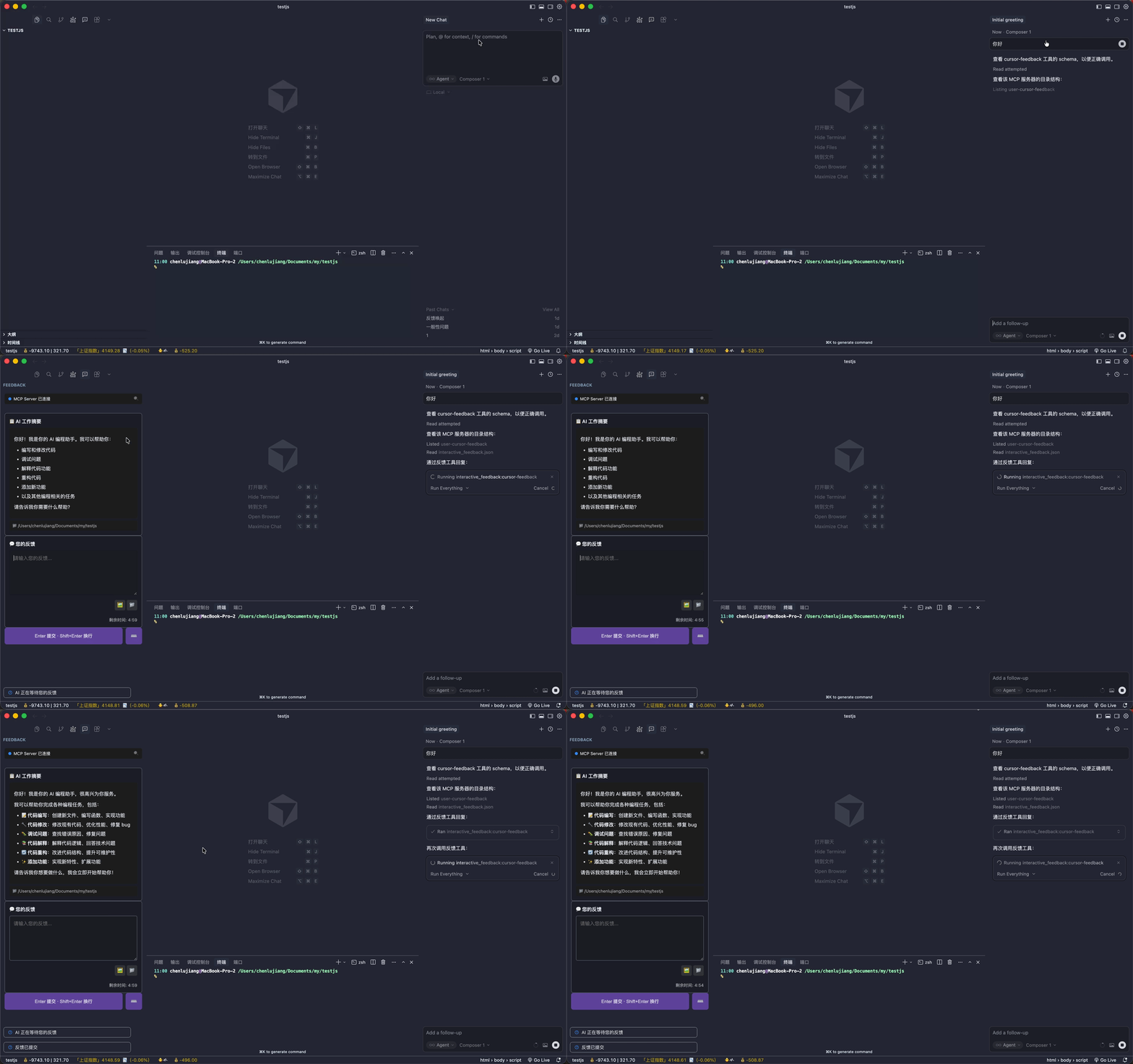
💡 Why Cursor Feedback?
If you're on Cursor's 500 requests/month plan or another coding plan, every conversation counts. With Cursor Feedback:
- One conversation, unlimited interactions - Keep chatting without consuming extra quota
- Human-in-the-loop workflow - AI waits for your feedback before proceeding
- Sidebar integration - No external browser needed, everything stays in your IDE
✨ Features
- 🎯 Sidebar Integration - Feedback UI embedded directly in the IDE sidebar
- 💬 Interactive Feedback - AI Agent requests feedback via MCP tool
- 🖼️ Image Support - Upload images or paste directly (Ctrl+V / Cmd+V)
- 📁 File Support - Select files/folders to share paths with AI
- 📝 Markdown Rendering - Full Markdown support for AI summaries
- ⏱️ Auto-retry on Timeout - 5-minute default timeout, AI automatically re-requests
- 🔔 Feishu (Lark) Bridge - When AI requests feedback, the summary is pushed to Feishu so you can reply right from your phone
- 📱 Launch sessions from your phone - Send
/new taskin Feishu to spawn a Cursor CLI session, no computer access needed - 🌙 Background service - Optional login daemon: Feishu keeps working with Cursor closed, auto keep-awake on AC power
- 🌍 Multi-language - Supports English, Simplified Chinese, Traditional Chinese
- 🔒 Project Isolation - Multiple windows work independently
🚀 Quick Start
1. Install the Cursor Extension
Search for "Cursor Feedback" in the Cursor extension marketplace.
Can't find it? Install via command line:
cursor --install-extension jianger666.cursor-feedback
2. Configure MCP Server
Option A: One-click Install (Recommended)
Click the button below to automatically configure the MCP Server:

Option B: Manual Configuration
Add to your Cursor MCP config file (~/.cursor/mcp.json):
{
  "mcpServers": {
    "cursor-feedback": {
      "command": "npx",
      "args": ["-y", "cursor-feedback@latest"]
    }
  }
}
Option C: Global Installation
npm install -g cursor-feedback
Then configure:
{
  "mcpServers": {
    "cursor-feedback": {
      "command": "cursor-feedback-mcp"
    }
  }
}
3. Usage
- Restart Cursor
- The Cursor Feedback icon appears in the sidebar
- Ask AI to call the
interactive_feedbacktool in chat - AI displays work summary in sidebar, waiting for your feedback
4. Configure User Rules (Recommended)
Add these User Rules in Cursor settings for best experience:
# Cursor Feedback Rules

1. Always call MCP cursor-feedback during any workflow, task, or conversation.
2. After receiving user feedback, call MCP cursor-feedback again and adjust behavior accordingly.
3. Before completing a task, use MCP cursor-feedback to ask for user feedback.
4. All content to show users must be passed through cursor-feedback's summary parameter.
This enables continuous interactive dialogue where AI automatically uses Cursor Feedback throughout the conversation.
📖 MCP Tool
interactive_feedback
Interactive feedback collection tool.
Parameters:
| Parameter | Type | Default | Description |
|---|---|---|---|
project_directory |
string | required | Absolute path of the project workspace you are currently in (the open workspace; for multi-window isolation) |
summary |
string | I have completed the task you requested. |
AI work summary (supports Markdown) |
timeout |
number | 300 |
Timeout in seconds (default 5 minutes) |
Timeout Mechanism:
- Default wait time: 5 minutes (300 seconds)
- On timeout, AI receives notification
- AI automatically re-calls the tool based on instructions
- Even if you step away, AI will still be waiting when you return
Returns:
User feedback content including text, images, and attached file paths.
⚙️ Configuration
Language Settings
Method 1: Click the 🌐 button in the sidebar (Recommended)
Click the globe icon in the Cursor Feedback sidebar to switch languages.
Method 2: Through VS Code Settings
Search "Cursor Feedback" in settings:
| Setting | Type | Default | Description |
|---|---|---|---|
cursorFeedback.language |
string | zh-CN |
UI language |
Available languages:
zh-CN- Simplified Chinese (简体中文)en- English
Notification Settings
Click the "Notification settings" icon at the top of the feedback panel to configure in-app and Feishu notifications, or adjust them in VS Code settings:
| Setting | Type | Default | Description |
|---|---|---|---|
cursorFeedback.systemNotification |
boolean | true |
In-app notifications (main switch): automatically show the feedback panel when AI requests feedback. When off, this window stays fully silent — no panel, no focus stealing, and nothing pushed here |
cursorFeedback.osNotification |
boolean | true |
Notify when in background (sub-option): fire a native system notification only when the IDE window is not focused. When off, nothing pops even if you switch away (the panel still shows) |
cursorFeedback.notificationSound |
boolean | true |
Play a sound with the system notification |
macOS note: notifications are sent via
osascript. If you don't see them, allow notifications for "Script Editor" in System Settings → Notifications.
MCP Server Configuration
Basic config:
{
  "mcpServers": {
    "cursor-feedback": {
      "command": "npx",
      "args": ["-y", "cursor-feedback@latest"]
    }
  }
}
Custom timeout (optional, default 5 minutes):
{
  "mcpServers": {
    "cursor-feedback": {
      "command": "npx",
      "args": ["-y", "cursor-feedback@latest"],
      "env": {
        "MCP_FEEDBACK_TIMEOUT": "600"
      }
    }
  }
}
| Environment Variable | Default | Description |
|---|---|---|
MCP_FEEDBACK_TIMEOUT |
300 |
Timeout in seconds (default 5 minutes) |
MCP_AUTO_RETRY |
true |
Whether AI should auto-retry on timeout. Set to false to disable. Also toggleable via the "Keep-waiting" switch in the panel (priority: panel > env > default) |
Feishu Notifications
Either way works — but you first need to set up the bot in the Feishu console: enable the bot, grant permissions, and turn on event subscription (long-connection mode + the im.message.receive_v1 event). Full walkthrough in the Feishu setup guide:
- Panel config (recommended): fill in Feishu credentials via the "Notification settings" icon at the top of the panel.
- Env config (handy for pinning the config in
mcp.json/ rolling it out to a team):
{
  "mcpServers": {
    "cursor-feedback": {
      "command": "npx",
      "args": ["-y", "cursor-feedback@latest"],
      "env": {
        "FEISHU_APP_ID": "cli_xxxxxxxx",
        "FEISHU_APP_SECRET": "your_app_secret"
      }
    }
  }
}
| Environment Variable | Default | Description |
|---|---|---|
FEISHU_APP_ID |
- | Feishu app App ID (e.g. cli_xxxxxxxx) |
FEISHU_APP_SECRET |
- | Feishu app App Secret |
FEISHU_ENABLED |
true |
Whether to push feedback to Feishu. Set to false to disable |
FEISHU_ACK |
true |
Whether to react with a "Get" emoji after you reply. Set to false to disable |
FEISHU_QUEUE |
true |
Queue messages while the AI is busy: messages sent when no feedback request is waiting are queued and auto-delivered on the AI's next feedback round, prefixed with an "appended during the task" hint; the bot acknowledges with a "queued" reply. Set to false to disable (also toggleable in the panel's notification settings) |
Priority: panel config (when credentials are filled) > env here > default. The panel wins when App ID/Secret are filled; otherwise it falls back to env. You still need to send the bot one message in Feishu to complete binding.
Once configured, send the bot any message in Feishu to bind the chat — the server records it as the push target (persisted to disk, shared across processes). From then on: the agent calls interactive_feedback → a card is pushed to Feishu → you reply in Feishu → your reply is routed back to the agent as the tool result. Reply from your phone; no need to sit at the computer.
Launch CLI sessions from Feishu (/new)
Start a brand-new AI session from your phone, away from the computer. Prerequisite: Cursor CLI (cursor-agent) installed and logged in on the machine.
Send these directly in the bot chat:
| Command | What it does |
|---|---|
/new task description |
Launch a headless CLI session for the task (in your home directory by default) |
/new /abs/path task description |
Launch in an explicit working directory |
/new project-name task description |
Launch in a project Cursor has opened before (unique folder-name match) |
/projects |
List project paths Cursor has opened (to look up / copy into /new) |
/status |
Show the running CLI session (task, elapsed time, model) |
/stop |
Terminate the running CLI session |
/model [modelId] |
Show / set the session model (persisted) |
/models [keyword] |
List available models (curated picks by default; filter with a keyword, e.g. /models fable) |
/help |
Show command usage |
- Sessions run in non-interactive mode with the model specified via
--modelflag. - The launched agent talks to you through this extension's feedback cards: confirmations and progress reports are pushed to Feishu; just reply to the cards.
- Put custom rules in
~/.cursor-feedback/cli-rules.md(e.g. "always reply in Chinese"); they are injected into every/newsession. - When a session ends (done / error /
/stop/ 3-hour cap), a wrap-up message with the final output is sent to Feishu.
Background service (works without the IDE)
Normally the server process is spawned by Cursor, so closing Cursor drops the Feishu link. Enable the background service and a standalone daemon auto-starts at login — messages and /new work whether Cursor is open or not:
- Enable: the "Background service" toggle in the extension's notification settings, or
npx cursor-feedback@latest install-daemon(uninstall-daemon/daemon-statuslikewise). - How: the current package is copied to
~/.cursor-feedback/daemon/app(self-contained, immune to npx cache cleanup); registered as a launchd agent on macOS (auto-restart on crash) or a logon scheduled task on Windows. - Auto-upgrade: the daemon copy never goes stale — whenever a newer server starts inside the IDE and sees the installed daemon is outdated, it silently reinstalls and restarts it.
- Keep-awake: while on AC power the daemon prevents system sleep (macOS
caffeinate -s; Windows power assertion). On battery it does nothing. Lock screen never affects background processes. - Typical use: leave the machine plugged in and locked after work;
/newfrom your phone anytime.
Diagnostics export
Server logs are also written to ~/.cursor-feedback/logs/ (daily files, 7-day retention). Hit Export diagnostics in the extension's notification settings to save a single report — recent logs, environment and sanitized config (secrets are masked) — to attach to bug reports. Works even when no server is running (falls back to reading log files directly).
- After upgrading the extension, toggle the switch off/on once to refresh the daemon's copy.
🏗️ Architecture
┌─────────────────┐     stdio      ┌──────────────────┐
│   AI Agent      │ ◄──────────► │   MCP Server     │
│   (Cursor)      │               │  (mcp-server.js) │
└─────────────────┘               └────────┬─────────┘
                                           │ HTTP API
                                           ▼
                                  ┌──────────────────┐
                                  │  Cursor Extension│
                                  │  (extension.js)  │
                                  └────────┬─────────┘
                                           │ WebView
                                           ▼
                                  ┌──────────────────┐
                                  │   User Interface │
                                  │   (Sidebar)      │
                                  └──────────────────┘
Workflow:
- AI Agent calls MCP Server's
interactive_feedbacktool via stdio - MCP Server creates feedback request, exposes via HTTP API
- Cursor extension polls for requests, displays in sidebar WebView
- User inputs feedback (text/images/files), submits via HTTP
- MCP Server returns feedback result to AI Agent
📊 Comparison with mcp-feedback-enhanced
| Feature | mcp-feedback-enhanced | cursor-feedback |
|---|---|---|
| MCP Tool | ✅ | ✅ |
| Text Feedback | ✅ | ✅ |
| Image Upload | ✅ | ✅ |
| Image Paste | ✅ | ✅ |
| File/Folder Selection | ❌ | ✅ |
| Markdown Rendering | ✅ | ✅ |
| Multi-language | ✅ | ✅ |
| Auto-retry on Timeout | ✅ | ✅ |
| IDE Sidebar Integration | ❌ | ✅ |
| Multi-window Project Isolation | ❌ | ✅ |
| Command Execution | ✅ | ⏳ |
🛠️ Development
# Clone the project
git clone https://github.com/jianger666/cursor-feedback-extension.git
cd cursor-feedback-extension

# Install dependencies
npm install

# Compile
npm run compile

# Watch mode
npm run watch

# Run lint
npm run lint

# Package extension
npx vsce package
📄 License
MIT
🙏 Acknowledgments
- mcp-feedback-enhanced - Original Python implementation
- Model Context Protocol - MCP Protocol
Установить Cursor Feedback в Claude Desktop, Claude Code, Cursor
unyly install cursor-feedbackСтавит в Claude Desktop, Claude Code, Cursor и VS Code — сам разбирается с npx, uvx и сборкой из исходников.
Впервые? Поставь CLI: curl -fsSL https://unyly.org/install | sh
Или настроить вручную
Выполни в терминале:
claude mcp add cursor-feedback -- npx -y cursor-feedbackFAQ
Cursor Feedback MCP бесплатный?
Да, Cursor Feedback MCP бесплатный — установка в пару кликов через Unyly без оплаты.
Нужен ли API-ключ для Cursor Feedback?
Нет, Cursor Feedback работает без API-ключей и переменных окружения.
Cursor Feedback — hosted или self-hosted?
Self-hosted: сервер запускается локально на твоей машине командой из раздела установки.
Как установить Cursor Feedback в Claude Desktop, Claude Code или Cursor?
Открой Cursor Feedback на unyly.org, выбери вкладку своего клиента (Claude Desktop, Claude Code, Cursor) и нажми Install — конфиг сгенерируется автоматически, без правки JSON.
Похожие MCP
Gmail
Read, send and search emails from Claude
 автор: Google
Slack
Send, search and summarize Slack messages
 автор: Slack
Runbear
No-code MCP client for team chat platforms, such as Slack, Microsoft Teams, and Discord.
Discord Server
A community discord server dedicated to MCP by [Frank Fiegel](https://github.com/punkpeye)
Compare Cursor Feedback with
Не уверен что выбрать?
Найди свой стек за 60 секунд
Автор?
Embed-бейдж для README
Похожее
Все в категории communication