loading…
Search for a command to run...
loading…
ai generate tableau file
Tableau Workbook (.twb/.twbx) generation toolkit for reproducible dashboards and workbook engineering Programmatically create Tableau workbooks with stable analytical primitives, dashboard composition, and built-in structural validation.
Author: Cooper Wenhua <[email protected]>
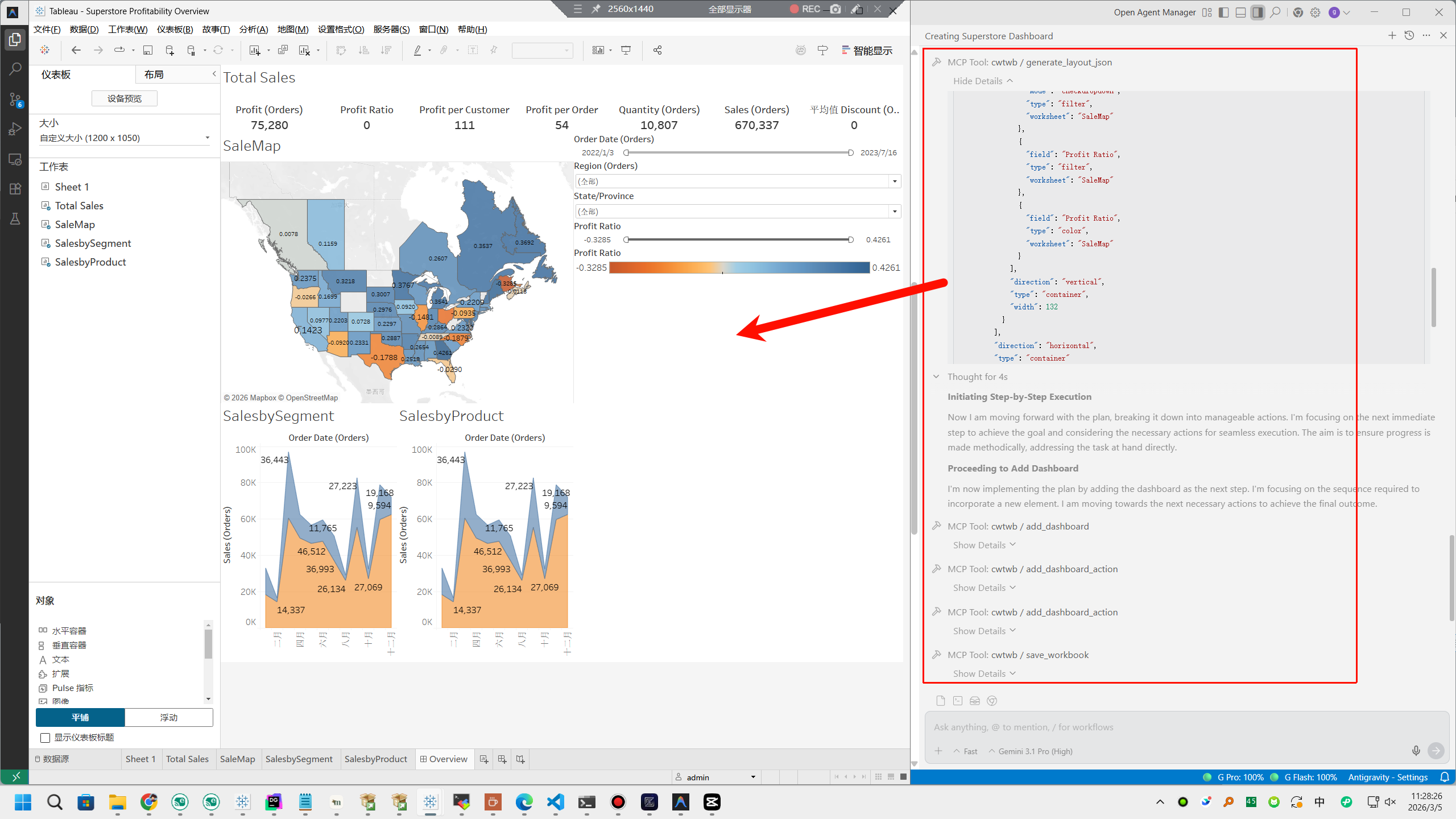
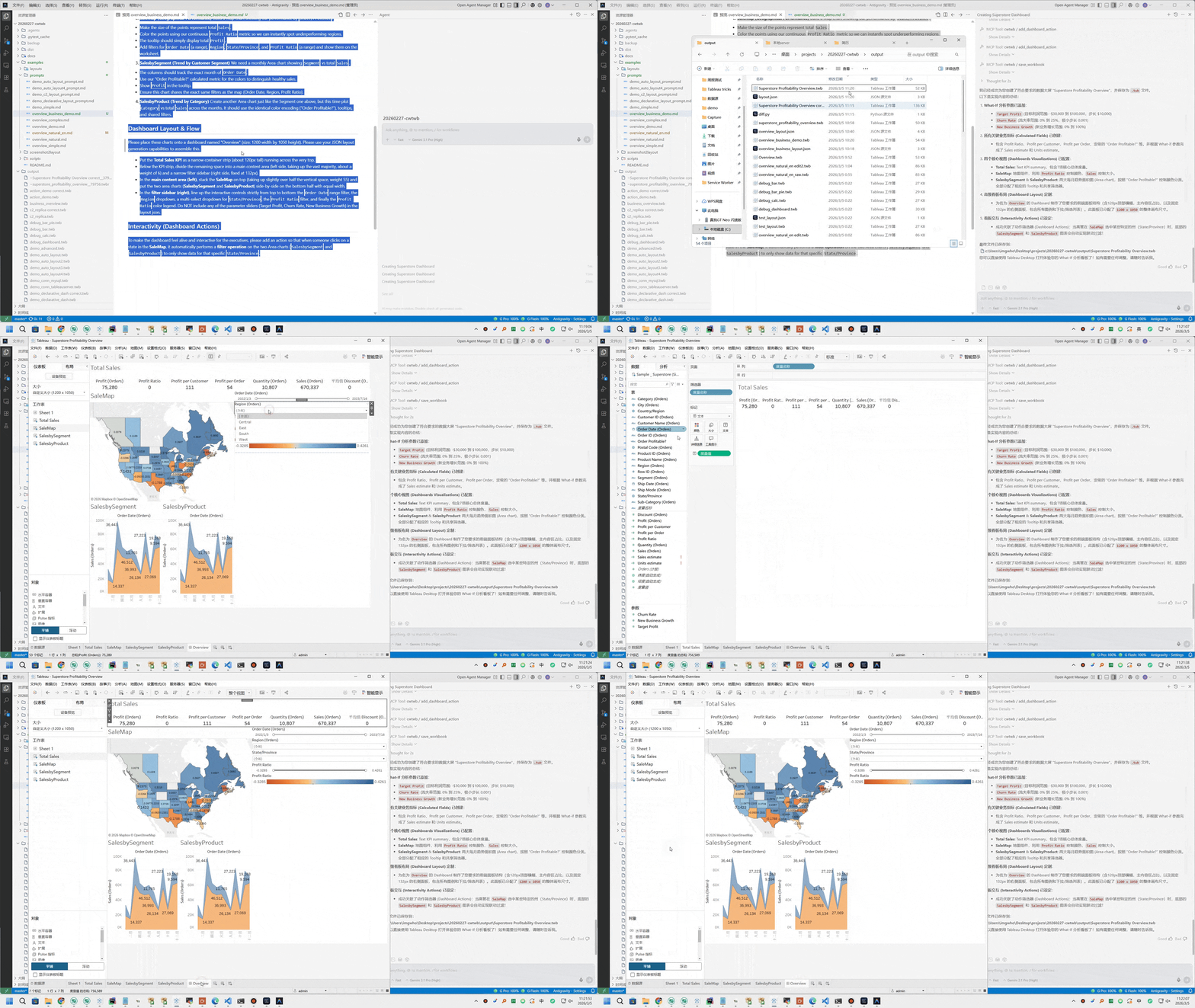
cwtwb is a Model Context Protocol (MCP) server and Python toolkit for generating Tableau Desktop workbook files (.twb / .twbx) from code or AI-driven tool calls.
It is designed as a workbook engineering layer, not as a conversational data exploration agent. The goal is to make workbook generation reproducible, inspectable, and safe to automate in local workflows, scripts, and CI.
The default workflow is:
.twb or .twbx) or the built-in zero-config template.twb or .twbx that opens in Tableau DesktopThe default MCP entrypoint exposes the low-level workbook engineering tools only. Experimental guided authoring code is still present in the package, but it is not registered in the default MCP tool or prompt surface so agents do not accidentally enter a long guided workflow when a direct workbook edit is wanted.
Interfaces
┌───────────────────────────────────────────────────────────────┐
│ ┌──────────────────────────┐ ┌───────────────────────────┐ │
│ │ MCP Server │ │ Python Library │ │
│ │ tools_workbook │ │ from cwtwb.twb_editor │ │
│ │ tools_layout │ │ import TWBEditor │ │
│ │ tools_migration │ │ │ │
│ │ tools_support │ │ editor.add_...() │ │
│ │ │ │ editor.configure_...() │ │
│ │ (Claude / Cursor / │ │ editor.save(...) │ │
│ │ VSCode / Claude Code) │ │ │ │
│ └─────────────┬────────────┘ └──────────────┬────────────┘ │
│ └──────────────┬────────────────┘ │
└───────────────────────────── ┼ ─────────────────────────────┘
▼
┌───────────────────────────────────────────────────────────────┐
│ TWBEditor │
│ ParametersMixin · ConnectionsMixin │
│ ChartsMixin · DashboardsMixin │
└──────────┬──────────────────┬──────────────────┬─────────────┘
▼ ▼ ▼
┌──────────────────┐ ┌──────────────┐ ┌──────────────────────┐
│ Chart Builders │ │ Dashboard │ │ Analysis & │
│ │ │ System │ │ Migration │
│ Basic DualAxis │ │ │ │ │
│ Pie Text │ │ layouts │ │ migration.py │
│ Map Recipes │ │ actions │ │ twb_analyzer.py │
│ │ │ dependencies│ │ capability_registry │
└────────┬─────────┘ └──────┬───────┘ └──────────┬───────────┘
└───────────────────┼──────────────────────┘
▼
┌───────────────────────────────────────────────────────────────┐
│ XML Engine (lxml) │
│ template.twb/.twbx → patch → validate → save │
└───────────────────────────────┬───────────────────────────────┘
▼
output.twb / output.twbx
pip install cwtwb
To run the bundled Hyper-backed example that inspects .hyper files and
resolves the physical Orders_* table automatically, install the optional
example dependency as well:
pip install "cwtwb[examples]"
To allow an MCP client to build Tableau workbooks automatically, add cwtwb
to that client's MCP configuration.
The launch command is the same across clients:
uvx cwtwb
Each client stores this command in a different configuration format. Use the matching example below.
Open ~/Library/Application Support/Claude/claude_desktop_config.json on macOS or %APPDATA%\Claude\claude_desktop_config.json on Windows and add:
{
"mcpServers": {
"cwtwb": {
"command": "uvx",
"args": ["cwtwb"]
}
}
}
commandcwtwbuvx cwtwbclaude mcp add cwtwb -- uvx cwtwb
Open the workspace .vscode/mcp.json file or your user-profile mcp.json
file and add:
{
"servers": {
"cwtwb": {
"command": "uvx",
"args": ["cwtwb"]
}
}
}
In VSCode, you can open these files from the Command Palette with
MCP: Open Workspace Folder Configuration or
MCP: Open User Configuration. You can also use MCP: Add Server and
enter the same uvx cwtwb command through the guided flow.
For local testing without uvx, you can also start the server with:
python -m cwtwb.mcp
Use TWBEditor(...) to start from a template and rebuild workbook content.
Use TWBEditor.open_existing(...) when you want to keep existing worksheets
and dashboards and reconfigure a sheet in place.
from cwtwb.twb_editor import TWBEditor
editor = TWBEditor("") # "" uses the built-in Superstore template
editor.clear_worksheets()
editor.add_calculated_field("Profit Ratio", "SUM([Profit])/SUM([Sales])")
editor.add_worksheet("Sales by Category")
editor.configure_chart(
worksheet_name="Sales by Category",
mark_type="Bar",
rows=["Category"],
columns=["SUM(Sales)"],
)
editor.add_worksheet("Segment Pie")
editor.configure_chart(
worksheet_name="Segment Pie",
mark_type="Pie",
color="Segment",
wedge_size="SUM(Sales)",
)
editor.add_dashboard(
dashboard_name="Overview",
worksheet_names=["Sales by Category", "Segment Pie"],
layout="horizontal",
)
editor.save("output/my_workbook.twb")
Use worksheet clone/refactor when you want to duplicate an existing visual module and rebind only the cloned worksheet to a different core measure. This is especially useful for KPI cards such as turning a Sales KPI worksheet into an independent Profit KPI worksheet while preserving the original sheet.
from cwtwb.twb_editor import TWBEditor
editor = TWBEditor.open_existing("examples/worksheet_refactor_kpi_profit/5 KPI Design Ideas (2).twb")
editor.clone_worksheet("1. KPI", "1. KPI Profit")
editor.apply_worksheet_refactor("1. KPI Profit", {"Sales": "Profit"})
editor.set_worksheet_hidden("1. KPI Profit", hidden=False)
editor.save("output/kpi_profit_clone.twb")
Available worksheet-refactor helpers:
clone_worksheet(source_worksheet, target_worksheet)preview_worksheet_refactor(worksheet_name, replacements)apply_worksheet_refactor(worksheet_name, replacements)set_worksheet_hidden(worksheet_name, hidden=True)apply_worksheet_refactor(...) now also performs a worksheet-local identity
normalization pass for generic Tableau Calculation_* fields. This stabilizes
pill labels after clone-and-replace workflows and returns post_process
evidence describing renamed calculation identities and worksheet-local rewrite
maps.
.twbx files are ZIP archives that bundle the workbook XML together with data extracts (.hyper) and image assets. cwtwb reads and writes them transparently:
from cwtwb.twb_editor import TWBEditor
# Open a packaged workbook — extracts and images are preserved automatically
editor = TWBEditor.open_existing("templates/dashboard/MyDashboard.twbx")
# Make changes as usual
editor.add_calculated_field("Profit Ratio", "SUM([Profit])/SUM([Sales])")
# Save as .twbx — re-bundles the updated .twb with the original extracts/images
editor.save("output/MyDashboard_v2.twbx")
# Or extract just the XML when the packaged format isn't needed
editor.save("output/MyDashboard_v2.twb")
A plain .twb can also be packaged:
editor = TWBEditor("templates/twb/superstore.twb")
# ...
editor.save("output/superstore.twbx") # produces a single-entry ZIP with the .twb inside
| Tool | Description |
|---|---|
create_workbook |
Load a .twb or .twbx template and initialize a rebuild-from-template workspace |
open_workbook |
Open an existing .twb or .twbx and keep its worksheets and dashboards for editing |
list_fields |
List all available dimensions and measures |
list_worksheets |
List worksheet names in the active workbook |
list_dashboards |
List dashboards and the worksheet zones they reference |
add_parameter |
Add an interactive parameter for what-if analysis |
add_calculated_field |
Add a calculated field with Tableau formula |
remove_calculated_field |
Remove a previously added calculated field |
clone_worksheet |
Clone an existing worksheet and its worksheet window |
preview_worksheet_refactor |
Preview worksheet-scoped field rewrites before mutating the workbook |
apply_worksheet_refactor |
Apply worksheet-scoped field rewrites while preserving the original worksheet |
add_worksheet |
Add a new blank worksheet |
configure_chart |
Configure chart type and field mappings |
configure_worksheet_style |
Apply worksheet-level styling: background color, axis/grid/border visibility |
configure_dual_axis |
Configure a dual-axis chart composition |
configure_chart_recipe |
Configure a showcase recipe chart such as lollipop, donut, butterfly, or calendar |
add_dashboard |
Create a dashboard combining worksheets |
add_dashboard_action |
Add filter, highlight, URL, or go-to-sheet actions to a dashboard |
set_worksheet_caption |
Set or clear a worksheet caption using plain text |
set_worksheet_hidden |
Hide or unhide a worksheet by updating its worksheet window metadata |
generate_layout_json |
Build and validate an interactive structured dashboard flexbox layout JSON before writing it |
list_capabilities |
Show cwtwb's declared support boundary |
describe_capability |
Explain whether a chart or feature is core, advanced, recipe, or unsupported |
analyze_twb |
Analyze a .twb file against the capability catalog; output includes both the full capability breakdown and the capability gap triage summary |
diff_template_gap |
Summarize the non-core gap of a template |
validate_workbook |
Validate a workbook against the official Tableau TWB XSD schema (2026.1) |
set_excel_connection |
Configure the datasource to use a local Excel workbook and register fields from the selected sheet |
set_mysql_connection |
Configure the datasource to use a local MySQL connection |
set_tableauserver_connection |
Configure connection to an online Tableau Server |
set_hyper_connection |
Configure the datasource to use a local Hyper extract connection |
save_workbook |
Save the workbook as .twb (plain XML) or .twbx (ZIP with bundled extracts and images) |
Important save semantics for agents:
save_workbook(output_path=...) is the only default MCP tool that writes the active in-memory workbook to disk.validate_workbook() validates the active in-memory workbook or an existing file, but it does not save or export anything.analyze_twb(file_path=...) requires an existing .twb or .twbx path. For a newly generated workbook, call save_workbook first, then call analyze_twb on the saved path.The default MCP entrypoint currently registers no prompts. This is intentional: the default server is optimized for direct tool calling through the workbook engineering surface.
The datasource-first guided authoring implementation remains in the source tree for future use, but it is hidden from the default MCP entrypoint. In practical terms:
cwtwb.authoring_run and
cwtwb.mcp.tools_authoring still exist.cwtwb MCP command does not import tools_authoring.py, so guided
tools such as start_authoring_run and generate_workbook_from_run are not
registered.guided_dashboard_authoring.authoring_workflow skill.To restore guided authoring later, re-register the guided modules from an MCP
entrypoint by importing cwtwb.mcp.tools_authoring and the guided prompt module.
For now, keeping them hidden prevents agents from choosing a long guided
workflow when the intended task is a direct workbook edit.
These are the stable building blocks the project should continue to promise:
These are supported, but they are higher-level compositions or interaction features rather than the default surface area:
mark_color_1/2, color_map_1, reverse_axis_1, hide_zeroline, synchronizedRANK_DENSE, RUNNING_SUM, WINDOW_SUM via add_calculated_field(table_calc="Rows")MIN(1) dummy axis + axis_fixed_range + color_map + customized_labelconfigure_dual_axis(extra_axes=[...]); supports color_map for :Measure Names paletteconfigure_chart(label_runs=[...]) for multi-style KPI cards and dynamic titles with inline field valuesconfigure_worksheet_style supports pane-level cell/datalabel/mark styles, per-field label/cell/header formats, axis tick control, tooltip disabling, and all Tableau visual noise suppressionsconfigure_worksheet_style(hide_row_label="FieldName")show_title: false in layout dictsThese can be generated today, but they should be treated as recipes or examples rather than first-class promises:
Recipe charts are intentionally exposed through a single configure_chart_recipe
tool so the public MCP surface does not grow one tool at a time for every
showcase pattern.
This distinction matters because cwtwb is not trying to become a chart zoo or compete with Tableau's own conversational analysis tooling. The project is strongest when it provides a reliable, automatable workbook generation layer.
When you are not sure whether something belongs in the stable SDK surface:
list_capabilities to inspect the declared boundarydescribe_capability to check a specific chart, encoding, or featureanalyze_twb or diff_template_gap before chasing a showcase templateThis keeps new feature work aligned with the project's real product boundary instead of with whatever happens to appear in a sample workbook.
save() automatically validates the TWB XML before publishing the final file:
<workbook> or <datasources> raise TWBValidationError<view> or <panes> are logged but do not block saving.twb or packaged .twbx is checked against the Tableau TWB XSD when the vendored schema is availableTWBValidationError; known Tableau compatibility warnings remain non-fataleditor.save("output.twb", validate=False) or editor.save("output.twbx", validate=False)TWBEditor.validate_schema() checks the workbook against the official Tableau TWB XSD schema (2026.1). Source checkouts use vendor/tableau-document-schemas/; installed packages, including uvx cwtwb, use the packaged copy under cwtwb/vendor/:
result = editor.validate_schema()
print(result.to_text())
# PASS Workbook is valid against Tableau TWB XSD schema (2026.1)
# — or —
# FAIL Schema validation failed (2 error(s)):
# * Element 'workbook': Missing child element(s)...
result.valid # bool
result.errors # list[str] — lxml error messages
result.schema_available # False only if neither the packaged nor source schema is available
The same check is available as an MCP tool:
validate_workbook() # validate current open workbook in memory
validate_workbook(file_path="out.twb") # validate a file on disk (.twb or .twbx)
When called directly, validate_workbook still returns a PASS/WARN/FAIL text
summary. During save(), strict XSD errors are fail-closed and block the final
output file; known Tableau compatibility warnings are reported but do not block
saving.
| Layout | Description |
|---|---|
vertical |
Stack worksheets top to bottom |
horizontal |
Place worksheets side by side |
grid-2x2 |
2x2 grid layout for up to four worksheets |
dict or .json path |
Declarative custom layouts for more complex dashboards |
Custom layouts can be built programmatically using a nested layout dictionary or via generate_layout_json for MCP workflows.
Use the canonical layout tree shape for nested dashboards:
{
"type": "container",
"direction": "horizontal",
"children": [
{"type": "worksheet", "name": "Sidebar", "fixed_size": 160},
{
"type": "container",
"direction": "vertical",
"children": [
{"type": "worksheet", "name": "Header", "fixed_size": 80},
{"type": "worksheet", "name": "Main Chart", "weight": 1}
]
}
]
}
For compatibility with older MCP prompts and generated JSON files, add_dashboard
also accepts legacy container aliases and normalizes them recursively:
{"type": "horizontal", "children": [...]} and
{"type": "vertical", "children": [...]}. Unknown layout node types now raise a
clear error instead of silently creating an empty dashboard zone.
The examples/hyper_and_new_charts.py example uses the Sample - EU Superstore.hyper
extract bundled directly in the package (src/cwtwb/references/) and resolves the
physical Orders_* table via Tableau Hyper API before switching the workbook connection.
No repository clone is needed — install with pip install "cwtwb[examples]" and run directly.
cwtwb includes a migration subsystem for switching an existing .twb to a new
datasource — for example, repointing a workbook built on one Excel file to a
different Excel with a different schema, or migrating between language variants
of the same dataset.
Migration is a multi-step workflow. Each explicit step is available as both an MCP tool and a Python function:
1. inspect_target_schema → Scan the target Excel and list its columns
2. profile_twb_for_migration → Inventory which fields the workbook uses
3. propose_field_mapping → Match source fields to target columns (fuzzy)
4. preview_twb_migration → Dry-run: show what would change, blockers/warnings
5. apply_twb_migration → Write the migrated .twb + JSON reports
migrate_twb_guided remains available as a Python convenience wrapper that runs
steps 2-5 in sequence and pauses automatically when only low-confidence field
matches remain, returning a warning_review_bundle for human review before
proceeding. It is not registered as a default MCP tool, keeping the MCP surface
explicit and predictable.
from cwtwb.migration import migrate_twb_guided_json
import json
# One-call guided migration
result = migrate_twb_guided_json(
file_path="templates/SalesDashboard.twb",
target_source="data/new_data_source.xlsx",
output_path="output/SalesDashboard_migrated.twb",
)
bundle = json.loads(result)
if bundle["status"] == "warning_review_required":
# Inspect low-confidence matches and confirm or override them
print(bundle["warning_review_bundle"])
# Re-run with confirmed mappings
result = migrate_twb_guided_json(
file_path="templates/SalesDashboard.twb",
target_source="data/new_data_source.xlsx",
output_path="output/SalesDashboard_migrated.twb",
mapping_overrides={"Old Field Name": "New Column Name"},
)
When using cwtwb as an MCP server, an AI agent can run the explicit workflow:
inspect_target_schema(target_source="data/new_data_source.xlsx")
→ returns column list and data types
profile_twb_for_migration(
file_path="templates/SalesDashboard.twb",
target_source="data/new_data_source.xlsx"
)
→ inventories source fields and workbook scope
propose_field_mapping(
file_path="templates/SalesDashboard.twb",
target_source="data/new_data_source.xlsx"
)
→ proposes source-to-target field mappings
preview_twb_migration(
file_path="templates/SalesDashboard.twb",
target_source="data/new_data_source.xlsx"
)
→ returns blockers, warnings, and planned rewrites
apply_twb_migration(
file_path="templates/SalesDashboard.twb",
target_source="data/new_data_source.xlsx",
output_path="output/SalesDashboard_migrated.twb"
)
→ writes the migrated workbook and reports
A completed migration writes three files:
| File | Contents |
|---|---|
<output>.twb |
Migrated workbook with rewritten field references |
migration_report.json |
Per-field status: mapped / warning / blocked |
field_mapping.json |
Final source→target field mapping for audit |
scope="workbook" migrates all worksheets. Pass a worksheet name to limit
migration to a single sheet.
examples/migrate_workflow/ contains a template .twb, the original
Superstore Excel, a target Chinese-locale Superstore Excel, and a runnable
script:
python examples/migrate_workflow/test_migration_workflow.py
cwtwb/
|-- src/cwtwb/
| |-- __init__.py
| |-- capability_registry.py
| |-- config.py
| |-- contracts/
| |-- authoring_contract.py
| |-- authoring_run.py
| |-- charts/
| |-- connections.py
| |-- dashboard_actions.py
| |-- dashboard_dependencies.py
| |-- dashboard_layouts.py
| |-- dashboards.py
| |-- field_registry.py
| |-- layout.py
| |-- layout_model.py
| |-- layout_rendering.py
| |-- mcp/
| |-- parameters.py
| |-- skills/
| |-- twb_analyzer.py
| |-- twb_editor.py
| |-- validator.py
| `-- server.py
|-- tests/
|-- examples/
|-- docs/
|-- pyproject.toml
`-- README.md
# Install in editable mode
pip install -e .
# Run test suite
pytest --basetemp=output/pytest_tmp
# Run the mixed showcase example
python examples/scripts/demo_all_supported_charts.py
# Run the advanced Hyper-backed example
python examples/scripts/demo_hyper_and_new_charts.py
# Run the guided migration example
python examples/migrate_workflow/test_migration_workflow.py
# Start MCP server
cwtwb
AGPL-3.0-or-later
Добавь это в claude_desktop_config.json и перезапусти Claude Desktop.
{
"mcpServers": {
"cwtwb": {
"command": "npx",
"args": []
}
}
}