loading…
/ru
Весь каталог
The
DltHub AI Workbench
БесплатноIt gives Claude Code, Cursor, and Codex structured workflows and an MCP server for building data pipelines with dlt - covering REST API ingestion, transformatio
Описание
It gives Claude Code, Cursor, and Codex structured workflows and an MCP server for building data pipelines with dlt - covering REST API ingestion, transformations, data quality, and exploration.
README
dlt (data load tool) is an open-source Python library for loading data from APIs and databases into a warehouse or lakehouse. dltHub (paid platform) extends dlt with enterprise-grade features tailored to the needs of coding agents: transformations, data quality validation, managed runtime infrastructure, managed data apps, and an AI-powered workspace environment.
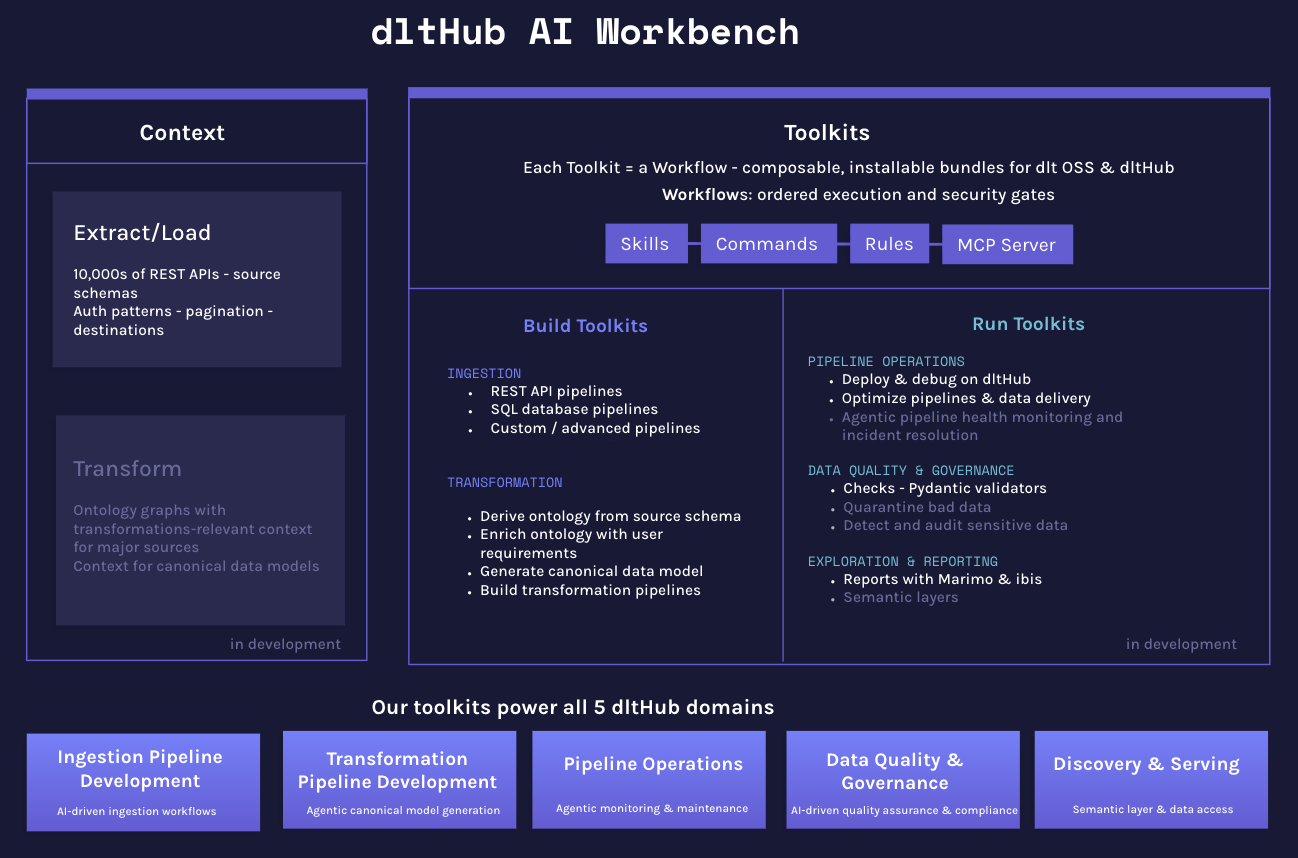
The dltHub AI Workbench is a collection of toolkits that give AI coding assistants step-by-step workflows to build data pipelines with dlt. You can use the workbench as-is or fork and customize it for your own stack. The dlthub ai CLI installs toolkit components into the right locations for your assistant and runs the workspace MCP server.
Build toolkits cover ingestion (REST API, SQL), transformation, and data quality; Run toolkits handle deployment and exploration. The REST API toolkit is backed by the dltHub context — over 9,700 source definitions the agent queries to find verified connectors before writing code. New users can start with the quick-start toolkit for a guided end-to-end run from data to dashboard.
The dltHub AI Workbench is tested with Claude Code, Cursor, and Codex and may work with other AI coding assistants. We recommend workings in accept edits (Claude) / --approval-mode (Codex) mode to review the changes and familiarizing with dlthub AI workflows when getting started with the dlthub AI workbench.
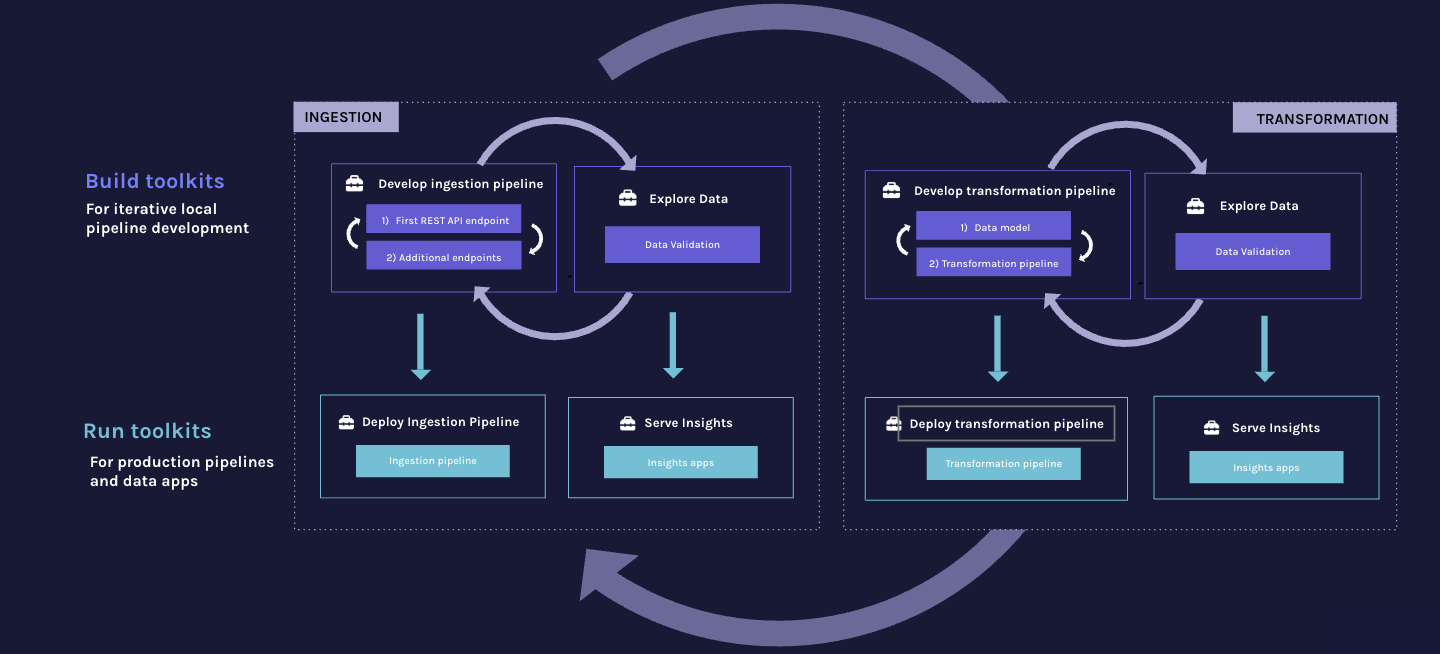
The dlthub AI workbench supports the iterative data engineering workflow
Building data pipelines is iterative and covers two major phases — ingestion and transformations — each following the same inner loop:
Build (local development)
- Develop the pipeline iteratively — for ingestion: first REST API endpoint, then additional endpoints; for transformation: data model first, then the full transformation pipeline
- Explore the loaded data and validate it after each step
- Loop back to refine until the pipeline is solid
Run (production)
- Deploy the ingestion or transformation pipeline to production
- Serve insights via data apps built on top of the loaded data
The outer loop connects the two phases: insights from the transformation and serving layer feed back into ingestion refinement. The workbench Build toolkits support the local development loop; the Run toolkits handle deployment and data apps.
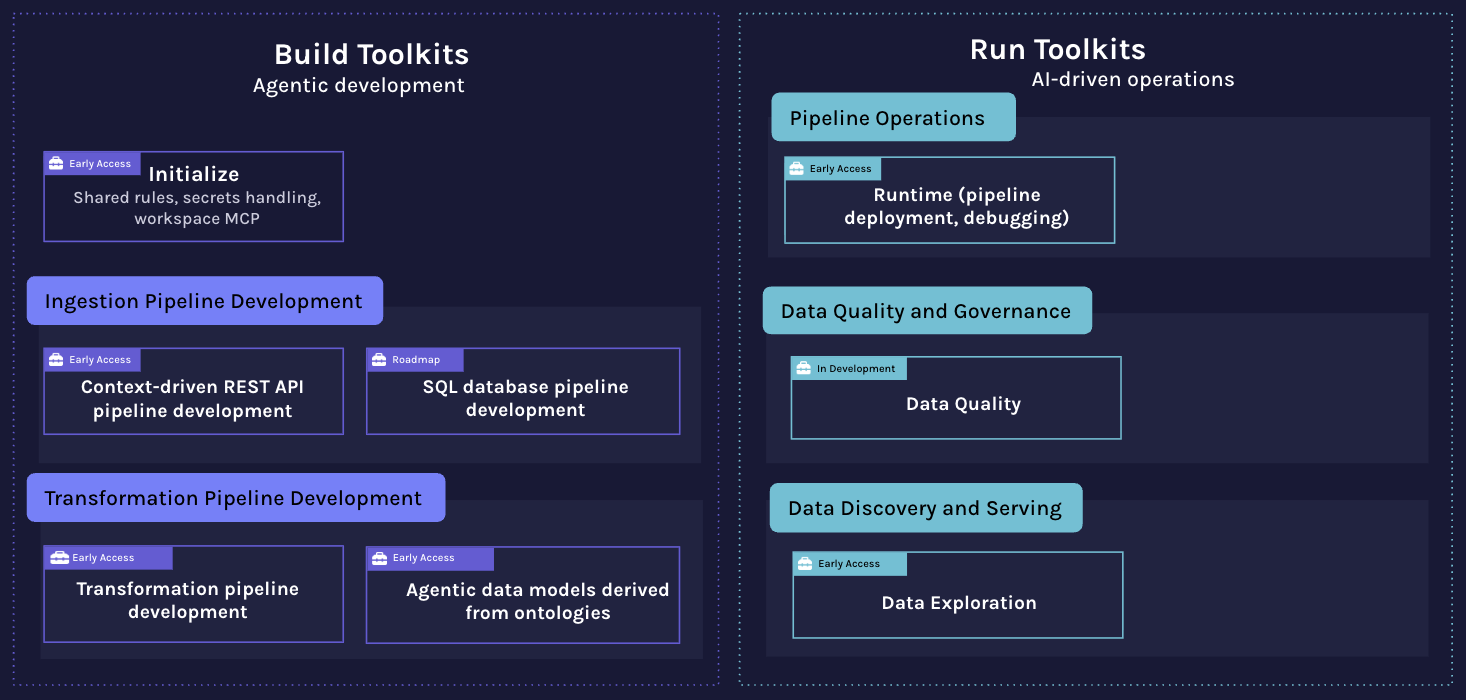
dltHub AI Workbench Toolkits
The workbench gives your coding assistant toolkits — that contain a structured, guided workflow for a specific phase. Instead of generating ad-hoc code, the assistant follows a defined sequence of steps from start to finish.
A Toolkit contains skills, commands, rules, and an MCP server — tied together by a workflow that tells the assistant which skill to run at each step and how to leverage the MCP.
All toolkits depend on init for shared rules, secrets handling, and the MCP server. When using the dlthub ai CLI, init is installed automatically as a dependency. When using the Claude marketplace, install the init plugin separately.
Toolkit components
| Component | What it is | When it runs |
|---|---|---|
| Skill | Step-by-step procedure the assistant follows | Triggered by user intent or explicitly with /skill-name |
| Command | A slash command for a specific action | User invokes with /toolkit:command |
| Rule | Always-on context (conventions, constraints) | Every session, automatically |
| Workflow | Ordered sequence of skills with a fixed entry point | Loaded as a rule — always active |
| MCP server | Exposes pipelines, tables, and secrets as tools | During a session, via MCP protocol |
| dltHub context | 9,700+ REST API source definitions with verified connectors and pipeline patterns | During source discovery, via search_dlthub_sources |
MCP tools
Two MCP servers give the agent structured context throughout the workflow to avoid the need for manual copy-pasting.
dlt-workspace-mcp (local, installed by dlthub ai init) exposes: data inspection tools (list_tables, preview_table, execute_sql_query, get_row_counts, display_schema, get_local_pipeline_state), secrets tools (secrets_view_redacted, secrets_update_fragment), and toolkit discovery (list_toolkits, toolkit_info).
dltHub context (remote) provides search_dlthub_sources — used by the find-source skill to search 9,700+ REST API source definitions and return verified connectors with reference links before writing code.
Available toolkits
| Toolkit | Phase | Workflow entry | What it does | Example prompts | Availability |
|---|---|---|---|---|---|
quick-start |
Setup | quick-start |
Guided end-to-end run from data to dashboard in 3–5 prompts; routes to the right entry skill based on a chosen depth | "Use quick-start to take me through the full workflow with the GitHub API" | Run /quick-start:quick-start |
bootstrap |
Setup | /init-workspace |
Checks for uv, Python venv, and dlthub; installs what's missing; initializes the workspace; then runs dlthub ai init and lists available toolkits |
"Run /init-workspace to set up a Python environment with dlthub" | Try it out yourself! Run /init-workspace |
rest-api-pipeline |
Build | find-source |
Scaffold, debug, and validate REST API ingestion pipelines | "Use find-source to load data from the Stripe API into DuckDB" | Try it out yourself! Run /find-source |
sql-database-pipeline |
Build | find-source |
Scaffold, debug, and validate SQL database ingestion pipelines | "Use find-source to load tables from my Postgres database into DuckDB" | Run /find-source |
filesystem-pipeline |
Build | create-filesystem-pipeline |
Load files (CSV, Parquet, JSONL, or custom) from local disk, S3, GCS, Azure, or SFTP into a destination | "Use create-filesystem-pipeline to load my S3 CSV files into DuckDB" | Sign up |
data-exploration |
Explore | explore-data |
Query loaded data and create marimo dashboards | "Use explore-data to explore my Stripe pipeline and create a dashboard" | Try it out yourself! Run /explore-data |
dlthub-platform |
Run | setup-runtime |
Deploy pipelines to the dltHub Platform | "Use setup-runtime to deploy my pipeline to dltHub" | Sign up |
transformations |
Transform | annotate-sources |
Design a Canonical Data Model (CDM) and write dlthub transformation functions from existing pipelines | "Use annotate-sources to start building a CDM from my HubSpot and Luma pipelines" | Sign up |
data-quality |
Build | setup-data-quality |
Define, run, and review data quality checks and metrics on dlt pipeline data | "Use setup-data-quality to add validation checks to my Stripe pipeline" | Sign up |
initis a shared dependency that provides rules, secrets handling, and the MCP server. It is installed automatically bydlthub ai initor as a separate plugin via the Claude marketplace.
Getting started
New project (recommended)
To set up a clean new dlthub project with AI support, run dlthub-init. It is non-interactive and AI-aware, so your coding assistant can run it for you — this is the command an agent should use to set up a clean new dlthub project. It pins dlt[hub] via a bundled lock and runs uv sync:
uvx dlthub-init@latest <dir> # scaffold a clean new project into <dir>
Existing project
To add the AI workbench to an existing project, run the same dlthub-init in place. It uses per-file collision handling (merges pyproject.toml, never overwrites secrets.toml, unions .gitignore), pins dlt[hub], and runs uv sync — and, being non-interactive, your coding assistant can run it for you:
uvx dlthub-init@latest # set up AI support in the current directory
Manual steps (fallback): if you'd rather do it step by step, or dlthub-init isn't available:
Note: All
dlthub aicommands below useuv run dlthub ...syntax. If you havedlthubinstalled globally or in an active virtual environment, you can omituv runand calldlthubdirectly. We recommend using uv.
# Initialize the environment
uv init

# Install dlthub
uv add "dlt[hub]"

# Initialize the dlthub workspace and follow its instructions (most importantly `uv sync`)
uv run dlthub init

# Set up AI support (auto-detects your coding assistant)
uv run dlthub ai init

# If multiple coding assistants are detected, specify one explicitly:
uv run dlthub ai init --agent <agent>  # <agent>: claude | cursor | codex
dlthub ai init detects your coding assistant from environment variables and config files, then installs skills, rules, and the MCP server in the correct locations for that tool.
Claude Code note: Add the following to your
CLAUDE.mdto enforce safe credential handling:CRITICAL: never ask for credentials in chat. Always let the user edit secrets directly and do not attempt to read them.
Cursor note: After running the command, manually enable the dlt-workspace-mcp server in Cursor Settings > MCP. Add the following to your
.cursor/rules/security.mdcto enforce safe credential handling:CRITICAL: never ask for credentials in chat. Always let the user edit secrets directly and do not attempt to read them.
Codex note: Codex does not support commands and rules, so the installer converts those into skills and AGENTS.md. Codex also runs in a strict sandbox — consider enabling web access in your project or global config:
# .codex/config.toml
web_search = "live"
Add the following to your
AGENTS.mdto enforce safe credential handling:CRITICAL: never ask for credentials in chat. Always let the user edit secrets directly and do not attempt to read them.
First-time onboarding (want to try or learn dltHub)
New to dltHub and just want to try or learn it? Run dlthub-start yourself — it scaffolds a fresh playground workspace (not for production, not for setting up a real project):
uvx dlthub-start@latest
Run this yourself — don't ask your coding assistant.
uvx dlthub-startmust be run by a human because it requires interaction for authentication; it only works in a real terminal (not!mode). For agent-driven setup, use dlthub-init above.
Browse and install toolkits
Don't have dlthub set up yet? Follow New project or Existing project above first (or the
bootstraptoolkit's/init-workspace, which the assistant can drive). The toolkit commands below assumedlthubis installed in your environment.
uv run dlthub ai toolkit list
Install toolkits (if you are not sure which toolkits to install we recommend installing all of them):
uv run dlthub ai toolkit install quick-start
uv run dlthub ai toolkit install bootstrap
uv run dlthub ai toolkit install rest-api-pipeline
uv run dlthub ai toolkit install sql-database-pipeline
uv run dlthub ai toolkit install filesystem-pipeline
uv run dlthub ai toolkit install dlthub-platform
uv run dlthub ai toolkit install data-exploration
uv run dlthub ai toolkit install transformations
uv run dlthub ai toolkit install data-quality
Starting the workbench
Use one of the example prompts from the Available toolkits table above to kick off a workflow.
Claude Code — start a new session via claude in your terminal. Restart after installation for skills and MCP to take effect.
Cursor — open the project in Cursor and use the chat panel (Cmd+L). The installed skills and rules are picked up automatically.
Codex — launch the Codex CLI via codex or use the Codex chat in the UI. Restart Codex after setup for the MCP server to take effect.
Claude Code marketplace plugin (Early Access)
Early Access: The Claude Code plugin is currently in early access and may not provide the best linking experience between different toolkits. If you're new to dltHub and want to try or learn it, see First-time onboarding — you run
uvx dlthub-start@latestyourself. The marketplace path below is useful when you want to bootstrap an existing/empty project from inside Claude Code via thebootstraptoolkit (which prefersuvx dlthub-init@latest— the agent-runnable command for setting up a clean new or existing dlthub project — and falls back to the in-place install steps).
The workbench is also available as a Claude Code plugin via the marketplace. Start a Claude Code session and run:
/plugin marketplace add dlt-hub/dlthub-ai-workbench
/plugin install init@dlthub-ai-workbench --scope project
/plugin install quick-start@dlthub-ai-workbench --scope project
/plugin install bootstrap@dlthub-ai-workbench --scope project
/plugin install rest-api-pipeline@dlthub-ai-workbench --scope project
/plugin install sql-database-pipeline@dlthub-ai-workbench --scope project
/plugin install dlthub-platform@dlthub-ai-workbench --scope project
/plugin install data-exploration@dlthub-ai-workbench --scope project
/plugin install transformations@dlthub-ai-workbench --scope project
/plugin install data-quality@dlthub-ai-workbench --scope project
Start a new session — plugins take effect only after restarting Claude Code: claude
Resuming a session? Plugins installed mid-session are not active until you start a new one.
The dlthub ai CLI
The dlthub ai subcommand is the bridge between the workbench and your coding assistant. dlthub ai init installs project rules, a secrets management skill, appropriate ignore files, and configures the dlt MCP server for your agent. dlthub ai toolkit install copies additional toolkit components (skills, rules, commands) into the right locations for your assistant.
Toolkit management — copies skills, rules, commands, and MCP config from the workbench into your project's agent config directory (.claude/, .cursor/, .agents/, etc.):
uv run dlthub ai status                        # show installed agent, dlthub version, active toolkits
uv run dlthub ai toolkit list                  # list available toolkits from the workbench
uv run dlthub ai toolkit info <name>           # show a toolkit's skills, commands, and workflow
uv run dlthub ai toolkit install <name>        # install a toolkit for the detected agent
uv run dlthub ai toolkit install <name> --agent <agent>  # <agent>: claude | cursor | codex  - override agent detection
Secrets management — dlt stores credentials in TOML files; these commands let the assistant inspect and update them without reading raw secret values:
uv run dlthub ai secrets list                  # show which secret files exist and where
uv run dlthub ai secrets view-redacted         # print secrets with values masked
uv run dlthub ai secrets update-fragment --path <file> '<toml>'  # merge a TOML snippet into a secrets file
MCP server — starts a local server that exposes your dlthub workspace (pipelines, schemas, tables, secrets) as tools the assistant can call:
uv run dlthub ai mcp run                       # run in SSE mode (default)
uv run dlthub ai mcp run --stdio               # run in stdio mode (for assistants that require it)
uv run dlthub ai mcp install                   # register the MCP server in the agent's config
The MCP server allows the assistant to answer questions like "what tables were loaded?" or "show me the schema" without you having to copy-paste output into the chat.
License
This project is licensed under the dltHub AI Workbench License.
Установить DltHub AI Workbench в Claude Desktop, Claude Code, Cursor
Выполни в терминале:
claude mcp add dlthub-ai-workbench -- npx FAQ
DltHub AI Workbench MCP бесплатный?
Да, DltHub AI Workbench MCP бесплатный — установка в один клик через Unyly без оплаты.
Нужен ли API-ключ для DltHub AI Workbench?
Нет, DltHub AI Workbench работает без API-ключей и переменных окружения.
DltHub AI Workbench — hosted или self-hosted?
Self-hosted: сервер запускается локально на твоей машине командой из раздела установки.
Как установить DltHub AI Workbench в Claude Desktop, Claude Code или Cursor?
Открой DltHub AI Workbench на unyly.org, выбери вкладку своего клиента (Claude Desktop, Claude Code, Cursor) и нажми Install — конфиг сгенерируется автоматически, без правки JSON.


