

Описание
MCP server for AI image generation
README
AI image generation and editing MCP server for Cursor, Claude Code, Codex, and any MCP-compatible tool — powered by Google Gemini, OpenAI GPT Image, or BytePlus Seedream.
npm version npm downloads License: MIT
An MCP server that turns a plain description of what you need into a finished image file. You say what the image is for (a recipe page, a menu, an app card) and the server writes the photographic prompt for it: subject and materials, lighting, camera angle, palette. Then it generates the image and returns the saved file as an MCP resource. You don't need to know the vocabulary.
How It Works
You: "a roast chicken for a recipe page, partway through
      carving so you can see how juicy it is"
        ↓
  Your AI assistant passes your request through
        ↓
  MCP writes the photographic prompt for it
  (chosen for what the image is for: subject, lighting, camera, palette)
        ↓
  Image generation with smart defaults
  (grounding, consistency, resolution — all configured automatically)
        ↓
  Saved file, returned as an MCP resource
Your AI assistant interprets your intent — the style, purpose, and context behind your request. The MCP focuses on output quality by refining the prompt to meet a structured visual clarity standard and selecting appropriate generation settings. You just describe what you want.
The prompt optimizer uses a Subject–Context–Style framework (powered by Gemini 2.5 Flash by default, OpenAI Responses when IMAGE_PROVIDER=openai, or ModelArk Responses when IMAGE_PROVIDER=seedream) to fill in missing visual details — subject characteristics, environment, lighting, camera work — while preserving your original intent. It doesn't blindly add details: prompts that already meet the quality standard are left largely intact.
Example
You write: "a photo of a roast chicken dinner for a recipe site. it should look like it was actually cooked, and it should be partway through being carved so you can tell how juicy it is"
What the server sends to the image model: "...a beautifully roasted whole chicken, golden-brown and glistening, resting on a rustic wooden cutting board. One leg is partially carved, revealing tender, succulent white meat and rich, glistening juices pooling around the carving knife ... shallow depth of field to keep the focus sharply on the carved chicken."
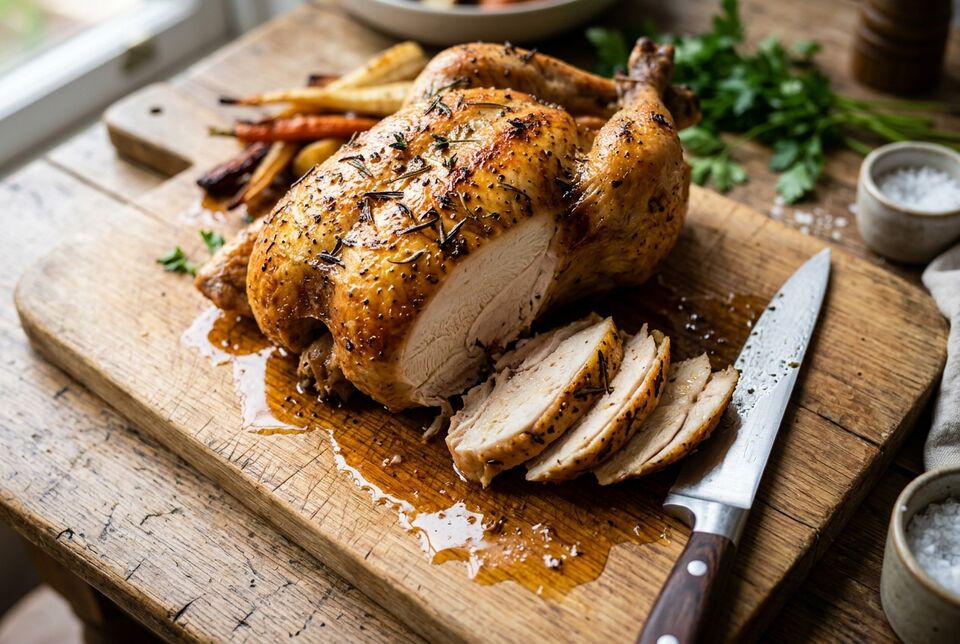
Gemini provider, default fast preset.
What carried through:
for a recipe site→ one subject, with everything else kept subordinateactually cooked→ juices spread across the board, uneven browningpartway through being carved→ the cut face, with slices laid beside ithow juicy it is→ close framing and shallow depth of field on the cut
The same request and settings, without prompt optimization
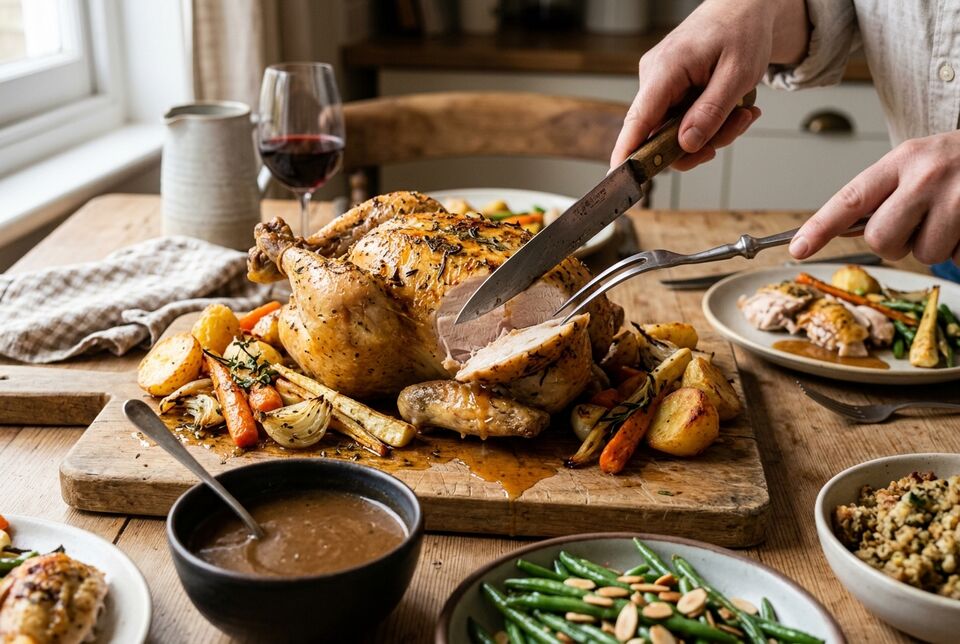
Set SKIP_PROMPT_ENHANCEMENT=true to send your prompt through unchanged.
Features
- Built-in Prompt Optimization: Your request is rewritten into photographic terms (lighting, composition, camera, palette) using the selected provider's text path, so what you asked for carries into the image. You don't need to know the vocabulary.
- Optional Image Providers: Set
IMAGE_PROVIDER=openaifor OpenAI GPT Image orIMAGE_PROVIDER=seedreamfor BytePlus Seedream through ModelArk. - Three Quality Presets: Select
fast,balanced, orquality; each provider maps these values to its own supported model route. See Quality Presets. - Image Editing: Transform existing images with natural language instructions (image-to-image) while preserving original style and visual consistency.
- High-Resolution Output: Up to a 4K resolution token, depending on the selected provider and quality route.
- Flexible Aspect Ratios: From square (1:1) to ultra-wide (21:9) and ultra-tall (1:8) formats.
- Character Consistency: Maintain consistent character appearance across multiple generations — ideal for storyboards, product shots, and visual series.
- Advanced Capabilities:
- Google Search grounding for real-time factual accuracy with the Gemini provider
- World knowledge for photorealistic depictions of historical figures, landmarks, and factual scenarios
- Prompt-level blending guidance for composite scenes
- Purpose-aware generation (e.g., "cookbook cover" produces different results than "social media post")
- Multiple Output Formats: OpenAI and Seedream support PNG/JPEG selection through the output filename.
Prerequisites
- Node.js 22 or higher
- Gemini API Key - Get yours at Google AI Studio for the default Gemini provider
- OpenAI API Key - Get yours from OpenAI when using
IMAGE_PROVIDER=openai - BytePlus ModelArk API Key - Create one in the AP region ModelArk console when using
IMAGE_PROVIDER=seedream - An MCP-compatible AI tool: Cursor, Claude Code, Codex, or others
- Basic terminal/command line knowledge
Quick Start
1. Get Your Gemini API Key
Get your API key from Google AI Studio
To use OpenAI instead, get an OpenAI API key and set:
IMAGE_PROVIDER=openai
OPENAI_API_KEY=your_openai_api_key_here
OpenAI mode requires organization verification — see Using the OpenAI provider below for setup details and feature differences.
To use BytePlus Seedream instead, create an API key in the ModelArk AP region and set:
IMAGE_PROVIDER=seedream
ARK_API_KEY=<your-api-key>
See Using the BytePlus Seedream provider for compatibility details.
2. MCP Configuration
For Codex
Add to ~/.codex/config.toml:
[mcp_servers.mcp-image]
command = "npx"
args = ["-y", "mcp-image"]

[mcp_servers.mcp-image.env]
GEMINI_API_KEY = "your_gemini_api_key_here"
IMAGE_OUTPUT_DIR = "/absolute/path/to/images"
For OpenAI GPT Image from a local fork:
[mcp_servers.mcp-image]
command = "node"
args = ["/absolute/path/to/mcp-image/dist/index.js"]

[mcp_servers.mcp-image.env]
IMAGE_PROVIDER = "openai"
OPENAI_API_KEY = "your_openai_api_key_here"
IMAGE_OUTPUT_DIR = "/absolute/path/to/images"
For Cursor
Add to your Cursor settings:
- Global (all projects):
~/.cursor/mcp.json - Project-specific:
.cursor/mcp.jsonin your project root
{
  "mcpServers": {
    "mcp-image": {
      "command": "npx",
      "args": ["-y", "mcp-image"],
      "env": {
        "GEMINI_API_KEY": "your_gemini_api_key_here",
        "IMAGE_OUTPUT_DIR": "/absolute/path/to/images"
      }
    }
  }
}
For OpenAI GPT Image from a local fork:
{
  "mcpServers": {
    "mcp-image": {
      "command": "node",
      "args": ["/absolute/path/to/mcp-image/dist/index.js"],
      "env": {
        "IMAGE_PROVIDER": "openai",
        "OPENAI_API_KEY": "your_openai_api_key_here",
        "IMAGE_OUTPUT_DIR": "/absolute/path/to/images"
      }
    }
  }
}
For Claude Code
Run in your project directory to enable for that project:
cd /path/to/your/project
claude mcp add mcp-image --env GEMINI_API_KEY=your-api-key --env IMAGE_OUTPUT_DIR=/absolute/path/to/images -- npx -y mcp-image
Or add globally for all projects:
claude mcp add mcp-image --scope user --env GEMINI_API_KEY=your-api-key --env IMAGE_OUTPUT_DIR=/absolute/path/to/images -- npx -y mcp-image
For OpenAI GPT Image from a local fork:
npm install
npm run build
claude mcp add mcp-image --scope user \
  --env IMAGE_PROVIDER=openai \
  --env OPENAI_API_KEY=your-openai-api-key \
  --env IMAGE_OUTPUT_DIR=/absolute/path/to/images \
  -- node /absolute/path/to/mcp-image/dist/index.js
⚠️ Security Note: Never commit your API key to version control. Keep it secure and use environment-specific configuration.
📁 Path Requirements:
IMAGE_OUTPUT_DIRmust be an absolute path (e.g.,/Users/username/images, not./images)- Defaults to
./outputin the current working directory if not specified - Directory will be created automatically if it doesn't exist
Quality Presets
Choose the right balance of speed, quality, and cost:
| Preset | Model | Best for | Speed |
|---|---|---|---|
fast (default) |
Nano Banana 2 (Gemini 3.1 Flash Image) | Quick iterations, drafts, high-volume generation | ~30–40s |
balanced |
Nano Banana 2 + Thinking | Production images, good quality with reasonable speed | Medium |
quality |
Nano Banana Pro (Gemini 3 Pro Image) | Final deliverables, maximum fidelity, critical visuals | Slow |
Set the default via IMAGE_QUALITY environment variable:
IMAGE_QUALITY=fast       # (default) Fastest generation
IMAGE_QUALITY=balanced   # Enhanced thinking for better quality
IMAGE_QUALITY=quality    # Maximum quality output
To override per-request, just tell your AI assistant (e.g., "generate in high quality" or "use balanced quality"). The assistant will pass the appropriate quality parameter automatically.
Codex:
[mcp_servers.mcp-image.env]
GEMINI_API_KEY = "your_gemini_api_key_here"
IMAGE_QUALITY = "balanced"
Cursor:
Add "IMAGE_QUALITY": "balanced" to the env section in your config.
Claude Code:
claude mcp add mcp-image --env GEMINI_API_KEY=your-api-key --env IMAGE_QUALITY=balanced --env IMAGE_OUTPUT_DIR=/absolute/path/to/images -- npx -y mcp-image
Skip Prompt Enhancement
Set SKIP_PROMPT_ENHANCEMENT=true to disable automatic prompt optimization and send your prompts directly to the image generator. Useful when you need full control over the exact prompt wording.
Provider Configuration
| Variable | Default | Description |
|---|---|---|
IMAGE_PROVIDER |
gemini |
gemini, openai, or seedream |
GEMINI_API_KEY |
- | Required when IMAGE_PROVIDER=gemini |
OPENAI_API_KEY |
- | Required when IMAGE_PROVIDER=openai |
ARK_API_KEY |
- | Required when IMAGE_PROVIDER=seedream; use a ModelArk AP region key |
Using the BytePlus Seedream provider
As of July 29, 2026, Seedream 5.0 Pro is available only in ModelArk AP (ap-southeast-1). Create an
API key in the ModelArk AP region console.
mcp-image uses seed-2-0-lite-260428 for prompt enhancement and Seedream 5.0 Pro for image generation. These model choices are fixed by the server and are not configurable through environment variables.
Seedream quality routing is fixed:
| Public preset | Seedream route | Native image optimizer | Supported imageSize |
Default when omitted |
|---|---|---|---|---|
fast |
Seedream 5.0 Pro | fast |
1K, 2K |
1K |
balanced |
Seedream 5.0 Pro | standard |
1K, 2K |
1K |
quality |
Seedream 5.0 Pro | standard |
1K, 2K |
1K |
All supported aspect ratios use BytePlus Method 1, so final pixel dimensions are model-selected.
Seedream rejects imageSize: "4K" and useGoogleSearch: true. Image requests have a fixed
300-second timeout. Seedream image editing accepts PNG and JPEG input images only.
Using the OpenAI provider
Set IMAGE_PROVIDER=openai to use OpenAI for both prompt enhancement and image generation. mcp-image currently uses gpt-5.4-nano for prompt enhancement and gpt-image-2 for image generation. These model choices are fixed by the server and are not configurable through environment variables.
OpenAI may require organization verification before allowing access to gpt-image-2. If image generation fails with a 403 permission or verification error, check your organization settings: https://platform.openai.com/settings/organization/general
OpenAI provider behavior:
- Supports text-to-image and image-to-image generation.
- Supports
aspectRatio, mapped to the closest supported OpenAI image size. - Supports
imageSizevalues1K,2K, and4K. - Maps
qualityasfast -> low,balanced -> medium, andquality -> high. For anything beyond simple subjects,balancedorqualityis recommended. - Does not support
useGoogleSearch; that option is only available with the Gemini provider.
Prompt enhancement uses a separate OpenAI Responses API call. Set SKIP_PROMPT_ENHANCEMENT=true to send prompts directly to the image model.
Usage Examples
Once configured, just describe what you want in natural language:
Basic Image Generation
"Generate a serene mountain landscape at sunset with a lake reflection"
Your prompt is automatically enhanced with rich details about lighting, materials, composition, and atmosphere.
Image Editing
"Edit this image to make the person face right"
(with inputImagePath: "/path/to/image.jpg")
Advanced Features
Character Consistency:
"Generate a portrait of a medieval knight, maintaining character consistency for future variations"
(with maintainCharacterConsistency: true)
High-Resolution 4K with Text Rendering:
"Generate a professional product photo of a smartphone with clear text on the screen"
(with imageSize: "4K")
Custom Aspect Ratio:
"Generate a cinematic landscape of a desert at golden hour"
(with aspectRatio: "21:9")
API Reference
generate_image Tool
The server uses a two-stage process with separate models for each stage:
- Prompt Optimization (Gemini 2.5 Flash by default,
gpt-5.4-nanovia OpenAI Responses in OpenAI mode, orseed-2-0-lite-260428via ModelArk Responses in Seedream mode): Refines your prompt using the Subject–Context–Style framework. Skippable viaSKIP_PROMPT_ENHANCEMENT. - Image Generation (Nano Banana 2/Pro by default,
gpt-image-2in OpenAI mode, or Seedream 5.0 Pro in Seedream mode): Creates the final image. Provider-specific quality mappings are described above.
Parameters
| Parameter | Type | Required | Description |
|---|---|---|---|
prompt |
string | ✅ | Text description or editing instruction |
quality |
string | - | Quality preset: fast (default), balanced, quality. Overrides IMAGE_QUALITY env var for this request |
inputImagePath |
string | - | Absolute path to input image for image-to-image editing |
fileName |
string | - | .png, .jpg, or .jpeg selects that output format for OpenAI/Seedream. Other or absent suffixes use the provider default, and the saved name is corrected to the actual image extension |
aspectRatio |
string | - | 1:1 (default), 2:3, 3:2, 3:4, 4:3, 4:5, 5:4, 9:16, 16:9, 21:9, 1:4, 1:8, 4:1, 8:1 |
imageSize |
string | - | 1K, 2K, 4K. Leave unspecified for standard quality |
blendImages |
boolean | - | Enable multi-image blending for combining multiple visual elements naturally |
maintainCharacterConsistency |
boolean | - | Maintain character appearance consistency across different poses and scenes |
useWorldKnowledge |
boolean | - | Use real-world knowledge for accurate context (historical figures, landmarks, factual scenarios) |
useGoogleSearch |
boolean | - | Enable Google Search grounding with Gemini. OpenAI and Seedream reject true |
purpose |
string | - | Intended use (e.g., "cookbook cover", "social media post"). Helps tailor visual style and details |
Response
{
  "type": "resource",
  "resource": {
    "uri": "file:///path/to/generated/image.png",
    "name": "image-filename.png",
    "mimeType": "image/png"
  },
  "metadata": {
    "model": "gemini-3.1-flash-image",
    "provider": "gemini",
    "processingTime": 5000,
    "timestamp": "2026-01-01T12:00:00.000Z"
  }
}
Troubleshooting
Common Issues
"API key not found"
- Ensure
GEMINI_API_KEYis set when using Gemini,OPENAI_API_KEYis set whenIMAGE_PROVIDER=openai, orARK_API_KEYis set whenIMAGE_PROVIDER=seedream - Verify the API key is valid and has image generation permissions
"Input image file not found"
- Use absolute file paths, not relative paths
- Ensure the file exists and is accessible
- Supported formats: PNG, JPEG, WebP (max 10MB)
"No image data found in Gemini API response"
- Try rephrasing your prompt with more specific details
- Ensure your prompt is appropriate for image generation
- Check if your API key has sufficient quota
Performance Tips
- In Gemini mode, the
fastpreset typically takes ~30–40 seconds including prompt optimization - In Gemini mode,
balanceduses additional thinking andqualityselects Nano Banana Pro - In Seedream mode, use the route table above; all tiers use Pro, with
fastselecting nativefastoptimization andbalanced/qualityselectingstandard - High-resolution (2K/4K): Processing time varies by provider and route
- Say what the image is for; the optimizer supplies the photographic terms it implies
- Details you specify yourself are carried through rather than rewritten
- Consider
useWorldKnowledgefor historical or factual subjects - Use
imageSize: "4K"when the selected provider supports it; Seedream accepts1Kand2K
Usage Notes
- This MCP server uses the paid Gemini API:
- Prompt optimization: Gemini 2.5 Flash (minimal token usage)
- Image generation: Model depends on quality preset
fast/balanced: Nano Banana 2 — Gemini 3.1 Flash Image (lower cost)quality: Nano Banana Pro — Gemini 3 Pro Image (higher cost)
balanceduses additional thinking tokens (slightly higher cost thanfast)
- Check current pricing and rate limits at Google AI Studio
- Monitor your API usage to avoid unexpected charges
- The prompt optimization step adds minimal cost and keeps the intent of your request in the generated image
Standalone Agent Skill: Image Generation Prompt Guide
This project also provides a standalone Agent Skill (SKILL.md) for a separate workflow from the MCP server. It helps AI assistants write better image generation prompts when you generate images directly with a tool that already provides image generation. It does not configure or call this MCP server, and it does not require an API key.
The skill is based on the Subject-Context-Style framework and covers prompt structure, visual details (lighting, textures, camera angles), advanced techniques (character consistency, composition), and image editing. It works with any image model (Gemini, GPT Image, Flux, Stable Diffusion, Midjourney, and others).
Install
npx mcp-image skills install --path <skills-directory>
The skill will be placed at <skills-directory>/image-generation/SKILL.md. For example: ~/.cursor/skills (Cursor), ~/.codex/skills (Codex), or ~/.claude/skills (Claude Code).
License
MIT License - see LICENSE for details.
Need help? Open an issue or check the troubleshooting section above.
Установить Image в Claude Desktop, Claude Code, Cursor
unyly install imageСтавит в Claude Desktop, Claude Code, Cursor и VS Code — сам разбирается с npx, uvx и сборкой из исходников.
Впервые? Поставь CLI: curl -fsSL https://unyly.org/install | sh
Или настроить вручную
Выполни в терминале:
claude mcp add image --env GEMINI_API_KEY="" --env IMAGE_OUTPUT_DIR="" --env IMAGE_PROVIDER="" --env IMAGE_QUALITY="" --env OPENAI_API_KEY="" -- npx -y mcp-imageПошаговые гайды: как установить Image
FAQ
Image MCP бесплатный?
Да, Image MCP бесплатный — установка в пару кликов через Unyly без оплаты.
Нужен ли API-ключ для Image?
Да, требуются переменные окружения: GEMINI_API_KEY, IMAGE_OUTPUT_DIR, IMAGE_PROVIDER, IMAGE_QUALITY, OPENAI_API_KEY. Unyly подставит их в конфиг при установке.
Image — hosted или self-hosted?
Self-hosted: сервер запускается локально на твоей машине командой из раздела установки.
Как установить Image в Claude Desktop, Claude Code или Cursor?
Открой Image на unyly.org, выбери вкладку своего клиента (Claude Desktop, Claude Code, Cursor) и нажми Install — конфиг сгенерируется автоматически, без правки JSON.
Похожие MCP
GitHub
PRs, issues, code search, CI status
 автор: GitHub
Filesystem
Secure file operations with configurable access controls.
Memory
Knowledge graph-based persistent memory system.
Template MCP Server
A CLI tool to create a new Model Context Protocol server project with TypeScript support, dual transport options, and an extensible structure
 автор: mcpdotdirect
Compare Image with
Не уверен что выбрать?
Найди свой стек за 60 секунд
Автор?
Embed-бейдж для README
Похожее
Все в категории development