
Momentum
БесплатноНе проверенA quantitative trading analysis server that enables AI agents to screen stocks, analyze technical indicators, and generate professional candlestick charts. It a

Описание
A quantitative trading analysis server that enables AI agents to screen stocks, analyze technical indicators, and generate professional candlestick charts. It also provides tools for aggregating financial news and extracting full article text for deep research.
README
⚡ momentum-mcp
Give your AI agent a Bloomberg terminal.
A Model Context Protocol server for quantitative trading analysis.
Tools • Quickstart • Connect Your Client • Tech Stack • License
Changelog
April 26, 2026 — The "Constellation" Update
- Massive 35-Tool Expansion: Merged in the complete Phase 2 toolset from the internal workspace.
- Options (VoPR™ Engine): Added
analyze_options_setup,find_best_to_sell,find_best_to_buy, andsweep_setupsfor intelligent options grading. - Institutional Flow: Native TraderDaddy integration for real-time unusual activity, Gamma Exposure (GEX), and sector rotation.
- Backtesting Suite: 6 technical presets with walk-forward validation and multi-ticker sweeping via
backtest_strategyandsweep_strategy. - Macro & Environment: Added
detect_macro_regime,analyze_breadth,detect_bubble_risk, andget_market_environment. - Knowledge Base: Added
search_knowledgeRAG tool to search across 139 trading books.
What Is This?
momentum-mcp turns any MCP-compatible AI assistant into a quantitative trading analyst. Instead of copy-pasting tickers into Yahoo Finance and screenshotting charts, your AI agent has access to 35 institutional-grade tools to:
- 🔍 Screen the entire market in seconds — find overbought stocks, unusual volume spikes, new 52-week highs
- 📊 Pull clean OHLCV data for any ticker, any timeframe — ready for analysis, no CSV wrangling
- 📈 Compute technical indicators — RSI, MACD with plain-English interpretation, not just raw numbers
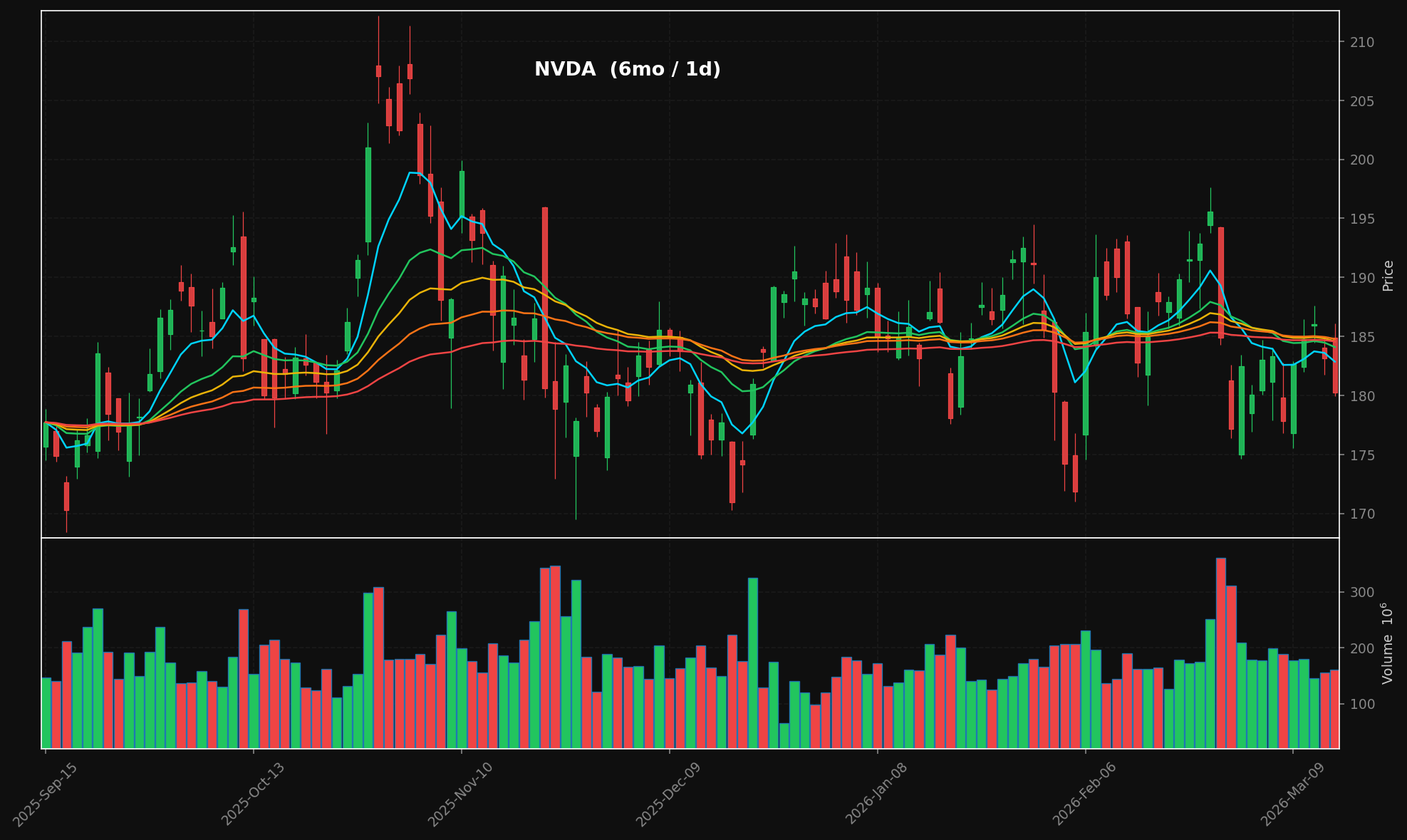
- 🕯️ Generate professional candlestick charts — dark-themed with stacked EMA overlays (8/21/34/55/89), volume panels, publication-ready PNGs
- 📰 Aggregate financial news from multiple RSS sources in real-time
- 📄 Extract full article text from any URL — your agent reads the actual article, not just the headline
All of this happens through the Model Context Protocol, so your AI assistant calls these tools natively — no API keys, no REST endpoints, no configuration hell.
Example Chart Output
generate_chart("NVDA", period="6mo") → candlestick + volume + stacked EMAs:
Tools
| Tool | What It Does |
|---|---|
run_stock_screen |
Scan for stocks by preset: most active, new highs/lows, overbought, oversold, high relative volume |
get_historical_data |
Fetch OHLCV candlestick data — any ticker, any period, any interval |
analyze_technicals |
Compute RSI(14) + MACD(12,26,9) and get a plain-English analysis summary |
generate_chart |
Render a candlestick chart with stacked EMA overlays (8/21/34/55/89) + volume → PNG + base64 |
fetch_ticker_news |
Pull recent headlines from Yahoo Finance & Google News RSS feeds |
extract_article_text |
Extract the full article body from any URL (strips ads, nav, paywalls) |
Quickstart
git clone https://github.com/mphinance/momentum-mcp.git
cd momentum-mcp
python3 -m venv .venv
source .venv/bin/activate
pip install -r requirements.txt
Test that everything works:
python -c "from mcp_server.server import mcp; print('✓ Ready')"
Run the server:
python -m mcp_server.server
Connect Your Client
Claude Desktop
The most popular MCP client. Add to your claude_desktop_config.json (located at ~/Library/Application Support/Claude/ on macOS or %APPDATA%\Claude\ on Windows):
{
  "mcpServers": {
    "momentum": {
      "command": "python",
      "args": ["-m", "mcp_server.server"],
      "cwd": "/absolute/path/to/momentum-mcp",
      "env": {
        "VIRTUAL_ENV": "/absolute/path/to/momentum-mcp/.venv",
        "PATH": "/absolute/path/to/momentum-mcp/.venv/bin:$PATH"
      }
    }
  }
}
Restart Claude Desktop. You'll see the 🔨 tools icon — click it to verify all 6 tools are loaded.
Cursor
Add to .cursor/mcp.json in your project root (or global config at ~/.cursor/mcp.json):
{
  "mcpServers": {
    "momentum": {
      "command": "/absolute/path/to/momentum-mcp/.venv/bin/python",
      "args": ["-m", "mcp_server.server"],
      "cwd": "/absolute/path/to/momentum-mcp"
    }
  }
}
The tools will be available in Cursor's Agent mode. Ask it to "screen for overbought stocks" or "chart NVDA over the last 6 months."
VS Code + GitHub Copilot
MCP is generally available in GitHub Copilot (VS Code 1.86+). Add to your .vscode/mcp.json:
{
  "servers": {
    "momentum": {
      "command": "/absolute/path/to/momentum-mcp/.venv/bin/python",
      "args": ["-m", "mcp_server.server"],
      "cwd": "/absolute/path/to/momentum-mcp"
    }
  }
}
Enable Agent mode in the Copilot Chat panel — momentum tools will appear in the tool picker.
Windsurf
Add to your Windsurf MCP config at ~/.codeium/windsurf/mcp_config.json:
{
  "mcpServers": {
    "momentum": {
      "command": "/absolute/path/to/momentum-mcp/.venv/bin/python",
      "args": ["-m", "mcp_server.server"],
      "cwd": "/absolute/path/to/momentum-mcp"
    }
  }
}
Cascade will automatically discover the tools. Use them in any Windsurf chat.
Cline (VS Code Extension)
Open Cline's MCP settings (gear icon → MCP Servers → "Edit MCP Settings") and add:
{
  "mcpServers": {
    "momentum": {
      "command": "/absolute/path/to/momentum-mcp/.venv/bin/python",
      "args": ["-m", "mcp_server.server"],
      "cwd": "/absolute/path/to/momentum-mcp"
    }
  }
}
Cline will list the tools in its server panel. Enable them and they're ready to use.
Claude Code (CLI)
Add the server directly from the terminal:
claude mcp add momentum \
  /absolute/path/to/momentum-mcp/.venv/bin/python \
  -m mcp_server.server \
  --cwd /absolute/path/to/momentum-mcp
Verify it's connected:
claude mcp list
Any Other MCP Client
momentum-mcp uses the stdio transport (the MCP default). Any client that supports stdio can connect by running:
/path/to/.venv/bin/python -m mcp_server.server
That's it. No HTTP server, no ports, no auth — just stdin/stdout.
Project Structure
momentum-mcp/
├── requirements.txt         # Pinned dependencies
├── README.md
└── mcp_server/
    ├── __init__.py
    ├── server.py            # FastMCP entry point — registers all tools
    ├── screener.py          # TradingView stock scanner (6 presets)
    ├── data.py              # yfinance OHLCV with async wrapper
    ├── technicals.py        # pandas-ta RSI(14) & MACD(12,26,9)
    ├── charts.py            # mplfinance candlestick + volume charts
    └── news.py              # feedparser RSS + trafilatura extraction
Tech Stack
| Library | Role |
|---|---|
| FastMCP | MCP server framework (v3.x) |
| tradingview-screener | Stock screening via TradingView's API |
| yfinance | Yahoo Finance OHLCV data |
| pandas-ta | 130+ technical indicators |
| mplfinance | Financial chart rendering |
| feedparser | RSS/Atom feed parsing |
| trafilatura | Web article text extraction |
Example Prompts
Once connected, try asking your AI assistant:
"Screen the market for stocks with high relative volume today"
"Get me 6 months of daily data for NVDA and analyze the technicals"
"Generate a candlestick chart for AAPL over the past year"
"What's the latest news on TSLA? Pull the full text of the most interesting article."
"Find oversold stocks, then analyze the technicals on the top 3 results"
License
MIT — do whatever you want with it.
Установка Momentum
У этого сервера нет опубликованного пакета — он собирается из исходников. Открой репозиторий и следуй инструкции в README.
▸ github.com/mphinance/momentum-mcpFAQ
Momentum MCP бесплатный?
Да, Momentum MCP бесплатный — установка в пару кликов через Unyly без оплаты.
Нужен ли API-ключ для Momentum?
Нет, Momentum работает без API-ключей и переменных окружения.
Momentum — hosted или self-hosted?
Доступен hosted-вариант: Unyly запускает сервер в облаке, локальная установка не обязательна.
Как установить Momentum в Claude Desktop, Claude Code или Cursor?
Открой Momentum на unyly.org, выбери вкладку своего клиента (Claude Desktop, Claude Code, Cursor) и нажми Install — конфиг сгенерируется автоматически, без правки JSON.
Похожие MCP
Fetch
Web content fetching and conversion for efficient LLM usage.
AWS KB Retrieval
Retrieval from AWS Knowledge Base using Bedrock Agent Runtime.
 автор: modelcontextprotocol
Spring AI MCP Server
Provides auto-configuration for setting up an MCP server in Spring Boot applications.
llm-analysis-assistant
A very streamlined mcp client that supports calling and monitoring stdio/sse/streamableHttp, and can also view request responses through the /logs page. It also
 автор: xuzexin-hz
Compare Momentum with
Не уверен что выбрать?
Найди свой стек за 60 секунд
Автор?
Embed-бейдж для README
Похожее
Все в категории ai