
MOSS SoundEffect V2.0 MPS ROCm
БесплатноНе проверенDesktop app for the MOSS-SoundEffect-v2.0 text-to-audio diffusion model, with working AMD ROCm (Windows) and Apple Silicon (MPS) support. No API keys, no browse

Описание
Desktop app for the MOSS-SoundEffect-v2.0 text-to-audio diffusion model, with working AMD ROCm (Windows) and Apple Silicon (MPS) support. No API keys, no browser. Includes CLI, benchmark tools and an MCP server.
README
A small, dependency-light desktop front-end for MOSS-SoundEffect-v2.0, the text-to-audio diffusion model from the OpenMOSS team. Type a description, get a sound effect. Everything runs locally — no API keys, no uploads.
The upstream project ships CUDA-oriented scripts and a Gradio demo. This repository adds what was missing for the hardware I actually use: a native Tkinter window, a working AMD ROCm path on Windows, and a working Apple Silicon (MPS) path on macOS, plus the fixes needed to get to both. See Platform support.
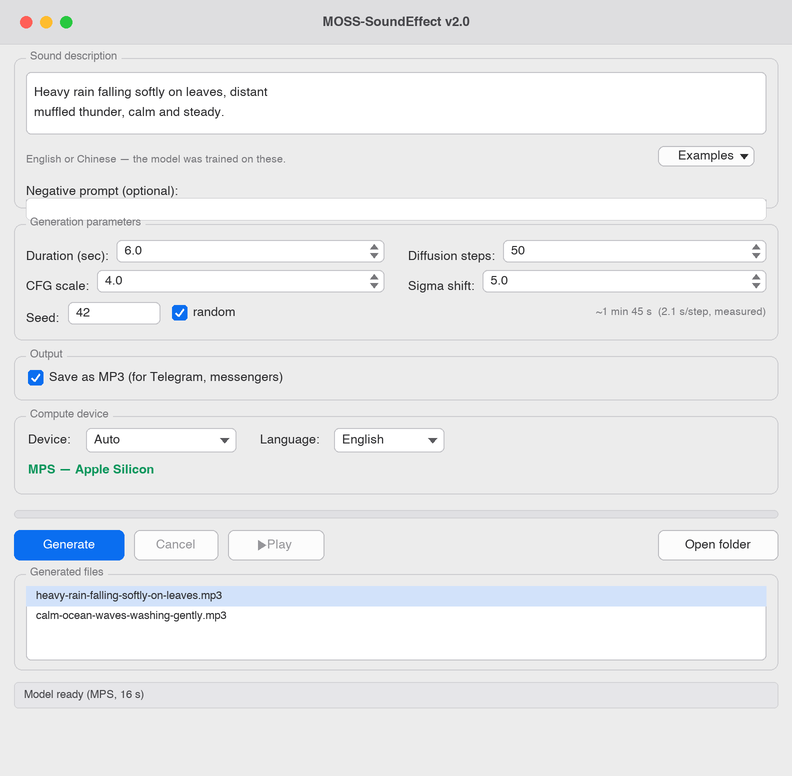
Features
- Native window, no browser. Tkinter only — no Gradio, no local web server.
- Model stays loaded. Weights load once in a background thread; the second generation starts instantly instead of paying the ~60 s load again.
- Live progress and ETA. Per-step timing measured on your machine, not guessed. Generation can be cancelled between steps.
- Trilingual UI — English, Russian, Chinese; auto-detected on first run.
- MP3 or WAV output, named after the prompt, with peak limiting tuned per format so MP3 encoding does not clip.
- Device switching at runtime — Auto / GPU / CPU, without restarting.
- CLI and benchmark scripts for scripted generation and hardware testing.
- MCP server — expose generation to Claude Desktop, Claude Code and other MCP clients as a tool. See Use as an MCP server.
Platform support
| Platform | Backend | Status |
|---|---|---|
| Windows + AMD Radeon (ROCm) | cuda (ROCm build) |
Tested — primary development target |
| Windows / Linux + NVIDIA | cuda |
Should work; untested |
| macOS + Apple Silicon | mps |
Tested — see MPS notes |
| Any | cpu |
Tested (slow — see Performance) |
Developed on an AMD Radeon 8060S (Strix Halo, gfx1151) under Windows 11 and
verified on an Apple M4 Pro (macOS 26, bfloat16), both on Python 3.12.
Install
Requirements
- Python 3.12 — required by the upstream package. Other versions will fail to resolve dependencies.
- git — the model pipeline is installed straight from a GitHub commit.
- ~13 GB free disk — 11 GB of weights plus the PyTorch/dependency stack.
- RAM/VRAM: the 1.3B model needs roughly 8–10 GB. On Apple Silicon this comes out of unified memory, so 16 GB is comfortable and 8 GB is tight.
- Platform toolchain:
- macOS: Apple Silicon (M1 or newer) and macOS 14+ for stable
bfloat16on MPS. A Python with working Tcl/Tk — see the note below. - Windows + AMD: Adrenalin driver 26.2.2 or newer for the ROCm wheels.
- macOS: Apple Silicon (M1 or newer) and macOS 14+ for stable
The whole thing runs offline after the weights are downloaded — no API keys, no account, nothing is uploaded.
1. Clone and create a virtual environment
Python 3.12 is required by the upstream package.
git clone https://github.com/VladimirTalyzin/MOSS-SoundEffect_v2.0_MPS_ROCm.git
cd MOSS-SoundEffect_v2.0_MPS_ROCm
python -m venv venv
Activate it: venv\Scripts\activate (Windows) or source venv/bin/activate
(macOS/Linux).
macOS: the desktop app uses Tkinter, which needs a Python built with a working Tcl/Tk. The python.org installer and Homebrew's
[email protected]both provide it; the standalone builds used bypyenvanduvoften do not (import tkintersucceeds buttk.Tk()fails with "Can't find a usable init.tcl"). The CLI (generate.py,benchmark.py) has no such requirement. With Homebrew:brew install [email protected] [email protected].
2. Install PyTorch for your hardware
This has to come first and separately — the wheels are platform-specific.
AMD ROCm on Windows (needs Adrenalin driver 26.2.2 or newer):
pip install -f https://repo.radeon.com/rocm/windows/rocm-rel-7.2.1/ \
    "torch==2.9.1+rocm7.2.1" "torchaudio==2.9.1+rocm7.2.1"
AMD ROCm on Linux:
pip install --index-url https://download.pytorch.org/whl/rocm6.2 torch torchaudio
Apple Silicon — the default macOS wheels include MPS:
pip install torch torchaudio
NVIDIA CUDA:
pip install --index-url https://download.pytorch.org/whl/cu128 torch torchaudio
CPU only:
pip install --index-url https://download.pytorch.org/whl/cpu torch torchaudio
3. Install the rest
pip install -r requirements.txt
This pulls the moss_soundeffect_v2 package straight from the upstream
repository, pinned to the commit this app was built against. The upstream
checkout lands in src/ (pip's default for editable VCS installs) and is
git-ignored here.
4. Download the weights (~11 GB)
python download_model.py
Files go to models/MOSS-SoundEffect-v2.0/, which is also git-ignored. The
download resumes if interrupted; to speed it up, pip install hf_transfer and
set HF_HUB_ENABLE_HF_TRANSFER=1 before running.
5. Verify it works
benchmark.py loads the model, runs a few steps, and checks the output for
NaN/silence — the fastest way to confirm your GPU path is healthy:
python benchmark.py --steps 10 --seconds 3
You want nan/inf: False and a non-zero audio peak. On an M4 Pro this prints
about 2.1 s/step on mps; anything with nan/inf: True means the dtype is
wrong for your hardware (see ROCm notes / MPS notes).
macOS quick start (Apple Silicon)
The whole sequence in one place, using Homebrew's Tk-capable Python:
brew install [email protected] [email protected]
git clone https://github.com/VladimirTalyzin/MOSS-SoundEffect_v2.0_MPS_ROCm.git
cd MOSS-SoundEffect_v2.0_MPS_ROCm
/opt/homebrew/bin/python3.12 -m venv venv
source venv/bin/activate
pip install torch torchaudio          # default macOS wheels include MPS
pip install -r requirements.txt
python download_model.py              # ~11 GB, one time
python benchmark.py --steps 10        # sanity check → nan/inf: False
python app.py                         # launch the desktop app
Usage
Desktop app
Windows: double-click MOSS SoundEffect.bat.
macOS: chmod +x "MOSS SoundEffect.command" once, then double-click it.
Or just run it directly:
python app.py
Prompts work in English or Chinese — those are the languages the model was trained on. The UI language is separate and includes Russian.
Generated files land in outputs/, named after the prompt.
Command line
python generate.py "A dog barking loudly in a park." out.wav --seconds 5 --steps 50
| Option | Default | Meaning |
|---|---|---|
--seconds |
5.0 |
Length of the clip (model maximum: 30) |
--steps |
50 |
Diffusion steps — more is slower and usually cleaner |
--cfg |
4.0 |
Prompt adherence; higher follows the text more literally |
--seed |
random | Fix it to reproduce a result exactly |
Benchmark
Measures seconds per step and checks the output for NaN/silence, which catches the "fast but garbage" failure mode described below.
python benchmark.py --steps 30
python benchmark.py --steps 30 --device cpu       # compare against CPU
python benchmark.py --steps 30 --dtype float16    # see it break on ROCm
Environment variables
| Variable | Default | Effect |
|---|---|---|
MOSS_DEVICE |
auto |
Force cuda, mps or cpu (CLI scripts and MCP server) |
MOSS_DTYPE |
auto | Force a dtype, e.g. float32. Overrides the safe default |
MOSS_CPU_VAE |
1 on ROCm, else 0 |
Run the VAE decoder on CPU (see below) |
TORCH_ROCM_AOTRITON_ENABLE_EXPERIMENTAL |
1 |
Hardware SDPA on ROCm — big speedup |
Use as an MCP server
mcp_server.py exposes generation over the
Model Context Protocol, so any MCP client —
Claude Desktop, Claude Code, Cursor, Cline — can create sound effects by
calling a tool. It reuses the same pipeline, device/dtype selection and
ROCm/MPS fixes as the CLI, so everything on this page (bfloat16 on GPU,
CPU-VAE on ROCm, the MOSS_* environment variables) applies unchanged.
The model (~11 GB) loads lazily on the first tool call, not at server startup, and then stays resident — so the first effect is slow and the rest are fast, exactly like the desktop app.
1. Install the MCP SDK
One extra dependency, on top of the normal install:
pip install "mcp[cli]"
2. Register the server with your client
Claude Desktop / Claude Code — add this to the MCP config
(claude_desktop_config.json, or claude mcp add-json), using absolute
paths to the venv's Python and to mcp_server.py:
{
  "mcpServers": {
    "moss-soundeffect": {
      "command": "/absolute/path/to/MOSS-SoundEffect_v2.0_MPS_ROCm/venv/bin/python",
      "args": ["/absolute/path/to/MOSS-SoundEffect_v2.0_MPS_ROCm/mcp_server.py"],
      "env": {
        "MOSS_DEVICE": "auto"
      }
    }
  }
}
On Windows the command is ...\venv\Scripts\python.exe. The env block is
optional — add MOSS_DTYPE, MOSS_CPU_VAE, etc. from the table above to
override the auto-detected defaults.
With Claude Code you can register it in one line:
claude mcp add moss-soundeffect -- /absolute/path/to/venv/bin/python /absolute/path/to/mcp_server.py
3. Use it
Restart the client and ask it, in plain language, for a sound —
"generate a 5-second sound of a heavy door creaking open". The client calls
the tool; the finished file lands in outputs/, named after the prompt, and
the tool returns its path.
The tool
| Tool | generate_sound_effect |
|---|---|
prompt |
Text description of the sound (English or Chinese — the model's training languages) |
seconds |
Clip length, 0 < seconds <= 30 (default 5.0) |
steps |
Diffusion steps (default 50) |
cfg |
Prompt adherence (default 4.0) |
seed |
Fix for a reproducible result (default random) |
format |
"wav" or "mp3" (default "wav") |
It returns the output path, the parameters used, and the generation time.
Running it directly
To try the server without a client — e.g. with the MCP Inspector — run it by
hand. Default transport is stdio; set MOSS_MCP_TRANSPORT=sse for HTTP/SSE:
python mcp_server.py                 # stdio
mcp dev mcp_server.py                # stdio + web Inspector
MOSS_MCP_TRANSPORT=sse python mcp_server.py   # HTTP/SSE on :8000
Performance
Measured on AMD Radeon 8060S (Strix Halo, gfx1151), Windows 11, ROCm 7.2.1,
bfloat16, VAE on CPU:
| Configuration | Seconds per diffusion step |
|---|---|
| CPU (float32) | 4.15 |
| GPU, no AOTriton flag | 1.24 |
| GPU, AOTriton enabled | 0.54 |
That is a 7.6× speedup over CPU, and 2.3× of it comes from a single environment variable.
ROCm notes
Four things had to be worked out experimentally to get this model running on
gfx1151. All of them are handled automatically by the code; this section is
here so the reasoning is not lost.
1. Use bfloat16, not float16. float16 overflows and produces NaN
non-deterministically — output is silence or noise, with no error raised. This
contradicts the common advice to prefer fp16 on Windows/gfx1151; for this model
the opposite holds. bfloat16 and float32 are both stable. This is why
benchmark.py prints peak/RMS/NaN stats instead of just timings: on this
hardware you have to check the audio, not just that the process exited zero.
2. TORCH_ROCM_AOTRITON_ENABLE_EXPERIMENTAL=1 is worth 2.3×. Without it,
scaled dot-product attention silently falls back to the slow math path
(1.24 → 0.54 s/step). Both app.py and the CLI scripts set it on import; the
variable is ignored on CPU and NVIDIA.
3. torch.distributed is stripped from the ROCm Windows build.
descript-audiotools touches dist.ReduceOp.AVG at module level, so the
import fails before any weights are loaded. rocm_compat.py
installs the handful of missing names — single-process inference never needs
the real thing.
4. The VAE runs faster on CPU than on GPU. MIOpen falls back to a generic
solver for the DAC decoder's convolutions, making GPU decode roughly 20×
slower than CPU, and leaving the weights in a dtype that can overflow. Since
decode happens once per generation, rocm_compat.use_cpu_vae()
keeps the DiT on the GPU and moves just the VAE to CPU/float32. Enabled by
default on ROCm only; set MOSS_CPU_VAE=1 to try it elsewhere.
MPS notes
Apple's Metal backend is stricter about numeric types than CUDA, so two things had to be worked out to get this model running on Apple Silicon. Both are handled automatically by mps_compat.py; this section records why.
1. RoPE frequency buffers are complex128; MPS has no float64. The DiT
registers its rotary-embedding tables (freqs_cis_*) as complex128 — a pair
of float64 values. Moving the model to mps therefore fails outright with
"Cannot convert a MPS Tensor to float64 dtype", before a single step runs.
The attention code only ever reads freqs.real / freqs.imag (cosines and
sines in [-1, 1]) and does no complex arithmetic, so the pipeline is loaded on
CPU, its float64/complex128 tensors are narrowed to float32/complex64,
and only then moved to the GPU.
2. The timestep embedding is computed in float64. sinusoidal_embedding_1d
hard-casts to float64 on every denoising step. That is fine on CUDA but fatal
on MPS, so a float32 equivalent is patched in for the MPS path only — the
positions involved are small and float32 is more than precise enough. CUDA and
ROCm keep the original float64 version untouched.
Unlike ROCm, the VAE decoder runs cleanly in bfloat16 on MPS (no NaN, no
20× slowdown), so MOSS_CPU_VAE stays off by default here.
Troubleshooting
_tkinter.TclError: Can't find a usable init.tcl (macOS). Your Python has
tkinter but no working Tcl/Tk runtime — common with pyenv and uv
standalone builds. Use the python.org installer or Homebrew's
[email protected] + [email protected] and recreate the venv with that interpreter.
The CLI scripts are unaffected.
benchmark.py prints nan/inf: True or a near-zero audio peak. The dtype
is wrong for your GPU. Let the default (bfloat16 on GPU) stand rather than
forcing float16; if it persists, try MOSS_DTYPE=float32, and on ROCm confirm
the VAE is on CPU (it is by default).
FileNotFoundError mentioning models/MOSS-SoundEffect-v2.0. The weights
are not downloaded yet — run python download_model.py.
"CUDA is not available. Disabling autocast" in the console. Harmless on
Apple Silicon — the upstream pipeline hard-codes a few autocast("cuda")
blocks; they are no-ops on MPS and the output is correct. These are silenced on
the MPS path but may surface from other tools.
First generation is slow, later ones are fast. Expected — the model loads once (~15–60 s depending on disk) and then stays resident. In the desktop app the load happens in the background at startup.
Out of memory / very slow on an 8 GB Mac. Switch the device selector to CPU (fallback), or reduce Diffusion steps and Duration.
Project layout
app.py               Tkinter GUI — model loading, generation, playback
generate.py          Single-shot CLI generation
mcp_server.py        MCP server — generation exposed as a tool for MCP clients
benchmark.py         Speed + output-sanity measurement
download_model.py    Fetches the weights from Hugging Face
i18n.py              UI strings for en / ru / zh, system language detection
naming.py            Prompt-to-filename slugs, JSON settings storage
platform_compat.py   Audio preview, file manager, HiDPI — per OS
rocm_compat.py       torch.distributed stubs, CPU-VAE fallback
mps_compat.py        float64/complex128 → MPS-safe dtypes, load helper
Runtime state that is deliberately not in the repository: models/
(weights, ~11 GB), outputs/ (generated audio), venv*/, and settings.json
(remembered language, device and format).
Credits
- Model and inference pipeline: OpenMOSS-Team/MOSS-SoundEffect-v2.0 and OpenMOSS/MOSS-TTS, Apache-2.0.
- This desktop app and the ROCm/MPS integration: Vladimir Talyzin.
Licensed under the Apache License 2.0 — see LICENSE. The model weights carry their own licence terms; check the upstream model card before using generated audio commercially.
from github.com/VladimirTalyzin/MOSS-SoundEffect_v2.0_MPS_ROCm
Установка MOSS SoundEffect V2.0 MPS ROCm
У этого сервера нет опубликованного пакета — он собирается из исходников. Открой репозиторий и следуй инструкции в README.
▸ github.com/VladimirTalyzin/MOSS-SoundEffect_v2.0_MPS_ROCmFAQ
MOSS SoundEffect V2.0 MPS ROCm MCP бесплатный?
Да, MOSS SoundEffect V2.0 MPS ROCm MCP бесплатный — установка в пару кликов через Unyly без оплаты.
Нужен ли API-ключ для MOSS SoundEffect V2.0 MPS ROCm?
Нет, MOSS SoundEffect V2.0 MPS ROCm работает без API-ключей и переменных окружения.
MOSS SoundEffect V2.0 MPS ROCm — hosted или self-hosted?
Self-hosted: сервер запускается локально на твоей машине командой из раздела установки.
Как установить MOSS SoundEffect V2.0 MPS ROCm в Claude Desktop, Claude Code или Cursor?
Открой MOSS SoundEffect V2.0 MPS ROCm на unyly.org, выбери вкладку своего клиента (Claude Desktop, Claude Code, Cursor) и нажми Install — конфиг сгенерируется автоматически, без правки JSON.
Похожие MCP
Playwright
Browser automation, scraping, screenshots
 автор: Microsoft
Puppeteer
Browser automation and web scraping.
 автор: modelcontextprotocol
opentabs-dev/opentabs
Plugin-based MCP server + Chrome extension that gives AI agents access to web applications through the user's authenticated browser session. 100+ plugins with a
 автор: opentabs-dev
robhunter/agentdeals
1,500+ developer infrastructure deals, free tiers, and startup programs across 54 categories. Search deals, compare vendors, plan stacks, and track pricing chan
 автор: robhunter
hlydecker/ucsc-genome-mcp
MCP server to interact with the UCSC Genome Browser API, letting you find genomes, chromosomes, and more.
 автор: hlydecker
34892002/bilibili-mcp-js
A MCP server that supports searching for Bilibili content. Provides LangChain integration examples and test scripts.
 автор: 34892002
achiya-automation/safari-mcp
Native Safari browser automation for AI agents with 80+ tools. No Chrome dependency, optimized for Apple Silicon with 60% less CPU overhead.
 автор: achiya-automation
agent-infra/mcp-server-browser
Browser automation capabilities using Puppeteer, both support local and remote browser connection.
 автор: bytedance
aparajithn/agent-scraper-mcp
Web scraping MCP server for AI agents. 6 tools: clean content extraction, structured scraping with CSS selectors, full-page screenshots via Playwright, link ext
 автор: aparajithn
apireno/DOMShell
Browse the web using filesystem commands (ls, cd, grep, click). 38 MCP tools map Chrome's Accessibility Tree to a virtual filesystem via a Chrome Extension.
 автор: apireno
Compare MOSS SoundEffect V2.0 MPS ROCm with
Не уверен что выбрать?
Найди свой стек за 60 секунд
Автор?
Embed-бейдж для README
Похожее
Все в категории browse