loading…
/ru
Весь каталог
 автор: modelcontextprotocol
 автор: xuzexin-hz
securecoders/opengraph-io-mcp
БесплатноНе проверенOpenGraph.io API integration for extracting OG metadata, taking screenshots, scraping web content, querying sites with AI, and generating branded images (illust

Описание
OpenGraph.io API integration for extracting OG metadata, taking screenshots, scraping web content, querying sites with AI, and generating branded images (illustrations, diagrams, social cards, icons, QR codes) with iterative refinement.
README
og‑mcp is a Model‑Context‑Protocol (MCP) server that makes every OpenGraph.io ( https://opengraph.io ) API endpoint available to AI agents (e.g. Anthropic Claude, Cursor, LangGraph) through the standard MCP interface.
Why? If you already use OpenGraph.io to unfurl links, scrape HTML, extract article text, or capture screenshots, you can now give the same capabilities to your autonomous agents without exposing raw API keys.
Global Installation
You can install this package globally via npm:
npm install -g opengraph-io-mcp
Quick Install
CLI Installer (Recommended)
The easiest way to configure OpenGraph MCP for any supported client:
# Interactive mode - guides you through setup
npx opengraph-io-mcp-install

# Direct mode - specify client and app ID
npx opengraph-io-mcp-install --client cursor --app-id YOUR_APP_ID
Supported clients: cursor, claude-desktop, windsurf, vscode, zed, jetbrains
Claude Desktop Extension
For Claude Desktop users, you can also download the .mcpb extension for one-click installation from the Releases page.
Client Configuration
All configurations below use the hosted HTTPS transport (recommended). Replace YOUR_OPENGRAPH_APP_ID with your OpenGraph.io App ID. No local installation or npx required — just point your client at the hosted URL.
Claude Desktop
Config location:
- macOS:
~/Library/Application Support/Claude/claude_desktop_config.json - Windows:
%APPDATA%\Claude\claude_desktop_config.json
{
  "mcpServers": {
    "opengraph": {
      "url": "https://mcp.opengraph.io/mcp",
      "headers": {
        "x-app-id": "YOUR_OPENGRAPH_APP_ID"
      }
    }
  }
}
Claude Code
One-command installation:
claude mcp add --transport http --header "x-app-id: YOUR_OPENGRAPH_APP_ID" opengraph https://mcp.opengraph.io/mcp
Cursor
Config location: ~/.cursor/mcp.json
{
  "mcpServers": {
    "opengraph": {
      "url": "https://mcp.opengraph.io/mcp",
      "headers": {
        "x-app-id": "YOUR_OPENGRAPH_APP_ID"
      }
    }
  }
}
VS Code
Config location: .vscode/mcp.json (in your project directory)
VS Code supports input prompts for secure credential handling:
{
  "inputs": [
    {
      "type": "promptString",
      "id": "opengraph-app-id",
      "description": "OpenGraph App ID",
      "password": true
    }
  ],
  "servers": {
    "opengraph": {
      "type": "http",
      "url": "https://mcp.opengraph.io/mcp",
      "headers": {
        "x-app-id": "${input:opengraph-app-id}"
      }
    }
  }
}
Windsurf
Config location: ~/.codeium/windsurf/mcp_config.json
{
  "mcpServers": {
    "opengraph": {
      "url": "https://mcp.opengraph.io/mcp",
      "headers": {
        "x-app-id": "YOUR_OPENGRAPH_APP_ID"
      }
    }
  }
}
JetBrains AI Assistant
Add to your JetBrains AI Assistant MCP configuration:
{
  "mcpServers": {
    "opengraph": {
      "url": "https://mcp.opengraph.io/mcp",
      "headers": {
        "x-app-id": "YOUR_OPENGRAPH_APP_ID"
      }
    }
  }
}
Zed
Config location: ~/.config/zed/settings.json
Note: Zed uses context_servers instead of mcpServers:
{
  "context_servers": {
    "opengraph": {
      "transport": "http",
      "url": "https://mcp.opengraph.io/mcp",
      "headers": {
        "x-app-id": "YOUR_OPENGRAPH_APP_ID"
      }
    }
  }
}
Available Tools
OpenGraph.io Data Tools
| Tool Name | OpenGraph.io API Endpoint | Description | Documentation |
|---|---|---|---|
| Get OG Data | /api/1.1/site/<URL> |
Extracts Open Graph data from a URL | OpenGraph.io Docs |
| Get OG Scrape Data | /api/1.1/scrape/<URL> |
Scrapes data from a URL using OpenGraph's scrape endpoint | OpenGraph.io Docs |
| Get OG Screenshot | /api/1.1/screenshot/<URL> |
Gets a screenshot of a webpage using OpenGraph's screenshot endpoint | OpenGraph.io Docs |
| Get OG Query | /api/1.1/query/<URL> |
Query a site with a custom question and optional response structure | OpenGraph.io Docs |
| Get OG Extract | /api/1.1/extract/<URL> |
Extract specific HTML elements (h1, p, etc.) from a webpage | OpenGraph.io Docs |
Image Generation Tools
| Tool Name | Description |
|---|---|
| Generate Image | Create professional images: illustrations, diagrams (Mermaid/D2/Vega), icons, social cards, or QR codes |
| Iterate Image | Refine, modify, or create variations of existing generated images |
| Inspect Image Session | Retrieve session metadata and asset history for image generation sessions |
| Export Image Asset | Export generated image assets as inline base64, with optional disk write when running locally |
Image Generation
The og-mcp server includes powerful AI-driven image generation capabilities, perfect for creating social media cards, architecture diagrams, icons, and more.
Generate Image
Create images from natural language prompts or diagram code.
Supported Image Types (kind):
illustration- General-purpose AI-generated imagesdiagram- Technical diagrams from Mermaid, D2, or Vega syntaxicon- App icons and logossocial-card- OG images optimized for social sharingqr-code- QR codes with optional styling
Preset Aspect Ratios:
- Social:
og-image,twitter-card,twitter-post,linkedin-post,facebook-post,instagram-square,instagram-portrait,instagram-story,youtube-thumbnail - Standard:
wide,square,portrait - Icons:
icon-small,icon-medium,icon-large
Style Presets:
github-dark, github-light, notion, vercel, linear, stripe, neon-cyber, pastel, minimal-mono, corporate, startup, documentation, technical
Diagram Templates:
auth-flow, oauth2-flow, crud-api, microservices, ci-cd, gitflow, database-schema, state-machine, user-journey, cloud-architecture, system-context
Example Usage:
// Generate a social card
generateImage({
  prompt: "A modern tech startup hero image with abstract geometric shapes",
  kind: "social-card",
  aspectRatio: "og-image",
  stylePreset: "vercel",
  brandColors: ["#0070F3", "#000000"]
})

// Generate a diagram from Mermaid syntax
generateImage({
  prompt: "graph TD; A[User] --> B[API]; B --> C[Database]",
  kind: "diagram",
  diagramSyntax: "mermaid",
  stylePreset: "github-dark"
})
Iterate Image
Refine or modify an existing generated image.
Use cases:
- Edit specific parts: "change the background to blue"
- Apply style changes: "make it more minimalist"
- Fix issues: "remove the text", "make the icon larger"
- Crop to specific coordinates
Example:
iterateImage({
  sessionId: "uuid-from-generate",
  assetId: "uuid-from-generate",
  prompt: "Change the primary color to #0033A0 and add a subtle drop shadow"
})
Inspect Image Session
Review session details and find asset IDs for iteration.
Returns:
- Session metadata (creation time, name, status)
- List of all assets with prompts, toolchains, and status
- Parent-child relationships showing iteration history
Example:
inspectImageSession({
  sessionId: "uuid-from-generate"
})
Export Image Asset
Export a generated image asset by session and asset ID. Returns the image inline as base64 along with metadata (format, dimensions, size).
When running locally (stdio transport), you can optionally provide a destinationPath to save the image to disk. On hosted/HTTP transport, the path is ignored and the image is returned inline only.
Examples:
// Inline only (works everywhere)
exportImageAsset({
  sessionId: "uuid-from-generate",
  assetId: "uuid-from-generate"
})

// Save to disk (stdio/local only)
exportImageAsset({
  sessionId: "uuid-from-generate",
  assetId: "uuid-from-generate",
  destinationPath: "/Users/me/project/images/hero.png"
})
How it works
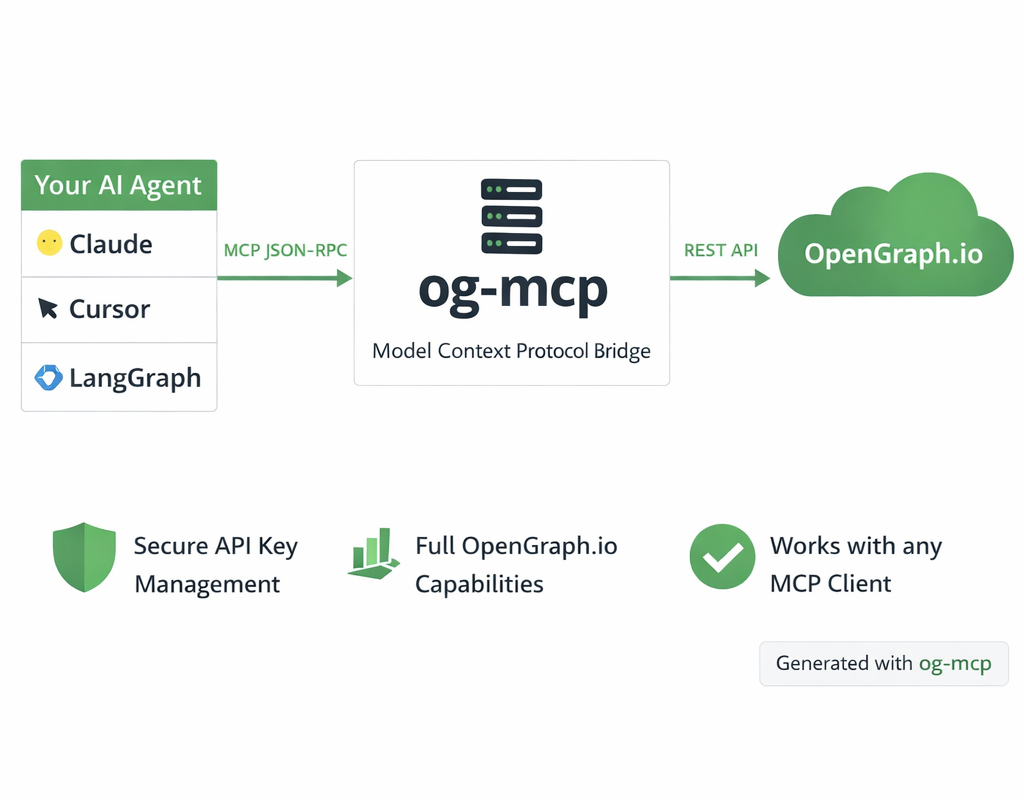 Diagram generated with og-mcp's image generation tools
The og-mcp server acts as a bridge between AI clients (like Claude or other LLMs) and the OpenGraph.io API:
- AI client makes a tool call to one of the available MCP functions
- og-mcp server receives the request and formats it for the OpenGraph.io API
- OpenGraph.io processes the request and returns data
- og-mcp transforms the response into a format suitable for the AI client
- AI client receives the structured data ready for use
This abstraction prevents exposing API keys directly to the AI while providing full access to OpenGraph.io capabilities.
Setup and Running
- Clone this repository
- Install dependencies:
npm install - Build the TypeScript code:
npm run build - Start the server:
npm start
The server will run on port 3010 by default (configurable via PORT environment variable).
Configuration
The server requires an OpenGraph.io App ID to function properly. You can provide this in several ways:
- Using environment variables: Set
OPENGRAPH_APP_IDorAPP_IDin a.envfile or as an environment variable - Using command-line arguments with stdio transport:
--app-id YOUR_APP_ID - When using SSE transport: Include it in the URL as a query parameter (
?app_id=YOUR_APP_ID)
Example .env file:
OPENGRAPH_APP_ID=your_app_id_here
# or
APP_ID=your_app_id_here
Transport Options
Stdio Transport (Recommended)
For command-line usage and npm global installation, the server can be run with stdio transport:
npm run start:stdio
You can pass the OpenGraph API key directly via command-line argument:
npm run start:stdio -- --app-id YOUR_APP_ID
When installed globally:
opengraph-io-mcp --app-id YOUR_APP_ID
This mode allows the server to be invoked directly by other applications that use MCP.
HTTP/SSE Transport
This method runs a web server that can be accessed over HTTP and uses SSE for streaming:
npm start
Troubleshooting
- If tools aren't showing up, check that the server is running and the URL is correctly configured in Cursor
- Check the server logs for any connection or authorization issues
- Verify that Claude has been instructed to use the specific tools by name
Как установить
Выполни в терминале:
claude mcp add securecoders-opengraph-io-mcp -- npx Похожие MCP
Fetch
Web content fetching and conversion for efficient LLM usage.
автор: Community
1
AWS KB Retrieval
Retrieval from AWS Knowledge Base using Bedrock Agent Runtime.
автор: modelcontextprotocolSpring AI MCP Server
Provides auto-configuration for setting up an MCP server in Spring Boot applications.
автор: Community
llm-analysis-assistant
A very streamlined mcp client that supports calling and monitoring stdio/sse/streamableHttp, and can also view request responses through the /logs page. It also
автор: xuzexin-hzCompare securecoders/opengraph-io-mcp with
Не уверен что выбрать?
Найди свой стек за 60 секунд
Автор?
Embed-бейдж для README
Похожее
Все в категории ai