
Tradersagent Plugin
БесплатноНе проверенUnofficial Hermes Desktop plugin — a chart-first Vela console with the LuxAlgo Library (LuxAlgo MCP) behind it

Описание
Unofficial Hermes Desktop plugin — a chart-first Vela console with the LuxAlgo Library (LuxAlgo MCP) behind it
README

A Hermes Desktop plugin that opens a chart-first trading console: Vela-rendered candlesticks, and the LuxAlgo Library on top of them.





A sidebar entry that docks a full trading console beside your conversation: Vela-rendered candlesticks and the LuxAlgo Library (800+ concepts and indicators, served live by LuxAlgo's own MCP server) in one local web app — your chat session is left exactly where it was.
- Chart-first by design. Vela gets the whole pane. The Library and the item detail panel are two small toggles in the top bar, never permanent columns.
- Everything local. One Python process on
127.0.0.1:8787proxies LuxAlgo's MCP server and serves the frontend. No account, no key, no telemetry. Nothing from LuxAlgo is copied into this repo — the chart engine and the Pine runtime load from their published jsDelivr builds. - The agent can drive the chart.
console/bin/trader-chartreads what the chart is showing and puts indicator scripts on it through a small file bridge, so you prompt your agent instead of clicking around.console/bin/library-indicatorpulls an indicator's Pine source by name.
Unofficial. This project is not affiliated with, endorsed by, or sponsored by LuxAlgo. It uses the LuxAlgo name descriptively ("compatible with LuxAlgo MCP") and ships no LuxAlgo logo. See THIRD-PARTY.md for the licences and the attribution each piece requires.
Requirements
| Hermes Desktop | v0.21.3 or newer (the plugin uses the sidebar.nav + routes contribution areas) |
| Python | 3.11+ with the mcp client: pip install mcp (a venv is fine — point PY= at it) |
| Network | for LuxAlgo's MCP endpoint and the jsDelivr builds; the chart falls back to synthetic bars when the data provider is unreachable |
| OS | Linux — built and verified on Omarchy (Arch + Hyprland). macOS and Windows are out of scope. |
Install
git clone https://github.com/godzillacode0000/tradersagent-plugin
cd tradersagent-plugin

./console/start.sh        # terminal 1 — the console on http://127.0.0.1:8787/
./install.sh              # the plugin -> ~/.hermes/desktop-plugins/traders-desk/
                          #   and the desk skill -> ~/.hermes/skills/trading/trader-desk/
Then in Hermes Desktop:
Ctrl+K→ Reload desktop plugins- Capabilities → Plugins → enable Trader's Agent
- Click Trader's Agent in the left sidebar — the chart docks beside your conversation
Step 2 is not optional, and it is the step that gets skipped. Hermes Desktop ships every desktop
plugin disabled by default: an installed plugin is inventoried but contributes nothing — no
sidebar row, no pane, no error — until you switch it on. Enabling is a decision the app stores
itself, so install.sh --doctor cannot see it. To ask directly:
./bin/is-enabled.sh # files ok? decision on/off? what to do about it
If the pane is enabled but still does not dock, that is a different, app-side interaction — see docs/INSTALL-ENABLE.md for both failure modes side by side.
./install.sh --vendor additionally fetches LuxAlgo's pinned browser builds into
console/frontend/vendor/ for offline use (see the licence note in THIRD-PARTY.md).
Verify it worked
curl -s localhost:8787/api/health                    # {"ok": true, "data": {"status": "ok", ...}}
node tools/verify-plugin.mjs plugin/plugin.js        # OK — 8 contributions
console/bin/trader-chart state                       # symbol, timeframe, price, bars, indicators on
Then, in the app: the Trader's Agent row is in the left sidebar, the console frame shows Vela
bars with the ▲ mark, and the status-bar chip reads Trader's Agent. If the frame is blank, the
console process is not running — start it again.
Run the console as a service (optional)
# ~/.config/systemd/user/traders-agent.service
[Unit]
Description=Trader's Agent console (LuxAlgo MCP proxy + Vela chart)
After=network-online.target

[Service]
ExecStart=%h/tradersagent-plugin/console/start.sh
Restart=always
WorkingDirectory=%h/tradersagent-plugin

[Install]
WantedBy=default.target
systemctl --user enable --now traders-agent.service
Using it
| Where | What it does |
|---|---|
| Left sidebar → Trader's Agent | reveals the chart pane beside your chat, then hands you back to the chat you were on — your session is not switched |
| Status bar → Trader's Agent chip | same, from anywhere in the app |
Ctrl+K → Trading: open Trader's Agent |
same, from the palette |
Ctrl+K → Trading: toggle chart reveal on launch |
stop the console opening by itself at app start |
Top bar → ☰ Library |
the Library panel: search 800+ concepts and indicators |
Top bar → ▤ Details |
the selected item: write-up, full Pine source, licence badge, Run PineTS |
| The chart's own bottom bar | Vela's range buttons, timezone clock and settings (not ours) |
Chat beside the chart
The chart is a pane docked to the right of the conversation (traders-desk:chart, 620px, collapsed
until you ask for it — your call, 19 Sep: it does not open with the app), so the app's own composer
keeps the left and the chart reads on the right — drag the divider to re-balance, or collapse the pane
with the app's own control. Clicking the sidebar row re-opens it (host.revealPane, the app's door for
"an explicit user action happened") and leaves your session alone: it used to jump to a dedicated
desk chat on every click, which pulled you out of whatever you were doing. Any session can drive the
chart through the tools — the pane is chart, not conversation.
That chat is the "connected, sees, understands" part, and it needs no bespoke composer: the tools below answer over the console's push channel, so the round trip is local.
Run PineTS executes the script over the chart's live bars with LuxAlgo's PineTS runtime and paints
it as a native series; it says plainly when a script uses something PineTS has not implemented
(import, while, for…in). Add to chart hands the script to Vela's own Pine engine, which is
experimental — the app reports what actually happened rather than pretending.
Letting your agent drive the chart
Two ways in, and they share one path underneath. Preferred: the MCP server — Hermes (or any MCP client) gets the chart as real tools:
hermes mcp add traders-chart --command "$HOME/.hermes/bin/uvx" \
    --args fastmcp run "$PWD/console/mcp/server.py"      # run this from the repo root
hermes mcp test traders-chart          # start a new session afterwards
| Tool | What it does |
|---|---|
chart_views |
is a view attached to push into? (0 = the console is not open) |
chart_caps |
what the attached page will actually execute — read it before drawing |
chart_state |
symbol, timeframe, last price, bars, indicators on the chart |
chart_shot |
one PNG of the chart (returned as an image, plus the path) |
chart_apply_pine |
run Pine over the chart's live bars and paint a matching native |
chart_add_indicator |
add a Vela native (ema, supertrend, donchian-channels, …) |
chart_remove_indicator |
take indicators off the chart — one by name, or all for every study (reports the chart's before → after list) |
chart_set_market |
switch symbol / timeframe |
chart_reload |
remount every attached console (picks up new frontend files) |
chart_palette |
what colours the chart is wearing (try_apply asserts the console theme) |
chart_browse |
open the 805-indicator LuxAlgo catalogue as a list in the pane (optional family) |
chart_draw |
run Pine and paint the boxes/lines/labels it builds on the chart overlay |
chart_clear |
clear the overlay and the indicators our paint layer added (then report what is left) |
chart_batch |
run several chart actions in ONE call, in order ([{"action": "market", …}, …]), stopping at the first failure unless told otherwise |
chart_snapshot |
remember the chart's market + indicators as a restore point |
chart_undo |
put the chart back to that point, reporting the chart's own before → after lists |
chart_watch |
watch for a spell and answer with a diff (what changed), not another snapshot |
chart_alert |
wait for price to move (by a move_pct, or at all) and report the move |
library_search |
search the LuxAlgo Library |
library_indicator |
one indicator's write-up, licence and Pine source |
library_list |
browse indicators with filters and paging (family, text, concept, tier, sort, page) |
library_taxonomy |
the Library's own families or concepts — read before filtering, so a name is the Library's |
library_concept |
one concept by slug: what it means and which indicators implement it |
library_source |
Pine source by exact slug — no name resolution to get wrong |
edge_presets |
LuxAlgo's measured edge presets and their categories |
edge_report |
one preset's measured edge on one symbol |
edge_symbols |
which symbols the edge reports cover |
propfirms |
prop-firm directory, with an optional filter |
propfirm_offers |
current prop-firm offers from LuxAlgo's own tracker |
Same surface from a shell: trader-chart remove MACD | --all, add ema, apply file.pine,
draw file.pine, shot, market SYMBOL TF, state. Which of those actually paint in this Vela build —
and which calls return cleanly while doing nothing — is written down in
docs/vela-chart-api-notes.md, measured from the running app.
Every tool carries MCP annotations (title, readOnlyHint, destructiveHint, openWorldHint), and the
mutating ones answer with what the chart looks like after the call — a request echoed back is not a
painted pane. Failures come back as a code beside the prose
(NOT_RUNNABLE[while], RUNTIME_CRASH[pinets-get_v], TOO_FEW_BARS, ENGINE_UNAVAILABLE, TIMEOUT),
so a caller can branch without regex-matching a sentence.
Or the CLIs, if you would rather shell out:
console/bin/trader-chart state                      # symbol, timeframe, price, bars, indicators on
console/bin/trader-chart shot --out /tmp/chart.png   # capture the chart for vision
console/bin/trader-chart apply script.pine           # run Pine over the chart's bars and paint it
console/bin/library-indicator "killzone"             # fetch an indicator's Pine source
Both paths go through the console's push channel (Server-Sent Events): the chart page holds one
long-lived connection open, so a command lands in tens of milliseconds instead of waiting for a poll
tick — measured 37-156 ms on the wire for add / market / apply, ~65-80 ms for a capture, against
~1.0 s on the old 2-second poll. Polling stays on as a safety net (every 15 s while the stream is
healthy, 2 s if it drops) and the file bridge is untouched, so an older view still works. The bridge
is still not a headless renderer: with no view attached, commands fail fast and say so.
Screenshots
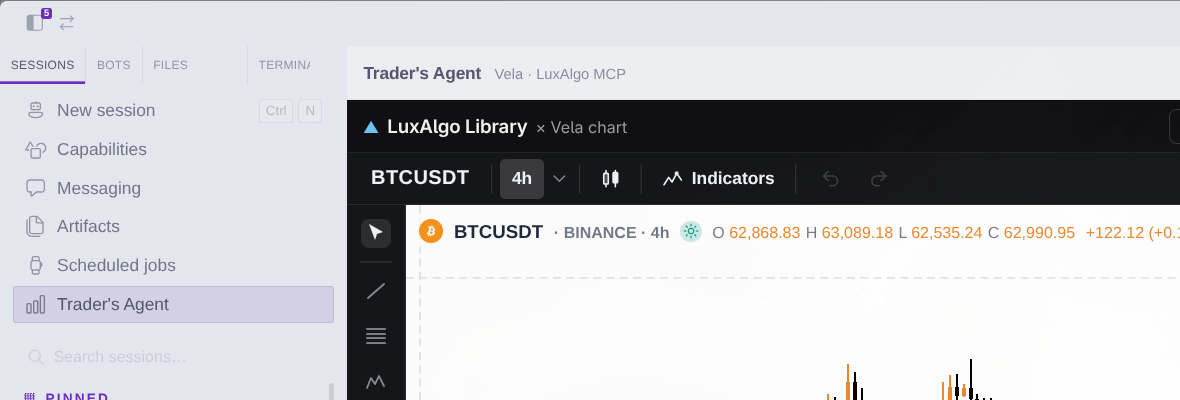 |
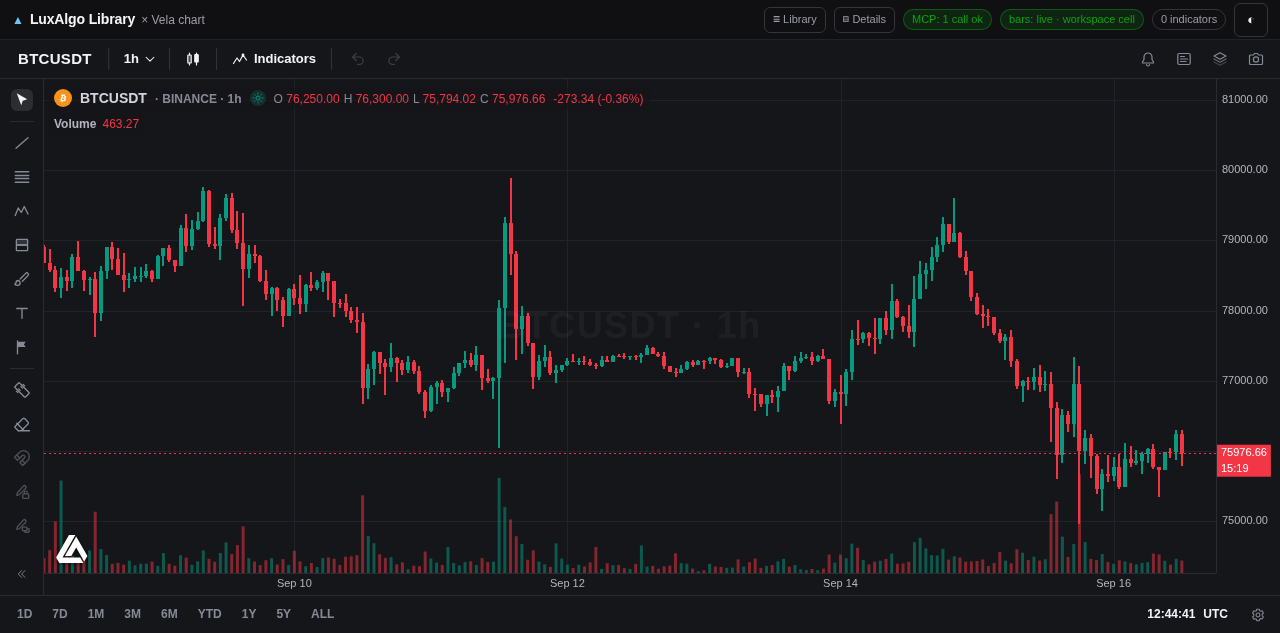 |
| In Hermes Desktop — the sidebar row docks the chart beside the chat | Chart-first — Vela gets the whole pane; panels are opt-in |
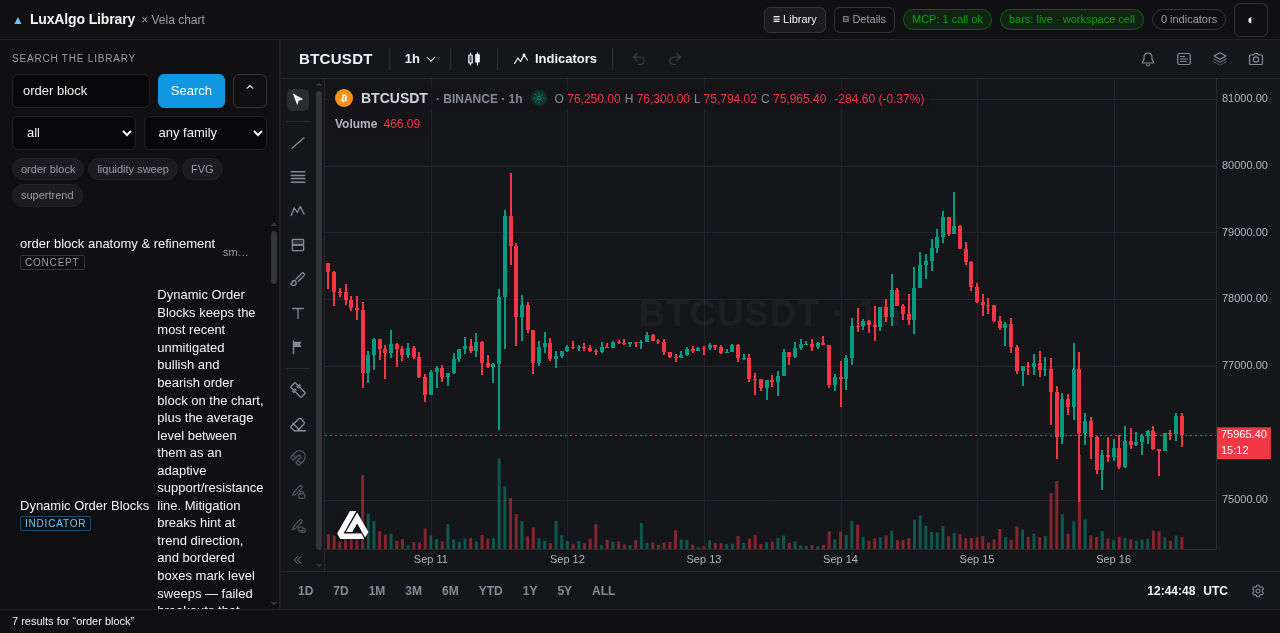 |
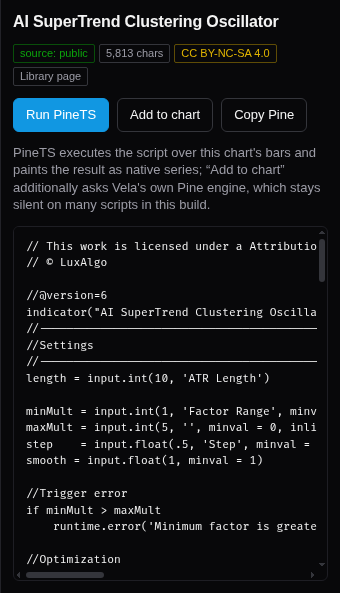 |
| Library open — search across the LuxAlgo Library | Detail panel — write-up, licence badge, Run PineTS / Add to chart |
Library text and Pine sources shown in these screenshots are LuxAlgo's — Source: LuxAlgo Library.
Update / Uninstall
cd tradersagent-plugin && git pull     # update
./install.sh                           # redeploy the plugin (hot-reloads in ~3 s)
systemctl --user restart traders-agent.service   # only if you run the console as a service
Uninstall: delete ~/.hermes/desktop-plugins/traders-desk/ in Hermes Desktop (Capabilities →
Plugins), then remove the console's service (systemctl --user disable --now traders-agent.service).
Nothing else is written outside the repo; console/agents/ holds the runtime state you can delete.
Repository layout
plugin/            the Hermes Desktop plugin: plugin.js + its harness expectations
console/frontend/  the web app: Vela chart, Library panel, detail panel, PineTS paint layer
console/backend/   one stdlib HTTP server proxying LuxAlgo's MCP + the chart bridge + the push channel
console/mcp/       trader-chart-mcp — the chart as MCP tools (stdio, FastMCP)
console/bin/       agent-side CLIs (trader-chart, library-indicator)
tools/             verify-plugin.mjs — runs a plugin in Node against SDK stubs (used by CI)
install.sh         installs the plugin into $HERMES_HOME/desktop-plugins/
Configuration
| Env | Default | Meaning |
|---|---|---|
PY |
python3 |
the interpreter for console/start.sh (must have mcp) |
PORT |
8787 |
console port — the plugin's frame points at http://127.0.0.1:8787/ |
LUXALGO_AGENTS_DIR |
console/agents |
runtime state: chart bridge files, study threads, shots |
HERMES_CLI |
hermes on PATH |
CLI the in-app study bridge shells out to |
LUXALGO_CHART_INLINE_WAIT |
8 |
seconds a command holds its request open waiting for the chart's pushed answer |
--mcp-url |
https://mcp.luxalgo.com/mcp |
point at a different (or local) MCP server |
Limits
- PineTS is a subset of Pine.
import,whileandfor…inare not implemented; the detail panel says so instead of pretending. Anything heavier only runs in TradingView's own Pine engine. - "Add to chart" is experimental. It hands the script to Vela's Pine engine; some scripts paint nothing. Run PineTS is the reliable path.
- The bridge is not a headless renderer.
trader-chartand the MCP tools only take effect while a chart view is mounted (the Hermes pane or a browser tab); with none attached they fail fast with "no chart view attached" rather than hanging. Commands are pushed, so a view answers in tens of ms. - One console per machine on one port. No order placement, no account, no positions — it is read-only market data plus rendering.
- The Library is non-commercial. Its content is CC BY-NC-SA 4.0 — fine to read and cite here, not to resell or ship inside a paid product.
- Linux only, on purpose. Built and verified on Omarchy (Arch + Hyprland) with Hermes Desktop. macOS and Windows are out of scope, not merely untested: the ops story here is a systemd user unit and a shell script, and the machine this desk was built for is the one running it.
Development
node tools/verify-plugin.mjs plugin/plugin.js                                      # plugin harness (same check CI runs)
python3 -m unittest discover -s console/backend/tests -t console/backend/tests -v   # the unit suite (no dependencies)
uv run --with fastmcp python -m unittest discover \
    -s console/backend/tests -t console/backend/tests -p 'test_mcp_server.py' -v     # the MCP tool layer
python3 console/backend/server.py --port 8899 --no-mcp                             # console without the MCP backend
python3 -m compileall console/backend                                              # syntax pass
The suite is stdlib-only on purpose — the study store, the chat bridge, the chart bridge and the push
channel are covered without a browser, a network, or the app — and the MCP tool layer runs against a
stub console. 63 tests; the 15 MCP ones skip themselves when fastmcp is absent (CI sets
TRADER_CHART_REQUIRE_MCP=1 so they cannot silently skip there).
CI (.github/workflows/ci.yml) has three jobs: the plugin harness (Node 20), the backend (compile,
boot and a /api/health smoke test on Python 3.11), and the unit suite (the MCP step installs
fastmcp). Workflow when editing: change the repo, run ./install.sh to deploy; the app
re-registers the plugin about 3 seconds after plugin.js changes. Console-only changes need the
frame remounted (switch session and back).
Troubleshooting
- The sidebar row does nothing / the pane shows an old layout. The frame keeps the copy it loaded. Switch to another session and back, or restart the app.
start.sh: 'python3' has no 'mcp' client.pip install mcp, orPY=/path/to/venv/bin/python ./console/start.sh.- The plugin never appears in Capabilities → Plugins.
Ctrl+K→ Reload desktop plugins; if it still does not show up, the folder was dropped after a failed load — rename~/.hermes/desktop-plugins/traders-deskand setid:insideplugin.jsto the same new name. - The chart is empty and the log says
provider: synthetic. Binance's data provider was unreachable; the chart still renders deterministic bars so the page never comes up blank. - Port 8787 busy.
PORT=9000 ./console/start.sh, then point the plugin'sCONSOLE_ORIGINat it.
Licence & credits
This project's code is MIT — see LICENSE. It builds on LuxAlgo's work: Vela
(Apache-2.0, with its own attribution requirement — the ▲ mark on the chart stays), vela-pinets
and pinets (AGPL-3.0, loaded from the CDN, not redistributed), the LuxAlgo MCP server (MIT,
@luxalgo/mcp) and the LuxAlgo Library (free with attribution — Source: LuxAlgo Library — luxalgo.com/library/…). Full details, quotes and links: THIRD-PARTY.md.
Charts are not financial advice; the Library is an encyclopedia, not a signal service.
Known Hermes Desktop interaction: a collapsed pane can stay hidden
A pane contributed with defaultCollapsed: true is adopted into a layout group carrying
"minimized": true (persisted under hermes.desktop.layoutTree.v2). On Hermes Desktop 0.17.0
revealPane() — the documented call for an explicit user action — reveals the pane and its zone
but does not clear that group flag, so after a layout reset the sidebar row can land with the
pane still hidden: the route page then renders the console itself in the main zone instead of
docking the chart beside the chat.
Measured 19 Sep 2026 on Omarchy + Hermes Desktop 0.17.0: after Layouts -> Reset, the row's
revealPane call left {"id":"g-...","panes":["traders-desk:chart"],"minimized":true} in the
store and the chart opened as the main page. Clearing the flag and reloading the window docks the
pane beside the chat as intended.
The plugin handles it as far as it can: the page asks for adoption and reveal, retries once a beat later (the app may still be rebuilding the tree when a page mounts), and when the pane is still not visible it renders the console itself under a short note that says why — with Ask again and Open in a browser in reach. The note only appears when the pane API exists and reports the pane hidden, so a build without panes gets the plain console and no nagging.
Recovery for a user who hits it: un-minimize the pane's group in hermes.desktop.layoutTree.v2
(DevTools / a CDP session on --remote-debugging-port) or pick a layout template that re-adopts
contributed panes, then reload the window. The plugin asks for the documented reveal first and
cannot clear the flag itself — the renderer's layout atoms own that state.
Установка Tradersagent Plugin
У этого сервера нет опубликованного пакета — он собирается из исходников. Открой репозиторий и следуй инструкции в README.
▸ github.com/godzillacode0000/tradersagent-pluginFAQ
Tradersagent Plugin MCP бесплатный?
Да, Tradersagent Plugin MCP бесплатный — установка в пару кликов через Unyly без оплаты.
Нужен ли API-ключ для Tradersagent Plugin?
Нет, Tradersagent Plugin работает без API-ключей и переменных окружения.
Tradersagent Plugin — hosted или self-hosted?
Self-hosted: сервер запускается локально на твоей машине командой из раздела установки.
Как установить Tradersagent Plugin в Claude Desktop, Claude Code или Cursor?
Открой Tradersagent Plugin на unyly.org, выбери вкладку своего клиента (Claude Desktop, Claude Code, Cursor) и нажми Install — конфиг сгенерируется автоматически, без правки JSON.
Похожие MCP
Fetch
Web content fetching and conversion for efficient LLM usage.
Roblox Studio
Enables AI coding tools to control Roblox Studio for workspace exploration, instance manipulation, and script management. It provides tools for playtesting, sce
 автор: paralov
Opencode Omniroute Plugin
OpenCode plugin for the OmniRoute AI Gateway. Drives dynamic model discovery, /connect auth flow, and multi-instance OmniRoute providers via the official @openc
 автор: GitHub Actions
AWS KB Retrieval
Retrieval from AWS Knowledge Base using Bedrock Agent Runtime.
 автор: modelcontextprotocol
Spring AI MCP Server
Provides auto-configuration for setting up an MCP server in Spring Boot applications.
llm-analysis-assistant
A very streamlined mcp client that supports calling and monitoring stdio/sse/streamableHttp, and can also view request responses through the /logs page. It also
 автор: xuzexin-hz
MCP-Agent
A simple, composable framework to build agents using Model Context Protocol by [LastMile AI](https://www.lastmileai.dev)
 автор: lastmile-ai
Spring AI MCP Client
Provides auto-configuration for MCP client functionality in Spring Boot applications.
mcp.natoma.ai
A Hosted MCP Platform to discover, install, manage and deploy MCP servers by [Natoma Labs](https://www.natoma.ai)
MCPHub
Website to list high quality MCP servers and reviews by real users. Also provide online chatbot for popular LLM models with MCP server support.
Compare Tradersagent Plugin with
Не уверен что выбрать?
Найди свой стек за 60 секунд
Автор?
Embed-бейдж для README
Похожее
Все в категории ai