
Via AI
БесплатноНе проверенRelationship intelligence tools for professional networking with connection path discovery and ICP targeting.

Описание
Relationship intelligence tools for professional networking with connection path discovery and ICP targeting.
README
Via AI's MCP server gives AI assistants access to relationship intelligence -- helping users discover connection paths, search for people and companies, and manage their professional network through natural conversation.
Features
- People Search: Find people by name, email, or LinkedIn profile across Via's professional network graph
- Company Search: Look up companies by name or domain with metadata including industry, employee count, and domains
- Connection Path Discovery: Find the strongest paths connecting you to anyone at a target company through shared work history, education, email interactions, calendar meetings, LinkedIn connections, and more
- Inner Circle Management: Organize your key contacts into circles (tags), add/remove members, and leverage your inner circle's network for warm introductions
- Path Explanations: Generate natural language descriptions of how two people are connected, suitable for email introductions
Setup
Prerequisites
- A Via AI account
Claude.ai / Claude Desktop
Add Via AI as a custom connector:
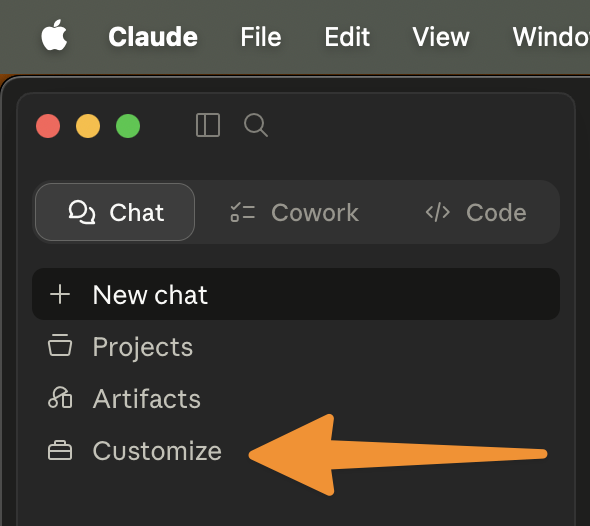
Open Claude and click Customize in the left sidebar.
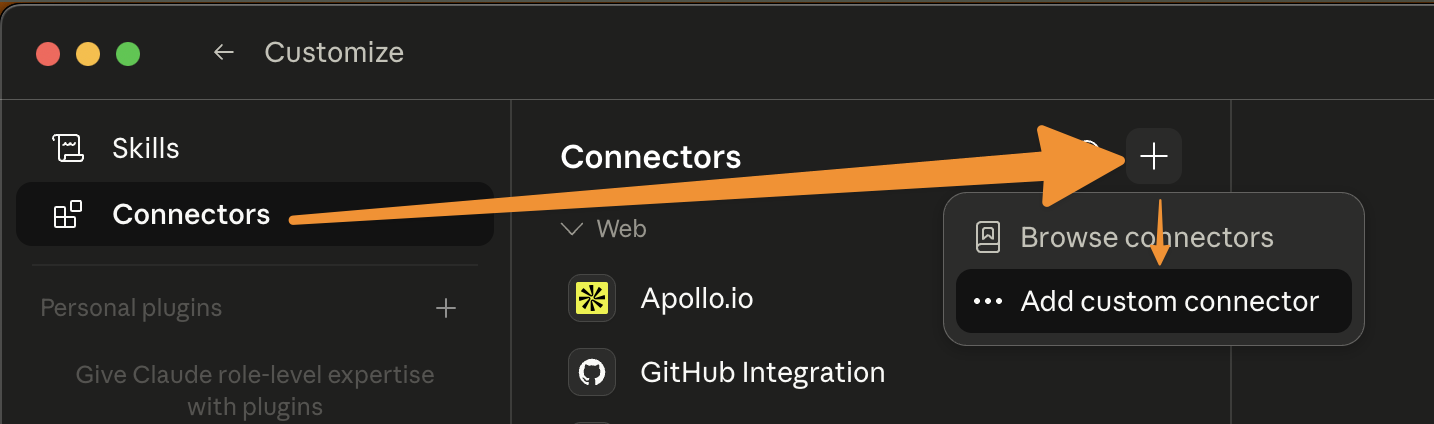
Select Connectors, click the + button, and choose Add custom connector.
In the Add custom connector dialog, enter a name (e.g.
Via AI) and the server URLhttps://mcp.connectvia.ai/mcp, then click Add.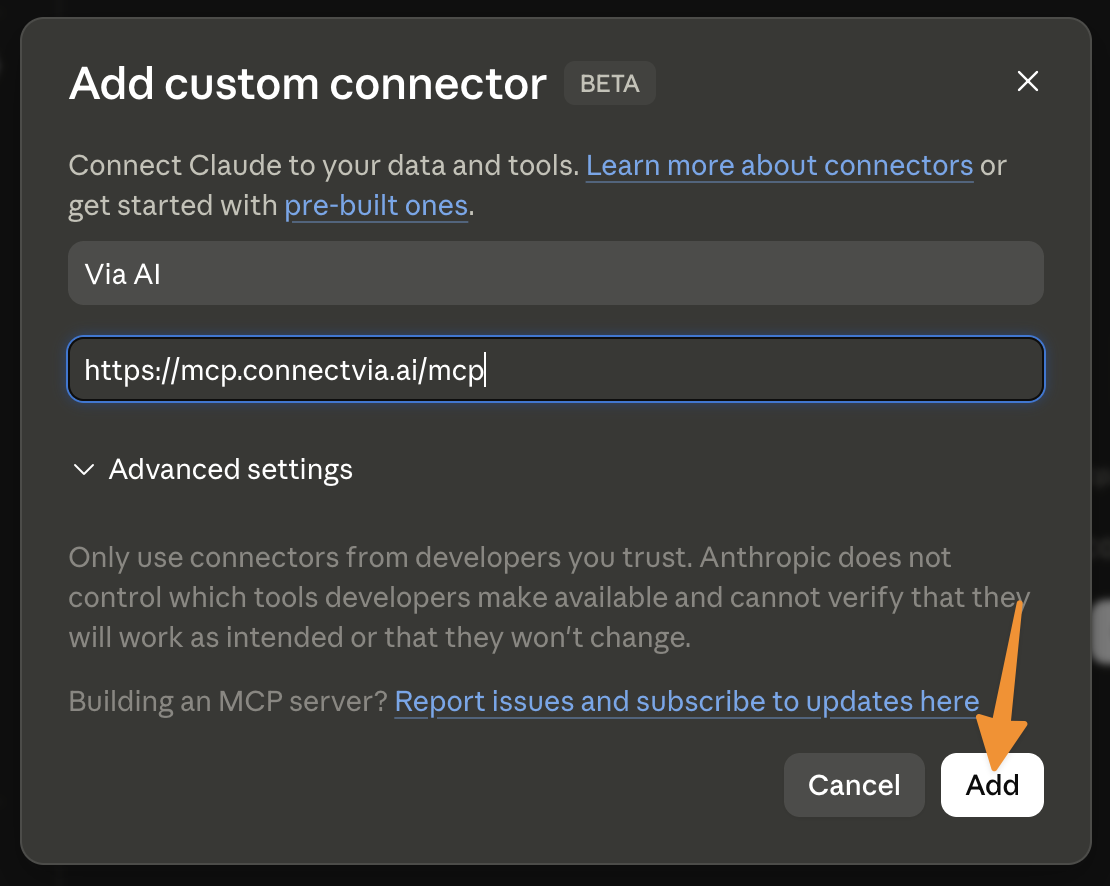
Follow the OAuth flow to authorize your Via AI account.
Claude Code
Add to your Claude Code configuration:
{
  "mcpServers": {
    "via-ai": {
      "type": "url",
      "url": "https://mcp.connectvia.ai/mcp"
    }
  }
}
Authentication
Via AI uses OAuth 2.0 Authorization Code Flow. When you first connect, you'll be redirected to Via AI's login page to authorize access. Tokens are automatically refreshed.
Tools
Onboarding
New Via accounts must finish onboarding before any other tool will work. Tools called against an
unonboarded account return a GraphQL error with extensions.code = "ONBOARDING_REQUIRED" directing
the host to call the Onboard tool first.
| Tool | Description |
|---|---|
Onboard |
Walks the user through Via onboarding: terms acceptance, LinkedIn profile linking, network preview, and circle creation. Each call advances the conversation by one user turn — relay assistantMessage back to the user, then call again with their reply. State is keyed per user; a reset flag exists but is rarely needed because the workflow fast-forwards past completed steps. |
GetAuthenticatedUser and SubmitAgentFeedback are also exempt from the gate so hosts can read
onboarding status and submit feedback at any time.
Queries (Read-Only)
| Tool | Description |
|---|---|
SearchPeopleByNameOrLinkedInOrEmail |
Search for people by name, LinkedIn slug, or email. Returns up to 20 results with profile metadata and circle memberships. |
FindPeopleByEmailsOrLinkedIn |
Look up one or more people by email or LinkedIn slug. Returns profiles in the same order as input. |
SearchCompaniesByNameOrDomain |
Search for companies by name or domain. Returns up to 5 results per query with employee count, industries, and domains. |
FindTopConnectionPaths |
Find the strongest connection paths to anyone at a target company. |
FindConnectionPathsToPeople |
Find connection paths to one or more specific people by their ID. |
GenerateConnectionPathExplanation |
Generate a natural language explanation of a connection path, suitable for introductions. |
GetAuthenticatedUser |
Get your Via AI profile and onboarding status. Callable before onboarding is complete. |
GetUserCircles |
List all circles visible to you (personal + active team), with scope and auto-managed flags. |
GetUserCircleMembers |
List members of your inner circle with contact details and employment info. Supports pagination and tag filtering. |
ListTeamTargets |
List or search the active team's saved Targets list with type filtering, sorting, and pagination. |
Mutations (Write)
| Tool | Description |
|---|---|
AddPersonToUserCircle |
Add a person to a circle (idempotent; one circle per call). |
RemovePersonFromUserCircle |
Remove a person from a circle (removing their last circle removes the membership). |
CreateUserCircle |
Create a new circle (tag) for organizing contacts. |
DeleteUserCircle |
Delete a circle. Members are not removed from the inner circle. |
AddTeamTargets |
Add people or companies to the active team's saved Targets list. |
RemoveTeamTarget |
Remove a saved target from the active team's Targets list. |
SubmitAgentFeedback |
Submit feedback about your experience using Via AI tools. Callable before onboarding is complete. |
Usage Examples
Example 1: Finding warm introductions to a target company
User prompt: "How am I connected to people at Stripe? I'm looking for warm introductions."
What happens: Claude uses SearchCompaniesByNameOrDomain to find Stripe's domain, then calls
FindTopConnectionPaths with the domain to discover ranked connection paths. Each path shows the
chain of people connecting you to Stripe employees, along with evidence like shared work history,
email interactions, and meeting history.
Result: "You have 3 strong paths to people at Stripe:
- You -> Sarah Chen (worked together at Acme Corp 2019-2022, 47 emails exchanged) -> James Liu (VP Engineering at Stripe)
- Your inner circle member Alex Park -> David Kim (Stanford '15 classmates) -> Maria Santos (Staff Engineer at Stripe) ..."
Example 2: Researching a prospect before outreach
User prompt: "Look up [email protected] and tell me how we're connected."
What happens: Claude calls FindPeopleByEmailsOrLinkedIn with the email to find John's profile,
then uses FindConnectionPathsToPeople to discover connection paths. Finally, it calls
GenerateConnectionPathExplanation to create a natural language summary of the strongest path.
Result: "John Smith is a Senior Product Manager at Acme Corp. You're connected through your colleague Sarah Chen -- they worked together at TechCo from 2018 to 2021 and still exchange emails regularly. Sarah would be a great person to ask for an introduction."
Example 3: Organizing your network with circles
User prompt: "Create a circle called 'Q1 Prospects' and add the top 3 people from my strongest connections at Datadog to it."
What happens: Claude calls CreateUserCircle to create the "Q1 Prospects" circle, then uses
SearchCompaniesByNameOrDomain to find Datadog, followed by FindTopConnectionPaths to identify
the strongest connections. It then calls SearchPeopleByNameOrLinkedInOrEmail for each person and
AddPersonToUserCircle to add them to the new circle.
Result: "Done! I created the 'Q1 Prospects' circle and added 3 connections from Datadog:
- Lisa Wang - VP of Sales
- Michael Torres - Head of Partnerships
- Priya Patel - Director of Business Development"
Privacy Policy
Support
- Email: [email protected]
- Website: connectvia.ai
Установка Via AI
У этого сервера нет опубликованного пакета — он собирается из исходников. Открой репозиторий и следуй инструкции в README.
▸ github.com/connect-via-ai/mcp-serverFAQ
Via AI MCP бесплатный?
Да, Via AI MCP бесплатный — установка в пару кликов через Unyly без оплаты.
Нужен ли API-ключ для Via AI?
Нет, Via AI работает без API-ключей и переменных окружения.
Via AI — hosted или self-hosted?
Self-hosted: сервер запускается локально на твоей машине командой из раздела установки.
Как установить Via AI в Claude Desktop, Claude Code или Cursor?
Открой Via AI на unyly.org, выбери вкладку своего клиента (Claude Desktop, Claude Code, Cursor) и нажми Install — конфиг сгенерируется автоматически, без правки JSON.
Похожие MCP
Fetch
Web content fetching and conversion for efficient LLM usage.
AWS KB Retrieval
Retrieval from AWS Knowledge Base using Bedrock Agent Runtime.
 автор: modelcontextprotocol
Spring AI MCP Server
Provides auto-configuration for setting up an MCP server in Spring Boot applications.
llm-analysis-assistant
A very streamlined mcp client that supports calling and monitoring stdio/sse/streamableHttp, and can also view request responses through the /logs page. It also
 автор: xuzexin-hz
Compare Via AI with
Не уверен что выбрать?
Найди свой стек за 60 секунд
Автор?
Embed-бейдж для README
Похожее
Все в категории ai