
Webcam
БесплатноНе проверенAn MCP server that provides LLM agents with direct access to webcam hardware for capturing high-resolution photos and recording video sequences. It enables auto

Описание
An MCP server that provides LLM agents with direct access to webcam hardware for capturing high-resolution photos and recording video sequences. It enables autonomous agents to monitor environments and interact with the physical world through standard Model Context Protocol tools.
README
Webcam MCP 📸
MCP server for webcam access - capture photos and video for LLM agents
Webcam MCP is a Model Context Protocol (MCP) server that gives LLM agents direct access to your webcam. It enables autonomous agents to capture photos and record video sequences, making it possible to debug cyberphysical systems, monitor environments, and interact with the physical world without human intervention.
Features:
- 📸 High-Resolution Photos: Capture still images
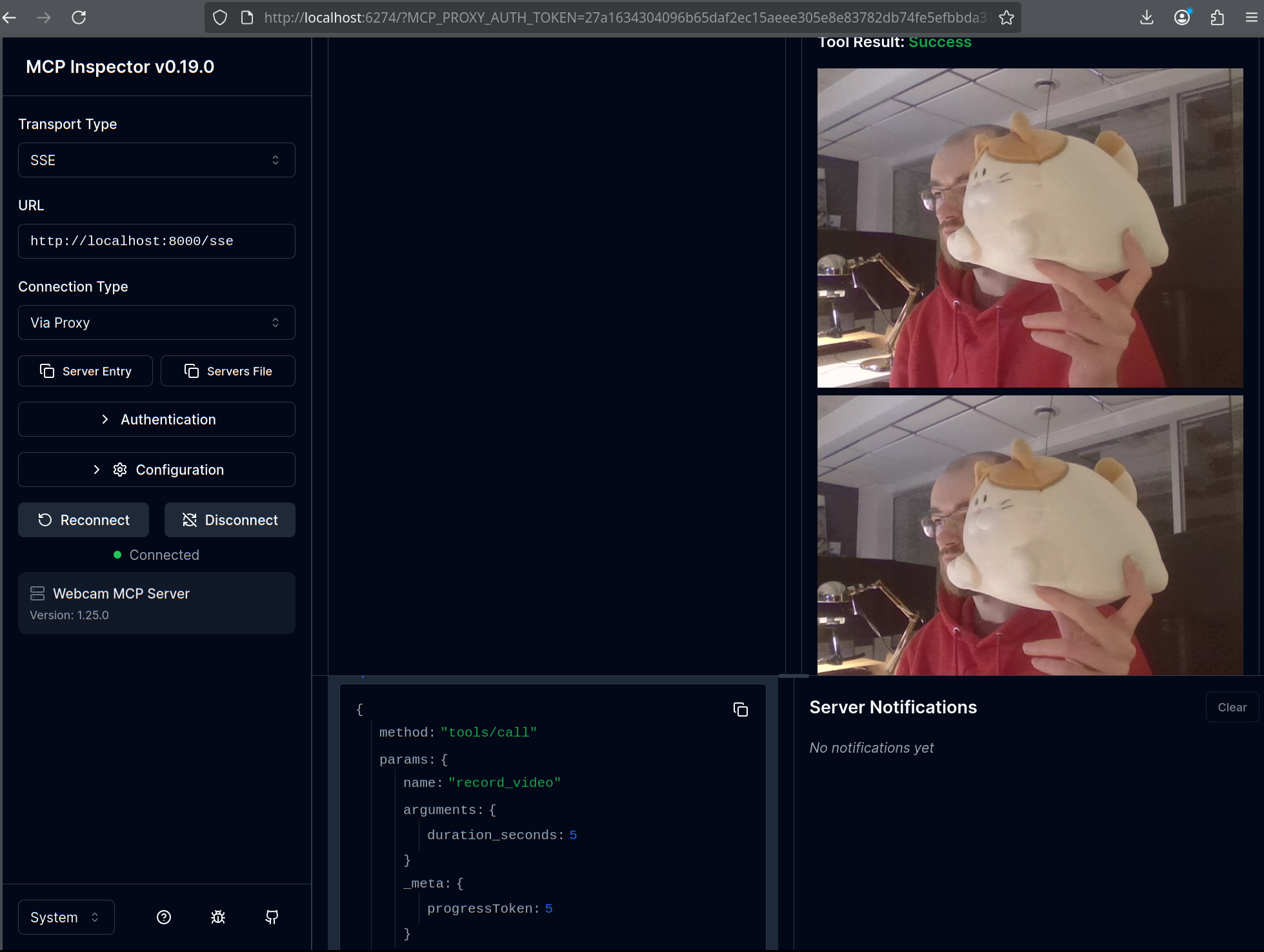
- 🎥 Video Recording: Record a sequence of frames over a specified duration
- 🌐 Remote Access: SSE transport for network-accessible deployment
- ⚙️ Configurable: Adjust resolution, camera index, and quality settings
- 🔌 Cross-Platform: Works on Linux, macOS, and Windows
- 🚀 Easy Integration: Simple MCP client configuration
Usage
Install:
pip install webcam-mcp
Start the MCP server:
webcam-mcp
The server will start on http://0.0.0.0:8000/sse by default.
You can test the server using any MCP client, e.g., MCP Inspector (install via npx @modelcontextprotocol/inspector).
CLI options
| Option | Type | Default | Description |
|---|---|---|---|
--host |
string | 0.0.0.0 |
Server host address |
--port |
integer | 8000 |
Server port |
--camera-index |
integer | 0 |
Webcam device index |
--photo-width |
integer | 1920 |
Default photo width in pixels |
--photo-height |
integer | 1080 |
Default photo height in pixels |
--video-width |
integer | 640 |
Default video frame width in pixels |
--video-height |
integer | 480 |
Default video frame height in pixels |
--version |
- | - | Show version and exit |
Examples
# Start on custom port
webcam-mcp --port 9000

# Use different camera (e.g., external USB webcam)
webcam-mcp --camera-index 1

# Custom photo resolution
webcam-mcp --photo-width 1280 --photo-height 720
MCP Client Configuration
Claude Desktop
Add to your claude_desktop_config.json:
{
  "mcpServers": {
    "webcam": {
      "url": "http://localhost:8000/sse"
    }
  }
}
Location of config file:
- macOS:
~/Library/Application Support/Claude/claude_desktop_config.json - Windows:
%APPDATA%\Claude\claude_desktop_config.json - Linux:
~/.config/Claude/claude_desktop_config.json
Other MCP Clients
Any MCP client supporting SSE transport can connect to:
http://<host>:<port>/sse
MCP Tools
take_photo
Captures a single high-resolution photo from the webcam.
Parameters: None
Returns: JPEG image
Example usage in Claude:
Can you take a photo and describe what you see?
record_video
Records video frames over a specified duration.
Parameters:
duration_seconds(float, optional): Recording duration in seconds- Minimum: 1.0 second
- Maximum: 60.0 seconds
- Default: 5.0 seconds
Returns: List of JPEG frames
Example usage in Claude:
Record a 10-second video and analyze any movement you detect.
Troubleshooting
Camera Permission Denied (macOS)
On macOS, you need to grant camera permissions:
- Open System Settings → Privacy & Security → Camera
- Enable camera access for Terminal (or your terminal app)
- Restart the terminal and try again
Camera Already in Use
If you see "Camera unavailable" errors:
- Close other applications using the webcam (Zoom, Skype, etc.)
- Check if another instance of
webcam-mcpis running - Try a different camera index:
webcam-mcp --camera-index 1
Wrong Camera Index
To find available cameras:
import cv2
for i in range(10):
    cap = cv2.VideoCapture(i)
    if cap.isOpened():
        print(f"Camera {i}: Available")
        cap.release()
    else:
        print(f"Camera {i}: Not available")
Then use --camera-index with the correct number.
Resolution Not Supported
If your camera doesn't support the requested resolution, the server will:
- Log a warning with the actual resolution achieved
- Continue operating with the camera's maximum supported resolution
Check logs for messages like:
WARNING: Requested resolution 1920x1080, but camera provided 1280x720
Development
# Install in editable mode with dev dependencies
pip install -e ".[dev]"

# Run all tests
pytest

# Run with verbose output
pytest -v

# Run specific test file
pytest tests/test_camera.py
All tests use mocked camera hardware, so no physical webcam is required for testing.
Release
To tag and release a new version, push a new commit to main with a new __version__ string.
This will trigger a new tag and a new release push to PyPI.
Установить Webcam в Claude Desktop, Claude Code, Cursor
unyly install webcam-mcpСтавит в Claude Desktop, Claude Code, Cursor и VS Code — сам разбирается с npx, uvx и сборкой из исходников.
Впервые? Поставь CLI: curl -fsSL https://unyly.org/install | sh
Или настроить вручную
Выполни в терминале:
claude mcp add webcam-mcp -- uvx webcam-mcpПошаговые гайды: как установить Webcam
FAQ
Webcam MCP бесплатный?
Да, Webcam MCP бесплатный — установка в пару кликов через Unyly без оплаты.
Нужен ли API-ключ для Webcam?
Нет, Webcam работает без API-ключей и переменных окружения.
Webcam — hosted или self-hosted?
Self-hosted: сервер запускается локально на твоей машине командой из раздела установки.
Как установить Webcam в Claude Desktop, Claude Code или Cursor?
Открой Webcam на unyly.org, выбери вкладку своего клиента (Claude Desktop, Claude Code, Cursor) и нажми Install — конфиг сгенерируется автоматически, без правки JSON.
Похожие MCP
ARA
Generate images, video and audio from any AI agent — one connector.
 автор: ARA
Omni Video
An MCP server that transforms LLM-enabled IDEs into professional video editors by pre-processing footage into text proxies, generating motion graphics via HTML/
 автор: buildwithtaza
YouTube
Transcripts, channel stats, search
 автор: YouTube
EverArt
AI image generation using various models.
 автор: modelcontextprotocol
Compare Webcam with
Не уверен что выбрать?
Найди свой стек за 60 секунд
Автор?
Embed-бейдж для README
Похожее
Все в категории media