
WindowsPC
БесплатноНе проверенGives AI agents their own virtual display on Windows, enabling isolated clicking, typing, and screenshots without interfering with the user's desktop.

Описание
Gives AI agents their own virtual display on Windows, enabling isolated clicking, typing, and screenshots without interfering with the user's desktop.
README
An MCP server that gives AI agents their own virtual display on Windows. The agent clicks, types, and screenshots on an isolated screen while you keep working on yours.
┌──────────────────────────────────────────────────────────────┐
│  Your Physical Monitors            │  Agent Virtual Screen    │
│                                    │                          │
│  You work here normally.           │  Agent works here.       │
│  Mouse, keyboard, apps —          │  Isolated coordinates.    │
│  all yours.                        │  Filtered shortcuts.      │
│                                    │  Own window space.        │
│                                    │                          │
│  ← Agent can READ all screens      │  ← Agent can only        │
│     for context                    │     WRITE to this one     │
└──────────────────────────────────────────────────────────────┘
Why?
When an AI agent controls your desktop directly:
- You can't work while the agent works — every mouse move derails it
- The agent can click your apps — a misplaced click hits your browser
- No safety boundary — Alt+Tab or Win+D disrupts the session
- Hard to recover — if the agent loses track, you restart from scratch
WindowsPC-MCP creates a virtual display using the Parsec Virtual Display Driver and confines the agent to it. The agent sees coordinates (0,0) to (1920,1080) on its own screen. Your monitors are untouched.
Control UI (new in v0.6.0)
When the server starts, a small control window opens on your desktop showing the agent's screen in real time:
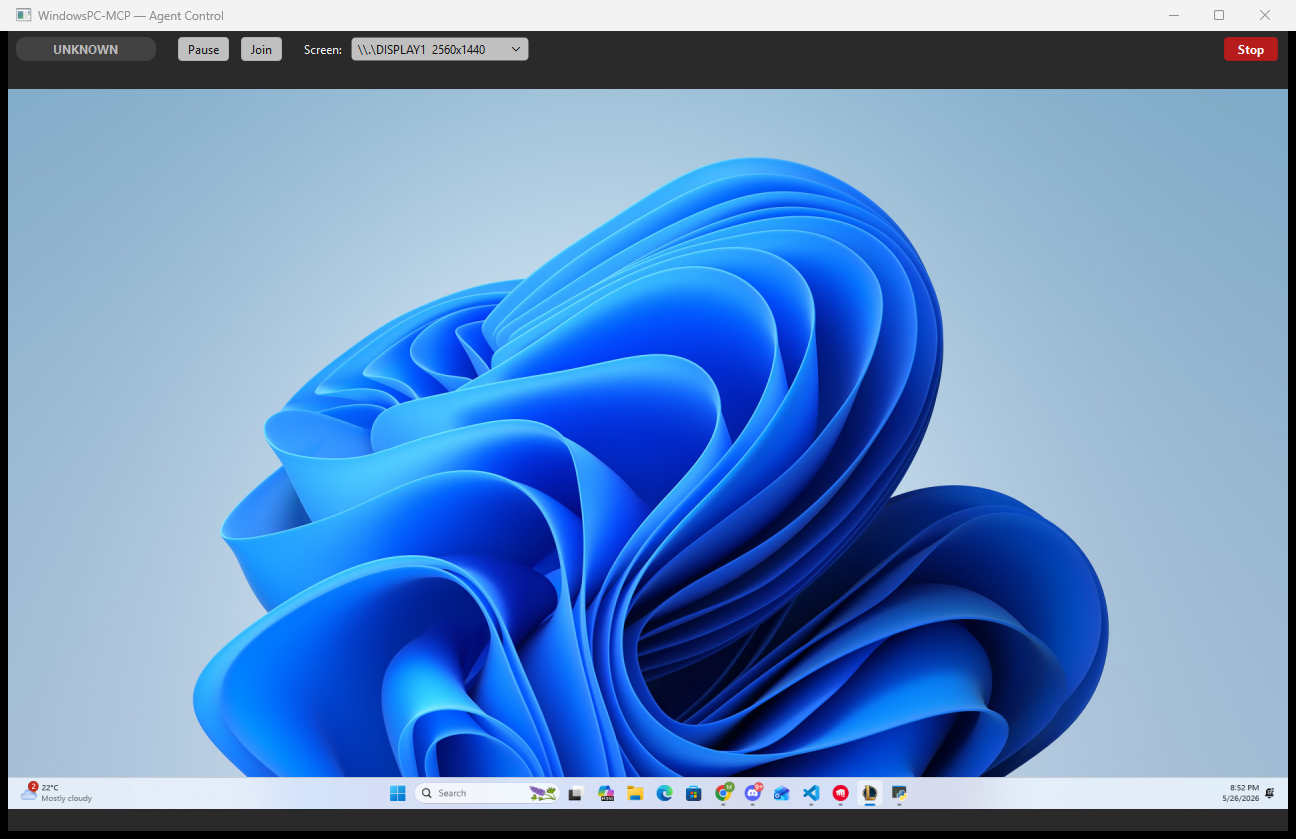
Buttons:
- Pause / Resume — block / unblock agent input (enters
HUMAN_OVERRIDEmode) - Join — temporarily switch your own input to the agent's desktop so you can interact with it directly; press again to leave
- Screen ▾ — pick which DXGI output to view (when you have multiple virtual displays)
- Stop — confirm dialog → ends the agent session
The status pill on the left shows the current input mode (AGENT_SOLO / HUMAN_OVERRIDE / etc).
If you don't want the UI — for CI, headless gateways, or pure stdio MCP setups — pass --no-ui:
windowspc-mcp --transport stdio --no-ui
Server state is still mirrored to ~/.windowsmcp/status.json (1 Hz) for external monitoring.
Requirements
- Windows 10 or 11
- Python 3.12 or later
- Parsec VDD — auto-installed on first server run (triggers a one-time UAC prompt)
Install
git clone https://github.com/ShikeChen01/WindowsPC-MCP.git
cd WindowsPC-MCP
pip install -e .
Setup
Claude Code
Add to your project's .mcp.json:
{
  "mcpServers": {
    "windowspc-mcp": {
      "command": "python",
      "args": ["-m", "windowspc_mcp", "--transport", "stdio"]
    }
  }
}
Claude Code picks this up automatically — no restart needed.
Claude Desktop
Add to your claude_desktop_config.json (Settings > Developer > Edit Config):
{
  "mcpServers": {
    "windowspc-mcp": {
      "command": "windowspc-mcp",
      "args": ["--transport", "stdio"]
    }
  }
}
Restart Claude Desktop after saving.
Other MCP clients
WindowsPC-MCP supports two transports:
# stdio (for any MCP client that launches a subprocess)
windowspc-mcp --transport stdio

# SSE over HTTP (for network clients)
windowspc-mcp --transport sse --host localhost --port 8000
Connect your client to http://localhost:8000/sse for the SSE transport.
Quick Start
Once connected, the agent workflow looks like this:
1. CreateScreen()                          → virtual display appears
2. Screenshot(screen="agent")              → see what's on the agent screen
3. App(name="notepad")                     → launch an app (auto-moved to agent screen)
4. Snapshot()                              → screenshot + UI tree with labeled elements
5. Click(label=3)                          → click element #3 from the snapshot
6. Type(text="Hello from the agent")       → type into the focused element
7. DestroyScreen()                         → clean up when done
The agent always calls CreateScreen first. After that, Snapshot is the primary tool for understanding what's on screen — it returns a screenshot plus a numbered list of interactive elements that Click and Type can target by label.
Tools
23 tools organized by category. See docs/tools.md for the full reference with parameters and examples.
Screen Management
| Tool | Description |
|---|---|
| CreateScreen | Create the agent's virtual display (1920x1080 default) |
| DestroyScreen | Remove the virtual display and release resources |
| ScreenInfo | List all monitors — agent screen is marked [AGENT] |
| RecoverWindow | Find windows by title/pid/process and move them to the agent screen |
Vision
| Tool | Description |
|---|---|
| Screenshot | Capture a screenshot (agent screen, all screens, or by index) |
| Snapshot | Screenshot + window list + interactive UI elements with labels |
Input
| Tool | Description |
|---|---|
| Click | Click at coordinates or by element label from Snapshot |
| Type | Type text, optionally clicking a target first |
| Move | Move the cursor (with optional drag) |
| Scroll | Scroll vertically or horizontally |
| Shortcut | Send keyboard shortcuts (dangerous ones like Alt+Tab are blocked) |
| Wait | Pause execution for a given number of seconds |
Batch Input
| Tool | Description |
|---|---|
| MultiSelect | Click multiple positions in sequence |
| MultiEdit | Click and type into multiple fields in sequence |
Apps & System
| Tool | Description |
|---|---|
| App | Launch an application (windows auto-moved to agent screen) |
| PowerShell | Run a PowerShell command and return output |
| FileSystem | Read, write, list, copy, move, delete files |
| Clipboard | Get or set clipboard text |
| Process | List or kill running processes |
| Registry | Read, write, or list Windows registry values |
| Notification | Show a Windows toast notification |
| Scrape | Fetch a URL and return its text content |
| InputStatus | Check the current input mode and agent capabilities |
How Confinement Works
All tools pass through a confinement engine before executing:
- READ tools (Screenshot, Snapshot) can see all monitors for context
- WRITE tools (Click, Type, Scroll, Move) are bounds-checked to the agent screen — coordinates outside are rejected
- UNCONFINED tools (PowerShell, FileSystem, Registry) have no spatial component
- Shortcuts are filtered: global shortcuts (Alt+Tab, Win+D, Win+L) are blocked; application shortcuts (Ctrl+S, Ctrl+C) are allowed
The agent works in agent-relative coordinates — (0,0) is the top-left of its virtual display. The confinement engine translates to absolute Windows coordinates transparently.
Security & trust
The GUI confinement model bounds the agent's mouse and keyboard to its virtual display. It does not bound system access. The following tools are deliberate trust grants — an agent that calls them can affect anything the host user can affect, regardless of the virtual display.
- PowerShell — runs arbitrary commands. Subject to the 120-second timeout, otherwise unrestricted. Treat the agent as having a shell on your machine.
- FileSystem — read/write/delete on any path the user can access. Includes credentials, SSH keys, browser profiles, Startup folders, and so on.
- Registry — read/write on any registry key the user can access. Persistence via
HKCU\…\Runis a single tool call away. - Scrape — fetches
http://andhttps://URLs only (file://and other schemes are rejected), but can still probe RFC 1918 / cloud-metadata endpoints reachable from the host. - App — launches any executable on
PATH, includingpowershell.exe, which sidesteps the PowerShell timeout. - Process — lists and kills processes by substring match. A coarse name like
"svc"can terminate unrelated services.
If you cannot trust the agent with any of the above, run the server in a VM or a dedicated user account where these tools cannot do damage.
Troubleshooting
"Parsec VDD driver not found" The driver auto-installs on first run but requires admin privileges. If the UAC prompt was dismissed, run the server once from an elevated terminal:
windowspc-mcp --transport stdio
Virtual display doesn't appear
After CreateScreen, check with ScreenInfo. If the display isn't listed, the VDD driver may not be installed correctly. Reinstall from parsec-vdd releases.
"Agent screen already exists"
The previous session didn't clean up. Call DestroyScreen first, or restart the server — it auto-recovers persisted display state on startup.
App windows don't appear on the agent screen
App waits up to 5 seconds for windows to appear and moves them automatically. Some apps take longer to launch. Use RecoverWindow(process_name="appname") to move windows that appeared after the timeout.
Screenshot returns a black image Some apps render with hardware acceleration that GDI capture can't see. Try maximizing the window or using a different app. The virtual display itself always captures correctly.
Blocked shortcut error Global shortcuts (Alt+Tab, Win+D, Ctrl+Alt+Del) are intentionally blocked to prevent the agent from disrupting your desktop session. Use application-level shortcuts instead.
License
MIT
Установка WindowsPC
У этого сервера нет опубликованного пакета — он собирается из исходников. Открой репозиторий и следуй инструкции в README.
▸ github.com/ShikeChen01/WindowsPC-MCPFAQ
WindowsPC MCP бесплатный?
Да, WindowsPC MCP бесплатный — установка в пару кликов через Unyly без оплаты.
Нужен ли API-ключ для WindowsPC?
Нет, WindowsPC работает без API-ключей и переменных окружения.
WindowsPC — hosted или self-hosted?
Self-hosted: сервер запускается локально на твоей машине командой из раздела установки.
Как установить WindowsPC в Claude Desktop, Claude Code или Cursor?
Открой WindowsPC на unyly.org, выбери вкладку своего клиента (Claude Desktop, Claude Code, Cursor) и нажми Install — конфиг сгенерируется автоматически, без правки JSON.
Похожие MCP
Fetch
Web content fetching and conversion for efficient LLM usage.
AWS KB Retrieval
Retrieval from AWS Knowledge Base using Bedrock Agent Runtime.
 автор: modelcontextprotocol
Spring AI MCP Server
Provides auto-configuration for setting up an MCP server in Spring Boot applications.
llm-analysis-assistant
A very streamlined mcp client that supports calling and monitoring stdio/sse/streamableHttp, and can also view request responses through the /logs page. It also
 автор: xuzexin-hz
Compare WindowsPC with
Не уверен что выбрать?
Найди свой стек за 60 секунд
Автор?
Embed-бейдж для README
Похожее
Все в категории ai