
Claude Meeting
FreeNot checkedMCP Server to record, transcribe, and summarize any audio — meetings, YouTube, podcasts, lectures — with speaker identification and automatic meeting minutes. C

About
MCP Server to record, transcribe, and summarize any audio — meetings, YouTube, podcasts, lectures — with speaker identification and automatic meeting minutes. Cross-platform (macOS, Windows, Linux).
README
An MCP server that records and transcribes any audio — meetings, YouTube videos, podcasts, lectures, interviews, music — with speaker identification and automatic meeting minutes.
Works with any audio source on macOS, Windows, and Linux.
What is this?
This is a Model Context Protocol (MCP) server. MCP is an open standard that lets AI assistants like Claude use external tools. Once you install this server, Claude can:
- Record any audio from your computer (meetings, YouTube, podcasts, etc.) + microphone
- Transcribe the recording using Whisper AI (locally or via remote API)
- Identify speakers using pyannote diarization
- Generate meeting minutes with decisions, action items, and speaker attribution
- Extract text from any video or audio playing on your computer
You just talk to Claude naturally: "Record my meeting", "Transcribe this YouTube video", "Generate the minutes".
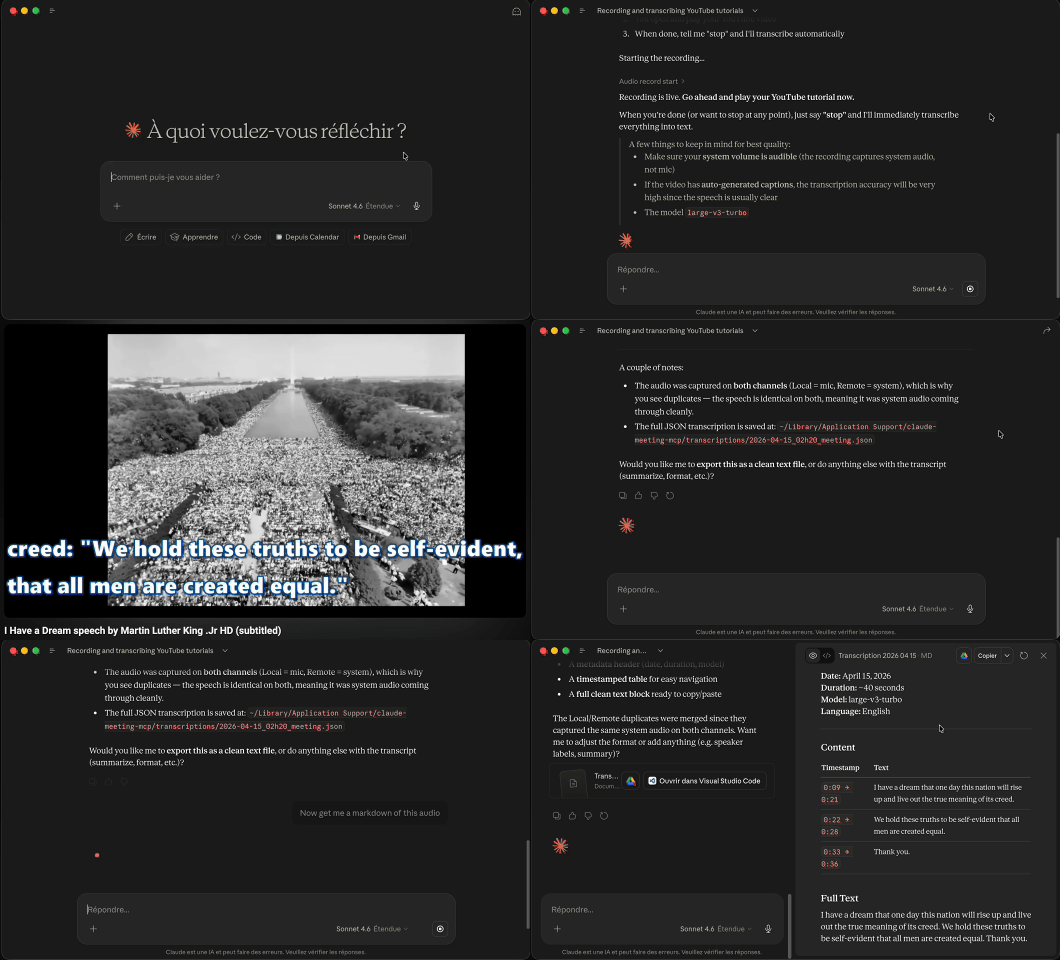
Demo
Quick Start (5 minutes)
Step 1: Install
# Clone the repository
git clone https://github.com/Aedelon/claude-meeting-mcp.git
cd claude-meeting-mcp

# Install Python dependencies (requires Python 3.11+ and uv)
uv sync

# macOS only: compile the audio capture binary
cd src/audiocap && swift build -c release && cd ../..
Don't have uv? Install it first: brew install uv (macOS) or pip install uv (any OS).
Step 2: Connect to Claude
Add this to your Claude configuration:
Claude Code (terminal):
claude mcp add claude-meeting-mcp -- uv --directory /path/to/claude-meeting-mcp run claude-meeting-mcp
Claude Desktop (Settings > Developer > Edit Config):
{
  "mcpServers": {
    "claude-meeting-mcp": {
      "command": "uv",
      "args": ["--directory", "/path/to/claude-meeting-mcp", "run", "claude-meeting-mcp"]
    }
  }
}
Replace /path/to/claude-meeting-mcp with the actual path where you cloned the repo.
Step 3: Use it
Open Claude and say:
"Record my meeting"
Claude will start recording. When the meeting is over:
"Stop and transcribe. The participants are Bruno, Alice, and me (Delanoe)"
Claude will stop the recording, transcribe it, and suggest generating meeting minutes.
Prerequisites
| OS | Requirements |
|---|---|
| macOS | Python 3.11+, uv, Xcode Command Line Tools (xcode-select --install) |
| Windows | Python 3.11+, uv |
| Linux | Python 3.11+, uv, libportaudio2 (sudo apt install libportaudio2) |
macOS: Audio Permission
On macOS, you must grant audio recording permission to your terminal:
- Go to System Settings > Privacy & Security > Screen & System Audio Recording
- Add your terminal app (Terminal.app, iTerm2, etc.)
- Important: Some terminals (PyCharm, VS Code built-in) don't trigger the permission popup — use Terminal.app for the first run
How It Works
Your meeting (Google Meet, Zoom, Teams, etc.)
    |
    v
[Audio Capture] ---- stereo WAV file ----> Left channel  = system audio (remote participants)
    |                                       Right channel = microphone (you / people in the room)
    v
[Audio Processing] -- normalize + compress + limit (both channels balanced)
    |
    v
[Transcription] ----- Whisper AI (local) or remote API
    |
    v
[Diarization] ------- pyannote identifies individual speakers per channel (optional)
    |
    v
[Meeting Minutes] --- Claude generates structured PV via MCP Sampling
    |
    v
Markdown file with: date, participants, topics, decisions, action items
Platform Support
| Feature | macOS (Apple Silicon) | macOS (Intel) | Windows | Linux |
|---|---|---|---|---|
| System audio capture | Core Audio Taps | Core Audio Taps | WASAPI loopback | PipeWire/PulseAudio |
| Microphone capture | Core Audio | Core Audio | sounddevice | sounddevice |
| Transcription (local) | mlx-whisper (fast, GPU) | faster-whisper (CPU) | faster-whisper (CPU/CUDA) | faster-whisper (CPU/CUDA) |
| Speaker diarization | pyannote-audio | pyannote-audio | pyannote-audio | pyannote-audio |
Usage Examples
Record and transcribe a simple 1-on-1 meeting
Talk to Claude:
You: "Record my meeting with Bruno"
Claude: → calls audio_record_start()
        "Recording started. I'll capture system audio and your microphone."

[... your meeting happens ...]

You: "We're done"
Claude: → calls audio_stop_and_transcribe(remote_speakers="Bruno", local_speakers="You")
        "Meeting transcribed: 45 minutes, 127 segments.
         Would you like me to generate meeting minutes?"

You: "Yes"
Claude: → calls audio_generate_pv(meeting_id="2026-04-15_14h00_meeting", participants="Bruno, You")
        "Meeting minutes generated and saved."
Record a meeting with multiple participants
You: "Start recording. I have a meeting with Bruno, Alice, and Charlie.
      Marc is in the room with me."

Claude: → calls audio_record_start()

[... meeting ...]

You: "Stop and transcribe"
Claude: → calls audio_stop_and_transcribe(
           remote_speakers="Bruno, Alice, Charlie",
           local_speakers="You, Marc"
         )
With diarization enabled, the system identifies individual voices within each channel.
Record and transcribe a YouTube video / podcast
You: "Record the audio from this YouTube tutorial"
Claude: → calls audio_record_start()
        "Recording started. Play your video — I'm capturing all system audio."

[... watch the video ...]

You: "Done"
Claude: → calls audio_stop_and_transcribe()
        "Transcribed: 12 minutes, 45 segments."
Transcribe an existing audio file
You: "Transcribe this file: /Users/me/Downloads/meeting.wav"
Claude: → calls audio_transcribe(file_path="/Users/me/Downloads/meeting.wav")
Review past meetings
You: "Show me my past meetings"
Claude: → calls transcriptions_list()
        "Here are your recent transcriptions:
         - 2026-04-15_14h00_meeting (45 min)
         - 2026-04-14_10h00_meeting (1h 20min)"

You: "Generate minutes for the one from yesterday"
Claude: → calls audio_generate_pv(meeting_id="2026-04-14_10h00_meeting")
Extract action items
You: "What are the action items from today's meeting?"
Claude: → uses extract_action_items prompt
        "Action items:
         - [ ] Bruno: send the invoice by Friday
         - [ ] Alice: update the database schema
         - [ ] You: schedule follow-up meeting next week"
Change settings
You: "Use a smaller transcription model"
Claude: → calls audio_configure(key="transcription.model", value="small")

You: "Enable speaker diarization"
Claude: → calls audio_configure(key="diarization.enabled", value="true")

You: "Switch to Groq for transcription"
Claude: → calls audio_configure(key="transcription.mode", value="remote")
       → calls audio_configure(key="transcription.remote.url",
           value="https://api.groq.com/openai/v1/audio/transcriptions")
Configuration
The configuration file is created automatically at the platform-appropriate location:
| OS | Path |
|---|---|
| macOS | ~/Library/Application Support/claude-meeting-mcp/config.toml |
| Linux | ~/.config/claude-meeting-mcp/config.toml |
| Windows | %APPDATA%\claude-meeting-mcp\config.toml |
Default configuration
[transcription]
model = "large-v3-turbo"   # tiny, base, small, medium, large-v3-turbo, large-v3
language = "en"             # meeting language (auto-detected if empty)
mode = "local"              # "local" (on your machine) or "remote" (API)

[transcription.remote]
url = ""                    # Any OpenAI-compatible /v1/audio/transcriptions API
api_key_env = "TRANSCRIPTION_API_KEY"   # name of the env var holding the API key

[recording]
sample_rate = 48000

[diarization]
enabled = false             # enable for multi-speaker meetings
backend = "pyannote"        # none, pyannote, whisperx

[pv]
auto_generate = true        # suggest PV generation after transcription
Transcription models
| Model | Size | Quality | Speed | Best for |
|---|---|---|---|---|
tiny |
39M | Basic | Fastest | Quick tests |
base |
74M | OK | Very fast | Drafts |
small |
244M | Good | Fast | Short meetings |
medium |
769M | Very good | Medium | Most meetings |
large-v3-turbo |
809M | Excellent | Fast | Recommended |
large-v3 |
1.5B | Best | Slow | Critical meetings |
Using a remote transcription API
Instead of running Whisper locally, you can use any API that implements the OpenAI /v1/audio/transcriptions endpoint:
| Service | URL | Notes |
|---|---|---|
| Groq | https://api.groq.com/openai/v1/audio/transcriptions |
Very fast, free tier |
| OpenAI | https://api.openai.com/v1/audio/transcriptions |
Official Whisper API |
| Deepgram | Compatible endpoint | Nova-2 model |
| Self-hosted | Your own URL | faster-whisper-server, etc. |
# Set your API key
export TRANSCRIPTION_API_KEY="your-key-here"
Then configure via Claude: "Switch to remote transcription using Groq"
Speaker diarization (multi-speaker)
For meetings with multiple participants, enable diarization to identify who said what:
# Install diarization dependencies
uv sync --extra diarization

# Set HuggingFace token (free, required for first model download)
export HF_TOKEN="your-huggingface-token"
Get a free token at huggingface.co/settings/tokens.
Then tell Claude: "Enable diarization"
MCP Tools Reference
Recording
| Tool | Description | Parameters |
|---|---|---|
audio_record_start |
Start recording system audio + microphone | None |
audio_record_stop |
Stop recording and save WAV file | None |
audio_stop_and_transcribe |
Stop + transcribe in one call (preferred) | local_speakers, remote_speakers, model |
Transcription
| Tool | Description | Parameters |
|---|---|---|
audio_transcribe |
Transcribe an existing WAV file | file_path (required), local_speakers, remote_speakers, model |
get_transcription |
Retrieve a past transcription | meeting_id |
transcriptions_list |
List all transcriptions | None |
Meeting Minutes (PV)
| Tool | Description | Parameters |
|---|---|---|
audio_generate_pv |
Generate minutes from a transcription | meeting_id (required), participants |
get_pv |
Retrieve generated minutes | meeting_id |
pvs_list |
List all generated minutes | None |
Other
| Tool | Description | Parameters |
|---|---|---|
audio_status |
Check server status and readiness | None |
recordings_list |
List all audio recordings | None |
audio_configure |
Change a configuration parameter | key, value |
audio_cleanup |
Remove recordings older than 30 days | None |
MCP Resources
| URI | Description |
|---|---|
transcription://{meeting_id} |
Read a transcription as text |
pv://{meeting_id} |
Read meeting minutes as text |
MCP Prompts
| Name | Description |
|---|---|
regenerate_pv |
Regenerate minutes with custom instructions |
extract_action_items |
Extract action items checklist from a meeting |
Multilingual Support
Interaction with Claude: works in any language. Claude understands your intent regardless of the language you speak. No configuration needed.
Transcription: Whisper supports 99 languages. Set the language in config to improve accuracy:
| Code | Language | Code | Language | Code | Language |
|---|---|---|---|---|---|
en |
English | fr |
French | es |
Spanish |
de |
German | it |
Italian | pt |
Portuguese |
ru |
Russian | zh |
Chinese | ja |
Japanese |
ko |
Korean | ar |
Arabic | nl |
Dutch |
pl |
Polish | tr |
Turkish | he |
Hebrew |
uk |
Ukrainian | hi |
Hindi | sv |
Swedish |
Full list: openai/whisper — supported languages
audio_configure("transcription.language", "fr")   # French meeting
audio_configure("transcription.language", "ja")   # Japanese meeting
Meeting minutes: generated in the same language as the transcription. If the meeting is in French, the PV will be in French.
Architecture
src/
├── claude_meeting_mcp/
│   ├── server.py              # MCP server: 13 tools, 2 resources, 2 prompts
│   ├── config.py              # TOML configuration with platformdirs
│   ├── recorder.py            # Recording orchestration (thread-safe)
│   ├── transcriber.py         # Whisper transcription (mlx/faster/remote, parallel)
│   ├── diarize.py             # Speaker diarization via pyannote-audio 3.1
│   ├── pv_generator.py        # Meeting minutes via MCP Sampling (map-reduce)
│   ├── storage.py             # File management with platformdirs
│   ├── schemas.py             # Data models (Segment, Transcription)
│   └── capture/               # Platform-specific audio capture
│       ├── audio_processing.py    # Normalize + compress + limit (vectorized)
│       ├── _macos.py              # Core Audio Taps via audiocap Swift CLI
│       ├── _windows.py            # WASAPI loopback + sounddevice
│       └── _linux.py              # PipeWire/PulseAudio + sounddevice
├── audiocap/                  # Swift CLI for macOS audio capture
│   ├── Package.swift
│   └── Sources/AudioCap/
│       ├── main.swift
│       ├── AudioTapManager.swift
│       ├── StereoRecorder.swift
│       └── RingBuffer.swift
Security
- Local by default — no audio data is sent to any cloud service
- Remote is opt-in — you choose the API and provide your own key
- Credentials via environment variables only (
HF_TOKEN,TRANSCRIPTION_API_KEY) — never hardcoded - Path traversal protection on all meeting_id inputs
- Thread-safe recording state (RLock)
- Sensitive files gitignored — .env, recordings, transcriptions, PVs
Troubleshooting
macOS: Recording captures silence on the system audio channel
Your terminal needs Screen & System Audio Recording permission. Go to System Settings > Privacy & Security > Screen & System Audio Recording and add your terminal app. Some terminals (PyCharm, VS Code built-in) never trigger the permission popup — use Terminal.app instead.
macOS: audiocap binary not found
Compile it: cd src/audiocap && swift build -c release
Transcription is slow
- Use a smaller model: "Use the small model" (Claude calls
audio_configure) - Or switch to a remote API: "Use Groq for transcription"
- On Apple Silicon, mlx-whisper uses the GPU — it's already fast
No whisper backend available
Run uv sync to install dependencies. On macOS Apple Silicon, mlx-whisper is installed automatically. On other platforms, faster-whisper is installed.
Diarization: HuggingFace token required
- Create a free account at huggingface.co
- Get a token at huggingface.co/settings/tokens
- Accept the model license at huggingface.co/pyannote/speaker-diarization-3.1
- Set:
export HF_TOKEN="your-token"
Linux: No monitor source found
Install PipeWire or PulseAudio: sudo apt install libportaudio2. If using PulseAudio without PipeWire, you may need: pactl load-module module-loopback.
Development
# Install dev dependencies
uv sync --extra dev

# Run tests
uv run pytest -v

# Lint
uv run ruff check src/ tests/

# Format
uv run ruff format src/ tests/
Licence
Apache 2.0 - Delanoe Pirard / Aedelon
Installing Claude Meeting
This server has no published package — it is built from source. Open the repository and follow its README.
▸ github.com/Aedelon/claude-meeting-mcpFAQ
Is Claude Meeting MCP free?
Yes, Claude Meeting MCP is free — one-click install via Unyly at no cost.
Does Claude Meeting need an API key?
No, Claude Meeting runs without API keys or environment variables.
Is Claude Meeting hosted or self-hosted?
Self-hosted: the server runs locally on your machine via the install command above.
How do I install Claude Meeting in Claude Desktop, Claude Code or Cursor?
Open Claude Meeting on unyly.org, pick your client tab (Claude Desktop, Claude Code, Cursor) and press Install — the config is generated automatically, no JSON editing.
Related MCPs
ARA
Generate images, video and audio from any AI agent — one connector.
 by ARA
Omni Video
An MCP server that transforms LLM-enabled IDEs into professional video editors by pre-processing footage into text proxies, generating motion graphics via HTML/
 by buildwithtaza
YouTube
Transcripts, channel stats, search
 by YouTube
EverArt
AI image generation using various models.
 by modelcontextprotocol
Compare Claude Meeting with
Not sure what to pick?
Find your stack in 60 seconds
Author?
Embed badge for your README
Browse similar
All media MCPs