
Excalidraw Server
FreeNot checkedExcalidraw toolkit for AI coding agents — agent skill, CLI, and MCP server with a live canvas

About
Excalidraw toolkit for AI coding agents — agent skill, CLI, and MCP server with a live canvas
README
CI Docker Build & Push NPM Version License
mcp-excalidraw-server gives AI agents a live Excalidraw canvas they can draw on, look at, refine, and save into your repo. Your agent creates architecture diagrams and flowcharts programmatically, sees its own work via screenshots, fixes layout problems, and exports .excalidraw files you can commit next to your code.
One canvas, three ways to drive it:
- Agent Skill + CLI — recommended for coding agents (Claude Code, Codex CLI, Cursor, OpenCode):
npx -y mcp-excalidraw-server <command>. Zero config, auto-starts the canvas, composable JSON in/out. - MCP Server — 26 tools over stdio for any Model Context Protocol client (Claude Desktop, Cursor, Codex CLI, Antigravity, ...).
- REST API — plain HTTP for LangChain and custom frameworks.
Core drawing runs fully local (Node ≥ 18, MIT licensed) — no API keys. Mermaid conversion runs in the local browser canvas; share is optional and uploads an encrypted scene to excalidraw.com.
Demo
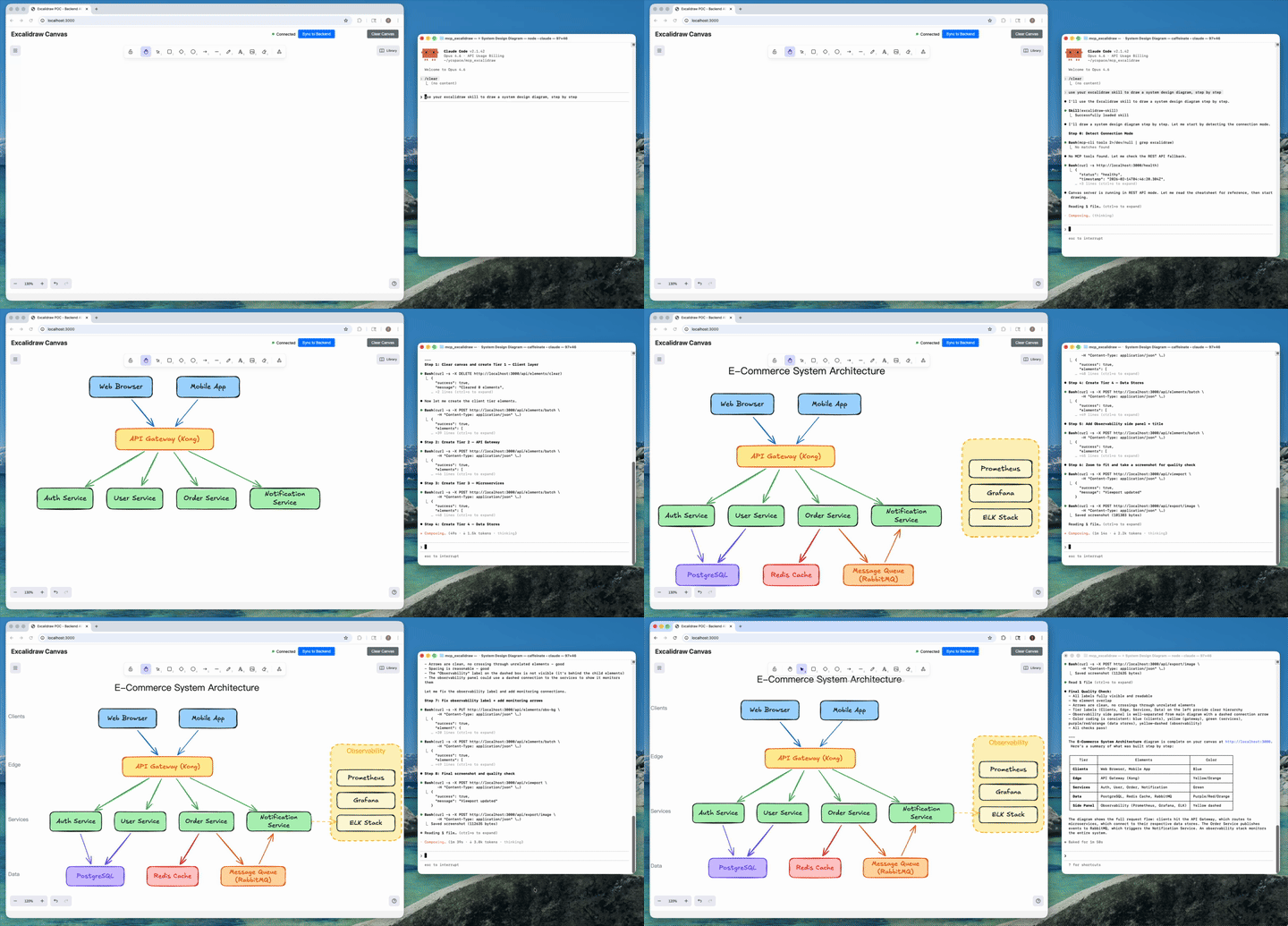
AI agent creates a complete architecture diagram from a single prompt (4x speed). Watch full video on YouTube
Table of Contents
- Demo
- What It Is
- How We Differ from the Official Excalidraw MCP
- What's New
- Installation
- Agent Skill
- CLI Reference
- Configure MCP Clients
- MCP Tools (26 Total)
- Quick Start (From Source / Docker)
- Testing
- FAQ
- Troubleshooting
- Known Issues / TODO
- Development
- License
What It Is
Ask your agent to "draw the architecture of this service" and it produces a real, editable Excalidraw diagram — not a one-shot image. Because the agent can query, screenshot, and update individual elements, it iterates until labels fit, nothing overlaps, and arrows route cleanly; then it exports the result as a .excalidraw file that lives in your repo and gets updated when the code changes.
Under the hood there are two processes, one product:
- Canvas server: Excalidraw web UI + REST API + WebSocket real-time sync (default
http://127.0.0.1:3000) - A thin front-end of your choice: the CLI, the MCP stdio server, or raw HTTP — all drive the same canvas
Since v1.1 the canvas server starts itself: canvas-driving CLI commands (and the MCP server on launch) auto-spawn it if nothing is listening. status only inspects the current server state. Set EXCALIDRAW_NO_AUTOSTART=1 to opt out.
How We Differ from the Official Excalidraw MCP
Excalidraw has an official MCP — a chat widget that streams a diagram inline from a single prompt (the model gets two tools: a format reference and create_view). It's great for "draw me a cat" in Claude or ChatGPT. We solve a different problem: giving coding agents a persistent canvas workbench.
| Official Excalidraw MCP | This Project | |
|---|---|---|
| Approach | Prompt in, diagram out (one-shot widget) | Programmatic element-level control (CLI + 26 MCP tools) |
| State | Checkpoints inside the chat widget | Persistent live canvas with real-time sync |
| Element CRUD | Declarative re-send with delete markers | Full create / read / update / delete per element |
| AI sees the canvas | No | describe (structured text) + screenshot (image) |
| Iterative refinement | Regenerate from checkpoint | Draw → look → adjust → look again, element by element |
| Layout tools | No | align, distribute, group / ungroup, lock, duplicate |
| File I/O | No model-facing export | .excalidraw export/import — diagrams as repo artifacts |
| Snapshot & rollback | Widget-side checkpoints | Named server-side snapshots |
| Mermaid conversion | No | mermaid / create_from_mermaid |
| Shareable URLs | Widget-only | share / export_to_excalidraw_url |
| Works without MCP | No | Yes — CLI + agent skill + REST API |
| Multi-agent | Single chat | Multiple agents on the same canvas concurrently |
TL;DR — The official MCP shows Excalidraw diagrams in your chat. This project gives your coding agent a full Excalidraw workbench: a canvas it can draw on, inspect, refine, and commit to your repo.
What's New
Current package version: 1.1.0. The current release line is v1.1 — CLI-First.
v1.1 — CLI-First
- First-class CLI: every capability is now a composable command —
npx -y mcp-excalidraw-server add|query|describe|screenshot|export|import|mermaid|snapshot|arrange|share|...— JSON on stdout, meaningful exit codes. Also installed as theexcalidraw-canvasalias. - Zero-setup: canvas-driving CLI commands and the MCP server auto-start the canvas server if it isn't running (closes #66). Opt out with
EXCALIDRAW_NO_AUTOSTART=1. apply: multi-op patches ({"create":[...],"update":[{"id":"a","set":{...}}],"delete":[...]}) in a single invocation.install-skill:npx -y mcp-excalidraw-server install-skill --dir <skills-root>copies the portable agent skill into the directory your agent chooses (project or global), cleanly replacing older versions.- Skill is now CLI-first and no longer needs a cloned repo or configured MCP server to work.
- Typed queries:
query --filter locked=true --filter label.text=API— booleans, numbers, and nested keys work. - Internals: shared core library (
src/core/) behind both the CLI and MCP server; canvasgroupIdsare the source of truth for grouping (ungroup now works across restarts);node-fetchdropped; MCP version metadata derived frompackage.json; canvas server writes a pidfile and shuts down cleanly.
Installation
The only prerequisite is Node.js ≥ 18.
Easiest: let your agent install it
Copy this into your coding agent — it installs the portable skill into the project/global skill directory that agent already knows how to use, then verifies it by drawing a test diagram:
Install the Excalidraw canvas toolkit so you can draw diagrams for me:

1. Choose the right skill directory for this agent and scope (project or global).
2. Run: npx -y mcp-excalidraw-server install-skill --dir <that-skills-directory>
3. Read the installed excalidraw-skill/SKILL.md so you know the drawing workflow.
4. Start the canvas with: npx -y mcp-excalidraw-server start
   then tell me to open http://127.0.0.1:3000 in my browser (screenshots need an open tab).
5. Draw a small test diagram — two labeled boxes connected by an arrow — take a
   screenshot, and show me the result to confirm everything works.
Manual install
| You are... | Install with | Then |
|---|---|---|
| Modern coding agent | npx -y mcp-excalidraw-server install-skill --dir <skills-root> |
Let the agent choose project/global scope and its skill root |
| Claude Code shortcut | npx -y mcp-excalidraw-server install-skill |
Installs to ~/.claude/skills for backward compatibility |
| Codex shortcut | npx -y mcp-excalidraw-server install-skill --target codex |
Installs to ~/.codex/skills for backward compatibility |
| MCP client user (Claude Desktop, Cursor, ...) | Add the npx config below | See Configure MCP Clients |
| CLI user / scripting | Nothing — npx -y mcp-excalidraw-server <command> |
See CLI Reference |
| Contributor / from source | git clone + npm ci + npm run build |
See Quick Start (From Source / Docker) |
There is no separate server setup: any drawing command auto-starts the local canvas server on http://127.0.0.1:3000.
60-Second Quick Start (CLI)
No clone, no config:
# start the canvas (drawing commands auto-start it too) and open it
npx -y mcp-excalidraw-server start
open http://127.0.0.1:3000   # browser tab enables screenshots & mermaid

# draw something
echo '[
  {"id":"api","type":"rectangle","x":100,"y":100,"width":160,"height":80,"text":"API Server","backgroundColor":"#a5d8ff"},
  {"id":"db","type":"rectangle","x":400,"y":100,"width":160,"height":80,"text":"Database","backgroundColor":"#99e9f2"},
  {"type":"arrow","x":0,"y":0,"startElementId":"api","endElementId":"db","text":"SQL"}
]' | npx -y mcp-excalidraw-server add

# let your agent see its work
npx -y mcp-excalidraw-server describe
npx -y mcp-excalidraw-server screenshot --out diagram.png

# diagrams as repo artifacts
mkdir -p docs
npx -y mcp-excalidraw-server export --out docs/architecture.excalidraw
Give your agent the full playbook:
npx -y mcp-excalidraw-server install-skill --dir <skills-root>
npx -y mcp-excalidraw-server install-skill --print-source  # inspect bundled source path
Security note: The canvas server binds
127.0.0.1only by default. If you expose it on a network interface (HOST=0.0.0.0), put network-level access controls in front — the API has no built-in authentication.
Agent Skill
The skill at skills/excalidraw-skill/ teaches agents the full workflow — layout planning, the screenshot-verify-fix quality loop, arrow routing, anti-patterns, snapshots, and file I/O. It works through the CLI (preferred, zero setup), MCP tools (if configured), or raw REST — in that order.
npx -y mcp-excalidraw-server install-skill --dir <skills-root>
The command copies the bundled excalidraw-skill/ directory into <skills-root>/excalidraw-skill. Let your agent choose whether that root should be project-level or global. Re-running install-skill upgrades in place — it replaces the target directory, so files removed upstream don't linger.
Where the skill shines:
- Diagrams as code artifacts: export
.excalidrawfiles into the repo, commit them, re-import + refine when the architecture changes. - Self-verifying diagrams: the agent screenshots its own work and fixes truncation/overlap before calling it done.
- No-MCP environments: CI jobs, plain shells, and frameworks get the same capabilities through the CLI.
CLI Reference
npx -y mcp-excalidraw-server <command> or (after npm i -g mcp-excalidraw-server) excalidraw-canvas <command>.
Conventions: JSON results on stdout — except describe (plain text by design) and raw-content output when --out is omitted (export prints the scene JSON, screenshot --format svg prints SVG). Diagnostics on stderr. Exit codes: 0 ok, 1 error, 2 usage, 3 canvas unreachable, 4 browser tab required. Canvas URL from EXPRESS_SERVER_URL or --url. Canvas-driving commands auto-start the server; status only reports current state. Explicit start overrides the EXCALIDRAW_NO_AUTOSTART=1 opt-out (it's user intent, not auto-start).
| Command | Description |
|---|---|
start / stop / status |
Manage the canvas server (detached; stop identity-checks the live server via /health before signaling) |
add [file|-] |
Batch-create elements from a JSON array (file or stdin); --one '{...}' for a single element |
apply [file|-] |
One-call multi-op patch: {"create":[...],"update":[{"id":"a","set":{...}}],"delete":["id"]} |
get <id> / delete <id...> |
Read / remove elements |
update <id> --set '{...}' |
Update an element |
query |
--type, --bbox x0,y0,x1,y1, --filter k=v (typed, nested keys), --filter-json '{...}' |
describe |
AI-readable scene summary (plain text) |
screenshot |
--out f.png, --format png|svg, --no-background (browser tab required) |
export [--out f.excalidraw] / import [file|-] [--replace] |
Scene file I/O |
mermaid [file|-] |
Mermaid → canvas (browser tab required) |
snapshot save|list|restore <name> |
Named snapshots |
arrange align|distribute|group|ungroup|lock|unlock|duplicate |
Layout ops (--ids a,b,c, --to left|horizontal|...) |
share |
Encrypted upload → shareable excalidraw.com URL |
clear --yes |
Wipe the canvas |
install-skill [--dir <skills-root>] |
Install the portable agent skill |
Labels and arrow bindings use the agent-friendly format everywhere in the CLI: "text" on any shape, "startElementId"/"endElementId" on arrows — normalization is automatic.
Configure MCP Clients
The MCP server runs over stdio. Since v1.1 the simplest config is npx — no clone, no absolute paths, and the canvas auto-starts:
Environment Variables
| Variable | Description | Default |
|---|---|---|
EXPRESS_SERVER_URL |
URL of the canvas server | http://127.0.0.1:3000 |
ENABLE_CANVAS_SYNC |
Enable real-time canvas sync | true |
EXCALIDRAW_NO_AUTOSTART |
Set 1 to disable canvas auto-start |
(unset) |
EXCALIDRAW_EXPORT_DIR |
Base directory MCP file exports may write to | current working dir |
PORT / HOST |
Canvas server bind address | 3000 / 127.0.0.1 |
Claude Desktop
Config location:
- macOS:
~/Library/Application Support/Claude/claude_desktop_config.json - Windows:
%APPDATA%\Claude\claude_desktop_config.json - Linux:
~/.config/Claude/claude_desktop_config.json
npx (recommended)
{
  "mcpServers": {
    "excalidraw": {
      "command": "npx",
      "args": ["-y", "mcp-excalidraw-server"]
    }
  }
}
Local (node)
{
  "mcpServers": {
    "excalidraw": {
      "command": "node",
      "args": ["/absolute/path/to/mcp_excalidraw/dist/index.js"],
      "env": {
        "EXPRESS_SERVER_URL": "http://127.0.0.1:3000",
        "ENABLE_CANVAS_SYNC": "true"
      }
    }
  }
}
Docker
{
  "mcpServers": {
    "excalidraw": {
      "command": "docker",
      "args": [
        "run", "-i", "--rm",
        "-e", "EXPRESS_SERVER_URL=http://host.docker.internal:3000",
        "-e", "ENABLE_CANVAS_SYNC=true",
        "ghcr.io/yctimlin/mcp_excalidraw:latest"
      ]
    }
  }
}
Claude Code
npx (recommended)
claude mcp add excalidraw --scope user -- npx -y mcp-excalidraw-server
Tip: for coding agents, the skill + CLI often beats MCP config entirely — let the agent pick its skill root, then run
npx -y mcp-excalidraw-server install-skill --dir <skills-root>.
Local (node) - User-level (available across all projects):
claude mcp add excalidraw --scope user \
  -e EXPRESS_SERVER_URL=http://127.0.0.1:3000 \
  -e ENABLE_CANVAS_SYNC=true \
  -- node /absolute/path/to/mcp_excalidraw/dist/index.js
Docker
claude mcp add excalidraw --scope user \
  -- docker run -i --rm \
  -e EXPRESS_SERVER_URL=http://host.docker.internal:3000 \
  -e ENABLE_CANVAS_SYNC=true \
  ghcr.io/yctimlin/mcp_excalidraw:latest
Manage servers:
claude mcp list              # List configured servers
claude mcp remove excalidraw # Remove a server
Cursor
Config location: .cursor/mcp.json in your project root (or ~/.cursor/mcp.json for global config)
npx (recommended)
{
  "mcpServers": {
    "excalidraw": {
      "command": "npx",
      "args": ["-y", "mcp-excalidraw-server"]
    }
  }
}
Docker
{
  "mcpServers": {
    "excalidraw": {
      "command": "docker",
      "args": [
        "run", "-i", "--rm",
        "-e", "EXPRESS_SERVER_URL=http://host.docker.internal:3000",
        "-e", "ENABLE_CANVAS_SYNC=true",
        "ghcr.io/yctimlin/mcp_excalidraw:latest"
      ]
    }
  }
}
Codex CLI
npx (recommended)
codex mcp add excalidraw -- npx -y mcp-excalidraw-server
Docker
codex mcp add excalidraw \
  -- docker run -i --rm \
  -e EXPRESS_SERVER_URL=http://host.docker.internal:3000 \
  -e ENABLE_CANVAS_SYNC=true \
  ghcr.io/yctimlin/mcp_excalidraw:latest
Manage servers:
codex mcp list              # List configured servers
codex mcp remove excalidraw # Remove a server
OpenCode
Config location: ~/.config/opencode/opencode.json or project-level opencode.json
{
  "$schema": "https://opencode.ai/config.json",
  "mcp": {
    "excalidraw": {
      "type": "local",
      "command": ["npx", "-y", "mcp-excalidraw-server"],
      "enabled": true
    }
  }
}
Antigravity (Google)
Config location: ~/.gemini/antigravity/mcp_config.json
{
  "mcpServers": {
    "excalidraw": {
      "command": "npx",
      "args": ["-y", "mcp-excalidraw-server"]
    }
  }
}
Notes
- Docker networking: Use
host.docker.internalto reach the canvas server running on your host machine. On Linux, you may need--add-host=host.docker.internal:host-gatewayor use172.17.0.1. The Docker MCP image setsEXCALIDRAW_NO_AUTOSTART=1(it has no frontend build) — run the canvas as its own container. - In-memory storage: The canvas server stores elements in memory. Restarting the server clears all elements — use
export/snapshotfor persistence.
MCP Tools (26 Total)
| Category | Tools |
|---|---|
| Element CRUD | create_element, get_element, update_element, delete_element, query_elements, batch_create_elements, duplicate_elements |
| Layout | align_elements, distribute_elements, group_elements, ungroup_elements, lock_elements, unlock_elements |
| Scene Awareness | describe_scene, get_canvas_screenshot |
| File I/O | export_scene, import_scene, export_to_image, export_to_excalidraw_url, create_from_mermaid |
| State Management | clear_canvas, snapshot_scene, restore_snapshot |
| Viewport | set_viewport |
| Design Guide | read_diagram_guide |
| Resources | get_resource |
Full schemas are discoverable via tools/list or in skills/excalidraw-skill/references/cheatsheet.md.
Quick Start (From Source / Docker)
From source (Node >= 18):
npm ci
npm run build
PORT=3000 npm run canvas          # canvas server (terminal 1)
node dist/index.js                # MCP server over stdio (terminal 2, usually launched by your MCP client)
node dist/bin.js status           # or drive the CLI straight from the build
Docker canvas server:
docker run -d -p 3000:3000 --name mcp-excalidraw-canvas ghcr.io/yctimlin/mcp_excalidraw-canvas:latest
MCP server image: ghcr.io/yctimlin/mcp_excalidraw:latest (stdio; point EXPRESS_SERVER_URL at the canvas container).
Testing
CLI Smoke Test
npx -y mcp-excalidraw-server start
npx -y mcp-excalidraw-server status
npx -y mcp-excalidraw-server add --one '{"type":"rectangle","x":100,"y":100,"width":300,"height":200}'
npx -y mcp-excalidraw-server describe
Canvas Smoke Test (HTTP)
curl http://127.0.0.1:3000/health
Local Bind Regression Test
npm run test:bind
MCP Smoke Test (MCP Inspector)
List tools:
npx @modelcontextprotocol/inspector --cli \
  -e EXPRESS_SERVER_URL=http://127.0.0.1:3000 \
  -e ENABLE_CANVAS_SYNC=true -- \
  node dist/index.js --method tools/list
Create a rectangle:
npx @modelcontextprotocol/inspector --cli \
  -e EXPRESS_SERVER_URL=http://127.0.0.1:3000 \
  -e ENABLE_CANVAS_SYNC=true -- \
  node dist/index.js --method tools/call --tool-name create_element \
  --tool-arg type=rectangle --tool-arg x=100 --tool-arg y=100 \
  --tool-arg width=300 --tool-arg height=200
Frontend Screenshots (agent-browser)
If you use agent-browser for UI checks:
agent-browser install
agent-browser open http://127.0.0.1:3000
agent-browser wait --load networkidle
agent-browser screenshot /tmp/canvas.png
FAQ
How is this different from the official Excalidraw MCP?
The official Excalidraw MCP is a chat widget: you prompt, it streams a diagram into the conversation (the model gets two tools). This project is a workbench for coding agents: a persistent local canvas with element-level create/read/update/delete, layout tools, screenshots the model can see, snapshots, and .excalidraw file I/O — driveable via CLI, MCP, or REST. See the full comparison table.
Which AI tools does it work with?
Claude Code, Claude Desktop, Cursor, Codex CLI, OpenCode, and Google Antigravity are documented below — but any agent that can run shell commands can use the CLI, any MCP client can use the MCP server, and anything else (LangChain, custom apps) can use the REST API.
Can the AI actually see the diagram it drew?
Yes — that's the core feature. describe returns a structured text summary (ids, positions, labels, connections) and screenshot returns a rendered PNG. Agents use both to catch truncated labels, overlaps, and bad arrow routing, then fix them element by element.
Do I need a browser open?
Only for rendering-dependent features: screenshots, PNG/SVG export, viewport control, and Mermaid conversion (they render in the Excalidraw frontend). Creating, querying, updating elements and exporting .excalidraw JSON all work headless. The CLI exits with code 4 and tells you when a browser tab is needed.
Are my diagrams persistent?
The canvas is in-memory by design (restart = blank canvas). Persist by exporting .excalidraw files into your repo (export --out docs/architecture.excalidraw) or with named snapshots while working. Re-import a file to keep refining it later.
Are excalidraw.com share links private?
share encrypts the scene locally with AES-GCM before uploading; the decryption key is only in the URL fragment, which excalidraw.com's server never sees. Anyone you give the full link to can view the diagram.
Does it need an API key or cloud service?
No API key is required. Core drawing runs locally under MIT license. The only outbound call is the optional share upload to excalidraw.com.
Can I use it without configuring MCP?
Yes — that's the recommended path for coding agents: npx -y mcp-excalidraw-server install-skill --dir <skills-root> and the agent drives everything through the CLI. MCP configuration is only needed for chat clients like Claude Desktop.
Troubleshooting
- CLI exit code 3 (canvas unreachable): the server is not running for an inspecting command such as
status, auto-start is disabled (EXCALIDRAW_NO_AUTOSTART=1), orEXPRESS_SERVER_URLpoints at a non-loopback host. Runstartexplicitly or fix the env. - CLI exit code 4 (browser required): screenshots, image export, viewport, and mermaid conversion render in the frontend — open
http://127.0.0.1:3000in a browser and retry. - Canvas not updating: confirm
EXPRESS_SERVER_URLpoints at the running canvas server (statusshows the URL in use). - Updates/deletes fail after batch creation: ensure you are on a build that includes the batch id preservation fix (merged via PR #34).
Known Issues / TODO
- Persistent storage: Elements are stored in-memory — restarting the server clears everything. Use
export/ snapshots as a workaround. - Image export requires a browser: screenshots and image export rely on the frontend doing the actual rendering. A headless rendering mode is planned.
Contributions welcome!
Development
npm run type-check
npm run build
npm run cli -- status      # run the CLI from the local build
npm run sync:skills        # after editing skills/excalidraw-skill, sync the repo-local agent copy
Bug reports and pull requests are welcome on GitHub issues. If this project helps you, a ⭐ helps others find it.
License
MIT © yctimlin — not affiliated with the Excalidraw team. Excalidraw is its own MIT-licensed project; this toolkit builds on it with love.
Links: npm package · GitHub · Issues · Demo video
Install Excalidraw Server in Claude Desktop, Claude Code & Cursor
unyly install excalidraw-serverInstalls into Claude Desktop, Claude Code, Cursor & VS Code — handles npx, uvx and build-from-source repos for you.
First time? Get the CLI: curl -fsSL https://unyly.org/install | sh
Or configure manually
Run in your terminal:
claude mcp add excalidraw-server -- npx -y mcp-excalidraw-serverFAQ
Is Excalidraw Server MCP free?
Yes, Excalidraw Server MCP is free — one-click install via Unyly at no cost.
Does Excalidraw Server need an API key?
No, Excalidraw Server runs without API keys or environment variables.
Is Excalidraw Server hosted or self-hosted?
Self-hosted: the server runs locally on your machine via the install command above.
How do I install Excalidraw Server in Claude Desktop, Claude Code or Cursor?
Open Excalidraw Server on unyly.org, pick your client tab (Claude Desktop, Claude Code, Cursor) and press Install — the config is generated automatically, no JSON editing.
Related MCPs
LibreOffice Tools
Enables AI agents to read, write, and edit Office documents via LibreOffice with token-efficient design. Supports multiple formats including DOCX, XLSX, PPTX, a
 by passerbyflutter
dannote/figma-use
Full Figma control: create shapes, text, components, set styles, auto-layout, variables, export. 80+ tools.
 by dannote
Logo.dev
Search and retrieve company logos by brand or domain. Customize size, format, and theme to match your design needs. Accelerate design, prototyping, and content
 by NOVA-3951
PIX4Dmatic
Enables GUI automation for controlling PIX4Dmatic on Windows through MCP. Supports launching, focusing, capturing screenshots, sending hotkeys, clicking UI elem
 by jangjo123
Compare Excalidraw Server with
Not sure what to pick?
Find your stack in 60 seconds
Author?
Embed badge for your README
Browse similar
All design MCPs