
g0t4/mcp-server-commands
БесплатноНе проверенRun any command with runcommand and runscript tools.

Описание
Run any command with runcommand and runscript tools.
README
runProcess tool
The runProcess tool runs processes on the host machine. There are two mutually exclusive ways to invoke it:
command_line(string) — Executed via the system's default shell (just like typing intobash/fish/pwsh/etc). Shell features like pipes, redirects, and variable expansion all work.argv(string array) — Direct executable invocation.argv[0]is the executable, the rest are arguments. No shell interpretation.
You cannot pass both. The tool infers whether to use a shell from which parameter you provide.
If you want your model to use specific shell(s) on a system, I would list them in your system prompt. Or, maybe in your tool instructions, though models tend to pay better attention to examples in a system prompt.
Let me know if you encounter problems!
Tools
Tools are for LLMs to request. Claude Sonnet 3.5 intelligently uses run_process. And, initial testing shows promising results with Groq Desktop with MCP and llama4 models.
Currently, just one command to rule them all!
run_process- run a command, i.e.hostnameorls -alorecho "hello world"etc- Returns
STDOUTandSTDERRas text - Optional
stdinparameter means your LLM can- pass scripts over
STDINto commands likefish,bash,zsh,python - create files with
cat >> foo/bar.txtfrom the text instdin
- pass scripts over
- Returns
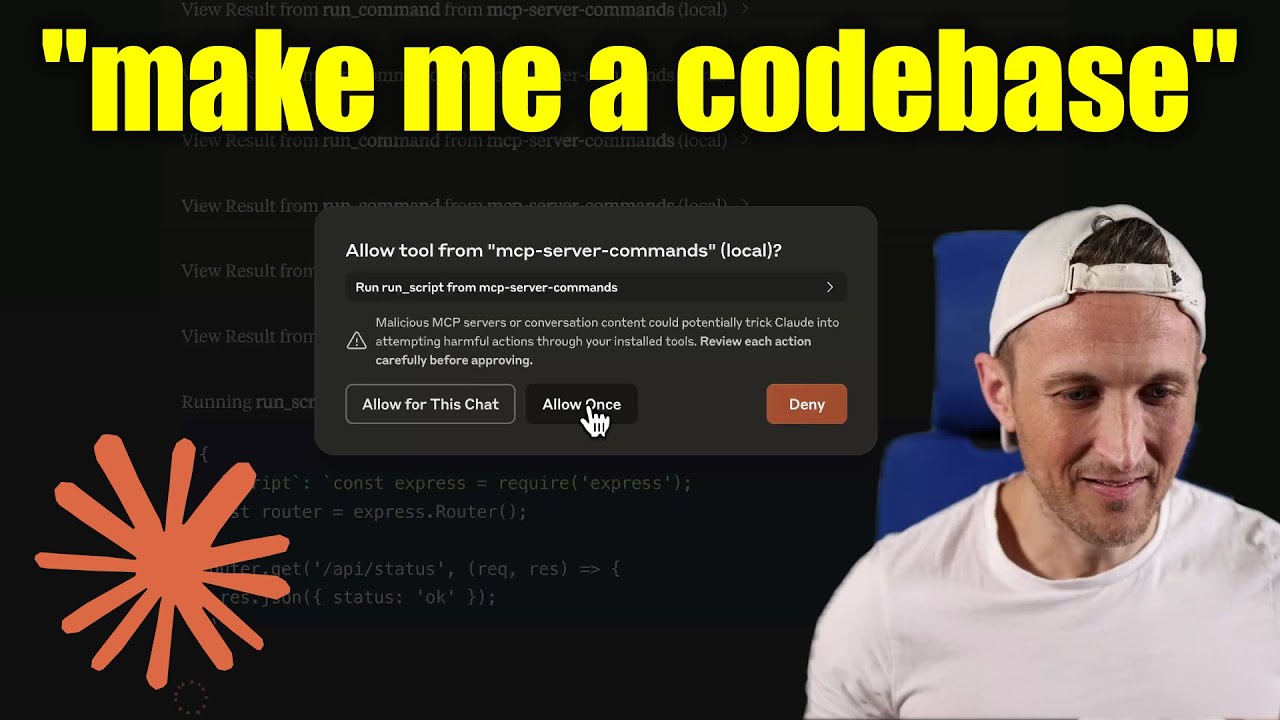
[!WARNING] Be careful what you ask this server to run! In Claude Desktop app, use
Approve Once(notAllow for This Chat) so you can review each command, useDenyif you don't trust the command. Permissions are dictated by the user that runs the server. DO NOT run withsudo.
Video walkthrough
Prompts
Prompts are for users to include in chat history, i.e. via Zed's slash commands (in its AI Chat panel)
run_process- generate a prompt message with the command output
- FYI this was mostly a learning exercise... I see this as a user requested tool call. That's a fancy way to say, it's a template for running a command and passing the outputs to the model!
Development
Install dependencies:
npm install
Build the server:
npm run build
For development with auto-rebuild:
npm run watch
Installation
To use with Claude Desktop, add the server config:
On MacOS: ~/Library/Application Support/Claude/claude_desktop_config.json
On Windows: %APPDATA%/Claude/claude_desktop_config.json
Groq Desktop (beta, macOS) uses ~/Library/Application Support/groq-desktop-app/settings.json
Use the published npm package
Published to npm as mcp-server-commands using this workflow
{
  "mcpServers": {
    "mcp-server-commands": {
      "command": "npx",
      "args": ["mcp-server-commands"]
    }
  }
}
Use a local build (repo checkout)
Make sure to run npm run build
{
  "mcpServers": {
    "mcp-server-commands": {
      // works b/c of shebang in index.js
      "command": "/path/to/mcp-server-commands/build/index.js"
    }
  }
}
Local Models
- Most models are trained such that they don't think they can run commands for you.
- Sometimes, they use tools w/o hesitation... other times, I have to coax them.
- Use a system prompt or prompt template to instruct that they should follow user requests. Including to use
run_processswithout double checking.
- Ollama is a great way to run a model locally (w/ Open-WebUI)
# NOTE: make sure to review variants and sizes, so the model fits in your VRAM to perform well!

# Probably the best so far is [OpenHands LM](https://www.all-hands.dev/blog/introducing-openhands-lm-32b----a-strong-open-coding-agent-model)
ollama pull https://huggingface.co/lmstudio-community/openhands-lm-32b-v0.1-GGUF

# https://ollama.com/library/devstral
ollama pull devstral

# Qwen2.5-Coder has tool use but you have to coax it
ollama pull qwen2.5-coder
HTTP / OpenAPI
The server is implemented with the STDIO transport.
For HTTP, use mcpo for an OpenAPI compatible web server interface.
This works with Open-WebUI
uvx mcpo --port 3010 --api-key "supersecret" -- npx mcp-server-commands

# uvx runs mcpo => mcpo run npx => npx runs mcp-server-commands
# then, mcpo bridges STDIO <=> HTTP
[!WARNING] I briefly used
mcpowithopen-webui, make sure to vet it for security concerns.
Logging
Claude Desktop app writes logs to ~/Library/Logs/Claude/mcp-server-mcp-server-commands.log
By default, only important messages are logged (i.e. errors).
If you want to see more messages, add --verbose to the args when configuring the server.
By the way, logs are written to STDERR because that is what Claude Desktop routes to the log files.
In the future, I expect well formatted log messages to be written over the STDIO transport to the MCP client (note: not Claude Desktop app).
Debugging
Since MCP servers communicate over stdio, debugging can be challenging. We recommend using the MCP Inspector, which is available as a package script:
npm run inspector
The Inspector will provide a URL to access debugging tools in your browser.
Установка g0t4/mcp-server-commands
У этого сервера нет опубликованного пакета — он собирается из исходников. Открой репозиторий и следуй инструкции в README.
▸ github.com/g0t4/mcp-server-commandsFAQ
g0t4/mcp-server-commands MCP бесплатный?
Да, g0t4/mcp-server-commands MCP бесплатный — установка в пару кликов через Unyly без оплаты.
Нужен ли API-ключ для g0t4/mcp-server-commands?
Нет, g0t4/mcp-server-commands работает без API-ключей и переменных окружения.
g0t4/mcp-server-commands — hosted или self-hosted?
Self-hosted: сервер запускается локально на твоей машине командой из раздела установки.
Как установить g0t4/mcp-server-commands в Claude Desktop, Claude Code или Cursor?
Открой g0t4/mcp-server-commands на unyly.org, выбери вкладку своего клиента (Claude Desktop, Claude Code, Cursor) и нажми Install — конфиг сгенерируется автоматически, без правки JSON.
Похожие MCP
GitHub
PRs, issues, code search, CI status
 автор: GitHub
Filesystem
Secure file operations with configurable access controls.
Memory
Knowledge graph-based persistent memory system.
Template MCP Server
A CLI tool to create a new Model Context Protocol server project with TypeScript support, dual transport options, and an extensible structure
 автор: mcpdotdirect
Amap Maps Mcp Server
MCP server for using the AMap Maps API
 автор: duxiaohui
Supabase
Database, auth and storage
 автор: Supabase
Everything
Reference / test server with prompts, resources, and tools.
Git
Tools to read, search, and manipulate Git repositories.
Sequential Thinking
Dynamic and reflective problem-solving through thought sequences.
Time
Time and timezone conversion capabilities.
Compare g0t4/mcp-server-commands with
Не уверен что выбрать?
Найди свой стек за 60 секунд
Автор?
Embed-бейдж для README
Похожее
Все в категории development