
Identity Aware Server With Azure Cosmos DB
FreeNot checkedA Python MCP server that authenticates users via Microsoft Entra ID, stores per-user data in Azure Cosmos DB, and provides admin tools based on Entra group memb

About
A Python MCP server that authenticates users via Microsoft Entra ID, stores per-user data in Azure Cosmos DB, and provides admin tools based on Entra group membership.
README
A Python MCP server built with FastMCP that authenticates users via Microsoft Entra ID and stores user data in Azure Cosmos DB. The server includes admin-visible tools enabled via an Entra group membership check powered by the Microsoft Graph API. The project includes infrastructure for deployment to Azure Container Apps.
📺 Watch talk: "Know your user: Identity-aware MCP servers with Cosmos DB"
Table of Contents
- Getting started
- Deploy to Azure
- Run the MCP server locally
- Use MCP server with GitHub Copilot
- Resources
Getting started
You have a few options for setting up this project. The quickest way to get started is GitHub Codespaces, since it will setup all the tools for you, but you can also set it up locally.
GitHub Codespaces
You can run this project virtually by using GitHub Codespaces. Click the button to open a web-based VS Code instance in your browser:
Once the Codespace is open, open a terminal window and continue with the deployment steps.
VS Code Dev Containers
A related option is VS Code Dev Containers, which will open the project in your local VS Code using the Dev Containers extension:
- Start Docker Desktop (install it if not already installed)
- Open the project: Open in Dev Containers
- In the VS Code window that opens, once the project files show up (this may take several minutes), open a terminal window.
- Continue with the deployment steps.
Local environment
If you're not using one of the above options, then you'll need to:
Make sure the following tools are installed:
Clone the repository and open the project folder.
Create a Python virtual environment and activate it.
Install the dependencies:
uv syncCopy
.env-sampleto.envand configure your environment variables:cp .env-sample .env
Deploy to Azure
This project can be deployed to Azure Container Apps using the Azure Developer CLI (azd). The deployment provisions:
- Azure Container Apps - Hosts the MCP server
- Azure Cosmos DB - Stores per-user expenses data
- Azure Container Registry - Stores container images
- Log Analytics - Monitoring and diagnostics
Azure account setup
- Sign up for a free Azure account and create an Azure Subscription.
- Check that you have the necessary permissions:
- Your Azure account must have
Microsoft.Authorization/roleAssignments/writepermissions, such as Role Based Access Control Administrator, User Access Administrator, or Owner. - Your Azure account also needs
Microsoft.Resources/deployments/writepermissions on the subscription level.
- Your Azure account must have
Deploying with azd
Login to Azure:
azd auth loginFor GitHub Codespaces users, if the previous command fails, try:
azd auth login --use-device-codeCreate a new azd environment:
azd env newThis will create a folder inside
.azurewith the name of your environment.(Optional) Set the Entra admin group ID. This is used to restrict admin-only MCP tools to members of a specific Microsoft Entra ID security group. If not specified, the admin-only tools will not be available. You can find the group's Object ID in the Azure Portal under Microsoft Entra ID > Groups.
azd env set ENTRA_ADMIN_GROUP_ID <your-group-object-id>Provision and deploy the resources:
azd upIt will prompt you to select a subscription and location. This will take several minutes to complete.
Once deployment is complete, a
.envfile will be created with the necessary environment variables to run the server locally against the deployed resources.
Costs
Pricing varies per region and usage, so it isn't possible to predict exact costs for your usage.
You can try the Azure pricing calculator for the resources:
- Azure App Service: Basic (B1) tier. Pricing
- Azure Cosmos DB: Serverless tier. Pricing
- Log Analytics (Optional): Pay-as-you-go tier. Costs based on data ingested. Pricing
⚠️ To avoid unnecessary costs, remember to take down your app if it's no longer in use, either by deleting the resource group in the Portal or running azd down.
Run the MCP server locally
For easier development and debugging, you can run the MCP server locally while still using the Azure resources provisioned by the deployment (Cosmos DB, Application Insights, Entra App Registration).
After deploying to Azure, the .env file should be populated with the necessary environment variables to connect to those resources. With that setup, you can run the MCP server locally against those resources:
cd servers && uv run uvicorn main:app --host 0.0.0.0 --port 8000
Use MCP server with GitHub Copilot
To use the MCP server with GitHub Copilot Chat in VS Code:
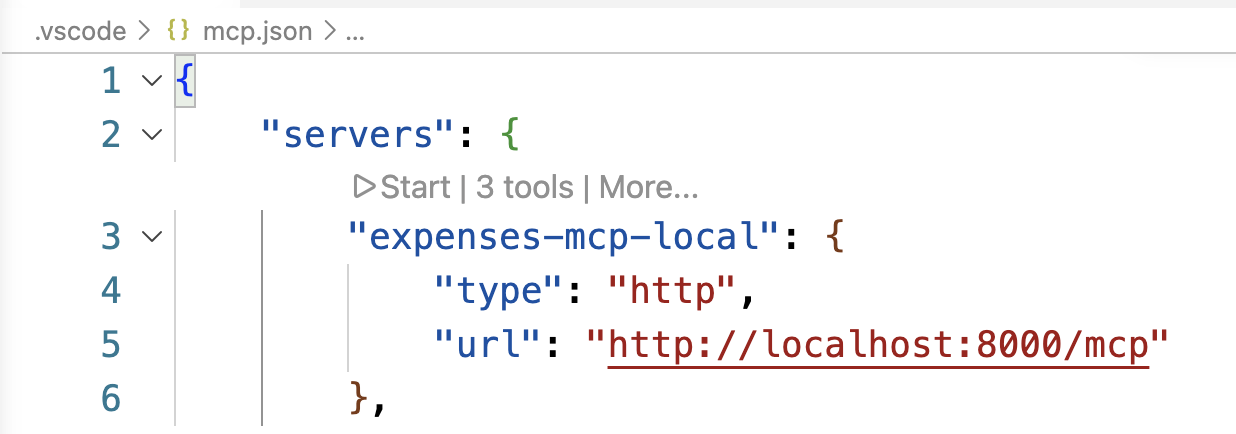
Open
.vscode/mcp.json. You should see two entries, one for the local server and one for the deployed server. To use the deployed server, replacehttps://YOUR_MCP_SERVER.azurecontainerapps.io/mcpwith the URL of your deployed MCP server (from the.envfile).{ "servers": { "expenses-mcp-local": { "type": "http", "url": "http://localhost:8000/mcp" }, "expenses-mcp-deployed": { "type": "http", "url": "https://YOUR_MCP_SERVER.azurecontainerapps.io/mcp" } } }Over the server that you want to use (local or deployed), select "Start" from the CodeLens options.
You should see a dialog prompting you to authenticate with Microsoft.
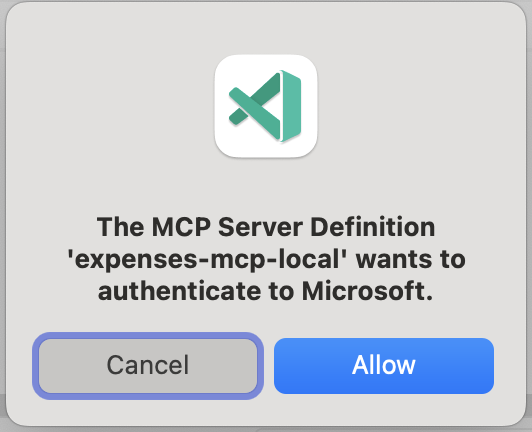
If you get an error that the server does not support DCR, that usually means the server failed to deploy correctly. Check the server logs for errors.
After successful authentication, you should see "200" responses in the server logs in the Terminal, if you are running the server locally, or in the Azure Container Apps logs if you are using the deployed server.

Open the "Configure tools" dialog from GitHub Copilot Chat, and ensure that you have enabled the target MCP server (either local or deployed).
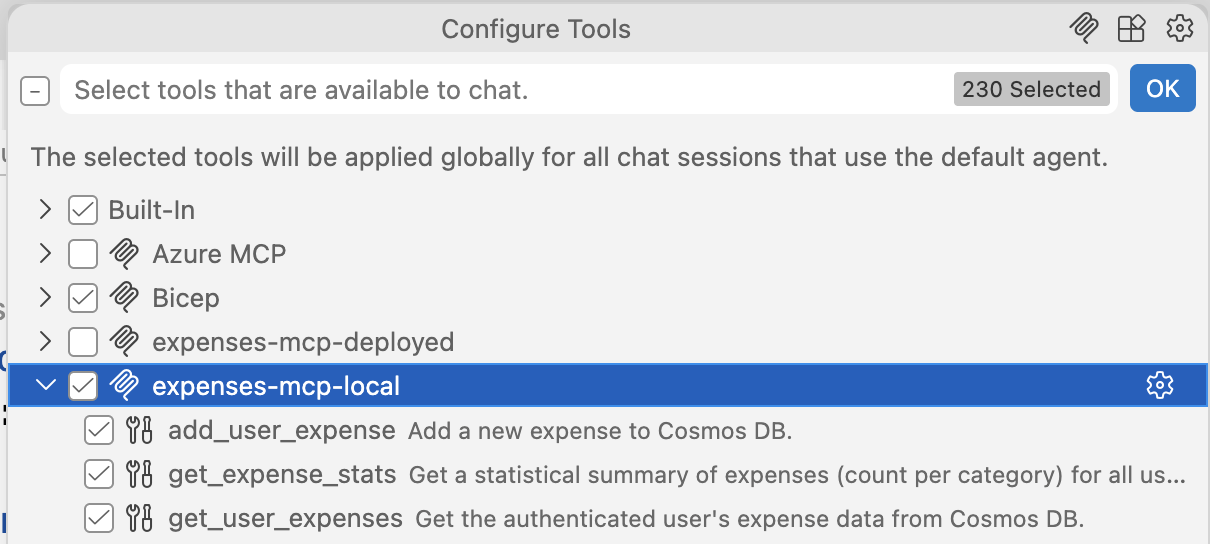
Test the MCP server by sending an expense tracking query through GitHub Copilot Chat:
Log expense for 75 dollars of office supplies on my visa last FridayVerify the expense was added by checking the Cosmos DB
user-expensescontainer in either the Azure Portal or Azure Cosmos DB extension in VS Code. You should see a new document with the expense details.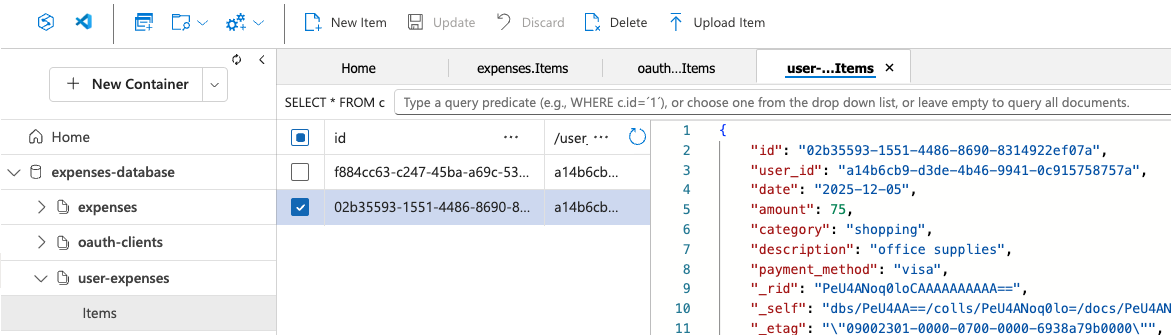
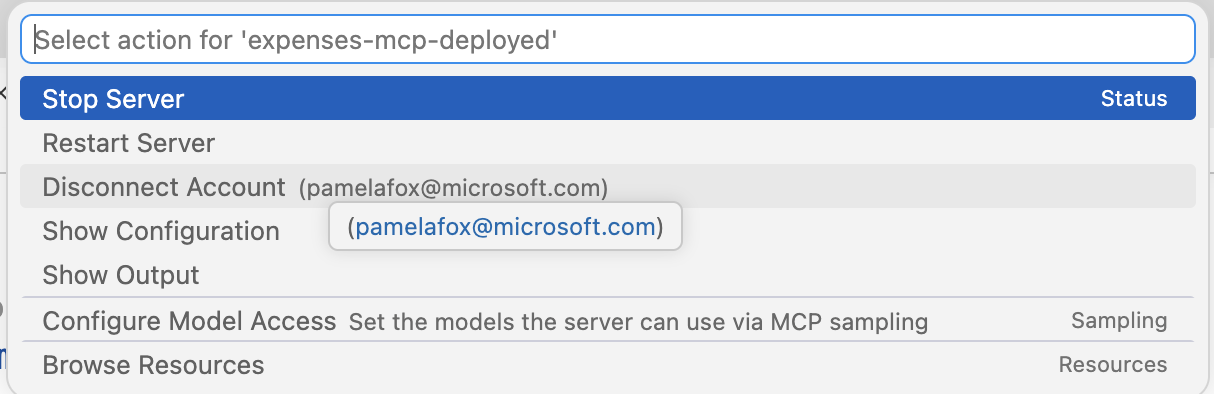
If you ever need to "log out" of the MCP server, select "More" from the CodeLens options and then "Disconnect account".
Resources
- 📺 Video recording: "Know your user: Identity-aware MCP servers with Cosmos DB" and accompanying slides from Azure Cosmos DB Conference 2026
- Building MCP servers with Entra ID and pre-authorized clients: Blog post about the auth setup for this project
- Python + MCP: December 2025 video series, recordings and slides available
- MCP for beginners: Online tutorial
- Python MCP servers on Azure Functions: Code sample for similar approach
from github.com/pamelafox/azure-cosmosdb-identity-aware-mcp-server
Installing Identity Aware Server With Azure Cosmos DB
This server has no published package — it is built from source. Open the repository and follow its README.
▸ github.com/pamelafox/azure-cosmosdb-identity-aware-mcp-serverFAQ
Is Identity Aware Server With Azure Cosmos DB MCP free?
Yes, Identity Aware Server With Azure Cosmos DB MCP is free — one-click install via Unyly at no cost.
Does Identity Aware Server With Azure Cosmos DB need an API key?
No, Identity Aware Server With Azure Cosmos DB runs without API keys or environment variables.
Is Identity Aware Server With Azure Cosmos DB hosted or self-hosted?
Self-hosted: the server runs locally on your machine via the install command above.
How do I install Identity Aware Server With Azure Cosmos DB in Claude Desktop, Claude Code or Cursor?
Open Identity Aware Server With Azure Cosmos DB on unyly.org, pick your client tab (Claude Desktop, Claude Code, Cursor) and press Install — the config is generated automatically, no JSON editing.
Related MCPs
GitHub
PRs, issues, code search, CI status
 by GitHub
Filesystem
Secure file operations with configurable access controls.
Memory
Knowledge graph-based persistent memory system.
Template MCP Server
A CLI tool to create a new Model Context Protocol server project with TypeScript support, dual transport options, and an extensible structure
 by mcpdotdirect
Compare Identity Aware Server With Azure Cosmos DB with
Not sure what to pick?
Find your stack in 60 seconds
Author?
Embed badge for your README
Browse similar
All development MCPs