
Imagegen
FreeNot checkedMCP server that wraps OpenAI's image generation and editing APIs, enabling text-to-image and image-to-image operations via tools.

About
MCP server that wraps OpenAI's image generation and editing APIs, enabling text-to-image and image-to-image operations via tools.
README
This project provides a server implementation based on the Model Context Protocol (MCP) that acts as a wrapper around OpenAI's Image Generation and Editing APIs (see OpenAI documentation).
Features
- Exposes OpenAI image generation capabilities through MCP tools.
- Supports
text-to-imagegeneration using models like DALL-E 2, DALL-E 3, and gpt-image-1 (if available/enabled). - Supports
image-to-imageediting using DALL-E 2 and gpt-image-1 (if available/enabled). - Configurable via environment variables and command-line arguments.
- Handles various parameters like size, quality, style, format, etc.
- Saves generated/edited images to temporary files and returns the path along with the base64 data.
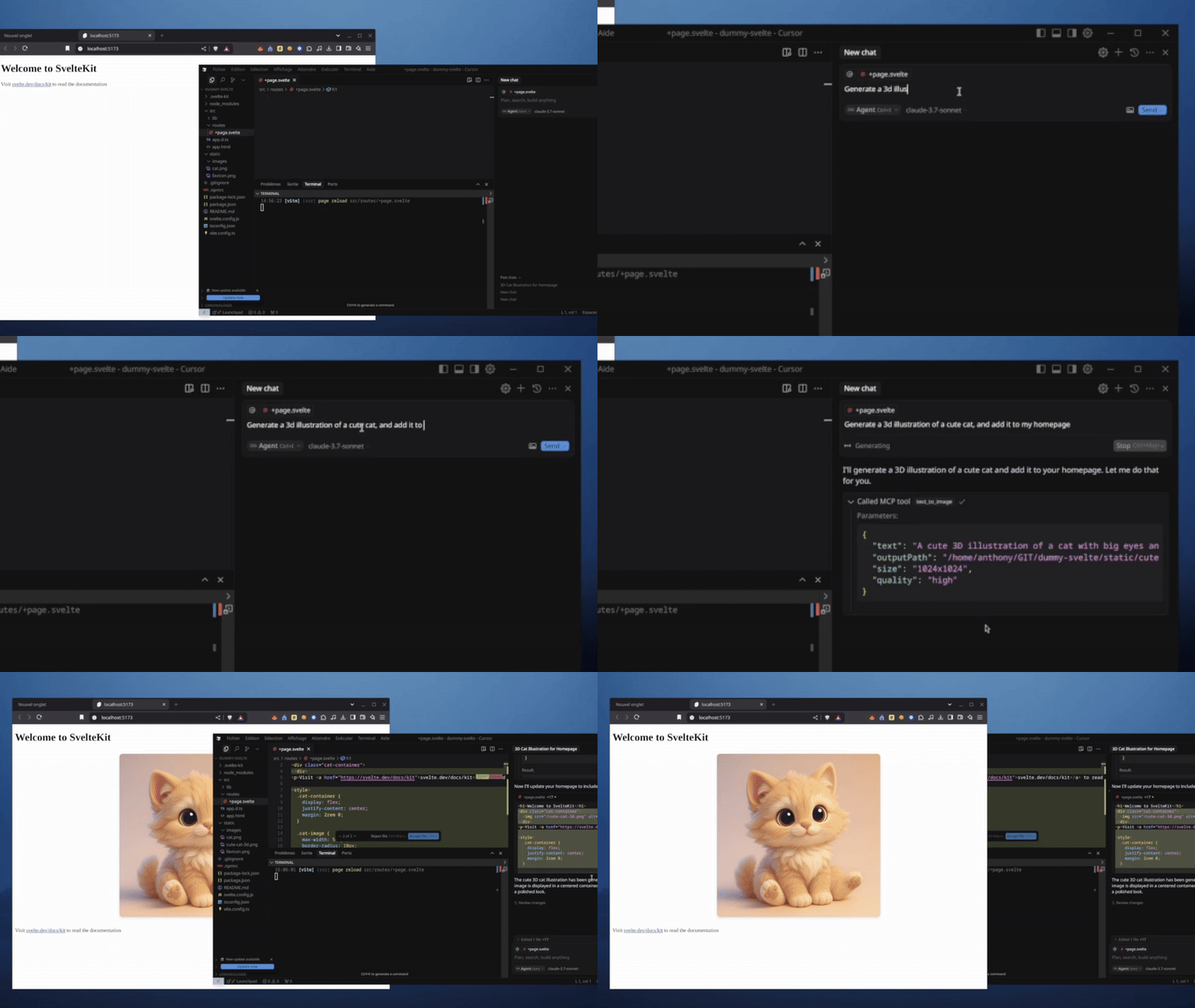
Here's an example of generating an image directly in Cursor using the text-to-image tool integrated via MCP:
Quick Run with npx
You can run the server directly from npm using npx (requires Node.js and npm):
npx imagegen-mcp [options]
See the Running the Server section for more details on options and running locally.
Prerequisites
- Node.js (v18 or later recommended)
- npm or yarn
- An OpenAI API key
Integration with Cursor
You can easily integrate this server with Cursor to use its image generation capabilities directly within the editor:
Open Cursor Settings:
- Go to
File > Preferences > Cursor Settings(or use the shortcutCtrl+,/Cmd+,).
- Go to
Navigate to MCP Settings:
- Search for "MCP" in the settings search bar.
- Find the "Model Context Protocol: Custom Servers" setting.
Add Custom Server:
- Click on "Edit in settings.json".
- Add a new entry to the
mcpServersarray. It should look something like this:
"mcpServers": [ "image-generator-gpt-image": { "command": "npx imagegen-mcp --models gpt-image-1", "env": { "OPENAI_API_KEY": "xxx" } } // ... any other custom servers ... ]- Customize the command:
- You can change the
--modelsargument in thecommandfield to specify which models you want Cursor to have access to (e.g.,--models dall-e-3or--models gpt-image-1). Make sure your OpenAI API key has access to the selected models.
- You can change the
Save Settings:
- Save the
settings.jsonfile.
- Save the
Cursor should now recognize the "OpenAI Image Gen" server, and its tools (text-to-image, image-to-image) will be available in the MCP tool selection list (e.g., when using @ mention in chat or code actions).
Setup
Clone the repository:
git clone <your-repository-url>
cd <repository-directory>
Install dependencies:
npm install
# or
yarn install
Configure Environment Variables: Create a
.envfile in the project root by copying the example:cp .env.example .envEdit the
.envfile and add your OpenAI API key:OPENAI_API_KEY=your_openai_api_key_here
Building
To build the TypeScript code into JavaScript:
npm run build
# or
yarn build
This will compile the code into the dist directory.
Running the Server
This section provides details on running the server locally after cloning and setup. For a quick start without cloning, see the Quick Run with npx section.
Using ts-node (for development):
npx ts-node src/index.ts [options]
Using the compiled code:
node dist/index.js [options]
Options:
--models <model1> <model2> ...: Specify which OpenAI models the server should allow. If not provided, it defaults to allowing all models defined insrc/libs/openaiImageClient.ts(currently gpt-image-1, dall-e-2, dall-e-3).- Example using
npx(also works for local runs):... --models gpt-image-1 dall-e-3 - Example after cloning:
node dist/index.js --models dall-e-3 dall-e-2
- Example using
The server will start and listen for MCP requests via standard input/output (using StdioServerTransport).
MCP Tools
The server exposes the following MCP tools:
text-to-image
Generates an image based on a text prompt.
Parameters:
text(string, required): The prompt to generate an image from.model(enum, optional): The model to use (e.g.,gpt-image-1,dall-e-2,dall-e-3). Defaults to the first allowed model.size(enum, optional): Size of the generated image (e.g.,1024x1024,1792x1024). Defaults to1024x1024. Check OpenAI documentation for model-specific size support.style(enum, optional): Style of the image (vividornatural). Only applicable todall-e-3. Defaults tovivid.output_format(enum, optional): Format (png,jpeg,webp). Defaults topng.output_compression(number, optional): Compression level (0-100). Defaults to 100.moderation(enum, optional): Moderation level (low,auto). Defaults tolow.background(enum, optional): Background (transparent,opaque,auto). Defaults toauto.transparentrequiresoutput_formatto bepngorwebp.quality(enum, optional): Quality (standard,hd,auto, ...). Defaults toauto.hdonly applicable todall-e-3.n(number, optional): Number of images to generate. Defaults to 1. Note:dall-e-3only supportsn=1.
Returns:
content: An array containing:- A
textobject containing the path to the saved temporary image file (e.g.,/tmp/uuid.png).
- A
image-to-image
Edits an existing image based on a text prompt and optional mask.
Parameters:
images(string, required): An array of file paths to local images.prompt(string, required): A text description of the desired edits.mask(string, optional): A file path of mask image (PNG). Transparent areas indicate where the image should be edited.model(enum, optional): The model to use. Onlygpt-image-1anddall-e-2are supported for editing. Defaults to the first allowed model.size(enum, optional): Size of the generated image (e.g.,1024x1024). Defaults to1024x1024.dall-e-2only supports256x256,512x512,1024x1024.output_format(enum, optional): Format (png,jpeg,webp). Defaults topng.output_compression(number, optional): Compression level (0-100). Defaults to 100.quality(enum, optional): Quality (standard,hd,auto, ...). Defaults toauto.n(number, optional): Number of images to generate. Defaults to 1.
Returns:
content: An array containing:- A
textobject containing the path to the saved temporary image file (e.g.,/tmp/uuid.png).
- A
Development
- Linting:
npm run lintoryarn lint - Formatting:
npm run formatoryarn format(if configured inpackage.json)
Contributing
Pull Requests (PRs) are welcome! Please feel free to submit improvements or bug fixes.
Install Imagegen in Claude Desktop, Claude Code & Cursor
unyly install imagegen-mcpInstalls into Claude Desktop, Claude Code, Cursor & VS Code — handles npx, uvx and build-from-source repos for you.
First time? Get the CLI: curl -fsSL https://unyly.org/install | sh
Or configure manually
Run in your terminal:
claude mcp add imagegen-mcp -- npx -y imagegen-mcpFAQ
Is Imagegen MCP free?
Yes, Imagegen MCP is free — one-click install via Unyly at no cost.
Does Imagegen need an API key?
No, Imagegen runs without API keys or environment variables.
Is Imagegen hosted or self-hosted?
Self-hosted: the server runs locally on your machine via the install command above.
How do I install Imagegen in Claude Desktop, Claude Code or Cursor?
Open Imagegen on unyly.org, pick your client tab (Claude Desktop, Claude Code, Cursor) and press Install — the config is generated automatically, no JSON editing.
Related MCPs
Omni Video
An MCP server that transforms LLM-enabled IDEs into professional video editors by pre-processing footage into text proxies, generating motion graphics via HTML/
 by buildwithtaza
ARA
Generate images, video and audio from any AI agent — one connector.
 by ARA
YouTube
Transcripts, channel stats, search
 by YouTube
EverArt
AI image generation using various models.
 by modelcontextprotocol
Compare Imagegen with
Not sure what to pick?
Find your stack in 60 seconds
Author?
Embed badge for your README
Browse similar
All media MCPs