
MCPHelperSublimePlugin
FreeNot checkedSublime Text Plugin which connects to a local Model Context Protocol (MCP) server for AI-powered code generation, review, refactoring, and translation using Ope

About
Sublime Text Plugin which connects to a local Model Context Protocol (MCP) server for AI-powered code generation, review, refactoring, and translation using OpenAI or Gemini.
README
This is a Sublime Text plugin that connects your editor to a local Model Context Protocol (MCP) server, letting you use OpenAI or Gemini-powered tools directly on selected code.
🔗 Model Context Protocol Introduction
✨ Features
- Generate code from plain-text prompts
- Review code for bugs, security flaws, or improvements
- Refactor code to enhance readability, maintainability, and performance
- Translate code between languages like Python, JavaScript, Bash, etc.
- Configurable settings for MCP server URL, timeouts, and model parameters
- Menu integration for easy access to all commands
- Robust error handling with user-friendly error messages
- Debug mode for troubleshooting
🖼️ Demo
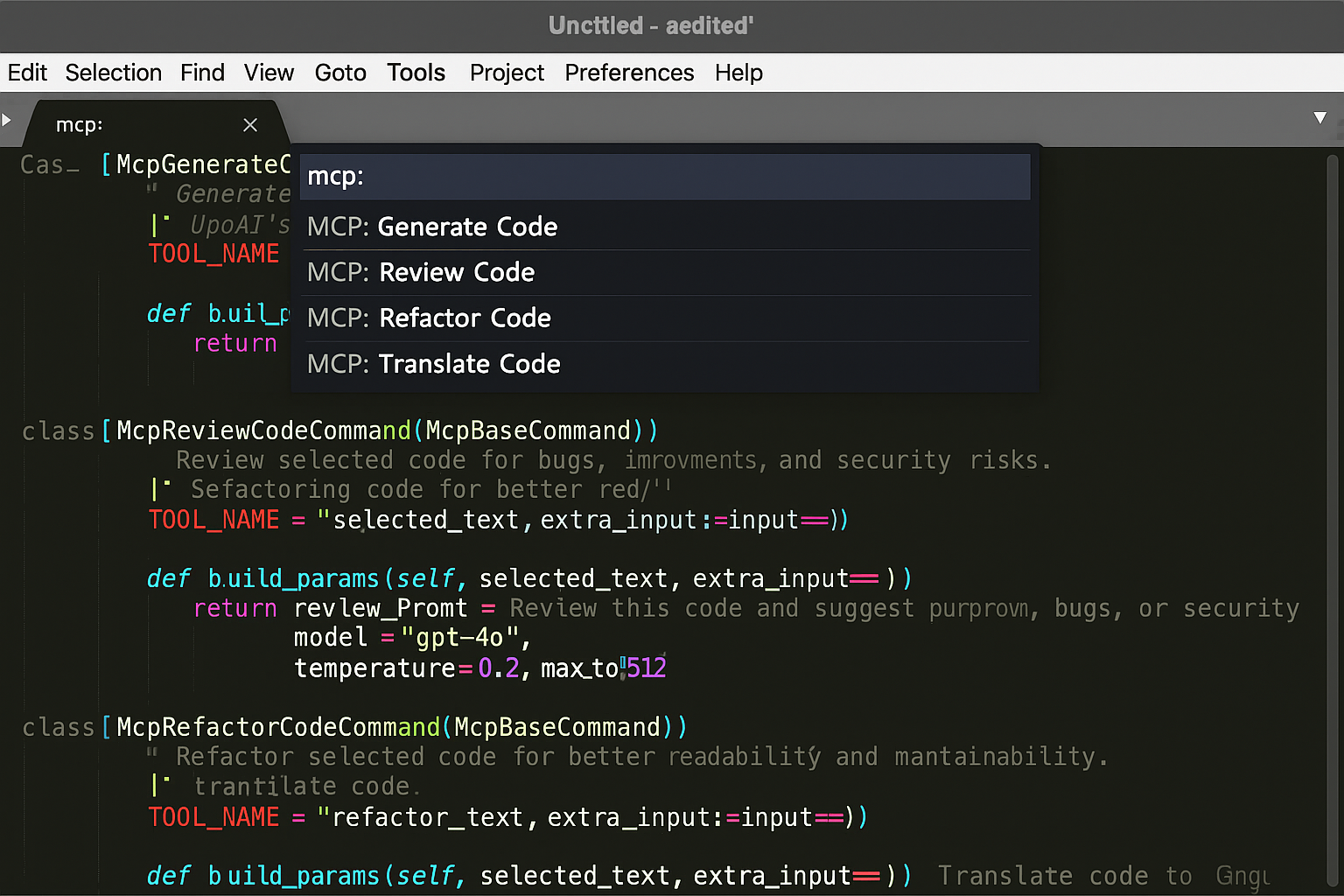
Here's what the plugin looks like in Sublime Text:
🚀 Installation
Quick Start
Download the plugin files from this repository
Copy to your Sublime Text User packages folder:
- Windows:
%APPDATA%\Sublime Text\Packages\User\ - macOS:
~/Library/Application Support/Sublime Text/Packages/User/ - Linux:
~/.config/sublime-text/Packages/User/
- Windows:
Restart Sublime Text
Configure your MCP server (see Configuration section below)
Detailed Installation
For complete installation instructions, see INSTALLATION.md.
⚙️ Configuration
1. MCP Server Setup
Ensure your local MCP server is running and accessible at the configured URL (default: http://localhost:8000/mcp.json/)
2. Plugin Settings
Open Sublime Text settings:
- Go to
Preferences > Package Settings > MCPHelper > Settings - Or edit the settings file directly
Default settings:
{
  "mcp_server_url": "http://localhost:8000/mcp.json/",
  "timeout_seconds": 120,
  "show_debug_output": false,
  "default_model": "gpt-4o",
  "default_temperature": 0.2,
  "default_max_tokens": 512
}
3. MCP Server Tools
Your MCP server should have tools configured like:
@mcp.tool(name="llm_generate_code_openai", description="Generate code using OpenAI")
async def generate_code_openai(params: dict) -> dict:
    # Your OpenAI integration here
    return {"results": [{"data": "generated_code"}]}
📖 Usage
Command Palette
Select code in any file
Press
Ctrl+Shift+PChoose one of:
MCP: Generate CodeMCP: Review CodeMCP: Refactor CodeMCP: Translate Code
Menu
- Select code in any file
- Go to
MCP Helpermenu - Choose your desired action
Keyboard Shortcuts (Optional)
Add to your keybindings file (Preferences > Key Bindings):
[
  {
    "keys": ["ctrl+shift+g"],
    "command": "mcp_generate_code"
  },
  {
    "keys": ["ctrl+shift+r"],
    "command": "mcp_review_code"
  },
  {
    "keys": ["ctrl+shift+f"],
    "command": "mcp_refactor_code"
  },
  {
    "keys": ["ctrl+shift+t"],
    "command": "mcp_translate_code"
  }
]
🔧 Troubleshooting
Common Issues
"Cannot connect to MCP server"
- Ensure your MCP server is running
- Check the URL in settings
- Verify the server is accessible at the configured endpoint
"MCP Tool Error"
- Check your MCP server logs
- Verify the tool names match your server configuration
- Ensure API keys are properly configured in your MCP server
"No text selected"
- Select some code before running commands
- Commands require text selection to work
Debug Mode
Enable debug output in settings:
{
  "show_debug_output": true
}
This will show detailed request/response information in the Sublime Text console.
Console Access
View debug output:
- Go to
View > Show Console - Look for messages starting with "MCP"
🧩 Extending
You can add new commands by subclassing McpBaseCommand and customizing build_params():
class McpCustomCommand(McpBaseCommand):
    TOOL_NAME = "your_custom_tool"

    def build_params(self, selected_text, extra_input=None):
        return {
            "prompt": f"Custom prompt: {selected_text}",
            "language": "python"
        }
📄 License
This project is licensed under the MIT License. See LICENSE for details.
👤 Author
David Donohue
Built to streamline LLM-assisted development with a local-first mindset.
⚠️ Important: This plugin requires a running MCP Server on your local machine. You must configure your own OpenAI or Gemini API keys in the MCP server. This plugin does not directly handle authentication or make API calls — it simply communicates with your local MCP server to trigger the tools you've defined.
Installing MCPHelperSublimePlugin
This server has no published package — it is built from source. Open the repository and follow its README.
▸ github.com/sdirishguy/MCPHelperSublimePluginFAQ
Is MCPHelperSublimePlugin MCP free?
Yes, MCPHelperSublimePlugin MCP is free — one-click install via Unyly at no cost.
Does MCPHelperSublimePlugin need an API key?
No, MCPHelperSublimePlugin runs without API keys or environment variables.
Is MCPHelperSublimePlugin hosted or self-hosted?
Self-hosted: the server runs locally on your machine via the install command above.
How do I install MCPHelperSublimePlugin in Claude Desktop, Claude Code or Cursor?
Open MCPHelperSublimePlugin on unyly.org, pick your client tab (Claude Desktop, Claude Code, Cursor) and press Install — the config is generated automatically, no JSON editing.
Related MCPs
GitHub
PRs, issues, code search, CI status
 by GitHub
Filesystem
Secure file operations with configurable access controls.
Memory
Knowledge graph-based persistent memory system.
Template MCP Server
A CLI tool to create a new Model Context Protocol server project with TypeScript support, dual transport options, and an extensible structure
 by mcpdotdirect
Compare MCPHelperSublimePlugin with
Not sure what to pick?
Find your stack in 60 seconds
Author?
Embed badge for your README
Browse similar
All development MCPs