
MOS
FreeNot checkedAn MCP gateway for agents, chatbots, and services to interact with services that expose the MOS protocol for newsrooms, media centers, coms centers, and data vi

About
An MCP gateway for agents, chatbots, and services to interact with services that expose the MOS protocol for newsrooms, media centers, coms centers, and data visualization.
README
A cross-platform bridge between the MOS (Media Object Server) protocol used by broadcast newsroom systems and the Model Context Protocol (MCP), so an AI client can drive newsroom workflows: query media objects, build and send running orders, search object databases, and feed or read from a live newsroom computer system (NCS).
Written in Go. Ships as a single self-contained binary (the admin web console is embedded) for macOS, Linux, and Windows on amd64 and arm64.
Implements the message set of MOS Protocol v2.8.5. MCP is provided by the official modelcontextprotocol/go-sdk.
What it does
MOS is a TCP/XML protocol spoken between an NCS (newsroom computer system —
ENPS, iNEWS, …) and a MOS device (video server, graphics, prompter, …) over
three ports: 10540 (lower / object metadata), 10541 (upper / running orders)
and 10542 (query / search).
mos-mcp can act as either side, or both at once:
- client role — dials out to MOS peers and issues requests on your behalf.
- device role — listens for an NCS to connect and answers with acks, while recording everything it receives to an inbox you can inspect.
It exposes these capabilities as MCP tools, and only registers the tools for the MOS profiles you enable.
A note on discovery
MOS has no network auto-discovery — there is no broadcast, mDNS, or registry.
Peers are always configured by hand (host, IDs, ports). The only capability query
is Profile 0's reqMachInfo/listMachInfo, sent after connecting; the admin
console's Test button uses it to confirm a peer you entered is reachable and
to show which profiles it reports.
Install
macOS / Linux
curl -fsSL https://raw.githubusercontent.com/medcelerate/MOS-MCP/main/scripts/install.sh | sh
Windows (PowerShell)
irm https://raw.githubusercontent.com/medcelerate/MOS-MCP/main/scripts/install.ps1 | iex
Or download a binary for your platform from the Releases page.
From source
go install github.com/medcelerate/MOS-MCP/cmd/mos-mcp@latest
Quick start
cp config.example.yaml config.yaml   # edit to taste
mos-mcp --config config.yaml
By default this serves MCP over stdio, starts the device listener, and opens the admin console at http://127.0.0.1:8088.
Connecting an MCP client
Claude Desktop / Claude Code (stdio): add to your MCP client config:
{
  "mcpServers": {
    "mos": {
      "command": "mos-mcp",
      "args": ["--config", "/path/to/config.yaml"]
    }
  }
}
Networked clients (Streamable HTTP): set mcp.transport: http (or both)
in the config; the endpoint is served at mcp.http.addr (default
127.0.0.1:8080).
Logs go to stderr so they never corrupt the stdio MCP stream on stdout.
Configuration
See config.example.yaml for the full annotated file. Key fields:
| Field | Meaning |
|---|---|
mosID / ncsID |
This bridge's identity on the MOS network |
role |
client, device, or both |
profiles |
Which MOS profiles to enable: [0,1,2,3,4] |
peers |
Remote MOS systems to dial (client role) |
listen |
Ports the device listener binds (device role) |
mcp.transport |
stdio, http, or both |
web.enabled / web.addr |
Admin console (loopback by default) |
Selected fields can be overridden via environment variables: MOSMCP_MOSID,
MOSMCP_NCSID, MOSMCP_ROLE, MOSMCP_MCP_TRANSPORT, MOSMCP_MCP_HTTP_ADDR,
MOSMCP_WEB_ADDR, MOSMCP_WEB_ENABLED, MOSMCP_LOG_LEVEL, MOSMCP_CONFIG.
The admin console reads and writes the same config file; changes made in the UI are persisted and applied live.
Setup walkthrough
Copy the example config and set your identity:
mosID: bridge.yourstation.com   # how this bridge identifies itself
ncsID: newsroom.yourstation.com
Choose a role:
client— you want the AI to reach out to existing MOS devices/NCSs.device— you want the AI to appear as a MOS device that an NCS connects to.both— both at once (default).
Enable only the profiles you need. Each is independent, and MCP tools are registered only for enabled profiles:
profiles: [0, 2] # e.g. connection + running orders onlyFor
client/both, list the peers to dial. Ports default to MOS standards, so only override them if a site is non-standard:peers: - name: vizrt-graphics host: 10.0.0.5 - name: enps host: 10.0.0.10 lowerPort: 10540 upperPort: 10541 queryPort: 10542For
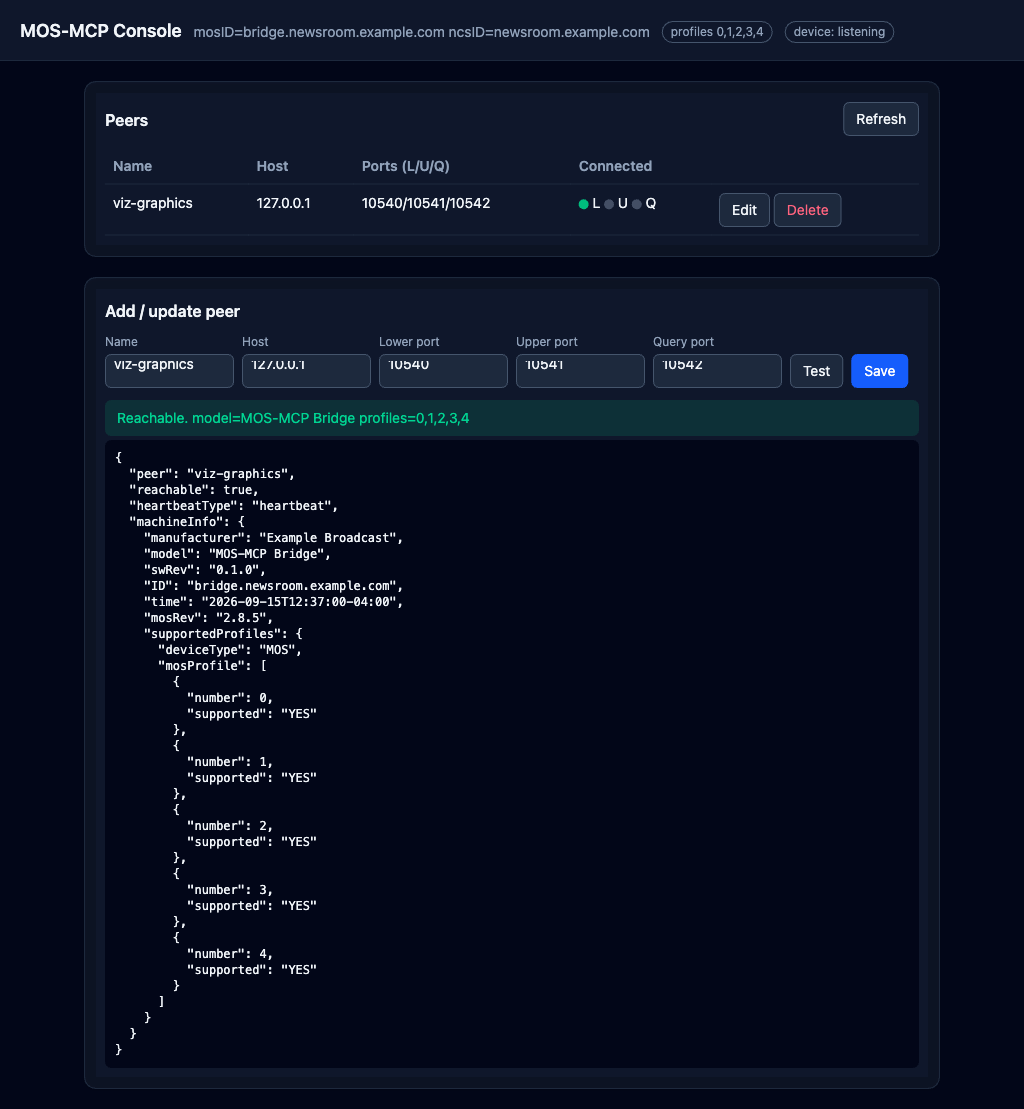
device/both, set the listen ports the NCS will connect to (defaults10540/10541/10542), and describe the device forreqMachInfo:listen: lowerPort: 10540 upperPort: 10541 queryPort: 10542 device: manufacturer: Your Station model: MOS-MCP BridgeStart it, then verify from the console. Open the admin console, add or confirm a peer, and click Test — a green result with the peer's model and profiles confirms connectivity before you wire up an AI client.
On the MOS side of your network, each real peer must also be configured to talk to this bridge — MOS connections are always mutually, statically configured. Point the peer at this host's IP on the same three ports.
Security
- The admin console and (by default) the MCP HTTP endpoint bind to loopback
(
127.0.0.1). Do not expose them on untrusted networks; there is no built-in authentication. Put them behind a reverse proxy or SSH tunnel if remote access is required. - MOS itself is an unauthenticated plaintext protocol — run it only on trusted broadcast networks/VLANs, as is standard for MOS deployments.
MCP tools
Always available (connection management + Profile 0):
| Tool | Description |
|---|---|
mos_status |
Identity, peers, connection state, inbox size |
mos_add_peer / mos_remove_peer |
Register / unregister an outbound peer |
mos_heartbeat |
Verify a peer is alive |
mos_request_machine_info |
reqMachInfo → device identity + supported profiles |
mos_inbox |
Recent messages received in device role |
mos_send_raw |
Send arbitrary MOS XML (debug / uncovered messages) |
Profile 1 (objects): mos_request_object, mos_request_all_objects
Profile 3 (search): mos_search_objects
Profile 2 (running orders): mos_create_running_order, mos_replace_running_order,
mos_delete_running_order, mos_element_action, mos_ready_to_air
Profile 4 (stories): mos_send_story, mos_request_all_running_orders
Tools are registered only for the profiles enabled in profiles.
Admin console
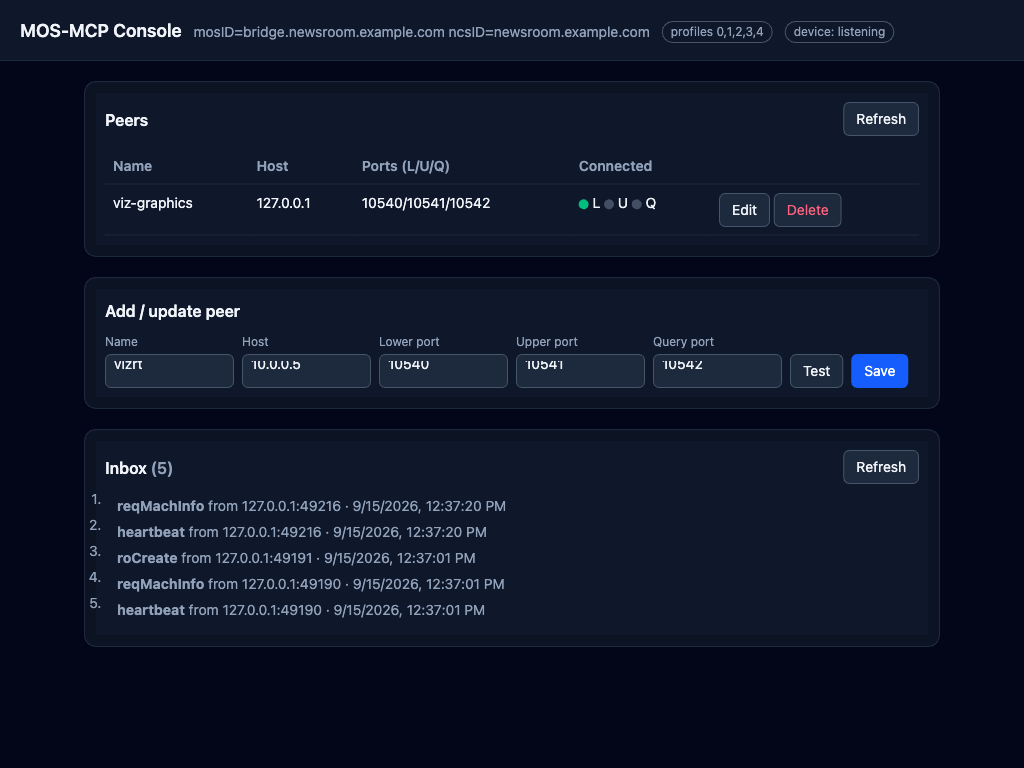
At web.addr (default http://127.0.0.1:8088) you can:
- View bridge identity, enabled profiles, and device-listener state
- Add, edit, and remove peers (persisted to the config file)
- Test a peer (heartbeat +
reqMachInfo) and see its reported capabilities - Watch the inbox of messages received from a connected NCS
The console is a single page built into the binary — there's nothing extra to install or run — and it reads and writes the same config file the CLI uses.
Clicking Test dials the peer and runs a heartbeat plus reqMachInfo, showing
whether it is reachable and which profiles it reports — the manual capability
check that stands in for MOS's absent discovery:
Use it as a connector
The bridge speaks the Model Context Protocol, so it plugs into AI clients as a connector. All tools carry titles and read-only / destructive annotations, so clients can show clear permission prompts.
Claude Desktop extension (recommended)
Because the bridge has to run next to your MOS network, the natural fit is a
local Desktop Extension — a one-click .mcpb bundle:
sh scripts/build-mcpb.sh          # dist/mos-mcp-<version>-<os>-<arch>.mcpb
# GOOS=windows GOARCH=amd64 sh scripts/build-mcpb.sh   # build for another OS
Open the resulting .mcpb in Claude Desktop (Settings → Extensions, or just
double-click it). Claude runs the bundled binary locally over stdio; set your MOS
ID, role, and an optional config file in the extension's settings. This can be
submitted to Anthropic's directory via the
desktop-extension form.
Remote connector (Claude custom connector / ChatGPT)
Both Claude (custom connectors) and OpenAI (ChatGPT connectors and the Responses
API's tools: [{ "type": "mcp" }]) can add a remote MCP server over
Streamable HTTP. Run the bridge with mcp.transport: http and point the client
at http://<host>:8080. Since the server must be reachable from the AI provider
— and directory listings require OAuth — this path suits a self-hosted,
internet-exposed deployment behind TLS and authentication. The tools are
identical to the desktop-extension path.
Building from source
make build   # compile
make test    # run the tests
A plain go build (or go install) is all you need — the console and its
styling are prebuilt and committed, so the result is one self-contained binary
with no extra tooling.
Privacy Policy
mos-mcp runs on your own infrastructure and talks only to the MOS peers you
configure. It sends no data to the author, Anthropic, OpenAI, or any third
party, and includes no telemetry. See PRIVACY.md for details.
License
MIT — see LICENSE.
Installing MOS
This server has no published package — it is built from source. Open the repository and follow its README.
▸ github.com/medcelerate/MOS-MCPFAQ
Is MOS MCP free?
Yes, MOS MCP is free — one-click install via Unyly at no cost.
Does MOS need an API key?
No, MOS runs without API keys or environment variables.
Is MOS hosted or self-hosted?
Self-hosted: the server runs locally on your machine via the install command above.
How do I install MOS in Claude Desktop, Claude Code or Cursor?
Open MOS on unyly.org, pick your client tab (Claude Desktop, Claude Code, Cursor) and press Install — the config is generated automatically, no JSON editing.
Related MCPs
ARA
Generate images, video and audio from any AI agent — one connector.
 by ARA
Omni Video
An MCP server that transforms LLM-enabled IDEs into professional video editors by pre-processing footage into text proxies, generating motion graphics via HTML/
 by buildwithtaza
YouTube
Transcripts, channel stats, search
 by YouTube
EverArt
AI image generation using various models.
 by modelcontextprotocol
gpu-bridge/mcp-server
Unified GPU inference API with 30 AI services (LLM, image gen, video, TTS, whisper, embeddings, reranking, OCR) as MCP tools. Pay-per-use via x402 USDC or API k
 by gpu-bridge
hamflx/imagen3-mcp
A powerful image generation tool using Google's Imagen 3.0 API through MCP. Generate high-quality images from text prompts with advanced photography, artistic,
 by hamflx
merterbak/Grok-MCP
MCP server for xAI's [Grok API](https://docs.x.ai/docs/overview) with agentic tool calling, image generation, vision, and file support.
 by merterbak
SureScaleAI/openai-gpt-image-mcp
OpenAI GPT image generation/editing MCP server.
 by SureScaleAI
YangLiangwei/PersonalizationMCP
Comprehensive personal data aggregation MCP server with Steam, YouTube, Bilibili, Spotify, Reddit and other platforms integrations. Features OAuth2 authenticati
 by YangLiangwei
AceDataCloud/MCPFlux
Flux AI image generation and editing (Black Forest Labs) via Ace Data Cloud API.
 by AceDataCloud
Compare MOS with
Not sure what to pick?
Find your stack in 60 seconds
Author?
Embed badge for your README
Browse similar
All media MCPs