
Notion Finance Assistant
FreeNot checkedThe open-source, terminal-based AI finance assistant that connects Notion and LLMs. Automate your expense tracking, run smart queries, and power up Claude, Open

About
The open-source, terminal-based AI finance assistant that connects Notion and LLMs. Automate your expense tracking, run smart queries, and power up Claude, OpenAI, or Mistral with real financial data.
README
Description
MCP Finance Assistant is a modular, terminal-based financial assistant that connects with Notion and can leverage LLMs (OpenAI, Mistral, Anthropic) to help you manage, analyze, and track your finances with ease.
It uses a client-server architecture: the client is built in Python (Textual UI, LangGraph agents), and the server (Node.js/TypeScript) acts as an MCP tool provider, integrating with your Notion databases.
Features
- Terminal UI (TUI) for a fast, distraction-free experience.
- Modular, graph-based agent design (LangGraph, LangChain).
- Native Notion integration for storing and querying accounts & transactions.
- Extensible with OpenAI, Mistral, or Anthropic for advanced AI responses.
- Clean separation of client (Python) and server (Node/TypeScript, MCP).
- Easy configuration with environment variables.
📸 Demo GIFs
See MCP Finance Assistant in action! Below are sample use cases you can try, with animated GIFs for each scenario.
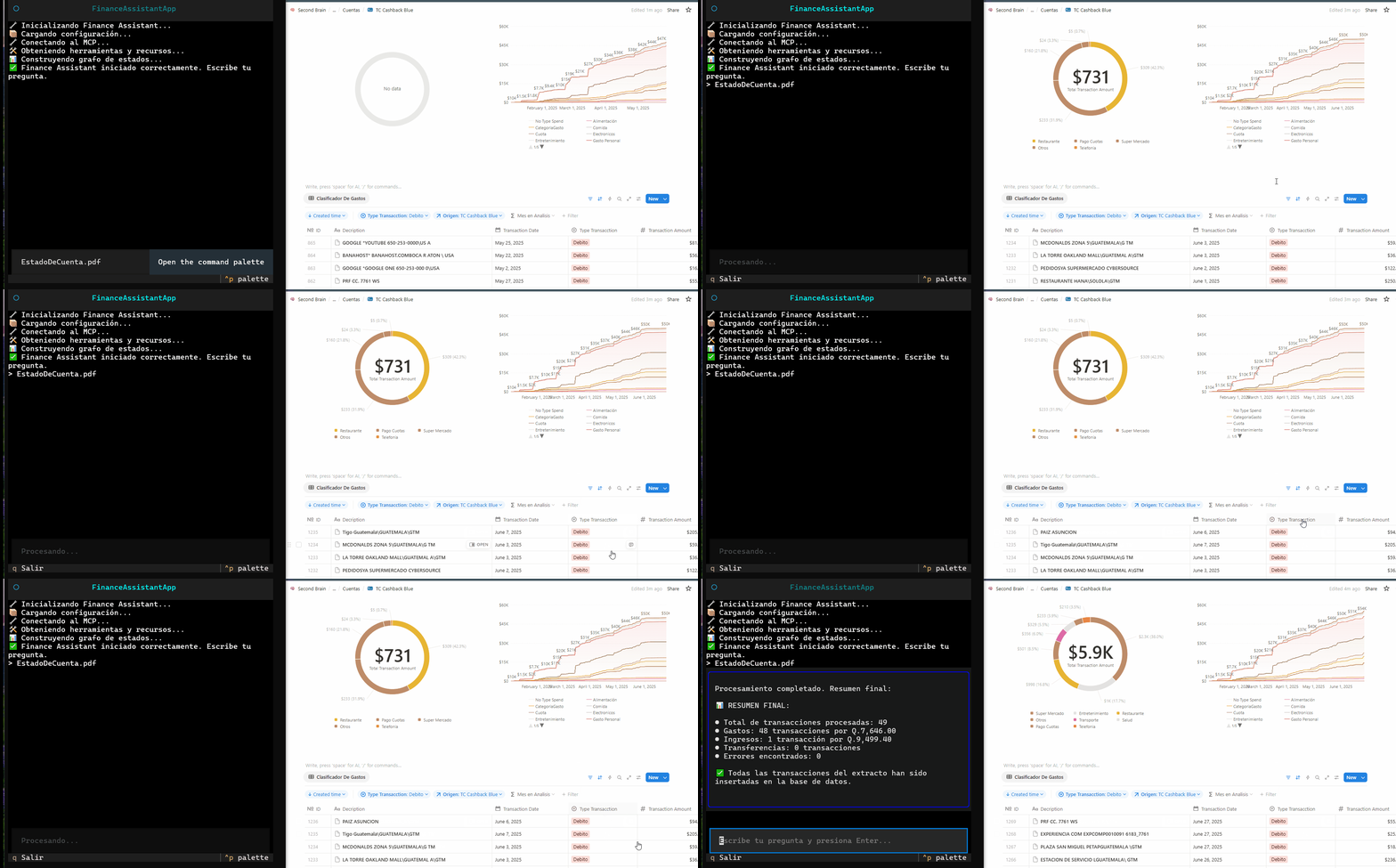
1. Uploading a Bank Statement
This demo shows how to quickly load a new bank statement so transactions are automatically recognized and added.
2. Asking About a Specific Expense Type
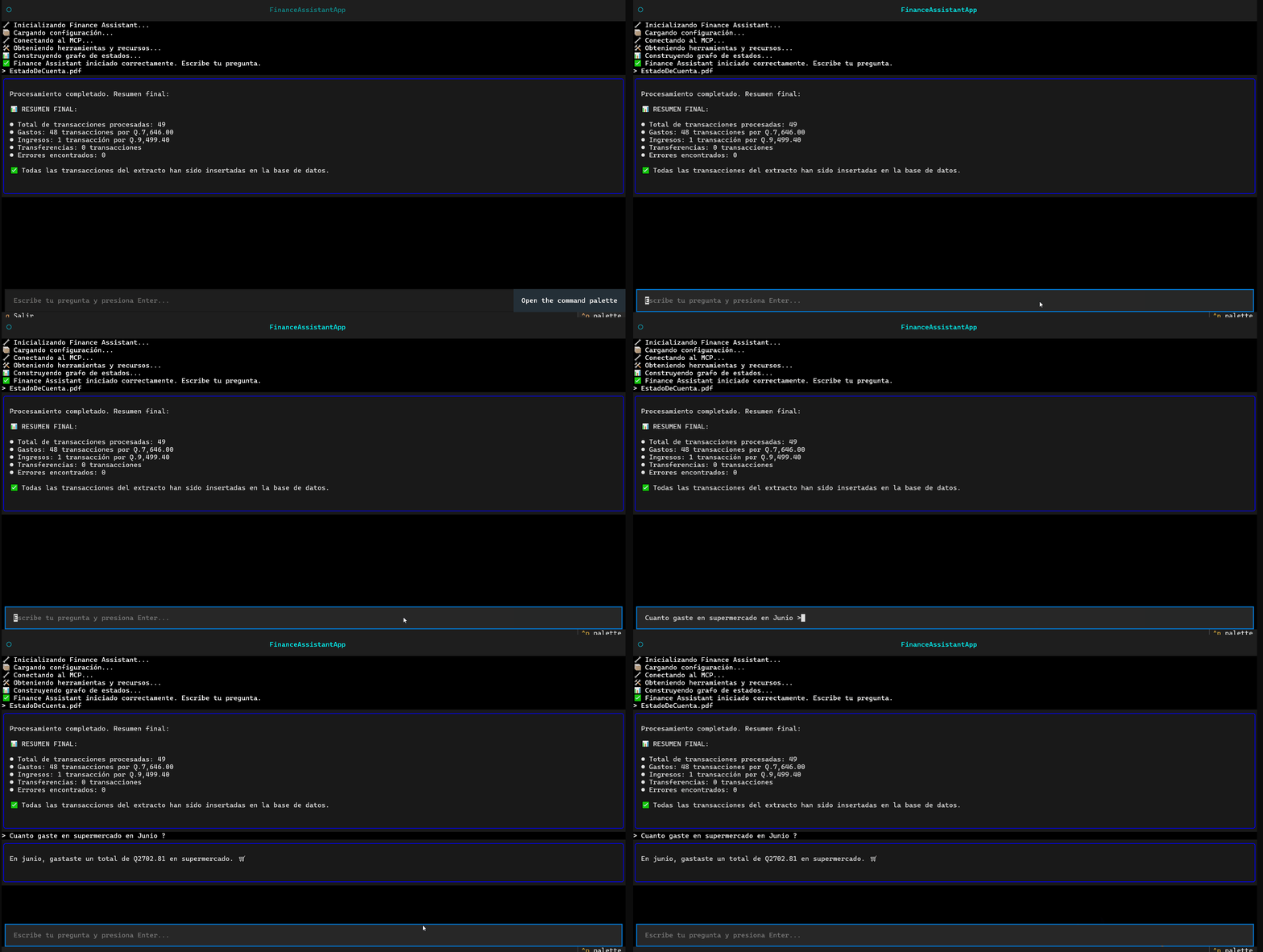
Ask about your spending in a particular category, such as food, transportation, or utilities.
Example:
User types:
How much did I spend on food last month?
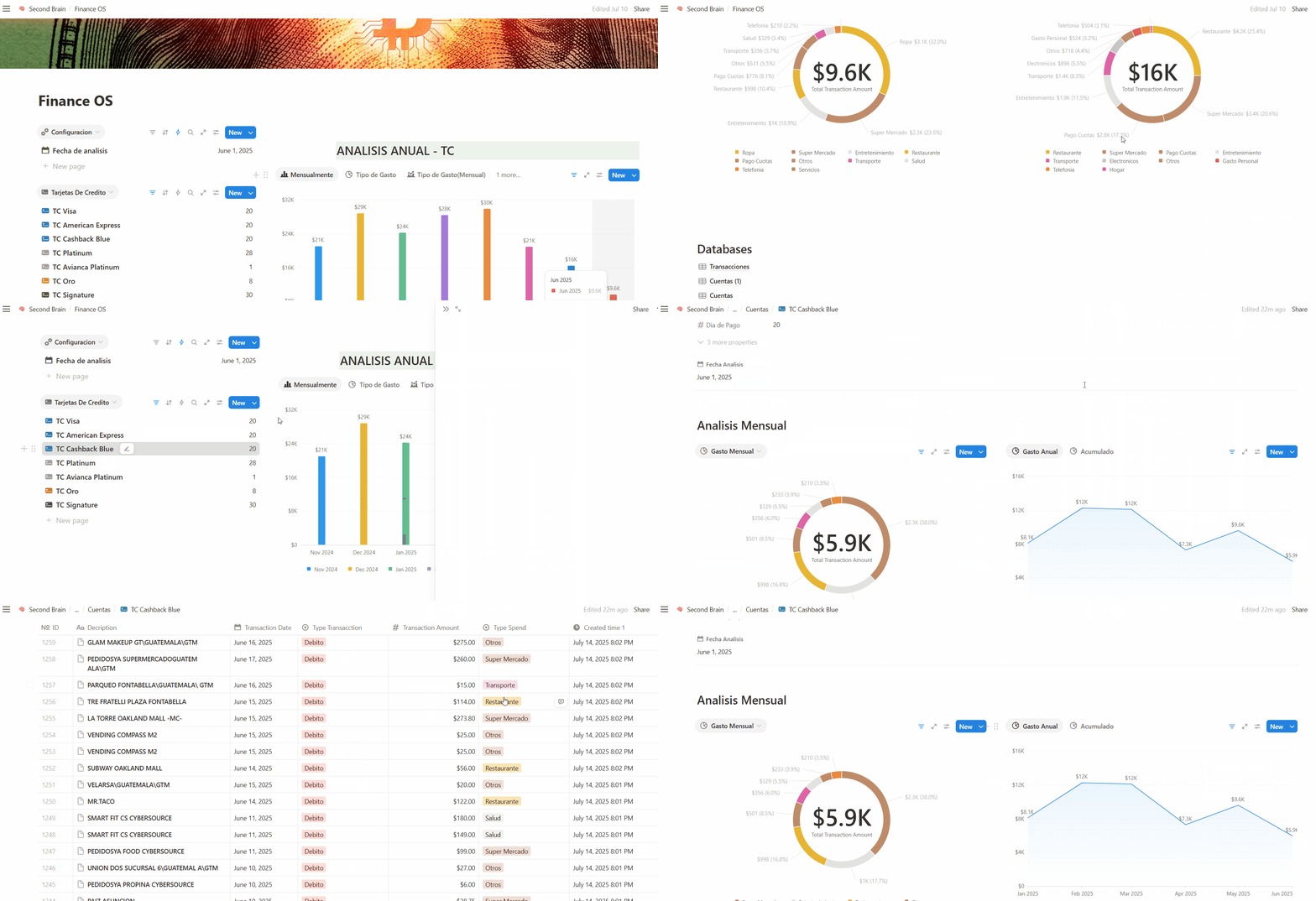
3. Dashboard Notion
You can visual dashboard
Quick Start
1. Clone the repository
git clone https://github.com/your-username/mcp-finance-assistant.git
cd mcp-finance-assistant
2. Install uv (if you don’t have it)
pip install uv
3. Set up the Python virtual environment (client)
uv sync
source .venv/bin/activate        # On Windows: .venv\Scripts\activate
4. Install server dependencies and Build
cd servers/finance
npm install
npm run build
cd ../../
5. Configure your environment variables
a. Prepare the .env files
For client/
cp .env-template .env
Then fill out each field in the new .env file:
OPENAI_API_KEY=your_openai_api_key         # (optional) For LLM features
MISTRAL_API_KEY=your_mistral_api_key       # (optional) For LLM features
NOTION_API_KEY=your_notion_integration_token
NOTION_DB_ACCOUNTS=your_notion_db_accounts_id
NOTION_DB_TRANSACTIONS=your_notion_db_transactions_id
Never commit your
.envfile! Only commit.env-templateas an example.
b. How to get your Notion credentials:
- NOTION_API_KEY:
Create an integration at notion.com/my-integrations and copy your secret. - NOTION_DB_ACCOUNTS and NOTION_DB_TRANSACTIONS:
Copy the database ID from the Notion database URL (everything after your workspace name and before the?).
Make sure you share your databases with the integration you created!
7. Start the client
cd client
uv run main.py
Notion Template
Important:
Before using the assistant, you must duplicate the official Notion template to your workspace.
👉 Click here to duplicate the Finance OS template to your Notion
This project expects two databases in Notion:
- Accounts
- Example properties: Name (title), Type (select), Balance (number), Currency (select), Active (checkbox)
- Transacciones
- Example properties: Name (title), Date (date), Account (relation to Accounts), Amount (number), Type (select), Category (select)
After duplicating the template, make sure to share both databases (“Accounts” and “Transacciones”) with your Notion integration.
Then, copy the IDs of each database and add them to your.envfile as described above.
🤖 Using as an MCP Tool with Claude
MCP Finance Assistant can also be used as an MCP tool, making it available to Anthropic's Claude models for advanced agent workflows.
How to Expose the Finance Tool as an MCP Server
The server component (servers/finance) is fully compatible with the Model Context Protocol (MCP) and can be used as an external tool for Claude or other LLMs supporting MCP.
1. Configure Your .env (as above)
Make sure your Notion API credentials and database IDs are set in the .env for servers/finance.
FAQ
Q: My app won’t connect to Notion!
A: Check your .env credentials, that you shared the databases with your integration, and that the database IDs are correct.
Q: I see “Error during initialization”
A: Make sure the server is running before starting the client, and double-check your dependencies and environment variables.
License
MIT
Author
Jorge Monterroso
Open to contributions and feedback!
Installing Notion Finance Assistant
This server has no published package — it is built from source. Open the repository and follow its README.
▸ github.com/jorged104/MCP-Notion-Finance-AssistantFAQ
Is Notion Finance Assistant MCP free?
Yes, Notion Finance Assistant MCP is free — one-click install via Unyly at no cost.
Does Notion Finance Assistant need an API key?
No, Notion Finance Assistant runs without API keys or environment variables.
Is Notion Finance Assistant hosted or self-hosted?
Self-hosted: the server runs locally on your machine via the install command above.
How do I install Notion Finance Assistant in Claude Desktop, Claude Code or Cursor?
Open Notion Finance Assistant on unyly.org, pick your client tab (Claude Desktop, Claude Code, Cursor) and press Install — the config is generated automatically, no JSON editing.
Related MCPs
Stripe
Payments, customers, subscriptions
 by Stripe
malamutemayhem/unclick-agent-native-endpoints
110+ tools for AI agents spanning social media, finance, gaming, music, AU-specific services, and utilities. Zero-config local tools plus platform connectors. n
 by malamutemayhem
whiteknightonhorse/APIbase
Unified API hub for AI agents with 56+ tools across travel (Amadeus, Sabre), prediction markets (Polymarket), crypto, and weather. Pay-per-call via x402 micropa
 by whiteknightonhorse
trackerfitness729-jpg/sitelauncher-mcp-server
Deploy live HTTPS websites in seconds. Instant subdomains ($1 USDC) or custom .xyz domains ($10 USDC) on Base chain. Templates for crypto tokens and AI agent pr
 by trackerfitness729-jpg
Compare Notion Finance Assistant with
Not sure what to pick?
Find your stack in 60 seconds
Author?
Embed badge for your README
Browse similar
All finance MCPs