

About
Octocat Harry Potter — Model Context Protocol server
README
https://drive.google.com/drive/folders/1CQaKkrcuD8Vxam559EEdCByX0z2s-Oxc?usp=sharing
Postman Agent Generator
Welcome to your generated agent! 🚀
This project was created with the Postman Agent Generator, configured to Model Context Provider (MCP) Server output mode. It provides you with:
- ✅ An MCP-compatible server (
mcpServer.js) - ✅ Automatically generated JavaScript tools for each selected Postman API request
Let's set things up!
🚦 Getting Started
⚙️ Prerequisites
Before starting, please ensure you have:
- Node.js (v16+ required, v20+ recommended)
- npm (included with Node)
📥 Installation & Setup
1. Install dependencies
Run from your project's root directory:
npm install
🔐 Set tool environment variables (not needed for octocat and harry potter api)
In the .env file, you'll see environment variable placeholders, one for each workspace that the selected tools are from. For example, if you selected requests from 2 workspaces, e.g. Acme and Widgets, you'll see two placeholders:
ACME_API_KEY=
WIDGETS_API_KEY=
Update the values with actual API keys for each API. These environment variables are used inside of the generated tools to set the API key for each request. You can inspect a file in the tools directory to see how it works.
// environment variables are used inside of each tool file
const apiKey = process.env.ACME_API_KEY;
Caveat: This may not be correct for every API. The generation logic is relatively simple - for each workspace, we create an environment variable with the same name as the workspace slug, and then use that environment variable in each tool file that belongs to that workspace. If this isn't the right behavior for your chosen API, no problem! You can manually update anything in the .env file or tool files to accurately reflect the API's method of authentication.
🛠️ List Available Tools
List descriptions and parameters from all generated tools with:
node index.js tools
Example:
Available Tools:

Workspace: 6-harry-potter-api-with-magic-visualizations
  Collection: hogwarts-staff.js
    get_hogwarts_staff
      Description: Retrieve all Hogwarts staff characters.
      Parameters:

  Collection: spells.js
    fetch_spells
      Description: Fetch spells from the Harry Potter API.
      Parameters:

  Collection: hogwarts-students.js
    get_hogwarts_students
      Description: Fetch all Hogwarts students from the Harry Potter API.
      Parameters:

  Collection: characters-in-house.js
    get_characters_in_house
      Description: Retrieve characters from a specific Hogwarts house.
      Parameters:
        - house: The name of the Hogwarts house to retrieve characters from.

  Collection: all-characters.js
    get_all_characters
      Description: Retrieve all characters from the Harry Potter API.
      Parameters:


Workspace: 7-git-hub-octodex-postbot
  Collection: build-your-own-octodex-api.js
    fetch_octocats
      Description: Fetch Octocats from the Octodex API.
      Parameters:
🌐 Running the MCP Server
The MCP Server (mcpServer.js) exposes your automated API tools to MCP-compatible clients, such as Claude Desktop or the Postman Desktop Application.
- Find node path:
which node
- Find
mcpServer.jspath:
realpath mcpServer.js
A) 🖥️ Run with Postman
The Postman Desktop Application is the easiest way to run and test MCP servers.
Step 1: Download the latest Postman Desktop Application from https://www.postman.com/downloads/ or install the latest Postman Desktop Agent to work with Postman in your browser.
Step 2: Fork or modify the Octodex-HP-MCP Server Postman Collection from here and adjust the Octodex & HP Local Node server settings to point to your local MCP server:
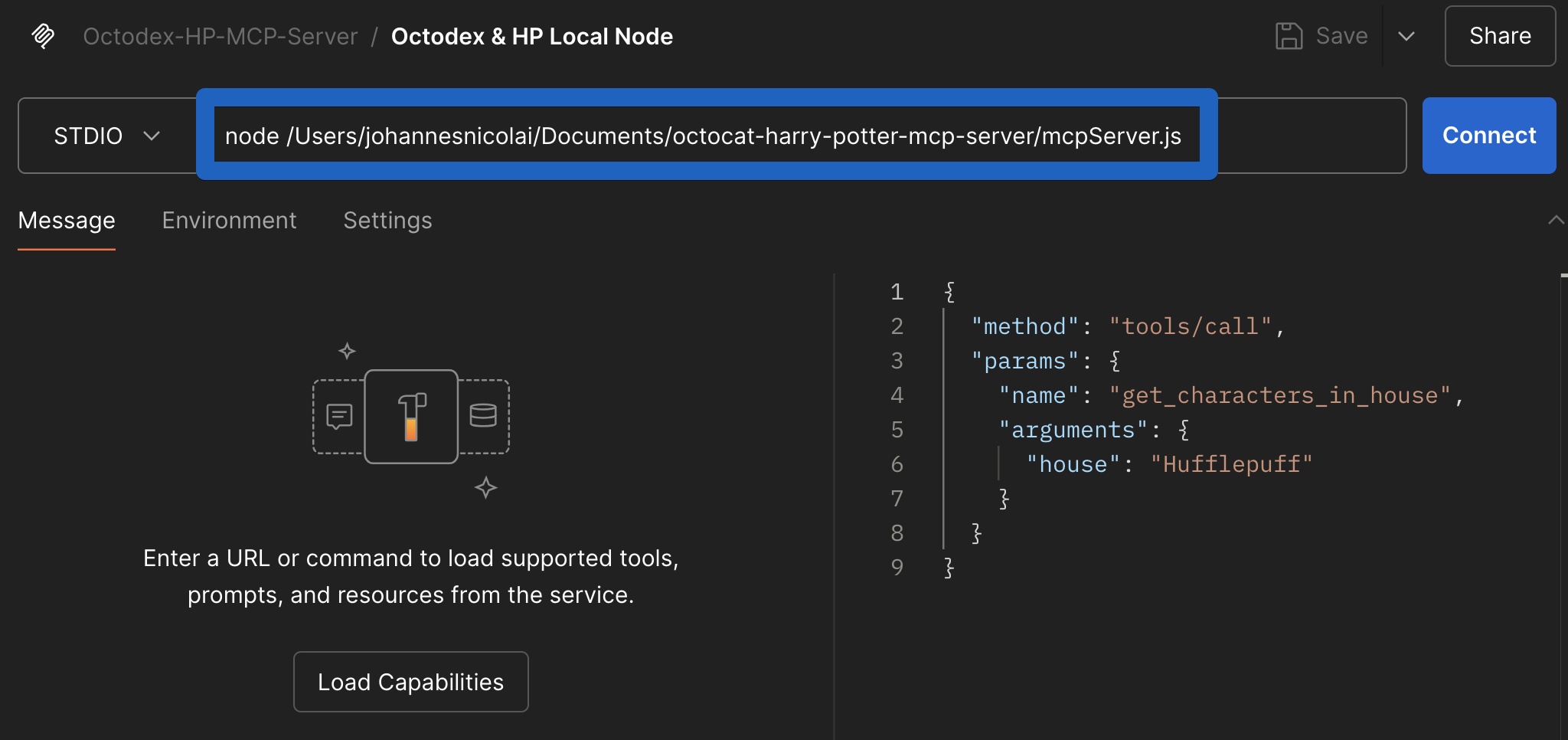
B) 👩💻 Run with Claude Desktop
To integrate with Claude Desktop:
Open Claude Desktop → Settings → Developers → Edit Config and add your server:
{
  "mcpServers": {
    "octocat-hp-mcp-server-local": {
      "command": "<absolute_path_to_node>",
      "args": ["<absolute_path_to_mcpServer.js>"]
    }
  }
}
e.g.
{
  "mcpServers": {
    "octocat-hp-mcp-server-local": {
      "command": "/usr/local/bin/node",
      "args": ["/Users/yourusername/octocat-harry-potter-mcp-server/mcpServer.js"]
    }
  }
}
Restart Claude Desktop to activate this change.
C) 🏃♂️ Run MCP Server in VSCode
In order to run the local MCP server in VSCode, you can adapt and start the octocat-hp-mcp-server-local server in the .vscode folder.
If you then select Agent mode in Co-Pilot Chat, the tools icon should should show API endpoints (tools) exposed by the octocat-hp-mcp-server-local server.
Additional Options
🐳 Docker Deployment (Production)
For production deployments, you can use Docker:
1. Build Docker image
docker build -t octocat-hp-mcp-server .
Add your environment variables (API keys, etc.) inside the .env file.
Test it locally:
docker run -i --rm --env-file .env octocat-hp-mcp-server
2. Claude Desktop Integration
Add Docker server configuration to Claude Desktop (Settings → Developers → Edit Config):
{
  "mcpServers": {
    "octocat-hp-mcp-server-docker": {
      "command": "docker",
      "args": ["run", "-i", "--rm", "--env-file=.env", "octocat-hp-mcp-server"]
    }
  }
}
3. VS Code Integration
In order to run the Docker MCP server in VSCode, you can adapt and start the octocat-hp-mcp-server-docker server in the .vscode folder.
If you then select Agent mode in Co-Pilot Chat, the tools icon should should show API endpoints (tools) exposed by the octocat-hp-mcp-server-docker server.
🌐 Server-Sent Events (SSE)
To run the server with Server-Sent Events (SSE) support, use the --sse flag:
node mcpServer.js --sse
To run with SSE in Docker and expose on port 9000:
docker run -i --rm -p 9000:9000 --env-file .env octocat-hp-mcp-server node mcpServer.js --sse
This will start the server in the background, mapping port 9000 on your host to port 9000 in the container, and enable SSE support.
🐳 Dockerfile (Included)
The project comes bundled with the following minimal Docker setup:
FROM node:22.12-alpine AS builder

WORKDIR /app
COPY package.json package-lock.json ./
RUN npm install

COPY . .

ENTRYPOINT ["node", "mcpServer.js"]
➕ Adding New Tools
Extend your agent with more tools easily:
- Visit Postman Agent Generator.
- Pick new API request(s), generate a new agent, and download it.
- Copy new generated tool(s) into your existing project's
tools/folder. - Update your
tools/paths.jsfile to include new tool references.
Example prompts and visualizations
prompts.md has some example prompts how to test the capabilities of the MCP server, which lead to visualizations like this
💬 Questions & Support
Visit the Postman Agent Generator page for updates and new capabilities.
Visit the Postman Community to share what you've built, ask questions and get help.
Installing Octocat Harry Potter
This server has no published package — it is built from source. Open the repository and follow its README.
▸ github.com/jonico/octocat-harry-potter-mcp-serverFAQ
Is Octocat Harry Potter MCP free?
Yes, Octocat Harry Potter MCP is free — one-click install via Unyly at no cost.
Does Octocat Harry Potter need an API key?
No, Octocat Harry Potter runs without API keys or environment variables.
Is Octocat Harry Potter hosted or self-hosted?
Self-hosted: the server runs locally on your machine via the install command above.
How do I install Octocat Harry Potter in Claude Desktop, Claude Code or Cursor?
Open Octocat Harry Potter on unyly.org, pick your client tab (Claude Desktop, Claude Code, Cursor) and press Install — the config is generated automatically, no JSON editing.
Related MCPs
GitHub
PRs, issues, code search, CI status
 by GitHub
Filesystem
Secure file operations with configurable access controls.
Memory
Knowledge graph-based persistent memory system.
Template MCP Server
A CLI tool to create a new Model Context Protocol server project with TypeScript support, dual transport options, and an extensible structure
 by mcpdotdirect
Compare Octocat Harry Potter with
Not sure what to pick?
Find your stack in 60 seconds
Author?
Embed badge for your README
Browse similar
All development MCPs