
PSPDFKit/nutrient-dws-mcp-server
FreeNot checkedMCP server for the Nutrient DWS Processor API. Convert, merge, redact, sign, OCR, watermark, and extract data from PDFs and Office documents via natural languag

About
MCP server for the Nutrient DWS Processor API. Convert, merge, redact, sign, OCR, watermark, and extract data from PDFs and Office documents via natural language. Works with Claude Desktop, LangGraph, and OpenAI Agents.
README
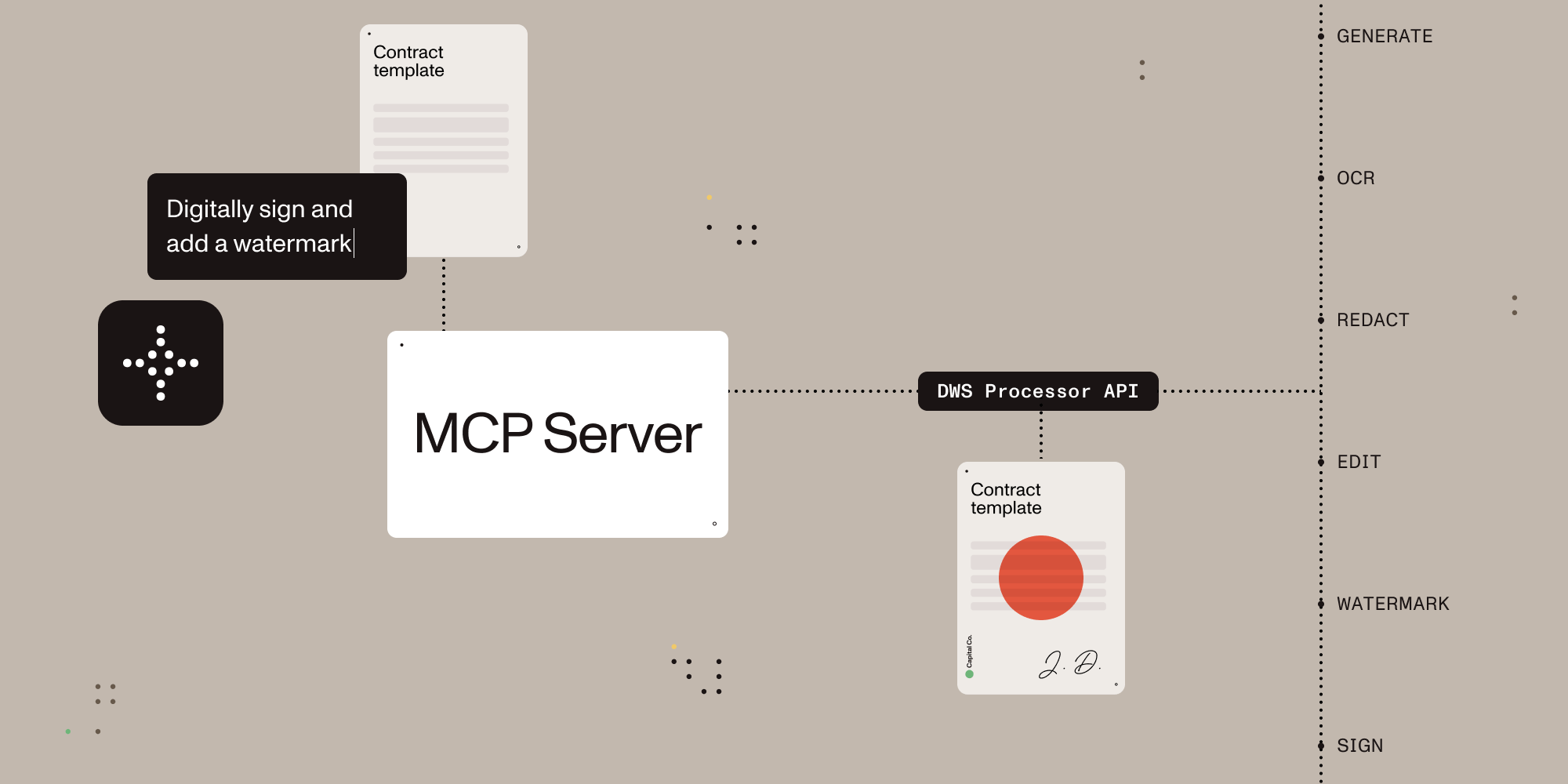
Give AI agents the power to process, sign, and transform documents.
Description
A Model Context Protocol (MCP) server that connects AI assistants to the Nutrient Document Web Service (DWS) Processor API — enabling document creation, editing, conversion, digital signing, OCR, redaction, and more through natural language.
Features
- Local stdio MCP server for Claude Desktop and other MCP-compatible clients
- Browser-based OAuth on the first request that uses the Nutrient API, with optional API-key fallback for CI and headless environments
- Document conversion, OCR, extraction, redaction, watermarking, annotation flattening, and digital signing
- Sandbox-aware local file handling with explicit output paths
- Read-only account lookup for DWS credits and usage
What You Can Do
Once configured, you (or your AI agent) can process documents through natural language:
You: "Merge report-q1.pdf and report-q2.pdf into a single document" AI: "Done! I've merged both reports into combined-report.pdf (24 pages total)."
You: "Redact all social security numbers and email addresses from application.pdf" AI: "I found and redacted 5 SSNs and 3 email addresses. The redacted version is saved as application-redacted.pdf."
You: "Digitally sign this contract with a visible signature on page 3" AI: "I've applied a PAdES-compliant digital signature to contract.pdf. The signed document is saved as contract-signed.pdf."
You: "Convert this PDF to markdown" AI: "Here's the markdown content extracted from your document..."
You: "OCR this scanned document in German and extract the text" AI: "I've processed the scan with German OCR. Here's the extracted text..."
Installation
Install it from Claude Desktop Settings -> Extensions if you are using Claude Desktop. If you are developing locally, use the manual setup below.
1. Create a Nutrient Account
Sign up for free at nutrient.io/api.
For local desktop use, the recommended path is to omit NUTRIENT_DWS_API_KEY and complete the browser sign-in flow on the first request that uses the Nutrient API. For CI, headless environments, or scripted setups, create an API key in the dashboard and set NUTRIENT_DWS_API_KEY.
2. Configure Your AI Client
Choose your platform and add the configuration:
Claude Desktop
Open Settings → Developer → Edit Config, then add:
macOS: ~/Library/Application Support/Claude/claude_desktop_config.json
Windows: %APPDATA%\Claude\claude_desktop_config.json
{
  "mcpServers": {
    "nutrient-dws": {
      "command": "npx",
      "args": ["-y", "@nutrient-sdk/dws-mcp-server"],
      "env": {
        "SANDBOX_PATH": "/your/sandbox/directory",
        // "C:\\your\\sandbox\\directory" for Windows
        // Optional for CI or headless usage:
        // "NUTRIENT_DWS_API_KEY": "YOUR_API_KEY_HERE"
      },
    },
  },
}
Cursor
Create .cursor/mcp.json in your project root:
{
  "mcpServers": {
    "nutrient-dws": {
      "command": "npx",
      "args": ["-y", "@nutrient-sdk/dws-mcp-server"],
      "env": {
        "SANDBOX_PATH": "/your/project/documents",
        // "C:\\your\\project\\documents" for Windows
        // Optional for CI or headless usage:
        // "NUTRIENT_DWS_API_KEY": "YOUR_API_KEY_HERE"
      },
    },
  },
}
Windsurf
Add to ~/.codeium/windsurf/mcp_config.json:
{
  "mcpServers": {
    "nutrient-dws": {
      "command": "npx",
      "args": ["-y", "@nutrient-sdk/dws-mcp-server"],
      "env": {
        "SANDBOX_PATH": "/your/sandbox/directory",
        // "C:\\your\\sandbox\\directory" for Windows
        // Optional for CI or headless usage:
        // "NUTRIENT_DWS_API_KEY": "YOUR_API_KEY_HERE"
      },
    },
  },
}
VS Code (GitHub Copilot)
Create .vscode/mcp.json in your project, or add the same server definition to your user mcp.json profile:
{
  "servers": {
    "nutrient-dws": {
      "type": "stdio",
      "command": "npx",
      "args": ["-y", "@nutrient-sdk/dws-mcp-server"],
      "env": {
        "SANDBOX_PATH": "${workspaceFolder}",
        // Optional for CI or headless usage:
        // "NUTRIENT_DWS_API_KEY": "YOUR_API_KEY_HERE"
      },
    },
  },
}
Other MCP Clients
Any MCP-compatible client can connect using stdio transport:
SANDBOX_PATH=/your/path npx @nutrient-sdk/dws-mcp-server

# Optional for CI or headless usage:
NUTRIENT_DWS_API_KEY=your_key SANDBOX_PATH=/your/path npx @nutrient-sdk/dws-mcp-server
3. Restart Your AI Client
Restart the application to pick up the new MCP server configuration.
4. Start Processing Documents
Place documents in your sandbox directory and use explicit file names or paths in prompts. Explicit paths are safer and more reliable than vague file-browsing requests.
Available Tools
| Tool | Description |
|---|---|
document_processor |
Document processing for conversions, OCR, watermarking, rotation, annotation flattening, and redaction workflows |
parse_document |
Structured data extraction (DWS Data Extraction API): typed JSON elements with bounding boxes and confidence, or whole-document Markdown |
extract_fields |
Schema-guided field extraction (DWS Data Extraction API): pulls specific named fields into a JSON shape you define, with per-field citations |
document_signer |
PDF signing with CMS / PKCS#7 and CAdES signatures plus visible or invisible appearance options |
ai_redactor |
AI redaction for detecting and permanently removing sensitive content such as names, addresses, SSNs, emails, and custom criteria |
check_credits |
Read-only account lookup for current DWS credits and usage. No document content is uploaded |
sandbox_file_tree |
Read-only view of files inside the configured sandbox directory |
directory_tree |
Read-only view of local files when sandbox mode is disabled. Sandbox mode is strongly recommended |
Document Processor Capabilities
| Feature | Description |
|---|---|
| Document Creation | Merge PDFs, Office docs (DOCX, XLSX, PPTX), and images into a single document |
| Format Conversion | PDF ↔ DOCX, images (PNG, JPEG, WebP), PDF/A, PDF/UA, HTML, Markdown |
| Editing | Watermark (text/image), rotate pages, flatten annotations |
| Security | Redact sensitive data (SSNs, credit cards, emails, etc.), password protection, permission control |
| Data Extraction | Now a dedicated tool — see Data Extraction (parse_document) for typed JSON/Markdown with coordinates and confidence |
| OCR | Multi-language optical character recognition for scanned documents |
| Optimization | Compress and linearize PDFs without quality loss |
| Annotations | Import XFDF annotations, flatten annotations |
| Digital Signing | PAdES-compliant CMS and CAdES digital signatures (via document_signer tool) |
Data Extraction
The parse_document and extract_fields tools wrap the DWS Data Extraction API and authenticate as follows:
- OAuth (no
NUTRIENT_DWS_API_KEYset): the same browser-flow token used by every other tool also covers Data Extraction. No extra configuration is needed. - Static API key: Data Extraction is a separate product with its own tenant, so the Processor key in
NUTRIENT_DWS_API_KEYcannot be reused. SetNUTRIENT_DWS_EXTRACTION_API_KEYto a Data Extraction key from the dashboard. Without it,parse_documentandextract_fieldsreturn an error instead of calling the API.
parse_document runs one of four processing modes:
| Mode | Output | OCR | Cost per page |
|---|---|---|---|
text |
Markdown only | No | 1 credit |
structure |
Spatial or Markdown | Yes | 1.5 credits |
understand (default) |
Spatial or Markdown | Yes (AI-augmented) | 9 credits |
agentic |
Spatial or Markdown | Yes (VLM) | 18 credits |
- Spatial output returns typed elements (paragraphs, tables, key-value regions, formulas, pictures, handwriting) with bounding boxes, confidence scores, and reading order. Because the element list can be large, it is written to
outputPathand the tool returns a content-free summary (element counts, low-confidence flags, page geometry). - Markdown output returns whole-document Markdown inline, or writes it to
outputPathwhen provided (recommended for large documents) — useful for RAG and search indexing. - Both at once: pass
formats: ["spatial", "markdown"]instead offormatto getoutput.elementsandoutput.markdownin one call. The second format is billed at no extra cost.outputPathis required (as for spatial alone); the summary also reports the markdown byte length.
The document can be supplied either as filePath (uploaded from the local file system or sandbox) or url (fetched directly by the API) — provide exactly one.
Additional options:
language— OCR language(s) forstructure/understand/agenticmodes; left unset, the API auto-detects.maxLanguages/maxScriptscap how many languages/scripts auto-detection considers, and only apply whenlanguageis left unset.- Markdown-only formatting:
useHtmlTables(defaulttrue),enableSemanticBlockFormatting(defaulttrue),includeHeadersAndFooters(defaultfalse),extractWordsFromPictures(defaultfalse). - Each response reports Data Extraction credit usage. These are a separate balance from the Processor API credits reported by
check_credits.
Note: Extracted content returned inline (Markdown output, or
extract_fieldsresults) enters the conversation and may be logged by the host. For sensitive documents, prefer spatial output to a file plus targetedextract_fieldscalls.
Schema-Guided Extraction (extract_fields)
Where parse_document parses a whole document into elements or Markdown, extract_fields pulls out only the fields you name. Pass a JSON schema (schema) whose root is type: "object" with properties — the response's output.data matches that shape, e.g. { invoiceNumber, total, lineItems: [...] }.
- Supported schema keywords:
type,properties,required,items,description, stringenum, andformat: "date".$ref/$defsand composition/conditional keywords (allOf/anyOf/oneOf/if/then/else) are rejected. Schemas are closed — do not setadditionalPropertiesyourself. Limits: 32 KB serialized, 500 fields, 50 properties per object, 5 nesting levels, enum values capped at 50. moderuns the parse feeding the extraction:structure(1.5 credits/page),understand(default, 9 credits/page), oragentic(18 credits/page) — notextmode, since schema-guided extraction needs the structural parse text mode skips. Total cost per page is that parse component plus a fixed extract component, in Data Extraction credits.output.datais always returned inline, pretty-printed — it is the answer, bounded by your own schema. Alongside it, a citation match summary reports how each field was grounded (id_match,id_match_multiblock,id_match_partial,fuzzy_match,not_found) and lists which field paths came backnot_found(capped at 10, then "+N more"). Field paths come from your schema, not the document, so this leaks no document content.- Per-field citations (bounding box, confidence, match quality) and page geometry are only kept when
outputPathis set — they can be large and add little without the document open alongside them. WithoutoutputPath, a note says they were omitted. includeCitations(server defaulttrue),strict(defaultfalse), andmultimodal(defaultfalse, increases cost/latency) are only sent when you set them explicitly.instructions(free text, up to 10000 characters) adds guidance for ambiguous fields.language/maxLanguages/maxScriptstune OCR the same way asparse_document.
Usage Examples
These examples assume your files live inside the configured sandbox and that you use explicit paths.
Example 1: HTML -> PDF -> signing
User prompt: Convert /path/to/sandbox/invoice.html to PDF and save it as /path/to/sandbox/invoice.pdf. Then digitally sign /path/to/sandbox/invoice.pdf with a visible signature and save it as /path/to/sandbox/invoice-signed.pdf.
What happens: The server uploads the HTML file to Nutrient, saves the generated PDF in the sandbox, then signs that PDF and writes the signed result back to the requested output path.
Example 2: OCR extraction
User prompt: Run OCR on /path/to/sandbox/scanned-contract.pdf, return the extracted text, and save the OCR'd file as /path/to/sandbox/scanned-contract-ocr.pdf.
What happens: The server sends the scanned PDF to Nutrient for OCR, returns the extracted text in Claude, and writes the OCR-processed file back to the sandbox for later use.
Example 3: Check credits -> process -> inspect output
User prompt: Check my Nutrient credits, convert /path/to/sandbox/report.docx to PDF, save it as /path/to/sandbox/report.pdf, and then tell me where the output file was written.
What happens: The server first performs a read-only account lookup, then converts the DOCX file to PDF, saves the result in the sandbox, and tells the user exactly where the output file was written.
Use with AI Agent Frameworks
This MCP server works with any platform that supports the Model Context Protocol:
- Claude Desktop — Direct MCP integration
- Cursor — AI-powered IDE with MCP support
- Windsurf — AI-powered IDE with MCP support
- VS Code + Copilot — GitHub Copilot MCP integration
- LangChain / LangGraph — Via MCP tool adapters
- OpenAI Agents SDK — Via MCP server integration
- Custom agents — Any MCP-compatible system
Why Nutrient?
The Read-Write Gap
AI can read and understand documents — but most tools stop there. Nutrient gives AI agents the ability to actually manipulate documents: merge, redact, sign, watermark, convert formats, extract structured data, and more.
- Beyond PDF reading — Not just text extraction. Full document creation, editing, and transformation.
- Production-grade — Trusted by thousands of companies for mission-critical document processing.
- Standards-compliant — PAdES digital signatures, PDF/A archiving, PDF/UA accessibility.
- Cloud-native — No infrastructure to manage. Send documents to the API, get results back.
- Comprehensive redaction — Built-in presets for SSNs, credit cards, phone numbers, emails, dates, and more.
- Multi-format — Process PDFs, Office documents, images, HTML, and Markdown.
Configuration
Sandbox Mode (Recommended)
The server supports sandbox mode that restricts file operations to a specific directory. Set the SANDBOX_PATH environment variable to enable it:
export SANDBOX_PATH=/path/to/sandbox/directory
npx @nutrient-sdk/dws-mcp-server
Supported CLI flags are --sandbox <dir> and -s <dir>. Unrecognized flags cause a startup error.
When sandbox mode is enabled:
- Relative paths resolve relative to the sandbox directory
- All input file paths are validated to ensure they reside in the sandbox
- Processed files are saved within the sandbox
Note: If no sandbox directory is specified, the server operates without file path restrictions. Sandbox mode is strongly recommended for security.
Output Location
Processed files are saved to a location determined by the AI. To guide output placement, use explicit output paths such as save the result to /path/to/sandbox/output/result.pdf or create an output directory in your sandbox.
Authentication
The server authenticates to the Nutrient DWS API (https://api.nutrient.io) using one of:
| Method | When | Config |
|---|---|---|
| API key | NUTRIENT_DWS_API_KEY is set |
Static key passed as Bearer token to DWS API |
| OAuth browser flow | No API key set | Opens browser for Nutrient OAuth consent on the first request that uses the Nutrient API, caches token locally |
When no API key is configured, the server stays connected and opens a browser-based OAuth flow on the first request that uses the Nutrient API (similar to gh auth login). Tokens are cached at $XDG_CONFIG_HOME/nutrient/credentials.json or ~/.config/nutrient/credentials.json and refreshed automatically.
Data Extraction (parse_document, extract_fields) is a separate product with its own tenant. Under OAuth, one token covers both products — nothing extra to configure. Under a static API key, the Processor key in NUTRIENT_DWS_API_KEY cannot be reused for extraction; set NUTRIENT_DWS_EXTRACTION_API_KEY to a Data Extraction key from the dashboard, or omit NUTRIENT_DWS_API_KEY entirely to use OAuth instead.
Setting only NUTRIENT_DWS_EXTRACTION_API_KEY (with no NUTRIENT_DWS_API_KEY) runs the server in extraction-only mode: parse_document and extract_fields work normally, while the Processor tools (document_processor, document_signer, ai_redactor, check_credits) return an error instead of calling the API.
Environment Variables
| Variable | Required | Description |
|---|---|---|
NUTRIENT_DWS_API_KEY |
No* | Nutrient DWS API key (get one free) |
NUTRIENT_DWS_EXTRACTION_API_KEY |
Only with a static key† | Data Extraction API key from the dashboard (starts with pdf_live_), needed for parse_document / extract_fields |
SANDBOX_PATH |
Recommended | Directory to restrict file operations to |
AUTH_SERVER_URL |
No | OAuth server base URL (default: https://api.nutrient.io) |
CLIENT_ID |
No | OAuth client ID. Skips DCR and enables refresh token reuse when set |
DWS_API_BASE_URL |
No | DWS API base URL (default: https://api.nutrient.io) |
LOG_LEVEL |
No | Winston logger level (info default). Logs are written to MCP_LOG_FILE in stdio mode |
MCP_LOG_FILE |
No | Override log file path (default: system temp directory) |
* If omitted, the server uses an OAuth browser flow to authenticate with the Nutrient API.
† Only relevant when NUTRIENT_DWS_API_KEY is set — Data Extraction is a separate product/tenant, so the Processor key cannot also authenticate it. Not needed under OAuth, which covers both products with one token.
Data Handling
What Stays Local
- The MCP server process, sandbox enforcement, and file path resolution run on the local machine.
sandbox_file_treeanddirectory_treeinspect local files only. They do not upload document contents to Nutrient.- API keys and OAuth credentials are stored locally on the machine running the MCP server.
What Gets Sent to Nutrient
document_processor,document_signer, andai_redactorupload the document files and processing instructions to the Nutrient DWS API so the requested operation can run.check_creditssends an authenticated account lookup but does not upload document files.- Processed results are written back to the local output path you request.
Security Note: Token Storage
When using the OAuth browser flow, access tokens and refresh tokens are cached in plaintext at $XDG_CONFIG_HOME/nutrient/credentials.json or ~/.config/nutrient/credentials.json (permissions 0600). This file contains credentials equivalent to your API key. Do not commit it to version control or include it in shared backups.
Privacy Policy
This extension reads files from the local sandbox, sends document contents and processing instructions to Nutrient when you invoke document tools, and stores API keys or OAuth credentials locally on the machine running the MCP server.
Nutrient's privacy policy is available at nutrient.io/legal/privacy.
Support
For product or account support, contact Nutrient at nutrient.io/company/contact.
For bugs or feature requests specific to this MCP package, use GitHub issues.
Troubleshooting
Reset authentication to a clean state
If OAuth authentication stops working, delete the cached token file to start fresh:
rm "${XDG_CONFIG_HOME:-$HOME/.config}/nutrient/credentials.json"
The server will automatically register a new client and open the browser for consent on the next tool call.
FAQ
Server not appearing in Claude Desktop?
- Ensure Node.js 18+ is installed (
node --version) - Check the config file path is correct for your OS
- Restart Claude Desktop completely (check Task Manager/Activity Monitor)
Browser doesn't open for OAuth login?
- This happens in headless or remote environments (SSH, Docker, CI). Set
NUTRIENT_DWS_API_KEYinstead — the server skips the browser flow when an API key is configured. - On macOS, ensure a default browser is set in System Settings → Desktop & Dock → Default web browser.
Asked to sign in again after upgrading?
- To support Data Extraction (
parse_document,extract_fields), the server now requests a broader OAuth scope so a single token covers both the Processor and Data Extraction products. Tokens cached by an older version predate that scope, so the server prompts for consent once more on the next tool call. This is expected and happens only once — the new token is cached and refreshed as usual. - In headless or CI environments where the browser can't open for that one-time consent, set
NUTRIENT_DWS_API_KEY(andNUTRIENT_DWS_EXTRACTION_API_KEYfor Data Extraction) to skip the OAuth flow.
"Token exchange failed" or "OAuth authorization failed"?
- Delete
${XDG_CONFIG_HOME:-$HOME/.config}/nutrient/credentials.jsonand try again. - If using a custom
AUTH_SERVER_URL, verify the server is reachable and its/oauth/tokenendpoint is working.
"Dynamic client registration failed"?
- If using a custom
AUTH_SERVER_URL, verify it is reachable. - Ensure the custom auth server supports RFC 7591 Dynamic Client Registration at its
/oauth/registerendpoint.
"API key invalid" errors?
- Verify your API key at dashboard.nutrient.io
- Ensure the key is set correctly in the
envsection (no extra spaces)
Token expired but refresh fails?
- The server automatically refreshes expired tokens using the cached refresh token. If refresh fails (e.g., the refresh token was revoked), delete
${XDG_CONFIG_HOME:-$HOME/.config}/nutrient/credentials.json— the server will re-authenticate via the browser on the next call.
Files not found?
- Check that
SANDBOX_PATHpoints to an existing directory - Ensure your documents are inside the sandbox directory
- Ask the assistant to inspect the configured sandbox, or inspect the sandbox directory directly
Contributing
Please see the contribution guidelines in CONTRIBUTING.md.
License
MIT License — see LICENSE for details.
Installing PSPDFKit/nutrient-dws-mcp-server
This server has no published package — it is built from source. Open the repository and follow its README.
▸ github.com/PSPDFKit/nutrient-dws-mcp-serverFAQ
Is PSPDFKit/nutrient-dws-mcp-server MCP free?
Yes, PSPDFKit/nutrient-dws-mcp-server MCP is free — one-click install via Unyly at no cost.
Does PSPDFKit/nutrient-dws-mcp-server need an API key?
No, PSPDFKit/nutrient-dws-mcp-server runs without API keys or environment variables.
Is PSPDFKit/nutrient-dws-mcp-server hosted or self-hosted?
Self-hosted: the server runs locally on your machine via the install command above.
How do I install PSPDFKit/nutrient-dws-mcp-server in Claude Desktop, Claude Code or Cursor?
Open PSPDFKit/nutrient-dws-mcp-server on unyly.org, pick your client tab (Claude Desktop, Claude Code, Cursor) and press Install — the config is generated automatically, no JSON editing.
Related MCPs
Fetch
Web content fetching and conversion for efficient LLM usage.
AWS KB Retrieval
Retrieval from AWS Knowledge Base using Bedrock Agent Runtime.
 by modelcontextprotocol
Spring AI MCP Server
Provides auto-configuration for setting up an MCP server in Spring Boot applications.
llm-analysis-assistant
A very streamlined mcp client that supports calling and monitoring stdio/sse/streamableHttp, and can also view request responses through the /logs page. It also
 by xuzexin-hz
Compare PSPDFKit/nutrient-dws-mcp-server with
Not sure what to pick?
Find your stack in 60 seconds
Author?
Embed badge for your README
Browse similar
All ai MCPs