
Synology
FreeNot checked💾 Model Context Protocol (MCP) server for Synology NAS - Enables AI assistants (Claude, Cursor, Continue) to manage files, downloads, and system operations thr

About
💾 Model Context Protocol (MCP) server for Synology NAS - Enables AI assistants (Claude, Cursor, Continue) to manage files, downloads, and system operations through secure API integration. Features Docker deployment, auto-authentication, and comprehensive file system tools.
README
A Model Context Protocol (MCP) server for Synology NAS devices. Enables AI assistants to manage files and downloads through secure authentication and session management.
🌟 NEW: Unified server supports both Claude/Cursor (stdio) and Xiaozhi (WebSocket) simultaneously!
🚀 Quick Start with Docker
1️⃣ Setup Environment
# Clone repository
git clone https://github.com/atom2ueki/mcp-server-synology.git
cd mcp-server-synology

# Create environment file
cp env.example .env
2️⃣ Configure .env File
Basic Configuration (Claude/Cursor only):
# Required: Synology NAS connection
SYNOLOGY_URL=http://192.168.1.100:5000
SYNOLOGY_USERNAME=your_username
SYNOLOGY_PASSWORD=your_password

# Optional: Auto-login on startup
AUTO_LOGIN=true
VERIFY_SSL=false
Extended Configuration (Both Claude/Cursor + Xiaozhi):
# Required: Synology NAS connection
SYNOLOGY_URL=http://192.168.1.100:5000
SYNOLOGY_USERNAME=your_username
SYNOLOGY_PASSWORD=your_password

# Optional: Auto-login on startup
AUTO_LOGIN=true
VERIFY_SSL=false

# Enable Xiaozhi support
ENABLE_XIAOZHI=true
XIAOZHI_TOKEN=your_xiaozhi_token_here
XIAOZHI_MCP_ENDPOINT=wss://api.xiaozhi.me/mcp/
3️⃣ Run with Docker
One simple command supports both modes:
# Claude/Cursor only mode (default if ENABLE_XIAOZHI not set)
docker-compose up -d

# Both Claude/Cursor + Xiaozhi mode (if ENABLE_XIAOZHI=true in .env)
docker-compose up -d

# Build and run
docker-compose up -d --build
4️⃣ Alternative: Local Python
# Install dependencies
pip install -r requirements.txt

# Run with environment control
python main.py
🔌 Client Setup
🤖 Claude Desktop
Add to your Claude Desktop configuration file:
macOS: ~/Library/Application Support/Claude/claude_desktop_config.json
Windows: %APPDATA%\Claude\claude_desktop_config.json
{
  "mcpServers": {
    "synology": {
      "command": "docker-compose",
      "args": [
        "-f", "/path/to/your/mcp-server-synology/docker-compose.yml",
        "run", "--rm", "synology-mcp"
      ],
      "cwd": "/path/to/your/mcp-server-synology"
    }
  }
}
↗️ Cursor
Add to your Cursor MCP settings:
{
  "mcpServers": {
    "synology": {
      "command": "docker-compose",
      "args": [
        "-f", "/path/to/your/mcp-server-synology/docker-compose.yml",
        "run", "--rm", "synology-mcp"
      ],
      "cwd": "/path/to/your/mcp-server-synology"
    }
  }
}
🔄 Continue (VS Code Extension)
Add to your Continue configuration (.continue/config.json):
{
  "mcpServers": {
    "synology": {
      "command": "docker-compose",
      "args": [
        "-f", "/path/to/your/mcp-server-synology/docker-compose.yml",
        "run", "--rm", "synology-mcp"
      ],
      "cwd": "/path/to/your/mcp-server-synology"
    }
  }
}
💻 Codeium
For Codeium's MCP support:
{
  "mcpServers": {
    "synology": {
      "command": "docker-compose",
      "args": [
        "-f", "/path/to/your/mcp-server-synology/docker-compose.yml",
        "run", "--rm", "synology-mcp"
      ],
      "cwd": "/path/to/your/mcp-server-synology"
    }
  }
}
🐍 Alternative: Direct Python Execution
If you prefer not to use Docker:
{
  "mcpServers": {
    "synology": {
      "command": "python",
      "args": ["main.py"],
      "cwd": "/path/to/your/mcp-server-synology",
      "env": {
        "SYNOLOGY_URL": "http://192.168.1.100:5000",
        "SYNOLOGY_USERNAME": "your_username",
        "SYNOLOGY_PASSWORD": "your_password",
        "AUTO_LOGIN": "true",
        "ENABLE_XIAOZHI": "false"
      }
    }
  }
}
🌐 Remote HTTP/SSE Deployment (NEW)
By default the server speaks stdio, which means the MCP client has to spawn the process locally (or via a bridge such as SSH/docker exec). For setups where the NAS is remote (different machine from where Claude/Cursor runs), you can expose the MCP server over HTTP/SSE using mcp-proxy. This makes it consumable by any MCP client that supports URL-based connectors — exactly like ha-mcp or other "remote" MCP servers.
Architecture
[Claude Desktop / Cursor / ...]
        │
        │ HTTPS (URL connector)
        ▼
[Reverse proxy: DSM / Nginx / Traefik / Caddy]
        │  (TLS termination + auth)
        │ HTTP localhost:8765
        ▼
[Docker container]
  └─ mcp-proxy
       └─ python main.py (stdio)
Deploy
mcp-proxyis installed automatically when you build the HTTP image — it lives inrequirements-http.txtand the provided compose file sets theINSTALL_HTTP=truebuild arg (it is not in the default stdio/Xiaozhi image).- Use the provided
docker-compose.http.yml:
# Edit credentials in docker-compose.http.yml first
docker compose -f docker-compose.http.yml up -d --build
docker logs -f synology-mcp-http
You should see mcp-proxy report Uvicorn running on http://0.0.0.0:8765 and the auto-login succeed.
Reverse proxy
Most MCP clients require HTTPS, so the HTTP endpoint must be fronted by a TLS-terminating reverse proxy. For DSM users, the built-in Login Portal → Reverse Proxy does the job:
- Source:
HTTPS, hostnamesynology-mcp.example.com, port443 - Destination:
HTTP,localhost, port8765 - Custom Headers: click Create → WebSocket (adds the headers needed for SSE/long-lived connections)
For Nginx, the equivalent is:
location / {
    proxy_pass http://localhost:8765;
    proxy_http_version 1.1;
    proxy_set_header Host $host;
    proxy_set_header X-Real-IP $remote_addr;
    proxy_set_header X-Forwarded-For $proxy_add_x_forwarded_for;
    proxy_set_header X-Forwarded-Proto $scheme;
    # SSE-specific
    proxy_buffering off;
    proxy_cache off;
    proxy_read_timeout 24h;
}
Client configuration
In Claude Desktop (or any MCP client that supports remote connectors), add a custom connector pointing at:
https://synology-mcp.example.com/sse
No command, no args, no local Python — just a URL.
Security
mcp-proxy does not provide server-side authentication. Anything that can reach the HTTP endpoint can call every tool. Mitigations:
- Keep it on a private network or behind a VPN
- Use the reverse proxy to enforce an IP allow-list
- Add Basic Auth / mTLS / OAuth2 proxy at the reverse proxy layer
- Use a dedicated low-privilege DSM user (already recommended in the security warning above)
🌟 Xiaozhi Integration
New unified architecture supports both clients simultaneously!
How It Works
- ENABLE_XIAOZHI=false (default): Standard MCP server for Claude/Cursor via stdio
- ENABLE_XIAOZHI=true: Multi-client bridge supporting both:
- 📡 Xiaozhi: WebSocket connection
- 💻 Claude/Cursor: stdio connection
Setup Steps
- Add to your .env file:
ENABLE_XIAOZHI=true
XIAOZHI_TOKEN=your_xiaozhi_token_here
- Run normally:
# Same command, different behavior based on environment
python main.py
# OR
docker-compose up
Key Features
- ✅ Zero Configuration Conflicts: One server, multiple clients
- ✅ Parallel Operation: Both clients can work simultaneously
- ✅ All Tools Available: Xiaozhi gets access to all Synology MCP tools
- ✅ Backward Compatible: Existing setups work unchanged
- ✅ Auto-Reconnection: Handles WebSocket connection drops
- ✅ Environment Controlled: Simple boolean flag to enable/disable
Startup Messages
Claude/Cursor only mode:
🚀 Synology MCP Server
==============================
📌 Claude/Cursor only mode (ENABLE_XIAOZHI=false)
Both clients mode:
🚀 Synology MCP Server with Xiaozhi Bridge
==================================================
🌟 Supports BOTH Xiaozhi and Claude/Cursor simultaneously!
🛠️ Available MCP Tools
🔐 Authentication
synology_status- Check authentication status and active sessionssynology_list_nas- List all configured NAS units from settings.jsonsynology_login- Authenticate with Synology NAS (conditional)synology_logout- Logout from session (conditional)
📁 File System Operations
list_shares- List all available NAS shareslist_directory- List directory contents with metadatapath(required): Directory path starting with/
get_file_info- Get detailed file/directory informationpath(required): File path starting with/
search_files- Recursively search for files and folders by namepath(required): Search directorypattern(required): Case-insensitive substring of the name (e.g.,invoice,.pdf). Wildcards are not special — DSM matchesreportand*report*identically.
create_file- Create new files with contentpath(required): Full file path starting with/content(optional): File content (default: empty string)overwrite(optional): Overwrite existing files (default: false)
create_directory- Create new directoriesfolder_path(required): Parent directory path starting with/name(required): New directory nameforce_parent(optional): Create parent directories if needed (default: false)
delete- Delete files or directories (auto-detects type)path(required): File/directory path starting with/
rename_file- Rename files or directoriespath(required): Current file pathnew_name(required): New filename
move_file- Move files to new locationsource_path(required): Source file pathdestination_path(required): Destination pathoverwrite(optional): Overwrite existing files
📥 Download Station Management
ds_get_info- Get Download Station informationds_list_tasks- List all download tasks with statusoffset(optional): Pagination offsetlimit(optional): Max tasks to return
ds_create_task- Create new download taskuri(required): Download URL or magnet linkdestination(optional): Download folder path
ds_pause_tasks- Pause download taskstask_ids(required): Array of task IDs
ds_resume_tasks- Resume paused taskstask_ids(required): Array of task IDs
ds_delete_tasks- Delete download taskstask_ids(required): Array of task IDsforce_complete(optional): Force delete completed
ds_get_statistics- Get download/upload statistics
🏥 Health Monitoring
synology_system_info- Get system model, serial, DSM version, uptime, temperaturesynology_utilization- Get real-time CPU, memory, swap, and disk I/O utilizationsynology_disk_health- List all physical disks with SMART status, model, temp, sizesynology_disk_smart- Get detailed SMART attributes for a specific disksynology_volume_status- List all volumes with status, size, usage, filesystem typesynology_storage_pool- List RAID/storage pools with level, status, member diskssynology_network- Get network interface status and transfer ratessynology_ups- Get UPS status, battery level, power readingssynology_services- List installed packages and their running statussynology_system_log- Get recent system log entriessynology_health_summary- Aggregate system info, utilization, disk health, and volume status
🐳 Container Manager
synology_container_list- List Container Manager containersoffset(optional): Pagination offsetlimit(optional): Maximum containers to returncontainer_type(optional): Container filter (default:all)
synology_container_get- Get a Container Manager containername(required): Container name
synology_container_start- Start a Container Manager containername(required): Container name
synology_container_stop- Stop a Container Manager containername(required): Container name
synology_container_restart- Restart a Container Manager containername(required): Container name
synology_container_delete- Delete a Container Manager containername(required): Container nameforce(optional): Force deletion (default: false)preserve_profile(optional): Preserve Synology container profile (default: true)
synology_container_logs- Get Container Manager container logsname(required): Container namesince(optional): Log start time/filteroffset(optional): Pagination offset (default: 0)limit(optional): Maximum log lines to return (default: 1000)
synology_container_resource- Get real-time resource usage for a Container Manager containername(required): Container name
synology_container_project_list- List Container Manager projectssynology_container_project_get- Get a Container Manager projectname(required): Project name
synology_container_project_create- Create a Container Manager projectname(required): Project nameshare_path(required): Project folder path on the NAScontent(required): Docker Compose YAML contentenable_service_portal(optional): Enable Synology service portal (default: false)service_portal_name(optional): Service portal nameservice_portal_port(optional): Service portal portservice_portal_protocol(optional): Service portal protocol (default:http)
synology_container_project_update- Update a Container Manager projectname(required): Project namecontent(required): Docker Compose YAML contentenable_service_portal(optional): Enable Synology service portalservice_portal_name(optional): Service portal nameservice_portal_port(optional): Service portal portservice_portal_protocol(optional): Service portal protocol
synology_container_project_start- Start a Container Manager projectname(required): Project name
synology_container_project_stop- Stop a Container Manager projectname(required): Project name
synology_container_project_restart- Restart a Container Manager projectname(required): Project name
synology_container_project_build- Build a Container Manager projectname(required): Project name
synology_container_project_clean- Clean a Container Manager projectname(required): Project name
synology_container_project_delete- Delete a Container Manager projectname(required): Project name
synology_container_image_list- List Container Manager imagesoffset(optional): Pagination offsetlimit(optional): Maximum images to returnshow_dsm(optional): Include DSM images (default: false)
synology_container_image_get- Get a Container Manager imagename(required): Image repository nametag(optional): Image tag (default:latest)
synology_container_image_delete- Delete a Container Manager imagename(required): Image repository nametag(optional): Image tag (default:latest)
synology_container_image_pull- Pull a Container Manager imagerepository(required): Image repository nametag(optional): Image tag (default:latest)
synology_container_registry_list- List Container Manager registriessynology_container_registry_search- Search Container Manager registriesquery(required): Image search queryoffset(optional): Pagination offsetlimit(optional): Maximum results to return
synology_container_registry_tags- List tags for a registry imagerepository(required): Image repository nameoffset(optional): Pagination offsetlimit(optional): Maximum tags to return
synology_container_registry_download- Download a registry imagerepository(required): Image repository nametag(optional): Image tag (default:latest)
synology_container_network_list- List Container Manager networkssynology_container_network_get- Get a Container Manager networkname(required): Network name
synology_container_network_create- Create a Container Manager networkname(required): Network namedriver(optional): Network driver (default:bridge)subnet(optional): Subnet CIDRgateway(optional): Gateway IPip_range(optional): Allocatable IP range CIDRenable_ipv6(optional): Enable IPv6 (default: false)
synology_container_network_delete- Delete a Container Manager networkname(required): Network name
📦 NFS Management
synology_nfs_status- Get NFS service status and configurationsynology_nfs_enable- Enable or disable the NFS servicesynology_nfs_list_shares- List all shared folders with their NFS permissionssynology_nfs_set_permission- Set NFS client access permissions on a shared folder
🧠 Claude Code / Claude.ai Skill
For Claude Code, Claude Desktop, and claude.ai users, this repo ships an Anthropic Agent Skill that teaches Claude how to use the MCP tools effectively — picking the right tool, targeting the right NAS in multi-NAS setups, preferring aggregate health checks over fan-out calls, and using correct path conventions.
The skill lives at skills/synology-nas/ and uses progressive disclosure across seven domains (auth, files, downloads, health, containers, shares/NFS, user management).
Install:
- Claude Code: copy or symlink the folder into
~/.claude/skills/synology-nas/ - Claude.ai / Claude Desktop: upload the
synology-nas/folder via the Skills settings page
The skill is purely additive — it works alongside the MCP and only triggers on Synology/NAS-related prompts.
⚙️ Configuration Options
⚠️ Security Warning: Use a Dedicated Account
For this MCP server, create a dedicated Synology user account with appropriate permissions. This account should:
- Have minimal required permissions only (not admin!)
- Be used exclusively for MCP server automation
- 2FA is now supported — if your DSM account has 2FA enabled, see the 2FA / OTP Accounts section below to supply an
otp_code(one-shot) ordevice_id(persistent) field. Older guidance of "no 2FA" is no longer required.
Using settings.json (Recommended)
| Variable | Required | Default | Description |
|---|---|---|---|
SYNOLOGY_URL |
Yes* | - | NAS base URL (e.g., http://192.168.1.100:5000) |
SYNOLOGY_USERNAME |
Yes* | - | Username for authentication |
SYNOLOGY_PASSWORD |
Yes* | - | Password for authentication |
AUTO_LOGIN |
No | true |
Auto-login on server start |
VERIFY_SSL |
No | false |
Verify SSL certificates |
DEBUG |
No | false |
Enable debug logging |
ENABLE_XIAOZHI |
No | false |
Enable Xiaozhi WebSocket bridge |
XIAOZHI_TOKEN |
Xiaozhi only | - | Authentication token for Xiaozhi |
XIAOZHI_MCP_ENDPOINT |
No | wss://api.xiaozhi.me/mcp/ |
Xiaozhi WebSocket endpoint |
*Required for auto-login and default operations
Using settings.json (Multi-NAS Support)
For managing multiple Synology NAS devices, use the XDG standard config directory (~/.config/synology-mcp/settings.json):
mkdir -p ~/.config/synology-mcp
touch ~/.config/synology-mcp/settings.json
chmod 600 ~/.config/synology-mcp/settings.json  # Important: secure permissions!
Note: This follows the XDG Base Directory Specification - ~/.config/ is the standard location for user configuration files on Linux/macOS. You can customize the location by setting the XDG_CONFIG_HOME environment variable.
With Docker:
The docker-compose.yml automatically mounts your ~/.config/synology-mcp directory into the container at /home/mcpuser/.config/synology-mcp, so multi-NAS works out of the box with Docker as well.
settings.json format:
{
  "synology": {
    "nas1": {
      "host": "192.168.1.100",
      "port": 5000,
      "username": "admin",
      "password": "your_password",
      "note": "Primary NAS at home"
    },
    "nas2": {
      "host": "192.168.1.200",
      "port": 5001,
      "username": "admin",
      "password": "your_password",
      "note": "Backup NAS"
    }
  },
  "xiaozhi": {
    "enabled": false,
    "token": "your_xiaozhi_token",
    "endpoint": "wss://api.xiaozhi.me/mcp/"
  },
  "server": {
    "auto_login": true,
    "verify_ssl": false,
    "session_timeout": 3600,
    "debug": false,
    "log_level": "INFO"
  }
}
Configuration fields:
| Field | Required | Description |
|---|---|---|
host |
Yes | NAS hostname or IP address |
port |
No | API port (default: 5000 for HTTP, 5001 for HTTPS) |
username |
Yes | NAS username |
password |
Yes | NAS password |
otp_code |
No | One-shot 6-digit 2FA code (first login only, then remove) |
device_id |
No | Long-lived trusted-device token from DSM (did); skip OTP on all future logins |
note |
No | Optional description for your reference |
Notes:
- The server will use port 5001 (HTTPS) if port is 5001, otherwise defaults to HTTP (5000)
- File permissions:
chmod 600 ~/.config/synology-mcp/settings.jsonis required for security - The server will refuse to load settings if permissions are too open
- Both .env and settings.json can be used together (settings.json takes priority)
⚠️ Security Recommendations
SSL Certificate Verification (VERIFY_SSL):
- Default is
falseto support self-signed certificates on internal NAS devices - If your NAS has a valid SSL certificate (e.g., from Let's Encrypt or a corporate CA), set
VERIFY_SSL=true - Setting
VERIFY_SSL=falsedisables certificate verification and makes your connection vulnerable to man-in-the-middle (MITM) attacks - Never disable SSL verification on untrusted networks
Auto-Login (AUTO_LOGIN):
- Default is
truefor convenience with settings.json - Credentials are stored securely in
~/.config/synology-mcp/settings.jsonwith 0600 permissions - If you prefer manual login, set
AUTO_LOGIN=falseand use thesynology_logintool
2FA / OTP Accounts (optional):
The MCP server supports DSM accounts with 2FA enabled. There are two ways to use it:
One-shot OTP via
synology_logintool (interactive):{ "base_url": "https://nas.lan:5001", "username": "alice", "password": "…", "otp_code": "123456" }DSM will return a
did(device token) in the response — copy that value intosettings.json(below) to skip OTP on future process restarts.Persistent trusted-device token (recommended for
AUTO_LOGIN=true):Add
otp_code(one-shot, first login only) and/ordevice_id(long-lived, ongoing) fields per-NAS insettings.json:{ "synology": { "nas1": { "host": "192.168.1.100", "port": 5001, "username": "alice", "password": "…", "otp_code": "123456", "note": "primary — 2FA enabled" } } }Workflow:
- Set
otp_codeto a fresh 6-digit code from your authenticator and start the server. - On the first successful login, the server logs a warning line like:
nas1: 2FA bootstrap — copy this device_id into settings.json to skip OTP on future starts: <did>Copy the<did>value. - Paste it into
device_idand deleteotp_code. - From now on, DSM treats this process as a trusted device — restarts, relogins after DSM error 119, and container-manager sessions all skip OTP.
When
device_idis present, it takes precedence overotp_code(trusted-device path). Legacy.envusers can set the one-shotSYNOLOGY_OTP_CODEenv var; for persistentdevice_id, migrate tosettings.json(long opaque token doesn't fit an env var cleanly).- Set
📖 Usage Examples
📁 File Operations
✅ Creating Files and Directories
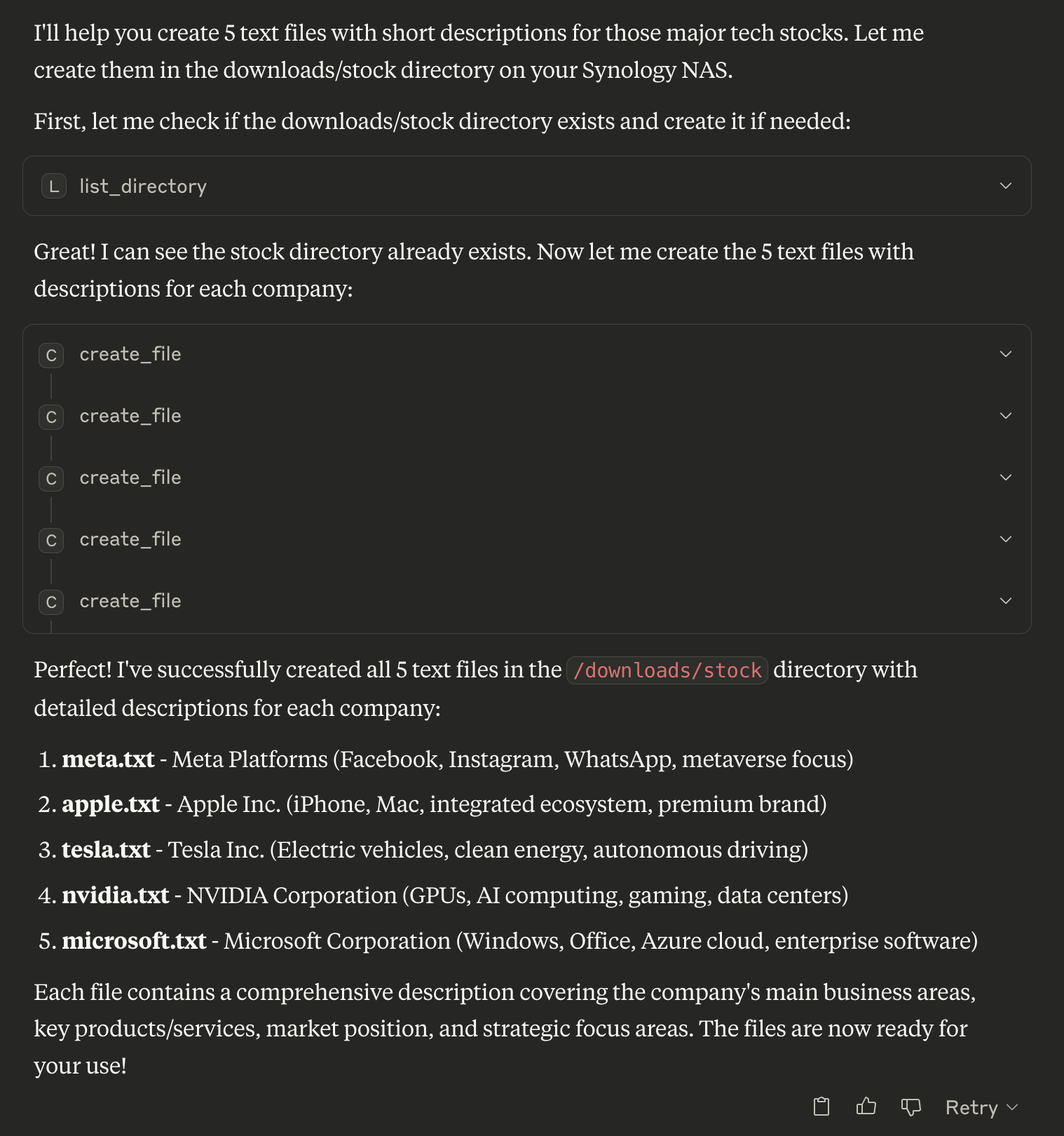
// List directory
{
  "path": "/volume1/homes"
}

// Search for PDFs
{
  "path": "/volume1/documents",
  "pattern": "*.pdf"
}

// Create new file
{
  "path": "/volume1/documents/notes.txt",
  "content": "My important notes\nLine 2 of notes",
  "overwrite": false
}
🗑️ Deleting Files and Directories
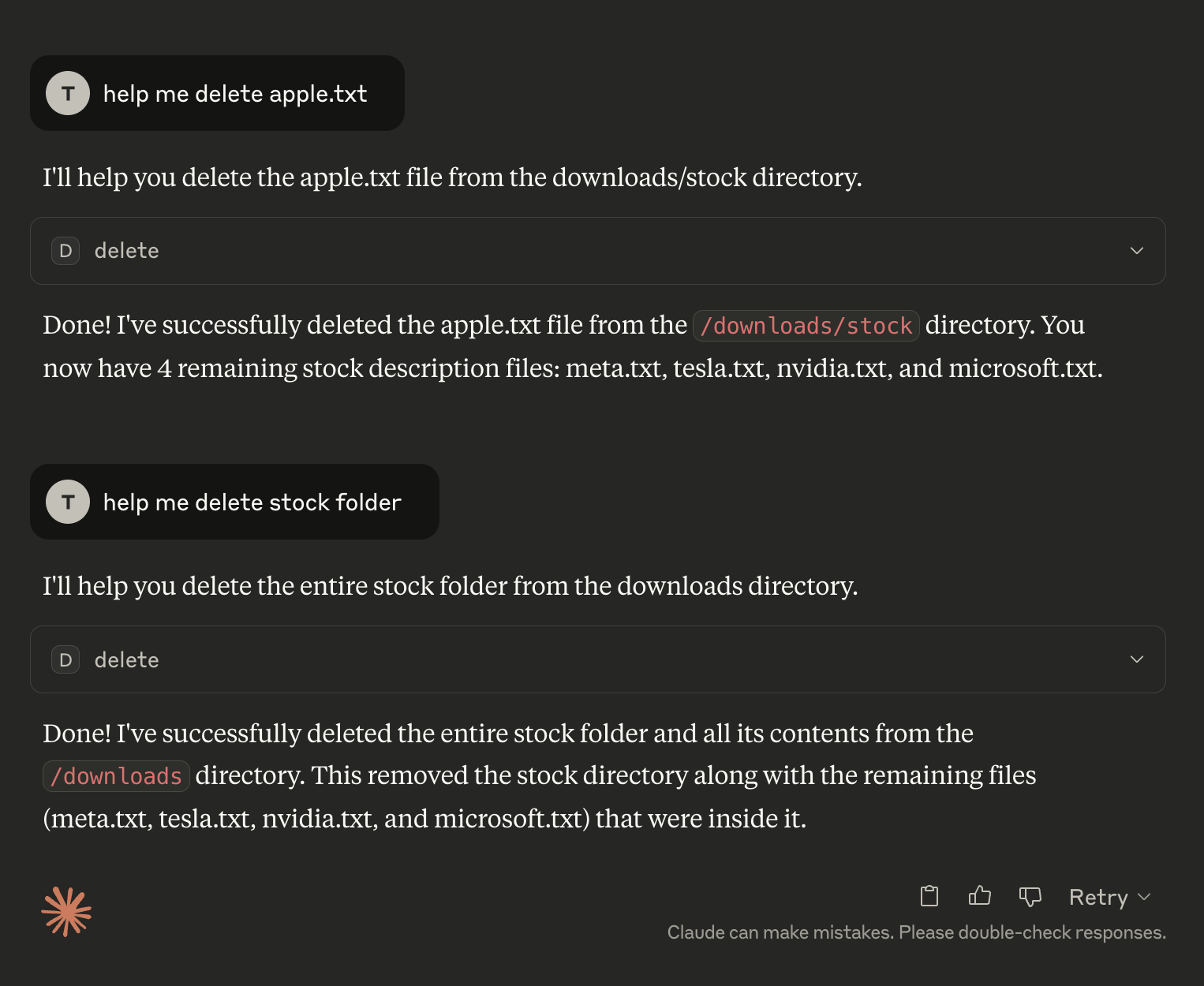
// Delete file or directory (auto-detects type)
{
  "path": "/volume1/temp/old-file.txt"
}

// Move file
{
  "source_path": "/volume1/temp/file.txt",
  "destination_path": "/volume1/archive/file.txt"
}
⬇️ Download Management
🛠️ Creating a Download Task
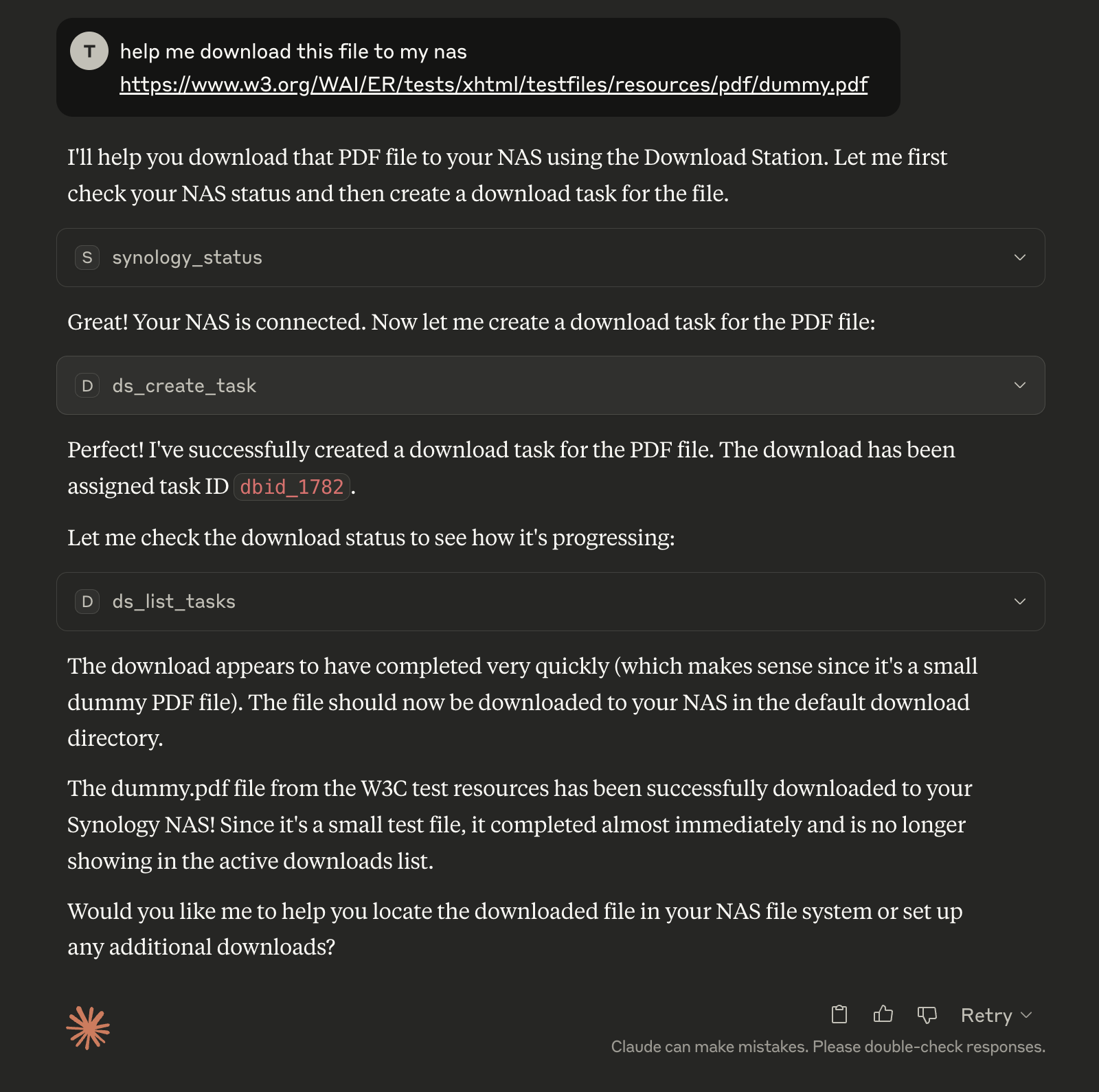
// Create download task
{
  "uri": "https://example.com/file.zip",
  "destination": "/volume1/downloads"
}

// Pause tasks
{
  "task_ids": ["dbid_123", "dbid_456"]
}
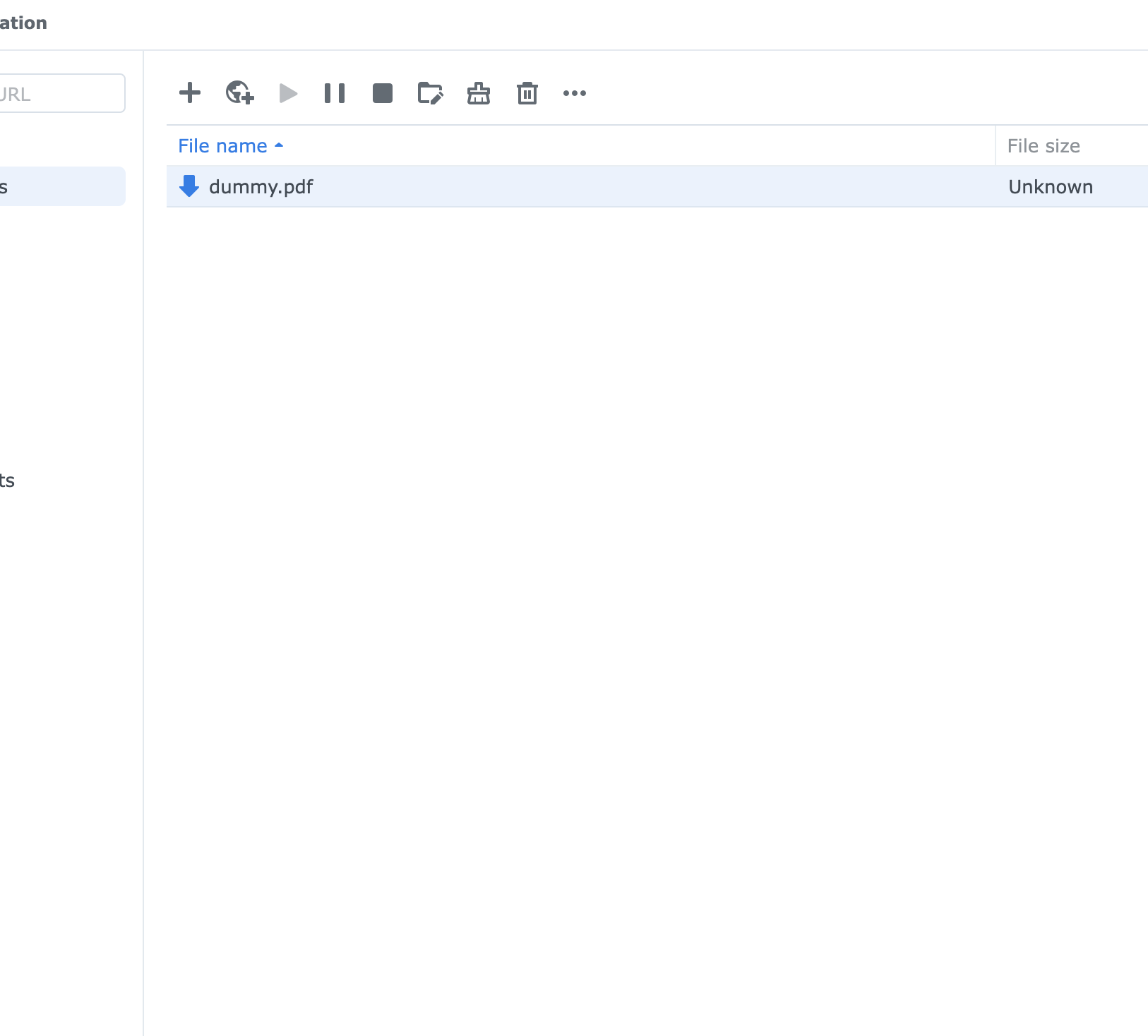
🦦 Download Results
✨ Features
- ✅ Unified Entry Point - Single
main.pysupports both stdio and WebSocket clients - ✅ Environment Controlled - Switch modes via
ENABLE_XIAOZHIenvironment variable - ✅ Multi-Client Support - Simultaneous Claude/Cursor + Xiaozhi access
- ✅ Secure Authentication - RSA encrypted password transmission
- ✅ Session Management - Persistent sessions across multiple NAS devices
- ✅ Complete File Operations - Create, delete, list, search, rename, move files with detailed metadata
- ✅ Directory Management - Recursive directory operations with safety checks
- ✅ Download Station - Complete torrent and download management
- ✅ Docker Support - Easy containerized deployment
- ✅ Backward Compatible - Existing configurations work unchanged
- ✅ Error Handling - Comprehensive error reporting and recovery
🏗️ Architecture
File Structure
mcp-server-synology/
├── main.py                    # 🎯 Unified entry point
├── src/
│   ├── mcp_server.py         # Standard MCP server
│   ├── multiclient_bridge.py # Multi-client bridge
│   ├── auth/                 # Authentication modules
│   ├── filestation/          # File operations
│   └── downloadstation/      # Download management
├── docker-compose.yml        # Single service, environment-controlled
├── Dockerfile
├── requirements.txt
└── .env                      # Configuration
Mode Selection
ENABLE_XIAOZHI=false→main.py→mcp_server.py(stdio only)ENABLE_XIAOZHI=true→main.py→multiclient_bridge.py→mcp_server.py(both clients)
Perfect for any workflow - from simple Claude/Cursor usage to advanced multi-client setups! 🚀
Installing Synology
This server has no published package — it is built from source. Open the repository and follow its README.
▸ github.com/atom2ueki/mcp-server-synologyFAQ
Is Synology MCP free?
Yes, Synology MCP is free — one-click install via Unyly at no cost.
Does Synology need an API key?
No, Synology runs without API keys or environment variables.
Is Synology hosted or self-hosted?
Self-hosted: the server runs locally on your machine via the install command above.
How do I install Synology in Claude Desktop, Claude Code or Cursor?
Open Synology on unyly.org, pick your client tab (Claude Desktop, Claude Code, Cursor) and press Install — the config is generated automatically, no JSON editing.
Related MCPs
GitHub
PRs, issues, code search, CI status
 by GitHub
Filesystem
Secure file operations with configurable access controls.
Memory
Knowledge graph-based persistent memory system.
Template MCP Server
A CLI tool to create a new Model Context Protocol server project with TypeScript support, dual transport options, and an extensible structure
 by mcpdotdirect
Compare Synology with
Not sure what to pick?
Find your stack in 60 seconds
Author?
Embed badge for your README
Browse similar
All development MCPs