
Tradingview Desktop
FreeNot checkedMCP server for TradingView Desktop: let Claude, ChatGPT, Cursor and other AI assistants read your charts, draw support/resistance, write Pine Script, set alerts

About
MCP server for TradingView Desktop: let Claude, ChatGPT, Cursor and other AI assistants read your charts, draw support/resistance, write Pine Script, set alerts and manage watchlists. Cannot place trades. Open source, runs locally.
README


▶ Watch the overview (0:48) ·
▶ Watch the setup tutorial (1:53)
Both videos use a made-up chart, not market data.
An MCP server that lets AI assistants read and control the
TradingView Desktop app on your own machine. It drives the app you are already logged in to over the
Chrome DevTools Protocol, through the debug port the app opens when it starts with
--remote-debugging-port. It only automates the local app: it does not log in for you, get around
plan limits, or call TradingView's servers.
Status: pre-1.0. Tool names and options may change before 1.0. Install the package from npm, as below, or run the server from source. It has been tried on macOS; Windows and Linux are best effort.
The server offers app tools (launch, health, discovery, interface state, plan limits, reconnect),
chart tools (state, symbol, timeframe, chart type, visible range, scrolling), market data tools
(bars, quotes, symbol info and search), indicator tools (list, search, add, remove, inputs,
visibility, values), Pine Script tools (the editor and saved scripts, compile, smart compile with
rule-based fixes, offline analysis, the console, and the lines, labels, boxes and tables that
scripts draw), Strategy Tester tools (results, trades, equity), drawing, alert and watchlist tools,
layout, multi-chart and tab tools, bar replay, screenshots, low-level interface tools (click, hover,
type, keys, scroll, find, panels, fullscreen, and JavaScript in the chart page when you allow it)
and batch_run, which runs several tools in one call. It also offers resources (the app health,
the chart state and bars, the Pine source and the last compile result, the strategy report, the
active watchlist), each along with the tool it shares its data with, and five prompts for common
jobs. A web dashboard shows the calls live and runs tools by hand (see Dashboard).
Contents: Install by asking your AI app, Install, Connect your AI app, Remote clients and tunnels, Quick start from source, Use it, Troubleshooting, Dashboard, Contributing.
Install by asking your AI app
You do not have to type any commands yourself. If your AI app can run commands on your computer, as Claude Code, Cursor, VS Code, Windsurf, Gemini CLI and Codex CLI can, it can do the setup for you. First:
- Install TradingView Desktop and log in.
- Install Node.js (the LTS version), if you do not have it yet.
Then copy this prompt, paste it into your AI app and send it:
Install the TradingView MCP server for me. It is the npm package tradingview-desktop-mcp
(https://github.com/Mochamad-Rizky/tradingview-desktop-mcp). Follow these steps and explain each one
to me in simple words:

1. Check that Node.js 20.19 or newer is installed. If it is not, stop and tell me how to install it.
2. Run "npx -y tradingview-desktop-mcp config <client>", with <client> being the app you are
   running in (claude-code, cursor, vscode, windsurf, gemini-cli or codex-cli). Do what it prints
   to add the server to my configuration, and keep any other servers that are already there.
3. Start TradingView with "npx -y tradingview-desktop-mcp launch". If it says TradingView is
   already running without the debug port, ask me first, and only when I agree run it again
   with --restart, because that closes TradingView and I may lose unsaved changes.
4. Run "npx -y tradingview-desktop-mcp doctor" and tell me whether all checks pass. If the
   chart check fails, tell me to bring the chart tab to the front in TradingView.
5. Tell me whether I have to restart you, or open a new chat, before the TradingView tools show up.
When it is done, restart the app or open a new chat if it told you to, and ask "Check that TradingView is connected." Then try the prompts below.
Using Claude Desktop? It cannot run commands, but Claude Code, Cursor and the other apps above can set it up for you: add "Set it up for Claude Desktop (config claude-desktop), not for this app." to the end of the prompt. ChatGPT and the OpenAI API need a tunnel, which you set up by hand (see Remote clients and tunnels). If the assistant gets stuck, follow the steps below yourself.
Install
You need:
- TradingView Desktop, installed and logged in.
- Node.js 20.19 or newer, which provides
npx.
Nothing else is installed: the clients below start the server with npx -y tradingview-desktop-mcp,
which fetches the package on first use. Start TradingView with its debug port. The launch command
finds the app and starts it that way:
npx -y tradingview-desktop-mcp launch
TradingView allows only one instance. If it is already running without the debug port, launch
stops and says so; launch --restart quits it politely and starts it again with the port, and
TradingView may ask you to save changes first. Check that the server can reach the app:
npx -y tradingview-desktop-mcp doctor
doctor fails its chart check while the chart tab is in the background, behind the New tab page or
another tab without a chart, so bring the chart tab to the front.
npx -y tradingview-desktop-mcp --help lists the options, and .env.example the
environment variables.
Connect your AI app
config <client> prints the configuration snippet of a client and says where it goes. Each tutorial
below holds the same snippet, the steps for that app and what to do when it does not work.
| Client | Print the snippet |
|---|---|
| Claude Desktop | npx -y tradingview-desktop-mcp config claude-desktop |
| Claude Code | npx -y tradingview-desktop-mcp config claude-code |
| Cursor | npx -y tradingview-desktop-mcp config cursor |
| VS Code | npx -y tradingview-desktop-mcp config vscode |
| Windsurf | npx -y tradingview-desktop-mcp config windsurf |
| Gemini CLI | npx -y tradingview-desktop-mcp config gemini-cli |
| Codex CLI | npx -y tradingview-desktop-mcp config codex-cli |
| ChatGPT | npx -y tradingview-desktop-mcp config chatgpt |
| OpenAI API | npx -y tradingview-desktop-mcp config openai-api |
The default transport is stdio, where stdout carries only MCP messages and logs go to stderr. The
first seven clients start the server themselves. On Windows, a client that cannot start npx
directly needs the cmd /c npx form, which config prints when it runs on Windows (or with
--platform win32). --profile passes a tool profile on to the server.
Remote clients and tunnels
ChatGPT and the OpenAI API cannot start a program on your computer. They reach the server at a
public HTTPS address, so you run it over HTTP and put a tunnel in front of it. That puts a server
that can control your logged-in TradingView on the internet: use --profile readonly, a strong
token (TV_MCP_AUTH_TOKEN), the public host of the tunnel in --allowed-hosts
(TV_MCP_ALLOWED_HOSTS), and --no-dashboard, so that the files of the dashboard are not served
through the tunnel. The tutorials for ChatGPT and the
OpenAI API walk through it, and
SECURITY.md lists what a read-only token can still reach.
Quick start from source
To run a checkout instead of the published package, you need Node.js 24 to build the server
(nvm use reads .nvmrc) and pnpm, whose version package.json pins. The built
server runs on Node.js 20.19 or newer.
git clone https://github.com/Mochamad-Rizky/tradingview-desktop-mcp.git
cd tradingview-desktop-mcp
pnpm install && pnpm build
node packages/server/dist/cli.js launch
node packages/server/dist/cli.js doctor
node packages/server/dist/cli.js config <client> --local prints the snippet of a client for this
checkout, with node and the absolute path of cli.js in place of npx. For a client with a JSON
configuration, the entry looks like this:
{
  "mcpServers": {
    "tradingview": {
      "command": "node",
      "args": ["/absolute/path/to/tradingview-desktop-mcp/packages/server/dist/cli.js"]
    }
  }
}
There is also an HTTP transport (--transport http); read SECURITY.md before you use
it.
Use it
Connect an MCP client as described above, with TradingView running with its debug port, and ask for what you want in plain words. The assistant picks the tools and calls them, so you do not need to know their names. The tool reference lists every tool with its inputs and the profiles it belongs to.
Try these prompts
Each prompt below is one of the examples in docs/examples.md, which shows the
tool calls the assistant makes and the results, with lists longer than three items cut, the
duration of each call (durationMs) left out and a screenshot named in a note instead of shown.
The excerpts are lines of those results, and … marks where lines of other parts of a result are
left out. The values are synthetic: they come from a fake TradingView app with a made-up
NASDAQ:AAPL chart, so nothing is market data and nothing comes from an account; the results have
the shape the server gives them, though the Strategy Tester report behind the backtest example has
not been read from the real app yet.
"What am I looking at on my chart? Tell me the symbol, the timeframe and which indicators are on
it." The assistant reads the chart with chart_get_state
(details):
"symbol": "NASDAQ:AAPL",
"resolution": "1D",
"chartTypeName": "candles",
"Show me the last 3 daily candles." It reads the bars with data_get_ohlcv
(details):
"timeIso": "2024-10-27T00:00:00Z",
"open": 103.58,
"close": 103.42,
"Add the MACD to my chart." On a chart that holds as many indicators as the plan allows,
indicator_add adds nothing and reports the limit, and removing one of your indicators to make room
needs your confirmation (details):
"code": "PLAN_LIMIT",
"message": "The chart holds as many indicators as the plan allows (2)",
"Write a Pine Script indicator that plots a 9-bar and a 21-bar moving average of the close, and
check that it compiles." It puts the script in the Pine Editor with pine_new and compiles it with
pine_compile (details):
"success": true,
"errors": [],
"warnings": [],
"The script in my Pine Editor will not compile. Can you fix it?" pine_smart_compile compiles
the script, applies rule-based fixes for the errors it knows, such as Pine v4 names in a v6 script,
and compiles again, without changing the editor
(details):
"message": "Could not find function or function reference 'study'",
…
"applied": ["Replace study( with indicator(", "Replace rsi( with ta.rsi("]
…
"writtenBack": false
"How did the strategy on my chart do in the backtest?" It reads the Strategy Tester with
strategy_get_results and strategy_get_trades
(details):
"netProfit": 155,
"totalTrades": 3,
"percentProfitable": 66.67,
"profitFactor": 4.1,
"Draw a support line at 102.80 on my chart." It draws a horizontal line with drawing_create,
and drawing_list shows it next to your own drawings, marked as drawn by this session
(details):
"id": "DRW001",
"shape": "horizontal_line",
"text": "Support",
"createdByServer": true
"Alert me when Apple crosses 110." alert_create sets a price alert in your TradingView account
(details). When the plan already holds as many alerts
as it allows, it creates nothing and reports the limit, and alert_list shows the alerts that fill
it (details):
"symbol": "NASDAQ:AAPL",
"condition": "crossing",
"price": 110,
"expirationIso": "2024-11-26T00:00:00Z"
"Add these symbols to my watchlist: NYSE:IBM, FX:EURUSD, NASDAQ:MSFT and NASDAQ:MSTF."
watchlist_add_bulk checks each symbol with the symbol search of TradingView, adds the new ones and
says why it skipped the others (details):
"added": ["NYSE:IBM", "FX:EURUSD"],
…
{ "symbol": "NASDAQ:MSFT", "reason": "already_listed" },
{ "symbol": "NASDAQ:MSTF", "reason": "unknown" }
"Let me practice on a bar replay of my chart from 2024-06-03: step five bars forward, tell me
where we are, then end the replay." It starts bar replay with replay_start, steps with
replay_step, reads where replay is with replay_status and leaves it with replay_stop. Nothing
is traded: no tool places orders (details):
"dateIso": "2024-06-07T00:00:00Z",
"stepped": 5,
…
"position": null,
"realizedPL": null
"Take a screenshot of my chart." screenshot_capture hands the picture to the assistant as an
image, along with its size, and writes nothing to disk
(details):
"data": { "target": "chart", "format": "jpeg", "width": 1180, "height": 640, "bytes": 3100 },
"meta": { "via": "cdp", "warnings": [] }
The server also offers five prompts of its own, which a client that supports MCP prompts lists for
you to pick: analyze_current_chart, multi_timeframe_review, write_and_backtest_strategy,
debug_pine_script and replay_practice_session. Each one tells the assistant which tools to
call, in which order, and what to report back. replay_practice_session runs a practice session on
bar replay: the assistant steps through the past bar by bar, asks you at each step whether you
would go long, go short or stay flat, keeps a journal of these hypothetical trades at prices it
reads from the chart, and works out their profit or loss. It checks first whether a replay of yours
is running, and asks you what to do with one before it changes anything; at the end it stops the
replay it started, and never one of yours.
Safety
The tools that change your chart, your scripts or your account are careful with what is already
yours. Replacing unsaved text in the Pine Editor (other than an unsaved edit this session of the
server made there itself), saving a new version of a script that this session did not create, and
removing an indicator that was already on your chart all need confirm: true, which the assistant
should pass only after you agree. So does removing a drawing, alert, watchlist symbol or tab that
this session did not create, add or open, removing every drawing of a chart, switching away from a
layout with unsaved changes, and changing to a multi-chart layout with fewer charts than the tab
shows, whose next save would drop the others. A plan limit, such as the number of indicators on a
chart, of saved scripts, of alerts or of the charts of a layout, is checked before anything is
added and reported as a PLAN_LIMIT error with the limit; when the limit cannot be read on your
TradingView build, the tool does nothing and says so. The server does not work around a limit. The
tools check first what would make TradingView open its upgrade dialog, or another dialog of its
own, and refuse instead, but a few prompts remain that these checks cannot foresee:
layout_switch can meet an upgrade prompt for a saved multi-chart layout on a plan with fewer
charts, for a layout the server of TradingView refuses as beyond the limit, and for one that the
list TradingView keeps for itself marks over the limit while layout_list does not; layout_new
can meet a message of TradingView when it refuses the new layout after the checks; and tab_close can meet the "Close tab?" dialog for a page that takes longer than TradingView waits to
say whether its layout has unsaved changes, or that reports a recording in progress. The low-level
ui_* tools click and type what you ask for, so they can open dialogs of TradingView by design. It
deletes and renames no script.
No tool places orders: bar replay is for practice, and the assistant keeps any practice trades in
the conversation. Screenshots go to the client as images, and the server writes none to disk.
ui_evaluate, which runs JavaScript in the chart page, is off unless you start the server with
--allow-eval (TV_MCP_ALLOW_EVAL=true).
Tool profiles
By default the server offers all its 83 tools (--profile full). Some clients accept only a limited
number of tools (Cursor warns above 40). For them, --profile core offers a reduced set of 40
essential tools, and --profile readonly offers only the 37 tools that read. --tools takes name
patterns such as chart_*,data_* and narrows the profile further: a tool must be in the profile
and match a pattern, so --profile core --tools 'pine_*' still leaves out pine_open and
pine_save, which are not core tools; with the default profile, --tools alone picks the tools.
Some descriptions and hints name tools that core leaves out, such as pine_open and pine_save,
which the assistant cannot call under core. The resources follow the tools: each one is offered
only with the tool it shares its data with, such as tradingview://pine/source with
pine_get_source, so --tools 'chart_*' offers the chart state and nothing of the Pine Editor.
The tool reference lists every tool with its inputs and the profiles it belongs to.
Troubleshooting
docs/troubleshooting.md explains each error code and what to do when
TradingView is not found, the debug port is busy, a client does not show the tools or a tunnel
refuses a request. npx -y tradingview-desktop-mcp doctor is the first thing to run.
Dashboard
The server comes with a web dashboard for watching what your assistant does and for trying a tool
by hand. It needs no extra install: the published package carries it, and pnpm build builds it into the
server of a checkout.
Open it
HTTP transport: start the server with a token and open
http://127.0.0.1:8787/. The dashboard is on by default in this mode;--no-dashboard(TV_MCP_DASHBOARD=false) turns it off.TV_MCP_AUTH_TOKEN="$(openssl rand -hex 32)" npx -y tradingview-desktop-mcp --transport httpFrom a checkout, run
node packages/server/dist/cli.js --transport httpinstead.Next to stdio: an MCP client that starts the server over stdio can have a dashboard too. Add
--dashboard(TV_MCP_DASHBOARD=true) andTV_MCP_AUTH_TOKENto its configuration. The dashboard listens on its own address,127.0.0.1:8787unless you set--hostand--port, and serves no/mcp. Without the token, or when the port is taken, the dashboard stays off and the server logs a warning, but the MCP server runs on. The calls the client makes show up in the live log.
The server prints the address of the dashboard on stderr when it starts. It never prints the token.
The token
The page asks for the token (TV_MCP_AUTH_TOKEN) before it shows anything. Paste it in, or open
http://127.0.0.1:8787/#token=<token> once: the page reads the token from the fragment and removes
it from the address, and the fragment is never sent to the server. The page keeps the token in
sessionStorage, so it is gone when you close the tab, and it sends the token only as
Authorization: Bearer <token>, never in a URL. When the server restarts with another token, the page
asks again. See SECURITY.md.
What it shows
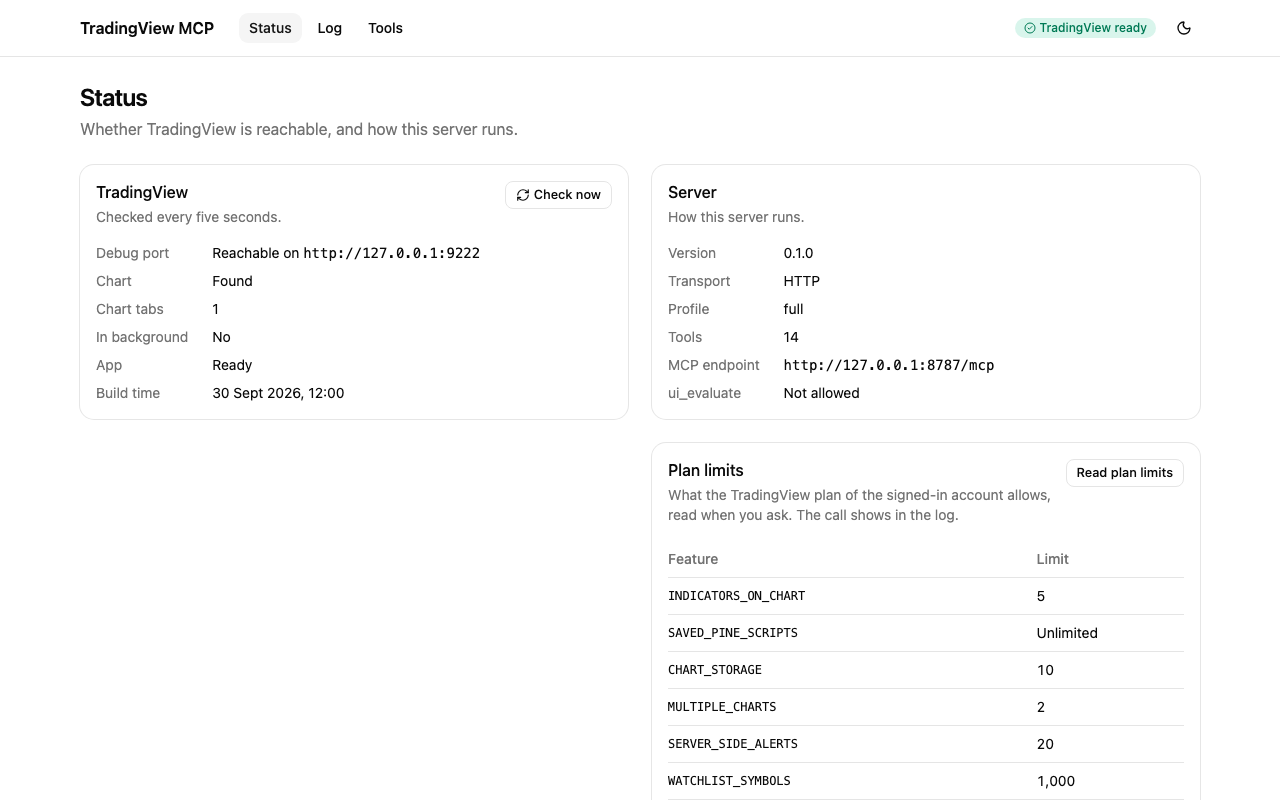
- Status shows whether TradingView is reachable (and how to start it when it is not), how the server runs, the plan limits and the latest calls.
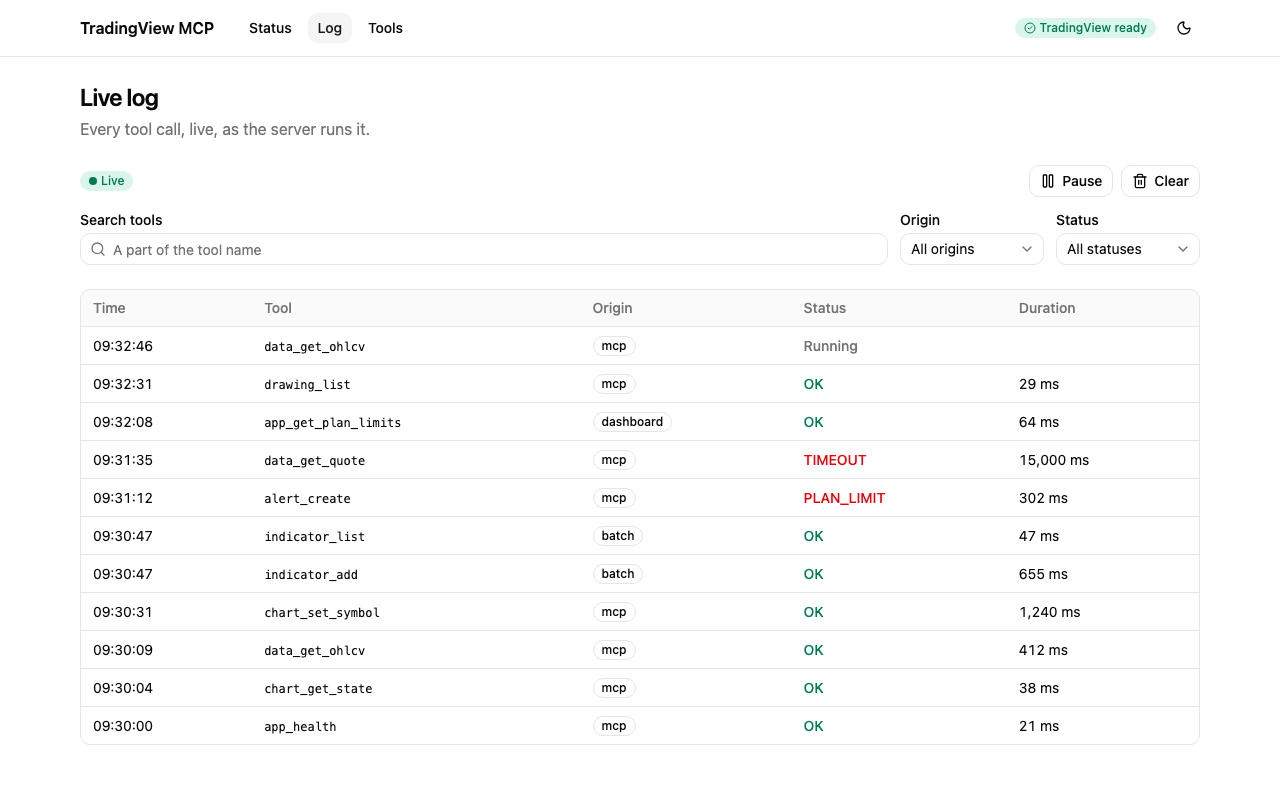
- Log streams every tool call the server runs, whether an MCP client or the dashboard made it, with a filter by tool name, pause, clear and the details of each call. After a dropped connection it says "Reconnecting…" and picks up where it stopped. Each open tab of the dashboard keeps one event stream to the server, and a browser allows about six connections to one host, so with many dashboard tabs open a new one can wait for a free connection: close the tabs you do not use.
- Tools lists the tools the server offers, with their inputs, and runs one by hand. The result is shown as it came back, with long JSON collapsed behind "Show all" and images as images.
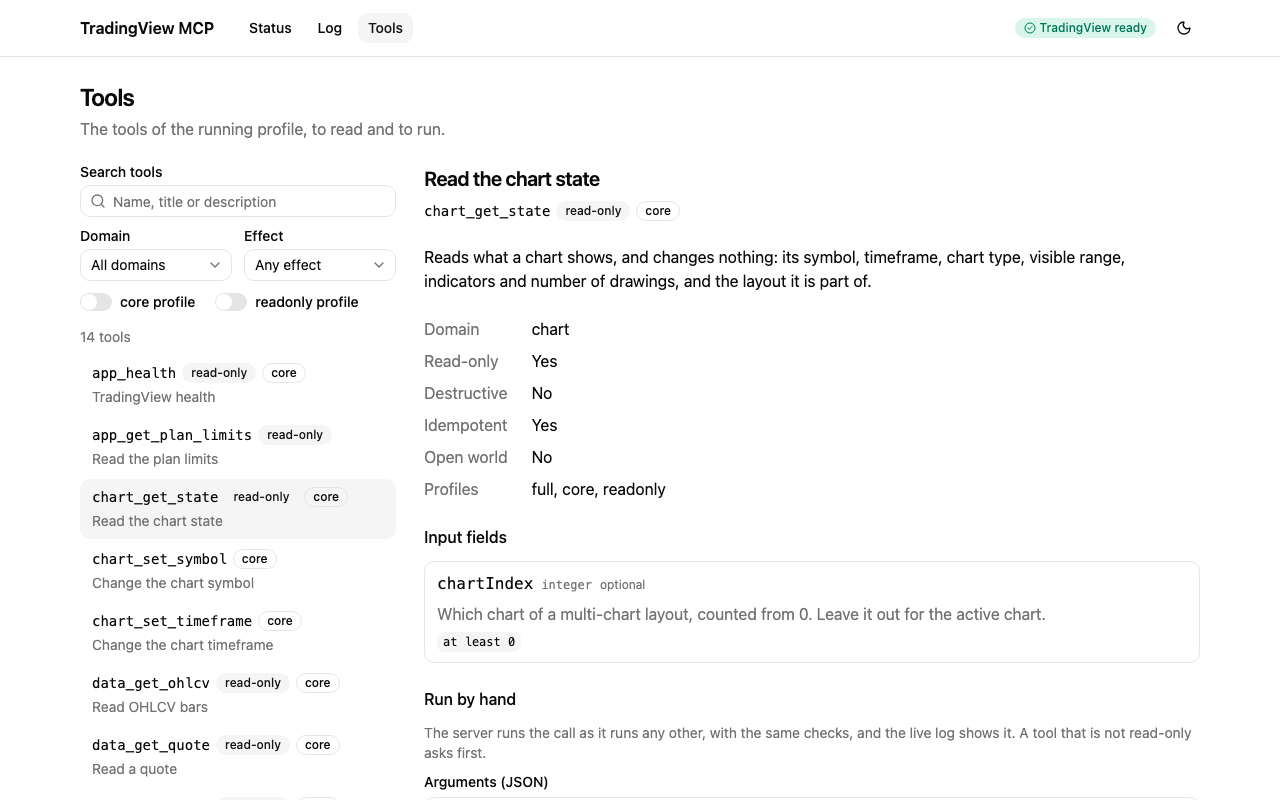
A run from the dashboard is a real tool call. It goes through the same registry as an MCP call, so
the same schemas, profile, confirm rules and plan limit checks apply, and it appears in the log.
The dashboard asks you to confirm before it runs any tool that is not read-only.
The API
The page talks to the server through a small API, which you can also call with curl and the
token. Every route needs Authorization: Bearer <token>, and the server checks Host and Origin
as it does for /mcp.
| Route | What it does |
|---|---|
GET /api/info |
Version, transport, profile, tool count and start time |
GET /api/health |
The health report: whether TradingView is reachable |
GET /api/tools |
The tools on offer, with their schemas and annotations |
POST /api/tools/<name> |
Runs a tool with {"arguments": {...}}, as the origin dashboard |
GET /api/events |
Server-sent events of the tool calls; ?limit= sets how many to replay |
The files of the page itself, at /, need no token and hold no data.
Contributing
See CONTRIBUTING.md for the local setup, the test levels, the commit conventions and how a release is made, and docs/testing.md for the testing guide. To report a vulnerability, follow SECURITY.md.
Disclaimer
This project is not affiliated with, endorsed by, or sponsored by TradingView, Inc. TradingView is a trademark of its owner. Nothing here is financial advice. The tools change what the app shows and may reach its controls, so you are responsible for what you automate and for following TradingView's terms of use.
License
Released under the MIT license.
Installing Tradingview Desktop
This server has no published package — it is built from source. Open the repository and follow its README.
▸ github.com/Mochamad-Rizky/tradingview-desktop-mcpFAQ
Is Tradingview Desktop MCP free?
Yes, Tradingview Desktop MCP is free — one-click install via Unyly at no cost.
Does Tradingview Desktop need an API key?
No, Tradingview Desktop runs without API keys or environment variables.
Is Tradingview Desktop hosted or self-hosted?
Self-hosted: the server runs locally on your machine via the install command above.
How do I install Tradingview Desktop in Claude Desktop, Claude Code or Cursor?
Open Tradingview Desktop on unyly.org, pick your client tab (Claude Desktop, Claude Code, Cursor) and press Install — the config is generated automatically, no JSON editing.
Related MCPs
GitHub
PRs, issues, code search, CI status
 by GitHub
Filesystem
Secure file operations with configurable access controls.
Memory
Knowledge graph-based persistent memory system.

Unyly Deploy
Deploy sites and MCP servers to Unyly straight from your AI agent
 by Unyly
Amap Maps Mcp Server
MCP server for using the AMap Maps API
 by duxiaohui
PayMCP
Lightweight payments layer for MCP servers: turn tools into paid endpoints with a two-line decorator. [PyPI](https://pypi.org/project/paymcp/) · [npm](https://w
 by blustAI
Server For Power BI
Enables exploring Microsoft Fabric / Power BI workspaces and semantic models, and executing ad-hoc DAX queries.
 by Mitsubishi-Fuso
Template MCP Server
A CLI tool to create a new Model Context Protocol server project with TypeScript support, dual transport options, and an extensible structure
 by mcpdotdirect
Supabase
Database, auth and storage
 by Supabase
Everything
Reference / test server with prompts, resources, and tools.
Compare Tradingview Desktop with
Not sure what to pick?
Find your stack in 60 seconds
Author?
Embed badge for your README
Browse similar
All development MCPs