

About
Visio — Model Context Protocol server
README
Are you a solution architect looking to build high‑quality architecture diagrams or evolve existing ones to reflect recent changes? We’ve got you covered.
The Visio MCP (Model Context Protocol) Server exposes Microsoft Visio diagram operations as tools, enabling you to generate production‑grade architecture diagrams from text descriptions, images, and documents.
By directly controlling Microsoft Visio, this MCP server supports not only initial diagram generation but also iterative refinement and evolution. You can continuously improve and adapt diagrams until they meet the highest quality standards.
The Visio MCP Server is designed for use with GitHub Copilot CLI and VS Code Agent Mode, but it can also be integrated with other LLM-based systems.
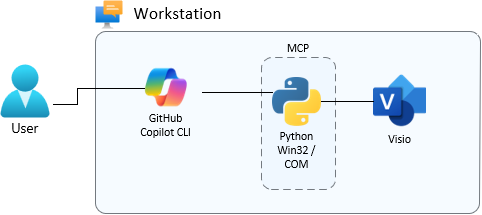
Demo

Features
- Azure service icons — 206 Azure services from official Visio stencils (auto-discovered)
- Architecture helpers — tier bands, containers, connectors with style-guide compliance
- Shape operations — add, modify, remove, connect, and list shapes
- Multi-page support — add pages, switch between them
- Export — PNG, SVG, JPG output
Prerequisites
- Microsoft Visio Professional (installed and licensed)
- Python 3.11+
- Azure Visio stencils — download from Microsoft Azure Architecture Icons and extract to your
My Shapesfolder
Installation
cd visio-mcp
pip install -r requirements.txt
Configuration
Add to your Copilot CLI MCP config (~/.copilot/mcp-config.json):
{
  "mcpServers": {
    "visio": {
      "type": "stdio",
      "command": "python",
      "args": ["C:\\path\\to\\visio-mcp\\server.py"],
      "env": {}
    }
  }
}
Whitelisting All Visio Tools
By default, Copilot CLI prompts for approval on each MCP tool call. To auto-approve all Visio MCP tools while keeping other tools at normal approval prompts, launch with:
copilot --allow-tool "visio"
To whitelist a specific tool only:
copilot --allow-tool "visio(add_azure_shape)"
To persist across sessions, add to ~/.copilot/config.json:
{
  "allowedTools": ["visio"]
}
Available Tools
| Tool | Description |
|---|---|
create_diagram |
Create a new Visio diagram (landscape, 11×8.5 in) |
save_diagram |
Save to .vsdx file |
close_diagram |
Close without saving |
list_open_diagrams |
List all open documents |
add_shape |
Add basic shapes (rectangle, ellipse, diamond, etc.) |
add_azure_shape |
Add Azure service icons from official stencils |
remove_shape |
Remove a shape by ID |
modify_shape |
Change text, position, size, or color |
list_shapes |
List all shapes on the active page |
connect_shapes |
Connect two shapes with styled connectors |
remove_connection |
Remove a connector |
add_container |
Add a grouping boundary rectangle |
add_tier_band |
Add a full-width horizontal tier band |
add_text_label |
Add a floating text label |
list_azure_services |
List all 206 available Azure service keys |
list_stencil_masters |
List masters in a specific stencil |
open_stencil |
Open an Azure stencil by name |
add_page |
Add a new page |
set_active_page |
Switch to a page by index |
list_pages |
List all pages |
export_page |
Export page as image (PNG, SVG, JPG) |
Azure Stencil Discovery
The server automatically discovers Azure stencils by querying Visio's COM properties:
Visio.Application.MyShapesPath— user stencils folderVisio.Application.GetBuiltInStencilFile()— built-in content directoryVisio.Application.Path— install location- Windows Shell
CSIDL_PERSONAL— real Documents folder (handles OneDrive redirect)
Discovered stencil directories are registered in Visio's StencilPaths for native COM resolution. No hardcoded paths.
Style Guide
All shapes and connectors are automatically styled per STYLE_GUIDE.md:
- Shapes: rounded corners (0.06 in), 15% transparent fills
- Connectors: filled triangle arrowheads, 1 pt weight, 7 pt label font
- Containers: dashed border, 60% transparent, 9 pt label
- Tier bands: 70% transparent, bold 8 pt label
Example
Create a 3-tier Azure architecture with Front Door, VM Scale Sets in 2 availability zones, and Azure SQL with replication
The server will create a professional Visio diagram with proper Azure icons, tier bands, containers, and styled connectors.
See also
Also you can explore other MCP for simpiar tasks that generates architecture in different formats:
| Project | Type | Description | Link |
|---|---|---|---|
| draw.io MCP (official) | MCP Server | Official draw.io Model Context Protocol server. Opens and generates diagrams directly in the draw.io editor. Supports native XML, CSV, and Mermaid inputs. | https://github.com/jgraph/drawio-mcp |
| drawio-mcp-server | MCP Server | Community MCP server providing full programmatic control over draw.io diagrams, including creation, inspection, modification, and iterative refinement via an embedded editor. | https://github.com/lgazo/drawio-mcp-server |
| draw_architecture_mcp | MCP Server | Architecture‑focused MCP server for generating and maintaining draw.io diagrams from structured models (e.g. YAML). Well suited for large infrastructure and network diagrams. | https://github.com/dwgeneral/draw_architecture_mcp |
| Excalidraw MCP | MCP Server | MCP server for generating and evolving hand‑drawn‑style diagrams using Excalidraw, often paired with draw.io MCPs for different visual styles. | https://github.com/excalidraw/excalidraw-mcp |
| Mermaid | Diagram DSL | Text‑based diagram language commonly used as an intermediate format for MCP‑driven diagram generation (including draw.io imports). | https://mermaid.js.org |
License
MIT
Installing Visio
This server has no published package — it is built from source. Open the repository and follow its README.
▸ github.com/iakov-gan/mcp-server-visioFAQ
Is Visio MCP free?
Yes, Visio MCP is free — one-click install via Unyly at no cost.
Does Visio need an API key?
No, Visio runs without API keys or environment variables.
Is Visio hosted or self-hosted?
Self-hosted: the server runs locally on your machine via the install command above.
How do I install Visio in Claude Desktop, Claude Code or Cursor?
Open Visio on unyly.org, pick your client tab (Claude Desktop, Claude Code, Cursor) and press Install — the config is generated automatically, no JSON editing.
Related MCPs
GitHub
PRs, issues, code search, CI status
 by GitHub
Filesystem
Secure file operations with configurable access controls.
Memory
Knowledge graph-based persistent memory system.
Template MCP Server
A CLI tool to create a new Model Context Protocol server project with TypeScript support, dual transport options, and an extensible structure
 by mcpdotdirect
Compare Visio with
Not sure what to pick?
Find your stack in 60 seconds
Author?
Embed badge for your README
Browse similar
All development MCPs