
Gnome Wayland
БесплатноНе проверенA Rust MCP server for a private headless GNOME Wayland desktop.

Описание
A Rust MCP server for a private headless GNOME Wayland desktop.
README
Test native Linux GUI apps with an MCP agent on a separate GNOME Wayland display. The agent can launch a configured app, capture screenshots, click, and type while you keep using your regular desktop.
Linux runtime requirements. End-to-end testing covers Codex on Fedora Workstation 45 (x86_64) with Mutter 51.1. The release binary also passes the GTK smoke test on Ubuntu 26.04 LTS (x86_64) with Mutter 50.1. Claude Code and Gemini CLI have standard local stdio setup examples.
Download for Linux x86_64 · Codex · Claude Code · Gemini CLI
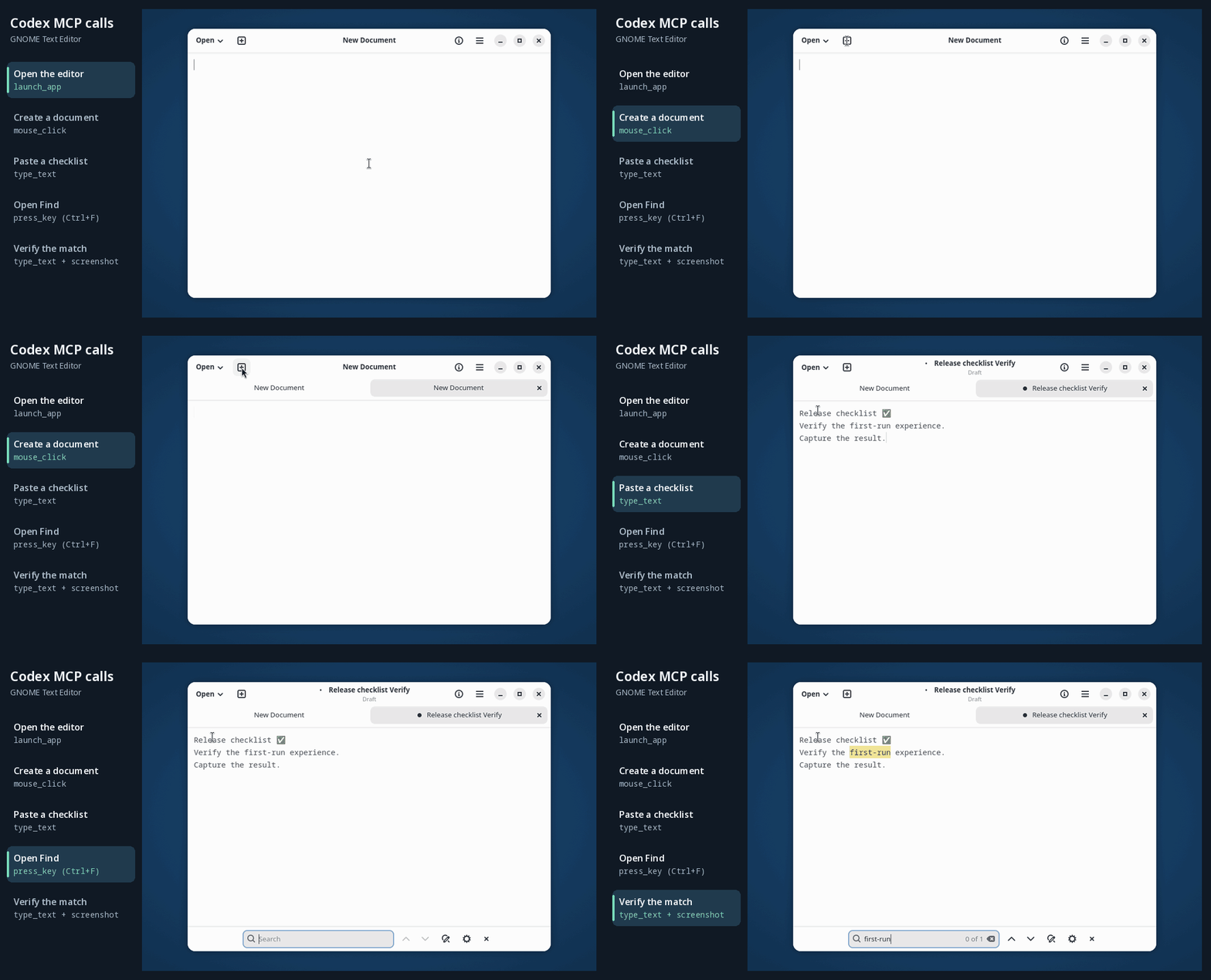
Actual v0.2.2 screenshots from the private display, shown alongside the MCP calls that produced them. Full-size screenshot from the original Codex test.
Quick start
Requirements
Use a Linux host with Mutter, D-Bus, PipeWire, WirePlumber 0.5 or later, and GStreamer installed under /usr/bin. The examples use GNOME Text Editor. On Fedora, install any missing runtime dependencies with the following command.
sudo dnf install mutter dbus-daemon pipewire wireplumber gstreamer1 \
  pipewire-gstreamer gstreamer1-plugins-base gstreamer1-plugins-good gnome-text-editor
On Ubuntu 26.04 LTS, install the distribution packages below, then download the Linux x86_64 binary. Mutter and GNOME Text Editor are available in Ubuntu's Universe repository.
sudo apt update
sudo apt install curl mutter dbus-daemon pipewire wireplumber libgl1-mesa-dri \
  gstreamer1.0-tools gstreamer1.0-pipewire gstreamer1.0-plugins-base \
  gstreamer1.0-plugins-good gnome-text-editor
Ubuntu 24.04 LTS ships WirePlumber 0.4, below the required version.
Download the Linux x86_64 binary
The v0.2.6 release provides a statically linked Linux x86_64 executable. You can install and run it without a Rust toolchain.
archive=gnome-wayland-mcp-v0.2.6-linux-x86_64.tar.gz
release=https://github.com/nobadwordss/gnome-wayland-mcp/releases/download/v0.2.6
curl -fLO "$release/$archive" &&
  curl -fLO "$release/$archive.sha256" &&
  sha256sum -c "$archive.sha256" &&
  tar -xzf "$archive" &&
  install -Dm755 "${archive%.tar.gz}/gnome-wayland-mcp" "$HOME/.local/bin/gnome-wayland-mcp"
Build from source
Use Rust 1.91 or later to build the server from a checkout.
git clone https://github.com/nobadwordss/gnome-wayland-mcp.git
cd gnome-wayland-mcp
cargo build --locked --release
Connect your MCP client
Use a client that launches local stdio servers and passes image tool results to the model. The examples assume the downloaded binary is in ~/.local/bin. If you built from source, use the absolute path to target/release/gnome-wayland-mcp.
Codex
codex mcp add gnome-wayland-mcp -- "$HOME/.local/bin/gnome-wayland-mcp" \
  -- /usr/bin/gnome-text-editor --standalone
codex mcp get gnome-wayland-mcp
Claude Code
claude mcp add --transport stdio --scope user gnome-wayland-mcp \
  -- "$HOME/.local/bin/gnome-wayland-mcp" -- /usr/bin/gnome-text-editor --standalone
claude mcp get gnome-wayland-mcp
See the Claude Code stdio setup guide.
Gemini CLI
Add this entry under mcpServers in your user ~/.gemini/settings.json and replace /home/you with your own absolute path.
{
  "mcpServers": {
    "gnome-wayland-mcp": {
      "command": "/home/you/.local/bin/gnome-wayland-mcp",
      "args": ["--", "/usr/bin/gnome-text-editor", "--standalone"]
    }
  }
}
Run gemini mcp list to check the connection. See the Gemini CLI MCP configuration guide.
Try it
Open a new session in your MCP client and try this prompt with the GNOME Text Editor configuration above.
Use the
gnome-wayland-mcptools to start the private desktop and launch GNOME Text Editor. Take a screenshot, click the editing area, and enter “Hello from the private desktop.” Take a new screenshot to verify the text, then stop the desktop.
To launch a different app, replace the executable and arguments after the server's -- separator. Use an absolute path to a native Wayland executable. The default resolution is 1280 × 800. Pass --width and --height before the server's -- to change it.
Codex skill
Install the $gnome-wayland-mcp skill for guidance on running an app in the private desktop, capturing its screen, and verifying mouse and keyboard input. Follow the Codex registration steps, then install the skill in your Codex user directory.
skill_file="$(mktemp)" &&
curl -fsSL https://raw.githubusercontent.com/nobadwordss/gnome-wayland-mcp/main/skills/gnome-wayland-mcp/SKILL.md \
  -o "$skill_file" && \
  install -Dm644 "$skill_file" "${CODEX_HOME:-$HOME/.codex}/skills/gnome-wayland-mcp/SKILL.md" &&
  rm -f "$skill_file"
Open a new Codex session and describe the app task in your own words. Codex can select the skill when the request matches its description. You can also mention $gnome-wayland-mcp to select it explicitly. Codex skill invocation
내 화면과 마우스에 영향을 주지 않고 GNOME 텍스트 편집기를 열어 새 문서에 “봄바람 체크”와 “한글 입력 확인”을 한 줄씩 넣어줘. 앱 화면에서 두 줄을 확인한 뒤 저장 없이 테스트용 데스크톱을 종료하고 종료됐는지 확인해줘.
Codex may ask for approval when it clicks, pastes, sends keys, or stops the private desktop. Review the tool and its target before approving. If Codex can open or capture the app but input is blocked, check the session's approval policy. A non-interactive codex exec session with -a never rejects tool calls that require approval. Use codex mcp get gnome-wayland-mcp to check the registered binary path, especially after installing a new release. Codex approval settings
Firefox example
With native Wayland Firefox installed at /usr/bin/firefox, add a separate MCP entry for it. If you built the server from source, use the absolute path to target/release/gnome-wayland-mcp instead of the installed binary path.
codex mcp add gnome-wayland-firefox -- "$HOME/.local/bin/gnome-wayland-mcp" \
  -- /usr/bin/firefox --no-remote --new-instance about:blank
The server gives Firefox a temporary home, and the Firefox flags start a separate instance. Open a new Codex session and try the following prompt.
Use
$gnome-wayland-mcpwith thegnome-wayland-firefoxMCP entry. Start the private desktop and launch Firefox. Capture the window and click the address bar. Enterhttps://example.com/, then capture the window to verify the address. Press Enter, capture the loaded page, and stop the private desktop.
Ptyxis example
Use this example with GNOME's Ptyxis terminal installed at /usr/bin/ptyxis, Bash at /usr/bin/bash, and gnome-wayland-mcp v0.2.2 or later registered in Codex. Launch Codex with an argument override for this invocation. The temporary PATH lets Ptyxis start Bash directly inside the private session by omitting the optional systemd-run launcher.
(
  set -eu
  test_path=$(mktemp -d /tmp/gnome-wayland-ptyxis.XXXXXXXX)
  trap 'rm -f -- "$test_path/bash"; rmdir -- "$test_path"' EXIT
  ln -s /usr/bin/bash "$test_path/bash"

  ptyxis_args=$(printf '%s' \
    '["--", "/usr/bin/env", "PATH='"$test_path"'", "LC_ALL=C.UTF-8", ' \
    '"PS1=paste-test $ ", "/usr/bin/ptyxis", "--standalone", ' \
    '"--", "/usr/bin/bash", "--noprofile", "--norc", "-i"]')
  codex -c "mcp_servers.gnome-wayland-mcp.args=$ptyxis_args"
)
In that Codex session, use $gnome-wayland-mcp and follow these steps.
- Call
desktop_start, thenlaunch_app. Capture the terminal and click its pane once the shell prompt appears. - Call
type_textwith{"text":"한글 붙여넣기 확인 🌱🙂","paste_shortcut":"ctrl_shift_v"}. Send one line with no trailing newline. Leave the text at the prompt without pressing Enter. - Take a fresh screenshot and verify the Korean text and emoji on the same prompt line. If they have yet to appear, capture again before retrying.
- Call
desktop_stopand confirm thatdesktop_statusreportsstopped. Exit the test Codex invocation to remove the temporaryPATHdirectory.
Verified environment
| Component | Tested version |
|---|---|
| OS | Fedora Workstation 45, x86_64 |
| GNOME Shell and Mutter | 51.1 |
| PipeWire | 1.6.11 |
| WirePlumber | 0.5.19 |
| GStreamer | 1.28.9 |
| Rust | 1.100.0 |
| Codex CLI | 0.171.0-alpha.13 |
| GNOME Text Editor | 51.0 |
| Ptyxis | 50.1 |
The Codex test verified screenshots, coordinate clicks, shortcut keys, and Unicode input. The text editor saved the expected UTF-8 text, including a line break and an emoji.
The GTK smoke test passes on Ubuntu 26.04 LTS (x86_64) with Mutter 50.1, PipeWire 1.6.2, WirePlumber 0.5.13, and GStreamer 1.28.2. It covers capture, mouse and keyboard input, repeated Unicode paste, stale frame rejection, and session cleanup. To run it on your host, install Python with PyGObject, GTK 4, and Pillow. On Ubuntu, install python3-gi gir1.2-gtk-4.0 python3-pil and use /usr/bin/python3.
python3 -B tests/headless_smoke.py target/release/gnome-wayland-mcp
The clipboard integration tests run against a disposable D-Bus daemon and pass real Unix file descriptors. They exercise late transfer signals, missing transfers, and stalled clipboard writes. Run them with the Rust toolchain and /usr/bin/dbus-daemon installed.
cargo test --locked mutter::tests
The server uses Mutter's private D-Bus interfaces, which can change between versions. The table records the versions used for end-to-end testing.
Codex automatic selection smoke test
With the runtime and GTK smoke test dependencies installed, sign in to Codex CLI and run the following from this checkout. On Fedora, the fixture uses Noto Sans CJK KR from google-noto-sans-cjk-vf-fonts to display Korean syllables. You can also pass the verified v0.2.5 release executable as the first argument.
python3 -B tests/codex_routing_smoke.py target/release/gnome-wayland-mcp \
  --model gpt-6.2-sol --reasoning-effort high
The script starts two fresh Codex sessions and supplies only this local MCP server. The GTK fixture keeps its window hidden through the first screenshot after launch. The GUI request passes when Codex captures the visible window before input, pastes the exact two Korean lines, takes a new screenshot, reports the code shown after input, and stops the desktop with a stopped status. The file-only request must return the second line of sample.txt with zero MCP calls. The printed artifact directory contains the prompts, JSONL events, and PNG evidence.
The script stages the bundled skill in each temporary workspace by default. Add --without-skill to test tool selection with that skill disabled. It applies per-tool approval overrides for click, paste, key, and stop on the disposable server for each test invocation. Model, CLI version, and available tools can affect selection.
On Fedora Workstation 45 with Mutter 51.1, v0.2.5 passed both requests in one run with the skill enabled and three runs with it disabled. These runs used Codex CLI 0.171.0-alpha.13 and gpt-6.2-sol with high reasoning effort.
wbox comparison on Fedora
This benchmark uses GNOME Wayland MCP v0.2.5 and wbox-mcp 0.15.0 on the same Fedora Workstation 45 x86_64 host with Mutter 51.1, GTK 4.24.1, and GStreamer 1.28.9. Both use headless Mutter, a 960×540 output, and the same GTK4 text field. The two wbox settings differ only in timeouts.app_render, which defaults to 3 seconds. GNOME Wayland MCP v0.2.5 · wbox 0.15.0 · wbox startup wait
The runner starts a fresh MCP process and desktop each time. It runs each condition 12 times, using all six orders twice. Every condition uses the same GTK readiness check and first-PNG color marker. The runner then checks the exact Korean text in the GTK buffer, pauses the session's GStreamer capture process for 6 seconds, and expects an error during the pause. After resuming it checks for the new PNG marker and the same app PID and text. The run ends when the app, capture, desktop, and server have exited and the private runtime has been removed. GNOME Wayland MCP uses type_text. Both wbox settings use clipboard_write followed by hold for Ctrl+V. Benchmark runner
| Metric | GNOME Wayland MCP v0.2.5 | wbox default (3 s) | wbox app_render: 0 |
|---|---|---|---|
| Failed trials | 0/12 | 0/12 | 0/12 |
| First complete success | 8.29 s | 11.28 s | 8.92 s |
| Complete run, median (min–max) | 8.23 s (8.16–8.29) | 11.22 s (11.10–11.32) | 8.92 s (8.84–9.14) |
| MCP start to app launch reply, median | 1.20 s | 4.03 s | 0.95 s |
| Launch reply to first verified app frame, median | 0.59 s | 0.23 s | 0.99 s |
| MCP start to verified Korean paste, median | 1.81 s | 4.79 s | 2.46 s |
| Capture error during the pause, median | 0.2 ms | 5.40 s | 5.40 s |
| Resume to verified new PNG, median | 0.30 s | 0.26 s | 0.26 s |
Complete times run from MCP process start to cleanup and include the 6-second pause. First complete success counts only elapsed trials for that condition through its first pass. All three passed on their first trial. Medians and ranges use successful trials. The expected error during the pause counts toward a pass.
Setting the wbox wait to zero reduced the median complete run by 2.30 seconds. The median wait from the launch reply to the first verified app frame rose from 0.23 to 0.99 seconds. With the fixed wait disabled, the median complete run was 0.69 seconds longer than GNOME Wayland MCP in this benchmark. These measurements cover one GTK workload with an explicit readiness check on the wbox Mutter backend.
For reproduction, install the runtime dependencies and the Fedora packages python3-gobject, python3-pillow, gtk4, pipewire-pulseaudio, and wl-clipboard. Download and verify the v0.2.5 release archive using its accompanying SHA-256 file. With uv installed, run these commands from this repository.
bench_deps=$(mktemp -d)
git clone https://github.com/quazardous/wbox-mcp.git "$bench_deps/wbox-mcp"
git -C "$bench_deps/wbox-mcp" checkout --detach 0de008ed922ebf9dc05c213fb047d6952d015474
uv sync --project "$bench_deps/wbox-mcp" --frozen --python 3.14.10
uv pip install --python "$bench_deps/wbox-mcp/.venv/bin/python" 'jeepney==0.9.0'
/usr/bin/python3 -B benchmarks/wbox_mutter.py \
  /path/to/v0.2.5/gnome-wayland-mcp "$bench_deps/wbox-mcp/.venv/bin/wbox-mcp" \
  --output "$bench_deps/results"
The runner writes trials.jsonl, server logs, and before/after PNGs to the new output directory. It records the stage and reason for each failed trial and writes summary.json at the end. If a trial fails, the exit status is nonzero. The runner stops early if it cannot verify session cleanup.
Native Wayland Electron smoke test
The opt-in smoke test passed with Electron 45.4.1 on Fedora Workstation 45 and Ubuntu 26.04.1 LTS. It launches a decorated window with --ozone-platform=wayland, clicks positions from its screenshot, verifies focus and repeated Unicode paste, and checks process cleanup. It uses Electron's default sandbox and GPU settings.
Install Python with Pillow and extract the Electron Linux x64 archive. Run the test with the paths to the MCP server and the Electron executable. Electron 45.4.1 downloads
python3 -B tests/electron_smoke.py target/release/gnome-wayland-mcp /path/to/electron
The Ubuntu VM used the archive's Chromium sandbox helper with Ubuntu's default AppArmor policy. Extracted binaries can require sandbox setup on hosts that restrict unprivileged user namespaces. Chromium's AppArmor documentation
MCP tools
| Tool | What it does |
|---|---|
desktop_start |
Starts a private Mutter desktop with one virtual monitor. |
desktop_status |
Reports desktop and application status. |
launch_app |
Starts the app specified in the server's arguments. |
screenshot |
Returns a PNG and its frame_id, width, and height. |
mouse_move |
Moves the pointer to {frame_id, x, y}. |
mouse_click |
Clicks {point: {frame_id, x, y}, button}. Defaults to left. |
mouse_scroll |
Scrolls at {point: {frame_id, x, y}, vertical, horizontal}. Positive steps move down or right. |
press_key |
Sends {key, modifiers}. Supports lowercase ASCII letters, digits, and named keys such as Enter and Left. |
type_text |
Pastes up to 16 KiB of UTF-8 from {text} into the focused editable field. Defaults to Ctrl+V. |
desktop_stop |
Stops the desktop and the running app. |
desktop_status includes an application object. Its status is not_configured when the server has no app command, not_started when a configured app has yet to launch in the current session, running while the app process is alive, or exited when it has terminated. For exited, the object includes exit_code for a process exit (including 0) or signal for the Linux signal number. A successful relaunch replaces the previous process status, and stopping the desktop resets it. Use a screenshot to verify that a running process has opened its window.
Screenshot coordinates start at the top-left pixel. Each pointer action uses the current frame_id. A new screenshot, app launch, or input invalidates earlier IDs. A dispatched response confirms delivery to Mutter. For type_text, Mutter also acknowledges a clipboard transfer and can request the text for its own clipboard cache. Use a fresh screenshot to verify that the app inserted the text before pressing Enter or replacing the clipboard with another type_text call.
Pass {"text":"Hello","paste_shortcut":"ctrl_shift_v"} for apps whose paste shortcut is Ctrl+Shift+V. Omit paste_shortcut, pass null, or pass "ctrl_v" to use Ctrl+V.
Session behavior
The private desktop owns its Wayland socket, D-Bus, PipeWire, keyboard focus, and clipboard. Screenshots and input apply to apps launched inside that desktop. The app gets a temporary home and profile, which are removed when the session ends. Save any files you want to retain to an explicit persistent path. After a successful type_text call, the text remains available to apps on the private clipboard until another paste replaces it or the session stops. Mutter can also retain a cached copy after a paste error. Check the app before retrying an error that reports possible dispatch.
The runtime uses the installed Mutter executable directly. The private display and input are separate from your regular session. Apps run with the invoking user's OS permissions and can access files and the network as that user.
Each MCP server process keeps at most one private desktop. Repeated desktop_start calls reuse a healthy desktop. Separate server processes can each own a desktop, and an idle server keeps its desktop until it receives a stop or shutdown request.
Use desktop_stop to release the desktop while the MCP client is open, then check for stopped with desktop_status. The server stops its app and desktop services and removes the temporary runtime directory. Cleanup also runs on stdio EOF, SIGINT, or SIGTERM. A separate worker owns the desktop and runs cleanup if the client terminates the MCP launcher abruptly. Shutdown interrupts desktop startup and waits for any services already launched to exit before removing the runtime directory. A forced kill of the worker itself can leave processes and runtime files behind. App descendants that leave the managed process group can outlive the session.
License
Установка Gnome Wayland
У этого сервера нет опубликованного пакета — он собирается из исходников. Открой репозиторий и следуй инструкции в README.
▸ github.com/nobadwordss/gnome-wayland-mcpFAQ
Gnome Wayland MCP бесплатный?
Да, Gnome Wayland MCP бесплатный — установка в пару кликов через Unyly без оплаты.
Нужен ли API-ключ для Gnome Wayland?
Нет, Gnome Wayland работает без API-ключей и переменных окружения.
Gnome Wayland — hosted или self-hosted?
Self-hosted: сервер запускается локально на твоей машине командой из раздела установки.
Как установить Gnome Wayland в Claude Desktop, Claude Code или Cursor?
Открой Gnome Wayland на unyly.org, выбери вкладку своего клиента (Claude Desktop, Claude Code, Cursor) и нажми Install — конфиг сгенерируется автоматически, без правки JSON.
Похожие MCP
GitHub
PRs, issues, code search, CI status
 автор: GitHub
Filesystem
Secure file operations with configurable access controls.
Memory
Knowledge graph-based persistent memory system.

Unyly Deploy
Deploy sites and MCP servers to Unyly straight from your AI agent
 автор: Unyly
Template MCP Server
A CLI tool to create a new Model Context Protocol server project with TypeScript support, dual transport options, and an extensible structure
 автор: mcpdotdirect
Server Sequential Thinking
MCP server for sequential thinking and problem solving
 автор: GitHub Actions
Amap Maps Mcp Server
MCP server for using the AMap Maps API
 автор: duxiaohui
PayMCP
Lightweight payments layer for MCP servers: turn tools into paid endpoints with a two-line decorator. [PyPI](https://pypi.org/project/paymcp/) · [npm](https://w
 автор: blustAI
demo
demo — MCP server via Smithery
 автор: yoojoohans-jpg
Server For Power BI
Enables exploring Microsoft Fabric / Power BI workspaces and semantic models, and executing ad-hoc DAX queries.
 автор: Mitsubishi-Fuso
Compare Gnome Wayland with
Не уверен что выбрать?
Найди свой стек за 60 секунд
Автор?
Embed-бейдж для README
Похожее
Все в категории development