
BlazeMeter Server
FreeNot checkedEnables AI agents to manage performance testing workflows on BlazeMeter's cloud platform through natural language interactions.

About
Enables AI agents to manage performance testing workflows on BlazeMeter's cloud platform through natural language interactions.
README
 GHCR Pulls
BlazeMeter MCP Server
The BlazeMeter MCP Server connects AI tools directly to BlazeMeter's cloud-based performance testing platform. This gives AI agents, assistants, and chatbots the ability to manage complete load testing workflows from creation to execution and reporting. All through natural language interactions.
[!NOTE]
For detailed documentation including use cases, available tools, integration points, and troubleshooting, see the BlazeMeter MCP Server documentation.
Prerequisites
- BlazeMeter API credentials (API Key ID and Secret)
- Comply Blazemeter AI Consent
- Compatible MCP host (VS Code, Claude Desktop, Cursor, Windsurf, etc.)
- Docker (only for Docker-based deployment)
- uv and Python 3.11+ (only for installation from source code distribution)
Setup
Get BlazeMeter API Credentials
Follow the BlazeMeter API Keys guide to obtain your API keys as JSON.
[!IMPORTANT]
When downloading your API keys from BlazeMeter, save theapi-keys.jsonfile in the same folder where you'll place the MCP binary.
Quick Setup with CLI Tool ⚡
The easiest way to configure your MCP client is using our interactive CLI tool:
- Download the appropriate binary for your operating system from the Releases page
[!NOTE]
Choose the binary that matches your OS (Windows, macOS, Linux)
- Place the binary in the same folder as your
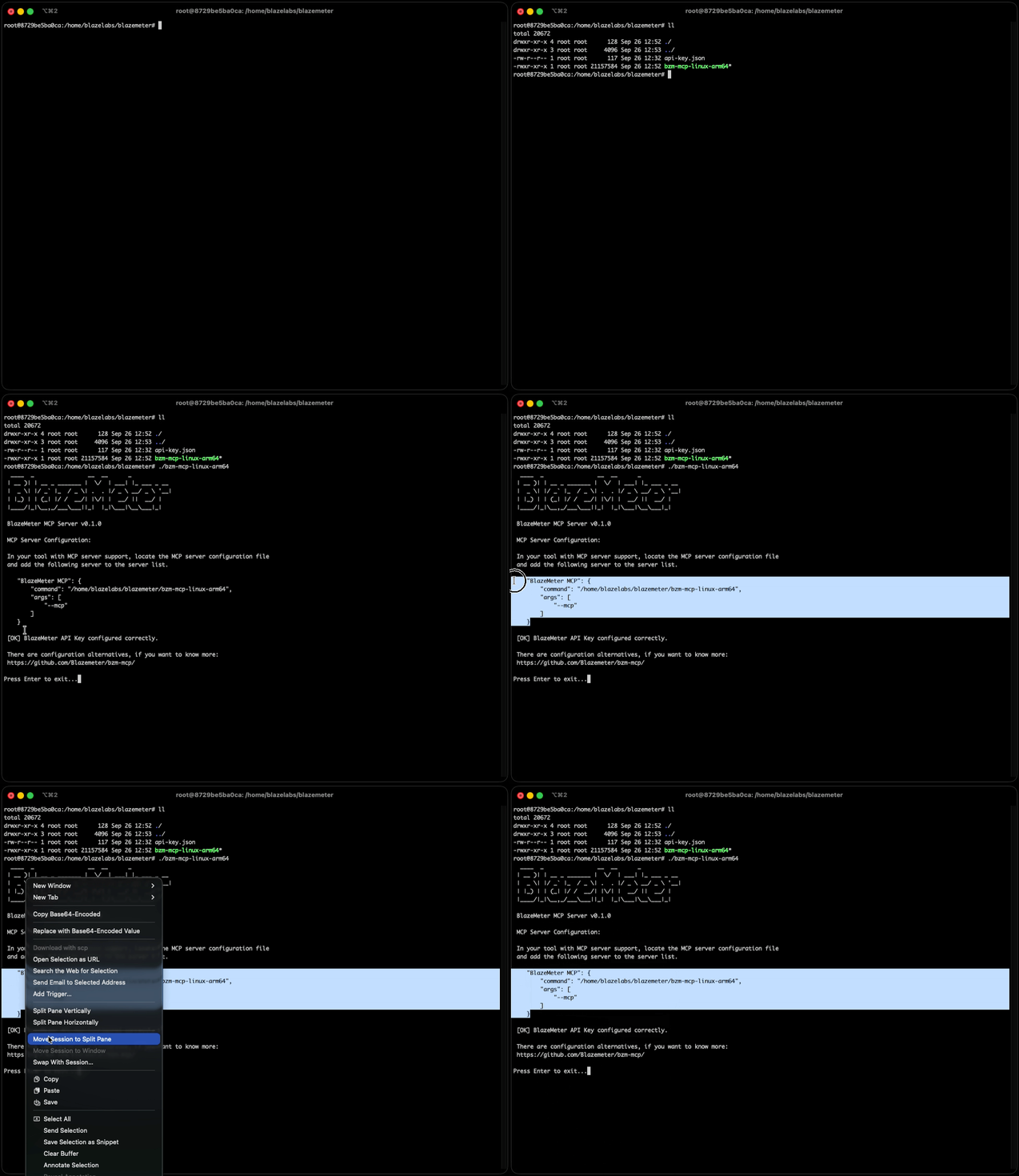
api-keys.jsonfile- Execute or Double-click the binary to launch the interactive configuration tool
- The tool automatically generates the JSON configuration file for you
[!IMPORTANT]
For macOS: You may encounter a security alert saying "Apple could not verify 'bzm-mcp-darwin' is free of malware." To resolve this:
- Go to System Settings → Privacy & Security → Security
- Look for the blocked application and click "Allow Anyway"
- Try running the binary again
Manual Client Configuration (Binary Installation)
- Download the binary for your operating system from the Releases page
- Run the binary once — it will print a JSON config and clickable links to add this MCP in Cursor or VS Code.
- Or configure your MCP client manually with the following settings:
{
  "mcpServers": {
    "BlazeMeter MCP": {
      "command": "/path/to/bzm-mcp-binary",
      "args": ["--mcp"],
      "env": {
        "BLAZEMETER_API_KEY": "/path/to/your/api-key.json"
      }
    }
  }
}
Manual Client Configuration (From Remote Source Code)
- Prerequisites: uv and Python 3.11+
- One-click install or configure your MCP client manually:
Add to Cursor (uvx) Add to VS Code (uvx)
After installing, set BLAZEMETER_API_KEY to your api-key.json path in your client's MCP settings.
Or configure manually with the following settings:
{
  "mcpServers": {
    "BlazeMeter MCP": {
      "command": "uvx",
      "args": [
        "--from", "git+https://github.com/Blazemeter/[email protected]",
        "-q", "bzm-mcp", "--mcp"
      ],
      "env": {
        "BLAZEMETER_API_KEY": "/path/to/your/api-key.json"
      }
    }
  }
}
[!NOTE]
uvx installs and runs the package and its dependencies in a temporary environment.
You can change to any version that has been released or any branch you want. Package support for uvx command is supported from version 1.0.1 onwards.
For more details on the uv/uvx arguments used, please refer to the official uv documentation.
Docker MCP Client Configuration
- Prerequisites: Docker
Add to Cursor (Docker) Add to VS Code (Docker)
After installing, set API_KEY_ID, API_KEY_SECRET, and optionally mount/working dir in your client's MCP settings.
{
  "mcpServers": {
    "Docker BlazeMeter MCP": {
      "command": "docker",
      "args": [
        "run",
        "--pull=always",
        "--rm",
        "-i",
        "--mount",
        "type=bind,source=/path/to/your/test/files,target=/home/bzm-mcp/working_directory/",
        "-e",
        "API_KEY_ID=your_api_key_id",
        "-e",
        "API_KEY_SECRET=your_api_key_secret",
        "-e",
        "SOURCE_WORKING_DIRECTORY=/path/to/your/test/files",
        "ghcr.io/blazemeter/bzm-mcp:latest"
      ]
    }
  }
}
[!IMPORTANT]
For Windows OS, paths must use backslashes (\) and be properly escaped as double backslashes (\\) in the JSON configuration.
E.g.:C:\\User\\Desktop\\mcp_test_folder
[!NOTE]
In order to obtain theAPI_KEY_IDandAPI_KEY_SECRETrefere to BlazeMeter API keys
Custom CA Certificates (Corporate Environments) for Docker
When you need this:
- Your organization uses self-signed certificates
- You're behind a corporate proxy with SSL inspection
- You have a custom Certificate Authority (CA)
- You encounter SSL certificate verification errors when running tests
Required Configuration:
When using custom CA certificate bundles, you must configure both:
- Certificate Volume Mount: Mount your custom CA certificate bundle into the container
- SSL_CERT_FILE Environment Variable: Explicitly set the
SSL_CERT_FILEenvironment variable to point to the certificate location inside the container
Example Configuration
{
  "mcpServers": {
    "Docker BlazeMeter MCP": {
      "command": "docker",
      "args": [
        "run",
        "--pull=always",
        "--rm",
        "-i",
        "--mount",
        "type=bind,source=/path/to/your/test/files,target=/home/bzm-mcp/working_directory/",
        "-v",
        "/path/to/your/ca-bundle.crt:/etc/ssl/certs/custom-ca-bundle.crt",
        "-e",
        "SSL_CERT_FILE=/etc/ssl/certs/custom-ca-bundle.crt",
        "-e",
        "API_KEY_ID=your_api_key_id",
        "-e",
        "API_KEY_SECRET=your_api_key_secret",
        "-e",
        "SOURCE_WORKING_DIRECTORY=/path/to/your/test/files",
        "ghcr.io/blazemeter/bzm-mcp:latest"
      ]
    }
  }
}
Replace:
/path/to/your/ca-bundle.crtwith your host system's CA certificate file path- The container path
/etc/ssl/certs/custom-ca-bundle.crtcan be any path you prefer (just ensure it matchesSSL_CERT_FILE)
The
SSL_CERT_FILEenvironment variable must be set to point to your custom CA certificate bundle. Thehttpxlibrary automatically respects the SSL_CERT_FILE environment variable for SSL certificate verification.
License
This project is licensed under the Apache License, Version 2.0. Please refer to LICENSE for the full terms.
Support
- MCP Server Documentation: BlazeMeter MCP Server Guide
- API Documentation: BlazeMeter API Documentation
- Issues: GitHub Issues
- Support: Contact BlazeMeter support for enterprise assistance
Install BlazeMeter Server in Claude Desktop, Claude Code & Cursor
unyly install blazemeter-mcp-serverInstalls into Claude Desktop, Claude Code, Cursor & VS Code — handles npx, uvx and build-from-source repos for you.
First time? Get the CLI: curl -fsSL https://unyly.org/install | sh
Or configure manually
Run in your terminal:
claude mcp add blazemeter-mcp-server -- uvx --from git+https://github.com/Blazemeter/bzm-mcp bzm-mcpFAQ
Is BlazeMeter Server MCP free?
Yes, BlazeMeter Server MCP is free — one-click install via Unyly at no cost.
Does BlazeMeter Server need an API key?
No, BlazeMeter Server runs without API keys or environment variables.
Is BlazeMeter Server hosted or self-hosted?
A hosted option is available: Unyly runs the server in the cloud, no local setup required.
How do I install BlazeMeter Server in Claude Desktop, Claude Code or Cursor?
Open BlazeMeter Server on unyly.org, pick your client tab (Claude Desktop, Claude Code, Cursor) and press Install — the config is generated automatically, no JSON editing.
Related MCPs
Fetch
Web content fetching and conversion for efficient LLM usage.
AWS KB Retrieval
Retrieval from AWS Knowledge Base using Bedrock Agent Runtime.
 by modelcontextprotocol
Spring AI MCP Server
Provides auto-configuration for setting up an MCP server in Spring Boot applications.
llm-analysis-assistant
A very streamlined mcp client that supports calling and monitoring stdio/sse/streamableHttp, and can also view request responses through the /logs page. It also
 by xuzexin-hz
Compare BlazeMeter Server with
Not sure what to pick?
Find your stack in 60 seconds
Author?
Embed badge for your README
Browse similar
All ai MCPs