
Claude Meet
FreeNot checkedAI-powered scheduling assistant that checks calendars, finds mutual availability, and books meetings via natural language commands.

About
AI-powered scheduling assistant that checks calendars, finds mutual availability, and books meetings via natural language commands.
README
"Schedule a meeting with everyone" → invites sent. That's it.
Stop playing email tennis. Let AI schedule your meetings in seconds.
PyPI version Python 3.10+ License: MIT CI
The Problem
"Are you free Tuesday at 2pm?" "No, how about Wednesday?" "I have a conflict at 3..." "What about Thursday morning?" [5 emails later, 30 minutes wasted]
The Solution
You: "Schedule a meeting with [email protected] and [email protected] next week" Claude Meet: Checks all calendars, finds mutual availability, books the meeting Done in 10 seconds.
You save: 5+ hours per week on scheduling.
Quick Start | Demo | Features | Documentation
Why Claude Meet?
| Feature | Email Back-and-Forth | Calendly | Claude Meet |
|---|---|---|---|
| Checks everyone's calendar | Manual | One-way only | Automatic |
| Natural language | No | No | Yes |
| AI-powered time suggestions | No | No | Yes |
| Works from terminal | No | No | Yes |
| Integrates with Claude Desktop | No | No | Yes |
| Privacy-first (your data stays yours) | Yes | No | Yes |
| Cost | Free but slow | $10-15/mo | Free |
See It In Action
CLI Demo
$ claude-meet chat

Claude Calendar Scheduler
Timezone: Europe/Berlin
Type 'help' for commands, 'exit' to quit
============================================================

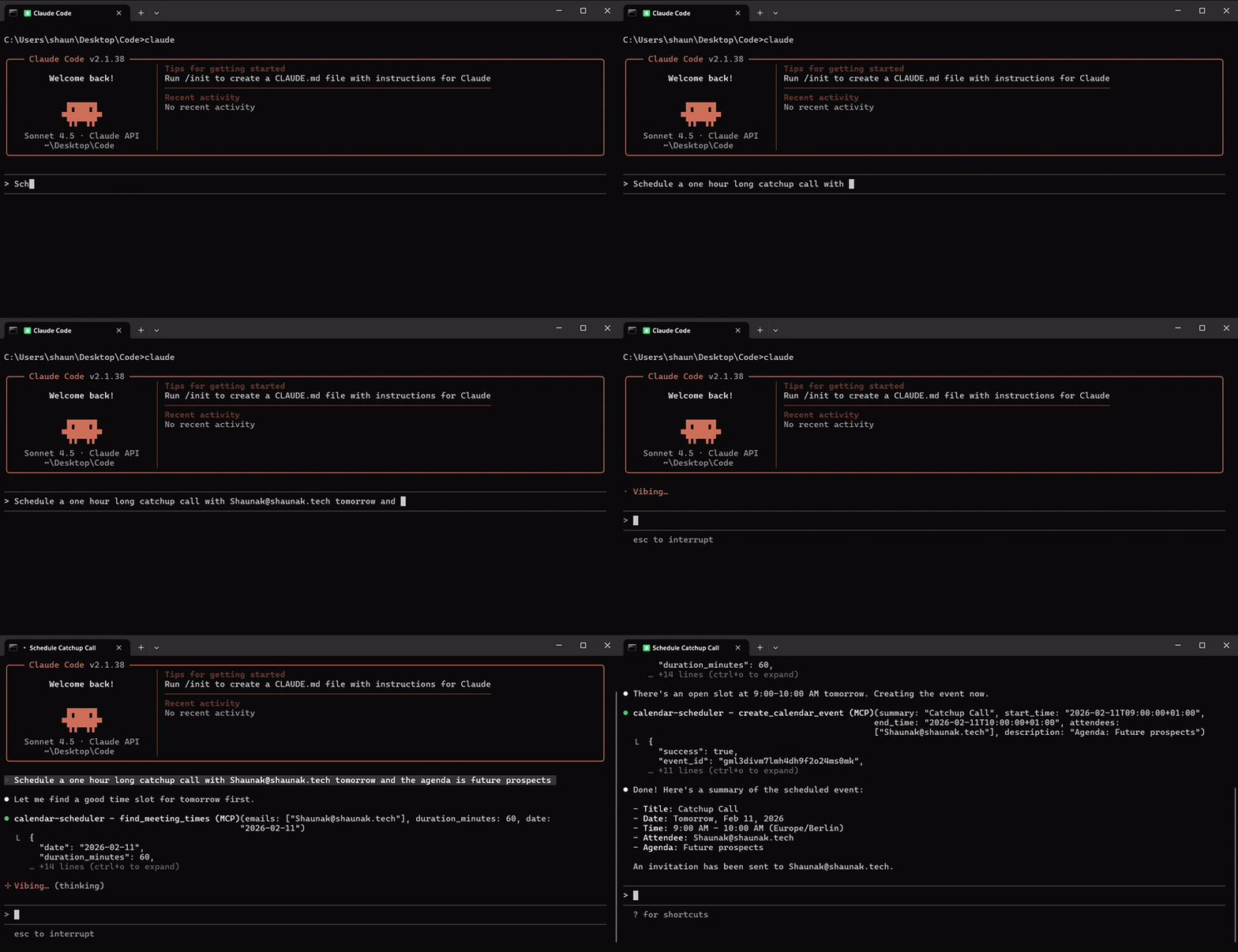
You: Schedule a 1-hour meeting with [email protected] and [email protected] tomorrow

Claude: I'll find a time that works for everyone. Checking calendars...

Found these available slots for tomorrow:
  1. 9:00 AM - 10:00 AM (Recommended - prime morning time)
  2. 2:00 PM - 3:00 PM (Good option)
  3. 4:00 PM - 5:00 PM

Which time works best? And what should I call this meeting?

You: Let's do 2pm, call it "Project Kickoff"

Claude: Done! I've created "Project Kickoff" for tomorrow 2:00 PM - 3:00 PM.
Calendar invites sent to [email protected] and [email protected].
Claude Desktop Integration
Use Claude Meet directly in Claude Desktop - just ask Claude to schedule meetings naturally:
You: Check when [email protected] is free next Tuesday

Claude: I checked Sarah's calendar for next Tuesday. She's available:
  - 9:00 AM - 11:30 AM
  - 2:00 PM - 5:00 PM

Would you like me to schedule a meeting?
Quick Start (60 seconds)
Step 1: Install
pip install claude-meet-mcp
Step 2: Setup
claude-meet init
The wizard guides you through:
- Setting your Anthropic API key
- Connecting Google Calendar (with step-by-step instructions)
- Configuring your timezone
Step 3: Start scheduling
claude-meet chat
That's it. No complex configuration. No YAML files. Just works.
Alternative: Install from source
git clone https://github.com/ShaunakInamdar/claude-meet-mcp.git
cd claude-meet-mcp
pip install -e .
Features
Talk Naturally
No commands to memorize. No special syntax. Just tell Claude what you need.
"Find a time for a 30-minute sync with the design team next week"
"Schedule a demo with [email protected] on Friday afternoon"
"When is everyone free for a team lunch?"
Smart Conflict Detection
Never double-book again. Claude Meet checks everyone's calendar before suggesting times.
Intelligent Time Suggestions
Times are ranked by preference:
- Avoids early mornings and late evenings
- Respects lunch hours
- Prefers prime collaboration times (9-11 AM)
Google Meet Integration
Add video conferencing with one word:
"Schedule a video call with [email protected] tomorrow"
Works Everywhere
- CLI: For terminal lovers
- Claude Desktop: Native MCP integration
- Claude.ai: Use as an MCP tool
Perfect For
Engineering Managers
- Schedule 1-on-1s across your entire team in minutes
- Find time for all-hands when everyone's calendar is packed
- Coordinate cross-team meetings without the back-and-forth
Remote Teams
- Handles multiple timezones automatically
- Finds overlapping work hours across continents
- Async-first: schedule now, meet later
Founders & Sales
- Book demos with prospects instantly
- Coordinate investor meetings efficiently
- Stop losing deals to scheduling friction
Claude Desktop Integration
Add Claude Meet to Claude Desktop for seamless scheduling:
claude-meet mcp-setup
This generates the config to add to your Claude Desktop settings. Once configured, Claude can schedule meetings directly from your conversations.
Available Tools
| Tool | What It Does |
|---|---|
check_calendar_availability |
See when people are free or busy |
find_meeting_times |
Get AI-ranked suggestions for meeting times |
create_calendar_event |
Book meetings and send invites |
Configuration
Customize Claude Meet to match your work style:
# Set your timezone
claude-meet config set TIMEZONE=America/New_York

# Change business hours
claude-meet config set BUSINESS_HOURS_START=8
claude-meet config set BUSINESS_HOURS_END=18

# View all settings
claude-meet config
| Setting | Default | Description |
|---|---|---|
TIMEZONE |
Auto-detected | Your local timezone |
BUSINESS_HOURS_START |
9 | When your workday starts |
BUSINESS_HOURS_END |
17 | When your workday ends |
DEFAULT_DURATION |
60 | Default meeting length (minutes) |
Commands
| Command | Description |
|---|---|
claude-meet init |
Interactive setup wizard |
claude-meet chat |
Start scheduling conversations |
claude-meet check |
Verify your setup is working |
claude-meet config |
View/edit configuration |
claude-meet auth |
Re-authenticate with Google |
claude-meet mcp-setup |
Get Claude Desktop config |
claude-meet upcoming |
See your next meetings |
Architecture
┌─────────────────┐     ┌──────────────────┐     ┌─────────────────┐
│   Claude CLI    │────▶│   Claude API     │────▶│ Calendar Client │
│   or Desktop    │     │  (Tool Calling)  │     │  (Google API)   │
└─────────────────┘     └──────────────────┘     └─────────────────┘
                                │
                                ▼
                        ┌──────────────────┐
                        │    Scheduler     │
                        │ (Time Ranking)   │
                        └──────────────────┘
How it works:
- You describe what you need in natural language
- Claude interprets your request and calls the right tools
- Calendar Client checks Google Calendar for availability
- Scheduler ranks times by preference
- Claude presents options and books your choice
Troubleshooting
Run the diagnostic command first:
claude-meet check
This shows what's configured and what needs attention.
Common Issues
"API key not found"
claude-meet config set ANTHROPIC_API_KEY=sk-ant-...
"Google credentials not found"
claude-meet init # Follow the Google Cloud setup steps
"Authentication expired"
claude-meet logout && claude-meet auth
Contributing
We welcome contributions! See our Contributing Guide for details.
# Run tests
pytest tests/ -v

# Run linting
ruff check claude_meet/
Privacy & Security
- Your data stays yours: We never see your calendar data
- Local tokens: Google OAuth tokens stored locally in
~/.claude-meet/ - No tracking: Zero analytics or telemetry
- Open source: Audit the code yourself
Support the Project
If Claude Meet saves you time:
- Star this repo to help others find it
- Report bugs to help us improve
- Share with colleagues who hate scheduling
License
MIT License - Use it however you want.
Stop scheduling manually. Let AI do it.
Get Started ·
Report Bug ·
Request Feature
Install Claude Meet in Claude Desktop, Claude Code & Cursor
unyly install claude-meet-mcpInstalls into Claude Desktop, Claude Code, Cursor & VS Code — handles npx, uvx and build-from-source repos for you.
First time? Get the CLI: curl -fsSL https://unyly.org/install | sh
Or configure manually
Run in your terminal:
claude mcp add claude-meet-mcp -- uvx claude-meet-mcpStep-by-step: how to install Claude Meet
FAQ
Is Claude Meet MCP free?
Yes, Claude Meet MCP is free — one-click install via Unyly at no cost.
Does Claude Meet need an API key?
No, Claude Meet runs without API keys or environment variables.
Is Claude Meet hosted or self-hosted?
A hosted option is available: Unyly runs the server in the cloud, no local setup required.
How do I install Claude Meet in Claude Desktop, Claude Code or Cursor?
Open Claude Meet on unyly.org, pick your client tab (Claude Desktop, Claude Code, Cursor) and press Install — the config is generated automatically, no JSON editing.
Related MCPs
Fetch
Web content fetching and conversion for efficient LLM usage.
Roblox Studio
Enables AI coding tools to control Roblox Studio for workspace exploration, instance manipulation, and script management. It provides tools for playtesting, sce
 by paralov
Opencode Omniroute Plugin
OpenCode plugin for the OmniRoute AI Gateway. Drives dynamic model discovery, /connect auth flow, and multi-instance OmniRoute providers via the official @openc
 by GitHub Actions
AWS KB Retrieval
Retrieval from AWS Knowledge Base using Bedrock Agent Runtime.
 by modelcontextprotocol
Spring AI MCP Server
Provides auto-configuration for setting up an MCP server in Spring Boot applications.
llm-analysis-assistant
A very streamlined mcp client that supports calling and monitoring stdio/sse/streamableHttp, and can also view request responses through the /logs page. It also
 by xuzexin-hz
MCP-Agent
A simple, composable framework to build agents using Model Context Protocol by [LastMile AI](https://www.lastmileai.dev)
 by lastmile-ai
Spring AI MCP Client
Provides auto-configuration for MCP client functionality in Spring Boot applications.
mcp.natoma.ai
A Hosted MCP Platform to discover, install, manage and deploy MCP servers by [Natoma Labs](https://www.natoma.ai)
MCPHub
Website to list high quality MCP servers and reviews by real users. Also provide online chatbot for popular LLM models with MCP server support.
Compare Claude Meet with
Not sure what to pick?
Find your stack in 60 seconds
Author?
Embed badge for your README
Browse similar
All ai MCPs