
Google AI Overview API
FreeNot checkedEnables fetching Google's AI Overview answers and cited sources as structured JSON, with support for batch queries and country/language targeting.

About
Enables fetching Google's AI Overview answers and cited sources as structured JSON, with support for batch queries and country/language targeting.
README
The most efficient, reliable, and developer-friendly way to use the Google AI Overview API.
Actor page: apify.com/johnvc/Google-AI-Overview-API Input schema: apify.com/johnvc/Google-AI-Overview-API/input-schema
Send any search query and get back Google's AI Overview, the AI-generated answer that appears at the top of Google's results, as structured JSON: the answer text blocks plus the sources it cites (title, link, snippet, and source name). When Google defers generation and returns only a short-lived token, this API resolves the full answer for you automatically, so you always get clean, ready-to-use data.
Video Walkthrough
Quick Start
Prerequisites
- Python 3.11 or higher
- An Apify account and API key (get a free key here)
Clone the repository
git clone https://github.com/johnisanerd/Apify-Google-AI-Overview-API.git
cd Apify-Google-AI-Overview-API
Install dependencies with UV
# Install UV if you do not have it:
curl -LsSf https://astral.sh/uv/install.sh | sh

# Install project dependencies:
uv sync
Configure your API key
cp .env.example .env
# Edit .env and add your Apify API key
# Get your free API key at: https://apify.com?fpr=9n7kx3
Run the example
uv run python google-ai-overview-api-example.py
Alternative: set the API key directly
export APIFY_API_TOKEN="your_api_key_here"
uv run python google-ai-overview-api-example.py
Why Use This Google AI Overview API?
Just the answer, structured. You get the AI Overview content and its cited sources as clean JSON, ready to drop into a database, a report, or an LLM pipeline. No HTML parsing.
It handles Google's deferral for you. Google sometimes returns the AI Overview immediately and sometimes defers it behind a short-lived token. This API resolves that follow-up automatically in a single run, so you never have to manage tokens that expire in under a minute.
One query or many. Pass a single query or a queries list. You get one result row per query, which makes batch lookups and GEO/AEO monitoring straightforward.
Pay only for what you fetch. Pricing is per retrieval: one retrieval for a standard inline answer, two only when Google defers and a follow-up is required. The output tells you exactly how many were used.
Country and language targeting. Choose the country (gl) and language (hl), or narrow to a specific location.
MCP-ready. Load it as a tool in Claude Cowork, Claude Code, Claude on the web, and Cursor (see below) and ask for an AI Overview in plain language.
Features
Core Capabilities
- Returns the AI Overview answer as ordered
text_blocks(paragraphs, headings, lists) - Returns the cited
referencesfor each answer (title, link, snippet, source) - Automatic resolution of Google's deferred (token-based) generation
- Single-query and batch (
queries) input, one row per query - Country, language, and location targeting
Data Quality
- Clean, typed JSON output, one row per query, with a stable
result_typefield - A clear
ai_overview_presentflag and anotewhen Google shows no overview - Transparent
retrievals_usedcount so cost is never a surprise
Usage Examples
Basic Example
{
  "query": "what is the Siliconimist podcast?"
}
Advanced Example
{
  "queries": [
    "best practices for prompt engineering",
    "how does vector search work"
  ],
  "gl": "us",
  "hl": "en",
  "location": "Austin, Texas, United States"
}
Input Parameters
| Parameter | Type | Required | Default | Description |
|---|---|---|---|---|
query |
str |
one of query / queries |
- | A single search query to fetch the AI Overview for. |
queries |
list[str] |
one of query / queries |
- | Multiple queries in one run; one result row per query. Merged with query. |
gl |
str |
no | us |
Country code (ISO 3166-1), e.g. us, gb, ca. |
hl |
str |
no | en |
Language code (ISO 639-1). AI Overviews are currently English-only. |
location |
str |
no | - | Optional location to narrow results, e.g. Austin, Texas, United States. |
At least one of query or queries is required.
Output Format
One row per query. Each item has a result_type of ai_overview or error. The answer text and sources below are illustrative; your run returns the live AI Overview content and its real citations.
{
  "result_type": "ai_overview",
  "query": "what is retrieval augmented generation",
  "ai_overview_present": true,
  "used_dedicated_api": false,
  "retrievals_used": 1,
  "text_blocks": [
    {
      "type": "paragraph",
      "snippet": "<AI Overview answer paragraph for the query>"
    }
  ],
  "references": [
    {
      "title": "<cited source title>",
      "link": "https://www.example.com/source",
      "snippet": "<short snippet from the cited source>",
      "source": "Example",
      "index": 1
    }
  ],
  "gl": "us",
  "hl": "en",
  "fetched_at": "2026-05-28T08:33:58.988871+00:00"
}
When Google does not show an AI Overview for a query, the row comes back with "ai_overview_present": false and a short note explaining why.
Use as an MCP tool
You can load the Google AI Overview API as an MCP tool so assistants call it for you. The MCP server URL preloads just this one Actor:
https://mcp.apify.com/?tools=actors,docs,johnvc/Google-AI-Overview-API
Authenticate with OAuth in the browser when offered, or with your Apify API token (the same APIFY_API_TOKEN used by the Python example). Get a token at https://console.apify.com/settings/integrations and a free Apify account at https://apify.com?fpr=9n7kx3 .
Install in Claude Cowork Desktop
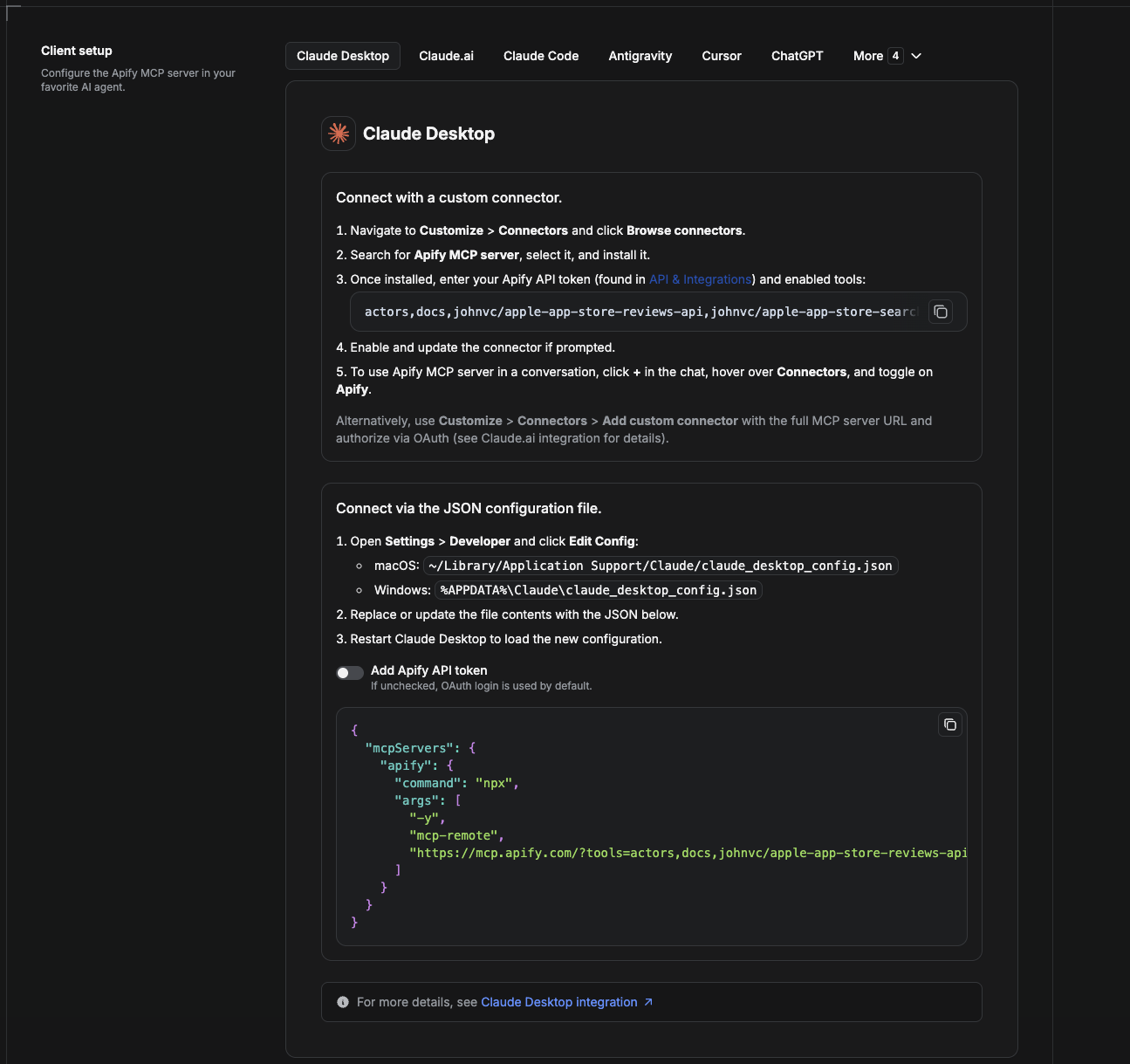
Cowork is the desktop app's automation mode. To give it the Google AI Overview API as a tool, add the Apify MCP server as a connector.
- Open the Claude desktop app and go to Settings → Connectors (or Settings → Developer → Edit Config to edit
claude_desktop_config.jsondirectly).- macOS:
~/Library/Application Support/Claude/claude_desktop_config.json - Windows:
%APPDATA%\Claude\claude_desktop_config.json
- macOS:
- Add the Apify MCP server, preloaded with only this Actor:
{
  "mcpServers": {
    "apify": {
      "command": "npx",
      "args": [
        "-y",
        "mcp-remote",
        "https://mcp.apify.com/?tools=actors,docs,johnvc/Google-AI-Overview-API"
      ]
    }
  }
}
- Restart the app. When Cowork first calls the tool, complete the OAuth prompt in your browser, or add your Apify API token in the connector settings to skip OAuth.
- In a Cowork chat, confirm the tool is available and ask it to run the Google AI Overview API.
Download the desktop app and start a free trial: https://claude.ai/referral/uIlpa7nPLg More help: https://docs.apify.com/platform/integrations/claude-desktop
Install in Claude Code
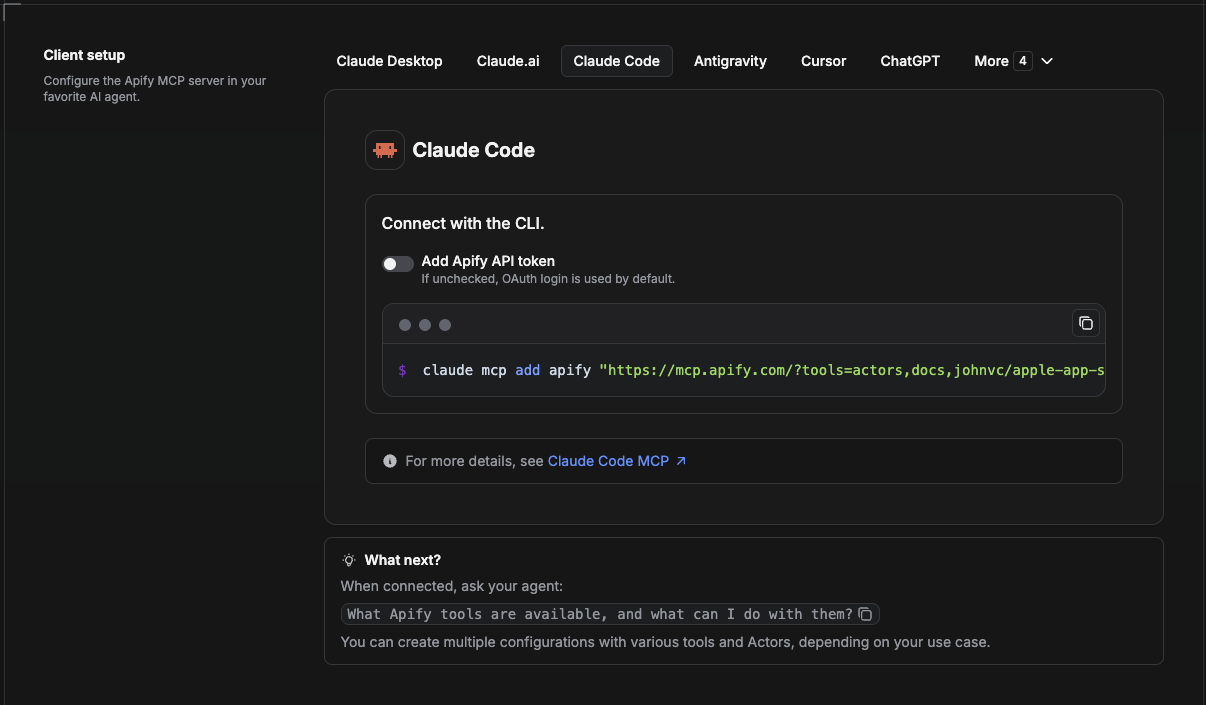
Claude Code is the command-line tool. Add the Actor's MCP server with one command:
claude mcp add --transport http apify \
  "https://mcp.apify.com/?tools=actors,docs,johnvc/Google-AI-Overview-API"
To use a token instead of browser OAuth:
claude mcp add --transport http apify \
  "https://mcp.apify.com/?tools=actors,docs,johnvc/Google-AI-Overview-API" \
  --header "Authorization: Bearer YOUR_APIFY_TOKEN"
Then verify with claude mcp list, or run /mcp inside a session. Ask Claude Code to call the Google AI Overview API.
Try Claude Code free: https://claude.ai/referral/uIlpa7nPLg Claude Code MCP docs: https://code.claude.com/docs/en/mcp
Install in Claude (website)
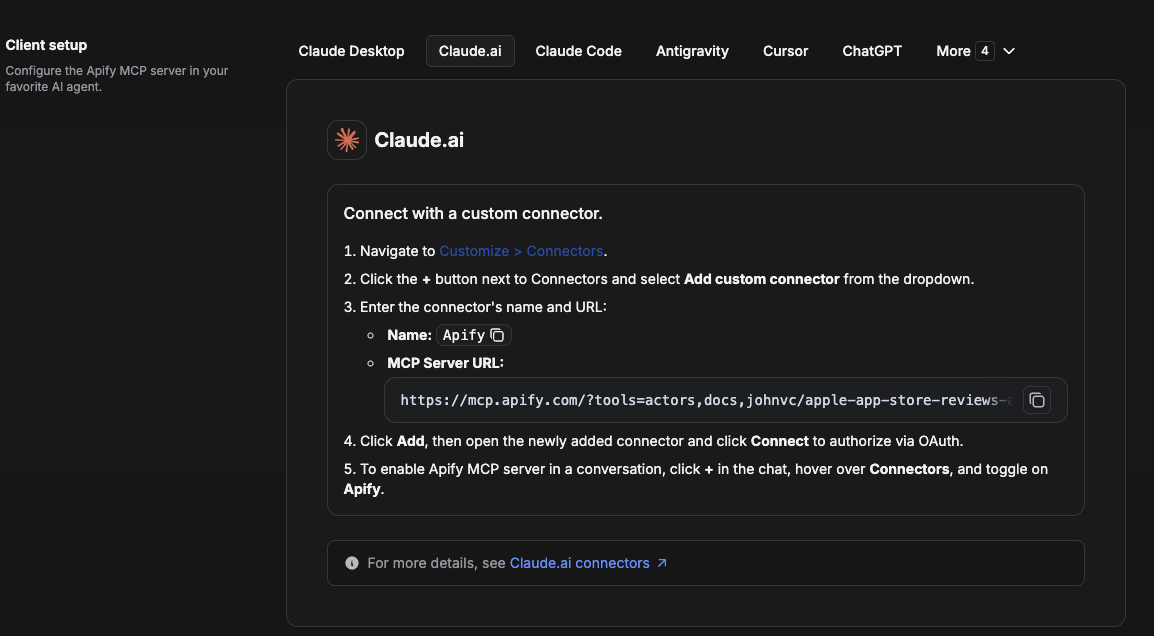
On claude.ai you add Apify as a connector, then enable just this Actor's tool.
- Go to Settings → Connectors → Browse connectors and search for Apify MCP server. Install it (enable or update if prompted).
- When connecting, authenticate with your Apify API token, and enable the tool
johnvc/Google-AI-Overview-API. - In any chat, open + → Connectors and turn on Apify.
- Alternatively, choose Add custom connector and paste the full MCP URL
https://mcp.apify.com/?tools=actors,docs,johnvc/Google-AI-Overview-API, using OAuth when prompted. - Ask Claude to run the Google AI Overview API.
Open Claude on the web: https://claude.ai/referral/uIlpa7nPLg
Install in Cursor
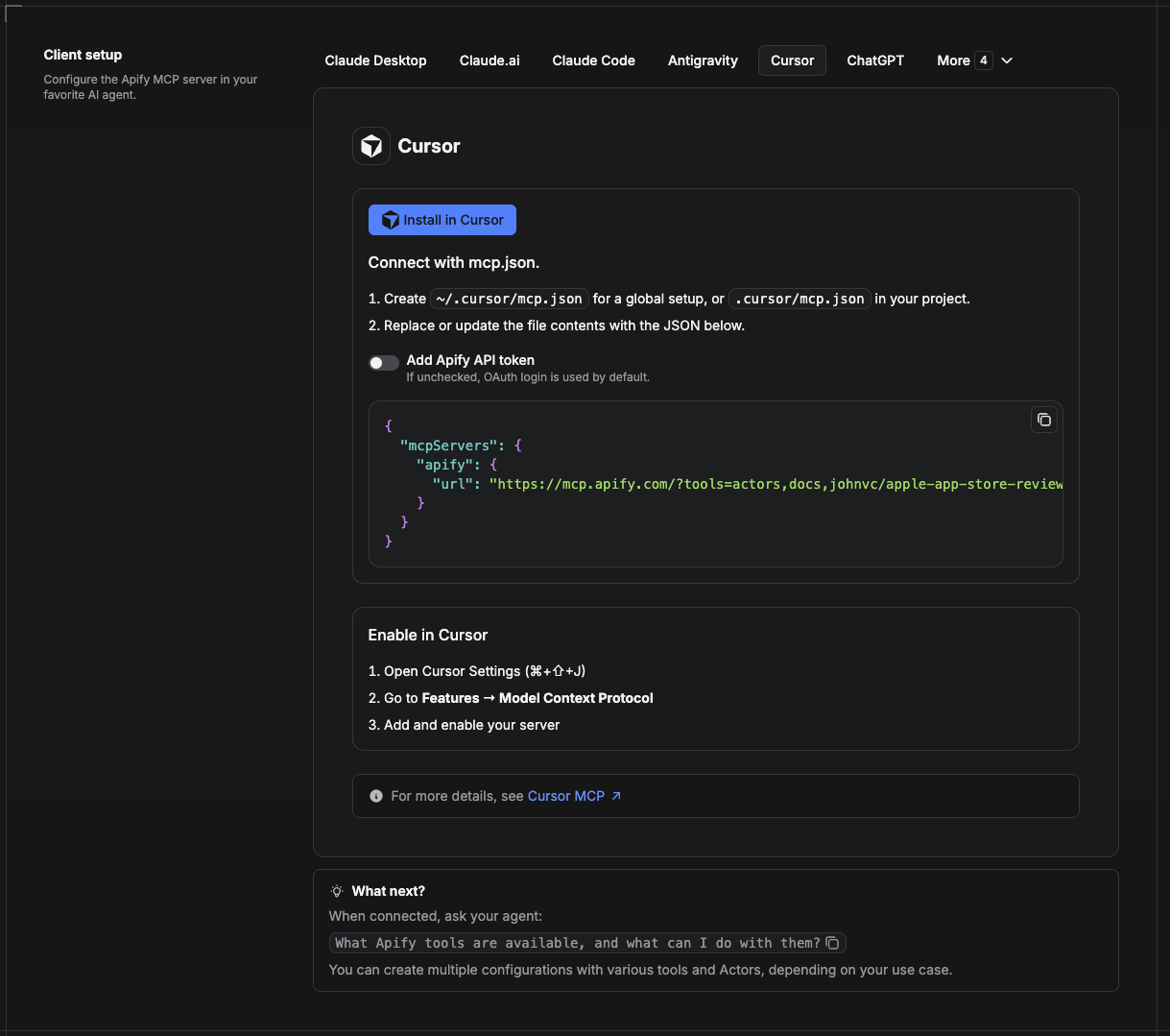
Cursor reads MCP servers from a project file at .cursor/mcp.json.
- In your project, create
.cursor/mcp.json:
{
  "mcpServers": {
    "apify": {
      "url": "https://mcp.apify.com/?tools=actors,docs,johnvc/Google-AI-Overview-API"
    }
  }
}
- If you prefer token auth over browser OAuth, add a header:
{
  "mcpServers": {
    "apify": {
      "url": "https://mcp.apify.com/?tools=actors,docs,johnvc/Google-AI-Overview-API",
      "headers": { "Authorization": "Bearer YOUR_APIFY_TOKEN" }
    }
  }
}
- Open Cursor → Settings → MCP and confirm the apify server is connected (green dot).
- In Composer or Chat, ask Cursor to call the Google AI Overview API.
New to Cursor? Get it here: https://cursor.com/referral?code=XQP4VBLI3NNX
Install in ChatGPT
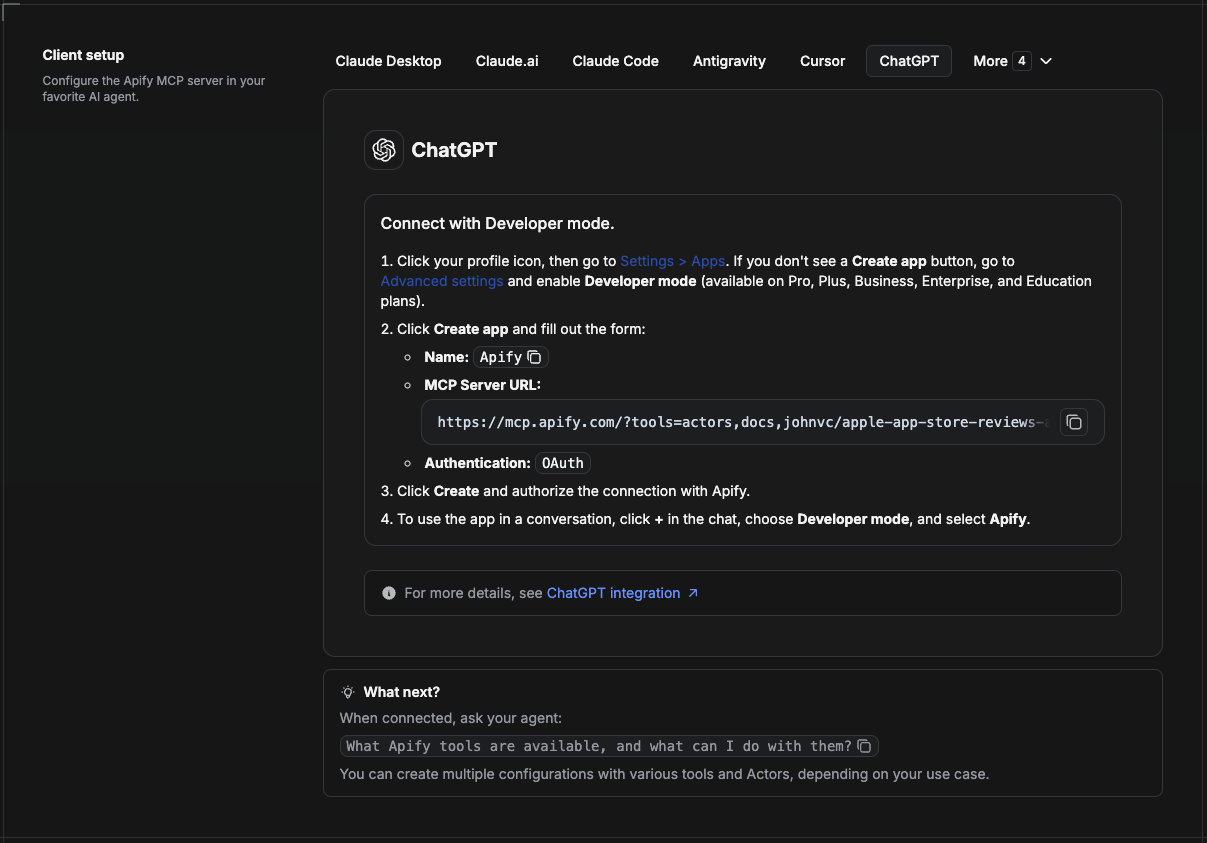
ChatGPT connects to the Apify MCP server through Developer mode (available on ChatGPT Pro, Plus, Business, Enterprise, and Education plans).
- Click your profile icon, then go to Settings > Apps. If you do not see a Create app button, open Advanced settings and enable Developer mode.
- Click Create app and fill out the form:
- Name: Apify
- MCP Server URL:
https://mcp.apify.com/?tools=actors,docs,johnvc/Google-AI-Overview-API - Authentication: OAuth
- Click Create and authorize the connection with Apify.
- To use the app in a conversation, click + in the chat, choose Developer mode, and select Apify.
More help: https://docs.apify.com/platform/integrations/mcp
Use the Google AI Overview API to power GEO/AEO monitoring, research, and content workflows with reliable, structured results.
Last Updated: 2026.08.01
Installing Google AI Overview API
This server has no published package — it is built from source. Open the repository and follow its README.
▸ github.com/johnisanerd/Apify-Google-AI-Overview-APIFAQ
Is Google AI Overview API MCP free?
Yes, Google AI Overview API MCP is free — one-click install via Unyly at no cost.
Does Google AI Overview API need an API key?
No, Google AI Overview API runs without API keys or environment variables.
Is Google AI Overview API hosted or self-hosted?
A hosted option is available: Unyly runs the server in the cloud, no local setup required.
How do I install Google AI Overview API in Claude Desktop, Claude Code or Cursor?
Open Google AI Overview API on unyly.org, pick your client tab (Claude Desktop, Claude Code, Cursor) and press Install — the config is generated automatically, no JSON editing.
Related MCPs
Fetch
Web content fetching and conversion for efficient LLM usage.
AWS KB Retrieval
Retrieval from AWS Knowledge Base using Bedrock Agent Runtime.
 by modelcontextprotocol
Spring AI MCP Server
Provides auto-configuration for setting up an MCP server in Spring Boot applications.
llm-analysis-assistant
A very streamlined mcp client that supports calling and monitoring stdio/sse/streamableHttp, and can also view request responses through the /logs page. It also
 by xuzexin-hz
Compare Google AI Overview API with
Not sure what to pick?
Find your stack in 60 seconds
Author?
Embed badge for your README
Browse similar
All ai MCPs