
Greenlight
FreeNot checkedVisual status indicator that displays colored terminal backgrounds to signal AI work progress states

About
Visual status indicator that displays colored terminal backgrounds to signal AI work progress states
README
A visual status indicator MCP server for AI assistants. Displays a colored terminal window that shows whether your AI is working (green) or done (red).
Perfect for walking away from your desk while an AI works on a task - just glance at the screen to see if it's finished.
Features
- Green light: AI is working on a task
- Yellow light: AI is waiting for user approval (via hooks)
- Red light: AI has completed the task
- Gray light: Idle/no status set
- Real-time updates via file watching
- Clean, full-screen terminal display
- Works with Claude Code and other MCP-compatible AI tools
- Auto-detection: Only activates when display terminal is open
Screenshots
| Working (Green) | Waiting (Yellow) | Done (Red) |
|---|---|---|
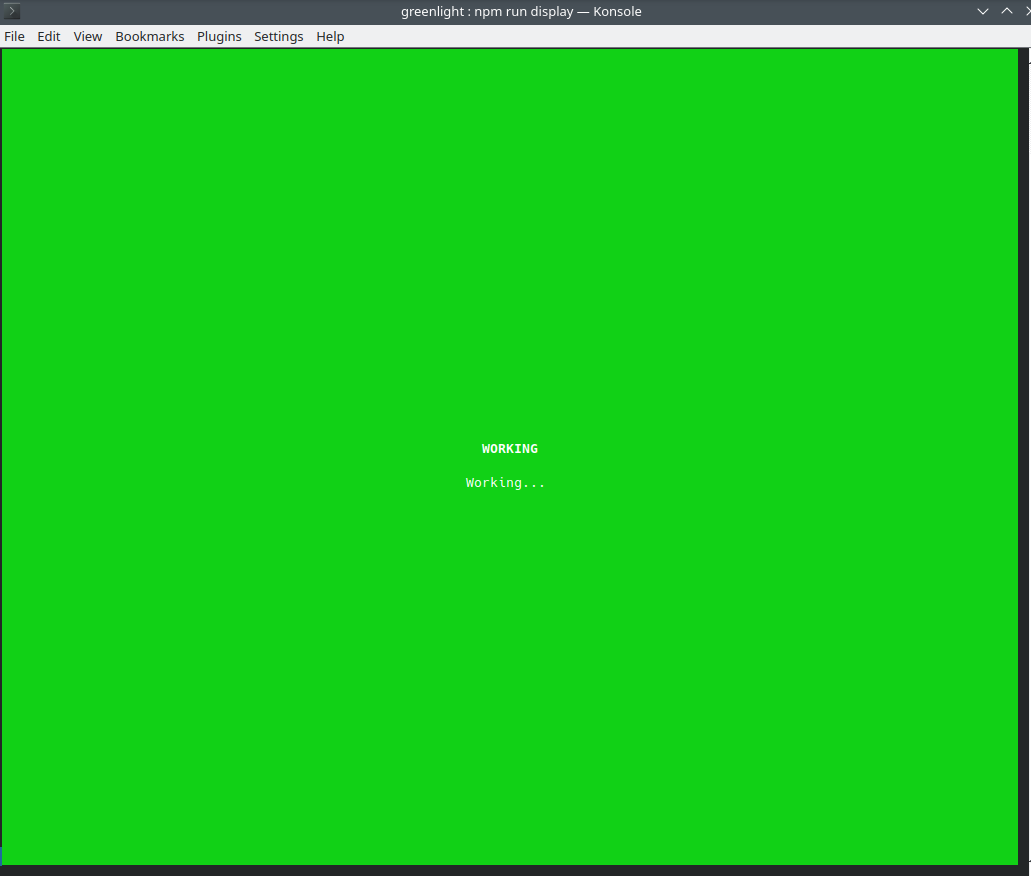 |
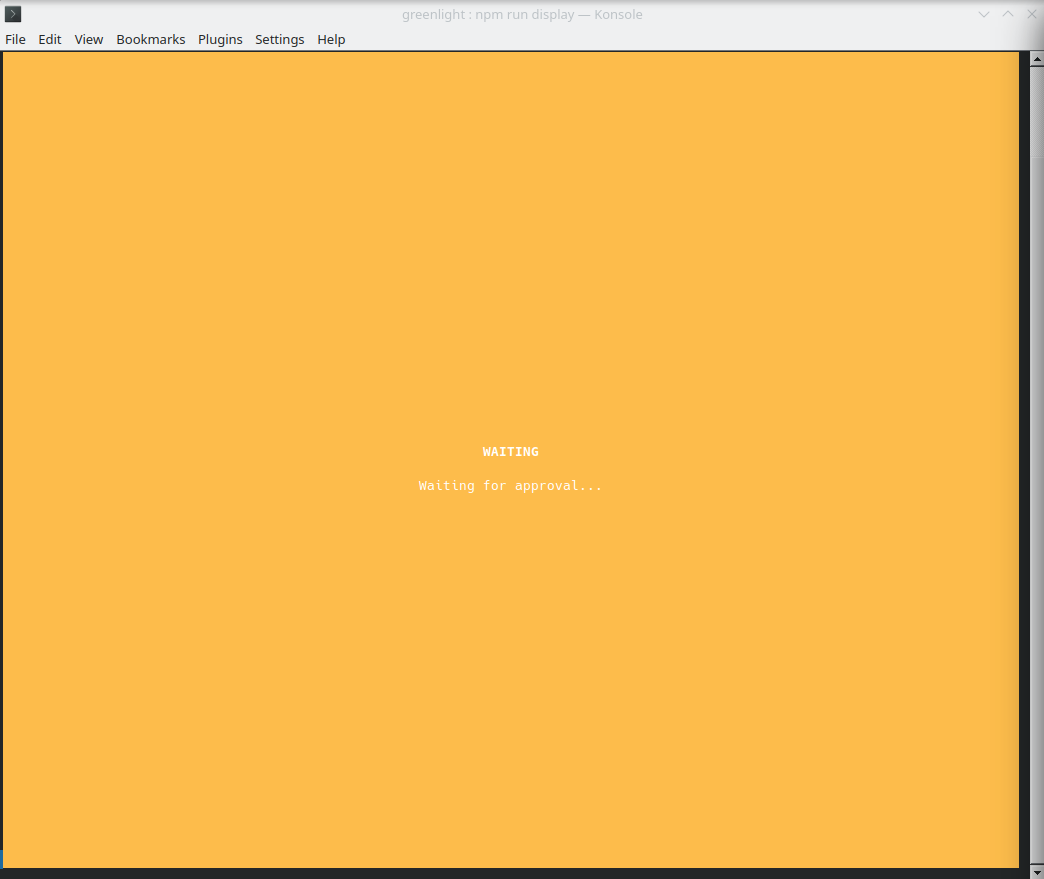 |
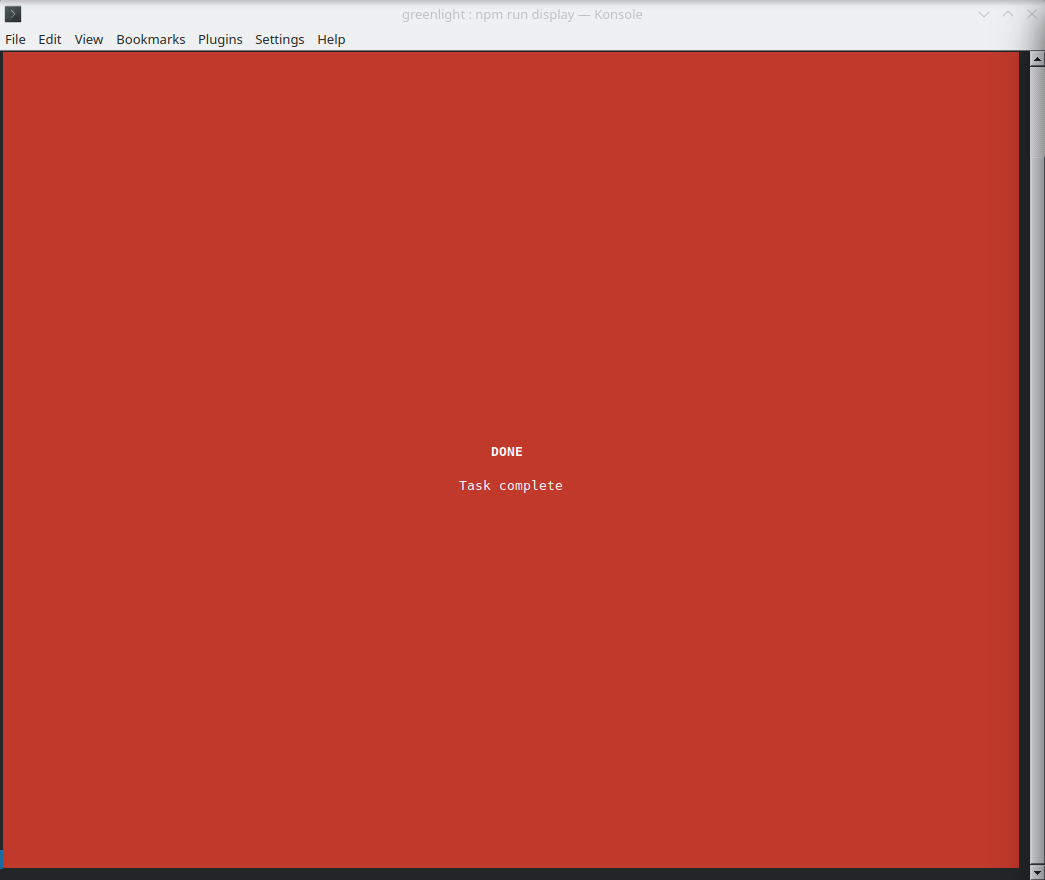 |
Installation
# Clone the repository
git clone https://github.com/bigph00t/greenlight.git
cd greenlight

# Install dependencies
npm install
Usage
1. Start the display window
Open a terminal and run:
npm run display
# or
node src/display.js
Leave this terminal visible - it will show the status colors.
2. Configure your AI assistant
Add to your Claude Code configuration (~/.claude.json):
{
  "mcpServers": {
    "greenlight": {
      "type": "stdio",
      "command": "node",
      "args": ["/path/to/greenlight/src/server.js"]
    }
  }
}
3. Use in your workflow
The AI can now call these tools:
set_working- Sets the light to green (with optional message)set_done- Sets the light to red (with optional message)get_status- Returns the current status
Example prompt:
"Use greenlight to show you're working, then build my project, and set it to done when finished."
How it works
- The MCP server writes status to
~/.greenlight/status.json - The display script watches this file and updates the terminal colors
- Status changes appear in real-time (100ms polling)
- Display detection: The server automatically detects if the display is running. If not, tools gracefully skip (no errors)
Optional: Yellow Light for Approval Prompts (Claude Code Only)
Note: This step is optional and only works with Claude Code. It requires manual setup - hooks cannot be auto-installed by MCP servers.
The yellow "waiting" status can automatically appear when Claude Code is waiting for your approval on a tool. This requires adding hooks to your Claude Code settings.
Add this to ~/.claude/settings.json:
{
  "hooks": {
    "Notification": [
      {
        "matcher": "permission_prompt",
        "hooks": [
          {
            "type": "command",
            "command": "node /FULL/PATH/TO/greenlight/src/cli.js waiting 'Waiting for approval...'"
          }
        ]
      }
    ],
    "PostToolUse": [
      {
        "matcher": "Bash|Edit|Write|Read|Glob|Grep|WebFetch|WebSearch|Task",
        "hooks": [
          {
            "type": "command",
            "command": "node /FULL/PATH/TO/greenlight/src/cli.js working"
          }
        ]
      }
    ]
  }
}
Important: Replace /FULL/PATH/TO/greenlight with the actual path where you cloned the repo.
What this does:
Notificationhook → Turns yellow when Claude requests permission for a toolPostToolUsehook → Turns back to green after you approve and the tool runs
Without hooks: Green and red still work perfectly via the MCP server - you just won't get automatic yellow during approval prompts.
Tools
| Tool | Description |
|---|---|
set_working |
Set status to WORKING (green). Optional message parameter. |
set_done |
Set status to DONE (red). Call after final response to user. |
get_status |
Get current status as JSON. |
Status File
Status is stored at ~/.greenlight/status.json:
{
  "status": "working",
  "message": "Building project...",
  "timestamp": "2024-01-15T10:30:00.000Z"
}
License
MIT
Installing Greenlight
This server has no published package — it is built from source. Open the repository and follow its README.
▸ github.com/bigph00t/greenlightFAQ
Is Greenlight MCP free?
Yes, Greenlight MCP is free — one-click install via Unyly at no cost.
Does Greenlight need an API key?
No, Greenlight runs without API keys or environment variables.
Is Greenlight hosted or self-hosted?
Self-hosted: the server runs locally on your machine via the install command above.
How do I install Greenlight in Claude Desktop, Claude Code or Cursor?
Open Greenlight on unyly.org, pick your client tab (Claude Desktop, Claude Code, Cursor) and press Install — the config is generated automatically, no JSON editing.
Related MCPs
Fetch
Web content fetching and conversion for efficient LLM usage.
AWS KB Retrieval
Retrieval from AWS Knowledge Base using Bedrock Agent Runtime.
 by modelcontextprotocol
Spring AI MCP Server
Provides auto-configuration for setting up an MCP server in Spring Boot applications.
llm-analysis-assistant
A very streamlined mcp client that supports calling and monitoring stdio/sse/streamableHttp, and can also view request responses through the /logs page. It also
 by xuzexin-hz
Compare Greenlight with
Not sure what to pick?
Find your stack in 60 seconds
Author?
Embed badge for your README
Browse similar
All ai MCPs