
Lightwave
FreeNot checkedEnables AI assistants to discover, connect to, and control LightWave3D Modeler and Layout programmatically via the Command Port.

About
Enables AI assistants to discover, connect to, and control LightWave3D Modeler and Layout programmatically via the Command Port.
README
A Model Context Protocol (MCP) server that provides access to LightWave3D's Command Port functionality. This enables AI assistants like Cursor to discover, connect to, and control LightWave Modeler and Layout programmatically.
What is an MCP?
If MCP is a new term for you: An MCP server allows just about any program or scripted tool to be wrapped in a way that you can use conversational English to automate just about anything. It is a powerful option to help tame complex workflow tasks, in a "low-code" fashion, using simple prompts.
Screenshots
Here are a few views of "lightwave-mcp" in action using the Cursor editor. Prompts are used to drive an active LightWave3D session via a remote control interface called a LightWave command port.
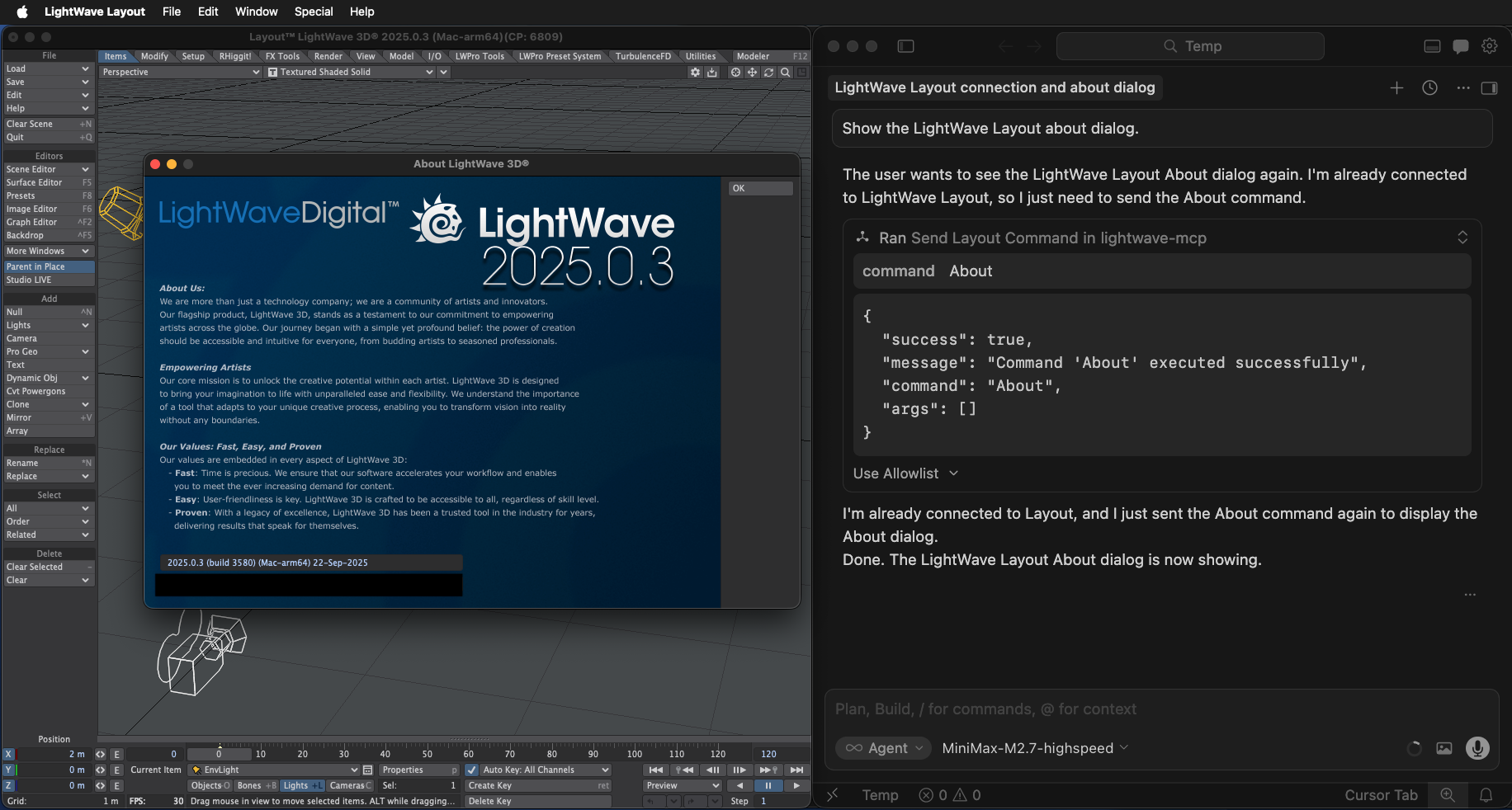
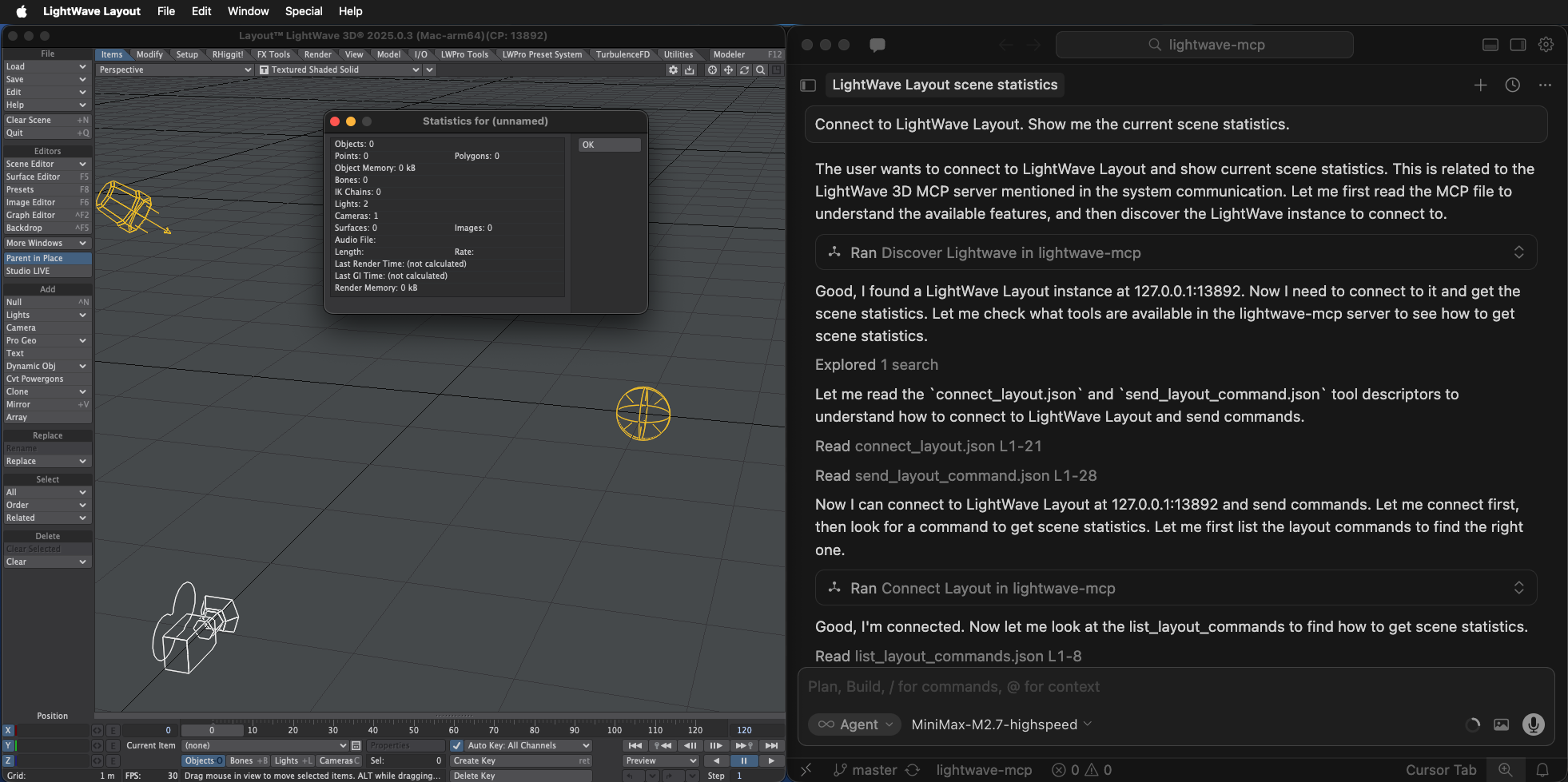
Features
- Automatic Discovery: Find running LightWave instances on your network using UDP broadcast
- Dual Interface Support: Connect to both LightWave Layout and Modeler
- Command Introspection: Pre-built cache of 857 Layout commands and 63 Modeler commands
- Dynamic Updates: Refresh command cache when LightWave updates with new API features
- Connection Management: Track and manage multiple active connections
- Python 3 Compatible: Includes forked
lwcommandportlibrary updated for Python 3.11+
Installation
Prerequisites
- Python 3.7+ (tested with Python 3.11+)
- LightWave 3D 2025.0.3+ with the Command Port enabled
Quick Start
- Download the repository using "git clone" or the GitHub Repo "Code" button:
- Clone this repository:
git clone https://github.com/Kartaverse/lightwave-mcp.git
cd lightwave-mcp
- Alternatively, you can click on the lightwave-mcp GitHub repo's green "Code" button and select the "Download ZIP" button. You will need to manually expand the "lightwave-mcp-master.zip" archive. Rename the folder from "lightwave-mcp-master" to "lightwave-mcp".
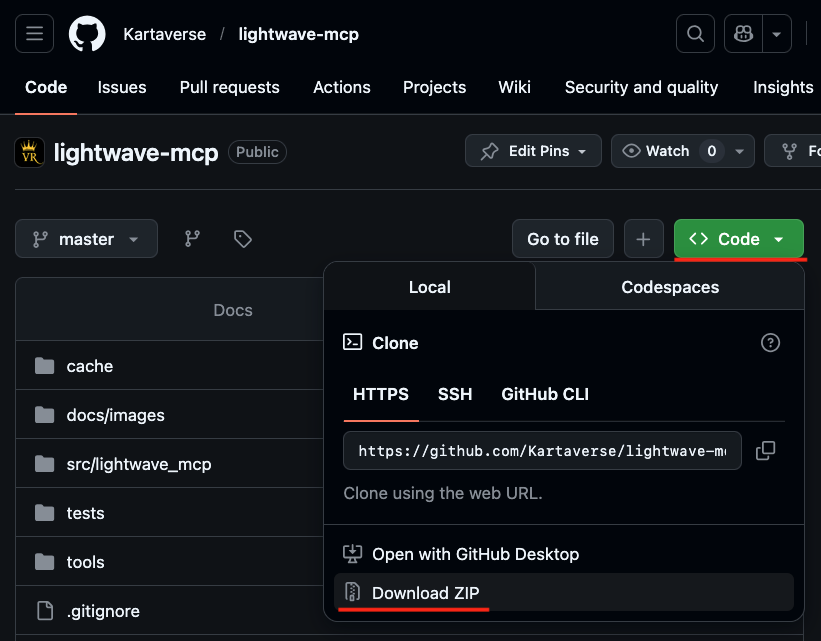
- Configure the mcp.json setting in your preferred MCP client (e.g., Cursor). In the "Cursor Settings > Tools and MCPs > Install MCP Servers" section, click on the "New MCP Server" button.
This will open up the .cursor/mcp.json file for editing in a new Cursor tab. Add the following text, while making sure to preserve any pre-existing MCP entries and the JSON indendation levels for those pre-existing items.
{
  "mcpServers": {
    "lightwave-mcp": {
      "command": "python3",
      "args": [
        "/path/to/lightwave-mcp/src/lightwave_mcp/server.py"
      ],
      "env": {
        "PYTHONPATH": "/path/to/lightwave-mcp/src"
      }
    }
  }
}
You will need to update the absolute filepaths in the mcp.json file to point at the location where the lightwave-mcp files were downloaded. If you are on Windows you will likely have to use double slashes "\\" for each of the folder path separators in the mcp.json filepaths to correctly handle string escaping in a JSON document.
If your Python v3.x executable is not named "python3" when you run python from a CLI session, you can change the mcp.json based lightwave-mcp "command" entry to reference the executable named "python".
When this updated content is added to your .cursor/mcp.json file, it should look like this in the Cursor GUI:
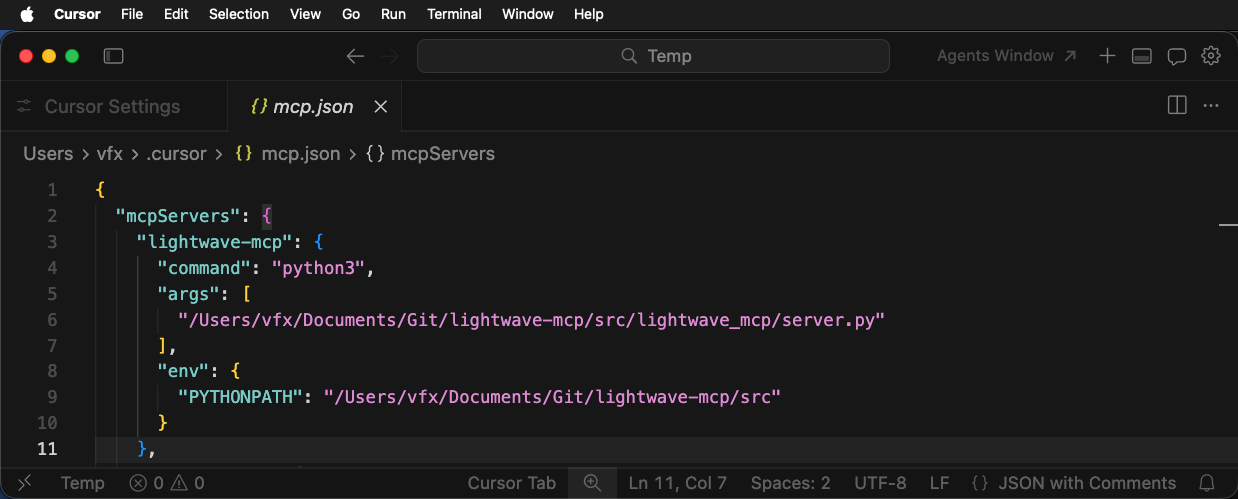
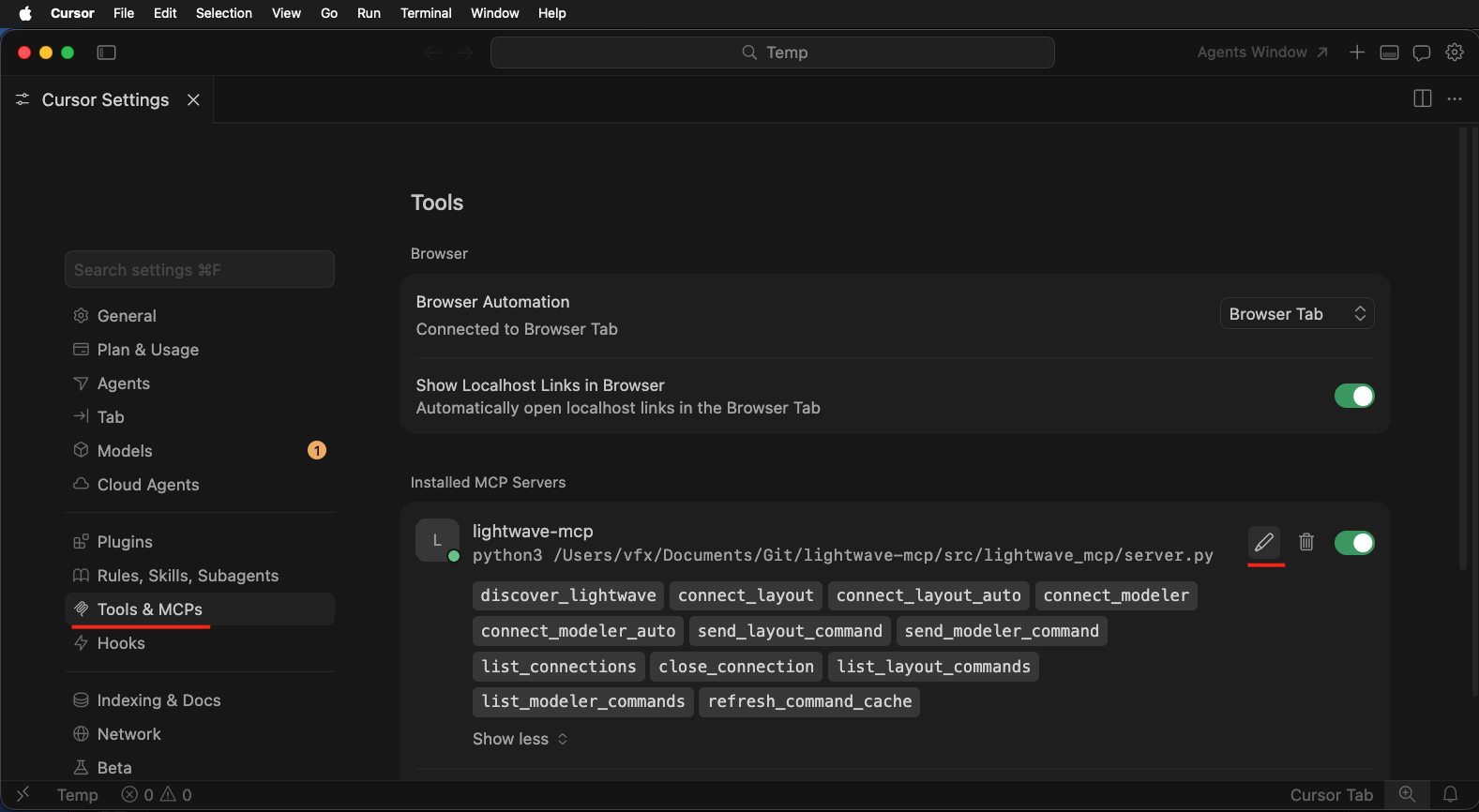
The "Cursor Settings > Tools & MCPs > Installed MCP Servers" section should list a "lightwave-mcp" item. If you click on the title of the "lightwave-mcp" item, the individual tools are shown.
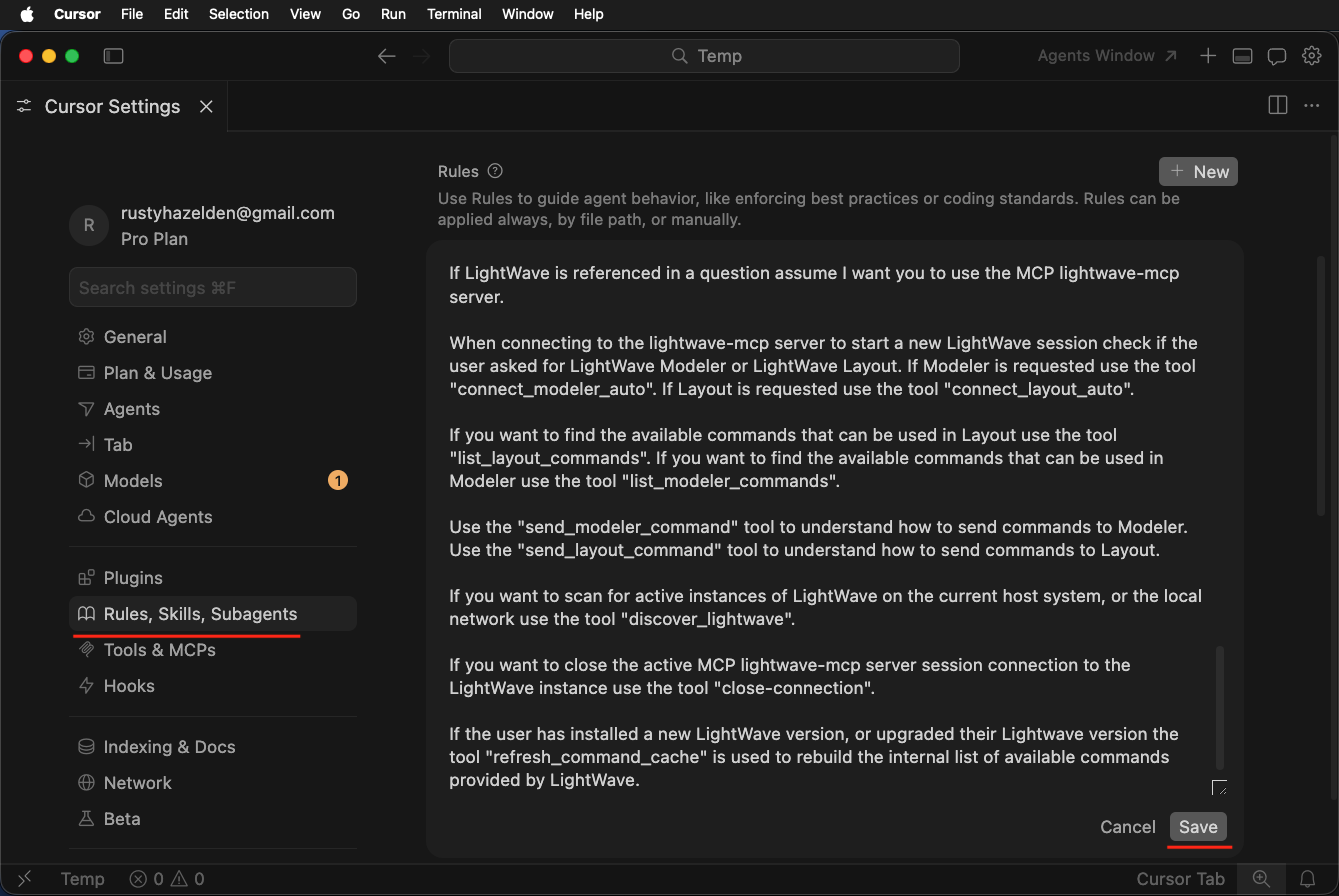
- Copy the lightwave-mcp sample rules content from the provided RULES.md file into your "Cursor Settings > Rules, Skills, Subagents > Rules" section. Press the
Savebutton to retain the new rules.
Available Tools
| Tool | Description |
|---|---|
discover_lightwave |
Find running LightWave instances on the network |
connect_layout |
Connect to a LightWave Layout instance |
connect_modeler |
Connect to a LightWave Modeler instance |
connect_layout_auto |
Auto-discover and connect to Layout |
connect_modeler_auto |
Auto-discover and connect to Modeler |
send_layout_command |
Send a command to connected Layout |
send_modeler_command |
Send a command to connected Modeler |
list_connections |
List all active connections |
close_connection |
Close an active connection |
list_layout_commands |
List all Layout commands |
list_modeler_commands |
List all Modeler commands |
refresh_command_cache |
Refresh command cache from module |
Example Workflow
Discover LightWave instances:
discover_lightwave()Connect to Layout:
connect_layout(address="localhost", port=50155)Send commands:
send_layout_command(command="About", args=[])
send_layout_command(command="SelectItem", args=["30000000"])
Close connection:
close_connection(connection_id="...")
Default Connection Behavior
Once you connect to a LightWave instance, the server remembers that connection. Subsequent commands can omit the connection_id when only one connection of that type exists.
| Scenario | Behavior |
|---|---|
| One Layout connection active | connection_id is auto-resolved |
| One Modeler connection active | connection_id is auto-resolved |
| Multiple connections active | You must specify which one |
| No matching connection | Error: use connect_layout or connect_modeler first |
Command Cache
The server ships with pre-built command caches:
- Layout: 857 commands
- Modeler: 63 commands
To update the cache when LightWave is updated:
cd lightwave-mcp/src
python3 introspect_commands.py -o ../cache
Or use the MCP tool:
refresh_command_cache(module_path="/Applications/LightWaveDigital/LightWave3D_2025.0.3/support/python")
Protocol Details
- Transport: stdio (standard input/output)
- Discovery Ports: 50155-50165 (UDP broadcast)
- Protocol Version: 1.0
LightWave Command Port
The LightWave Command Port is a UDP-based inter-process communication system built into LightWave 3D.
| Component | Purpose |
|---|---|
| Layout | Scene orchestration, animation, rendering |
| Modeler | 3D polygon modeling, mesh editing |
License
lightwave-mcp is released under an Apache 2.0 License. It was created as a workflow automation prototype by members of the WSL LightWave3D community.
lwcommandport is Copyright (c) LightWave Digital, LTD. All rights reserved. The included lwcommandport library is a fork of the original LightWave SDK sample code, updated for Python 3 compatibility.
Support
For issues with the lightwave-mcp MCP server, please open an issue on the repository.
Install Lightwave in Claude Desktop, Claude Code & Cursor
unyly install lightwave-mcpInstalls into Claude Desktop, Claude Code, Cursor & VS Code — handles npx, uvx and build-from-source repos for you.
First time? Get the CLI: curl -fsSL https://unyly.org/install | sh
Or configure manually
Run in your terminal:
claude mcp add lightwave-mcp -- uvx --from git+https://github.com/Kartaverse/lightwave-mcp lightwave-mcpFAQ
Is Lightwave MCP free?
Yes, Lightwave MCP is free — one-click install via Unyly at no cost.
Does Lightwave need an API key?
No, Lightwave runs without API keys or environment variables.
Is Lightwave hosted or self-hosted?
Self-hosted: the server runs locally on your machine via the install command above.
How do I install Lightwave in Claude Desktop, Claude Code or Cursor?
Open Lightwave on unyly.org, pick your client tab (Claude Desktop, Claude Code, Cursor) and press Install — the config is generated automatically, no JSON editing.
Related MCPs
Fetch
Web content fetching and conversion for efficient LLM usage.
AWS KB Retrieval
Retrieval from AWS Knowledge Base using Bedrock Agent Runtime.
 by modelcontextprotocol
Spring AI MCP Server
Provides auto-configuration for setting up an MCP server in Spring Boot applications.
llm-analysis-assistant
A very streamlined mcp client that supports calling and monitoring stdio/sse/streamableHttp, and can also view request responses through the /logs page. It also
 by xuzexin-hz
Compare Lightwave with
Not sure what to pick?
Find your stack in 60 seconds
Author?
Embed badge for your README
Browse similar
All ai MCPs