
Paprika Mcp Python Server
FreeNot checkedA Model Context Protocol server for Paprika Recipe Manager integration with Claude Desktop

About
A Model Context Protocol server for Paprika Recipe Manager integration with Claude Desktop
README
A Model Context Protocol server that lets you talk to Paprika Recipe Manager through Claude Desktop. Just chat naturally to add recipes, find that thing you made last week, or update cooking times.
Oh, and it can generate food photos for your recipes too (using Flux from Black Forest Lab) if you want them to look fancy.
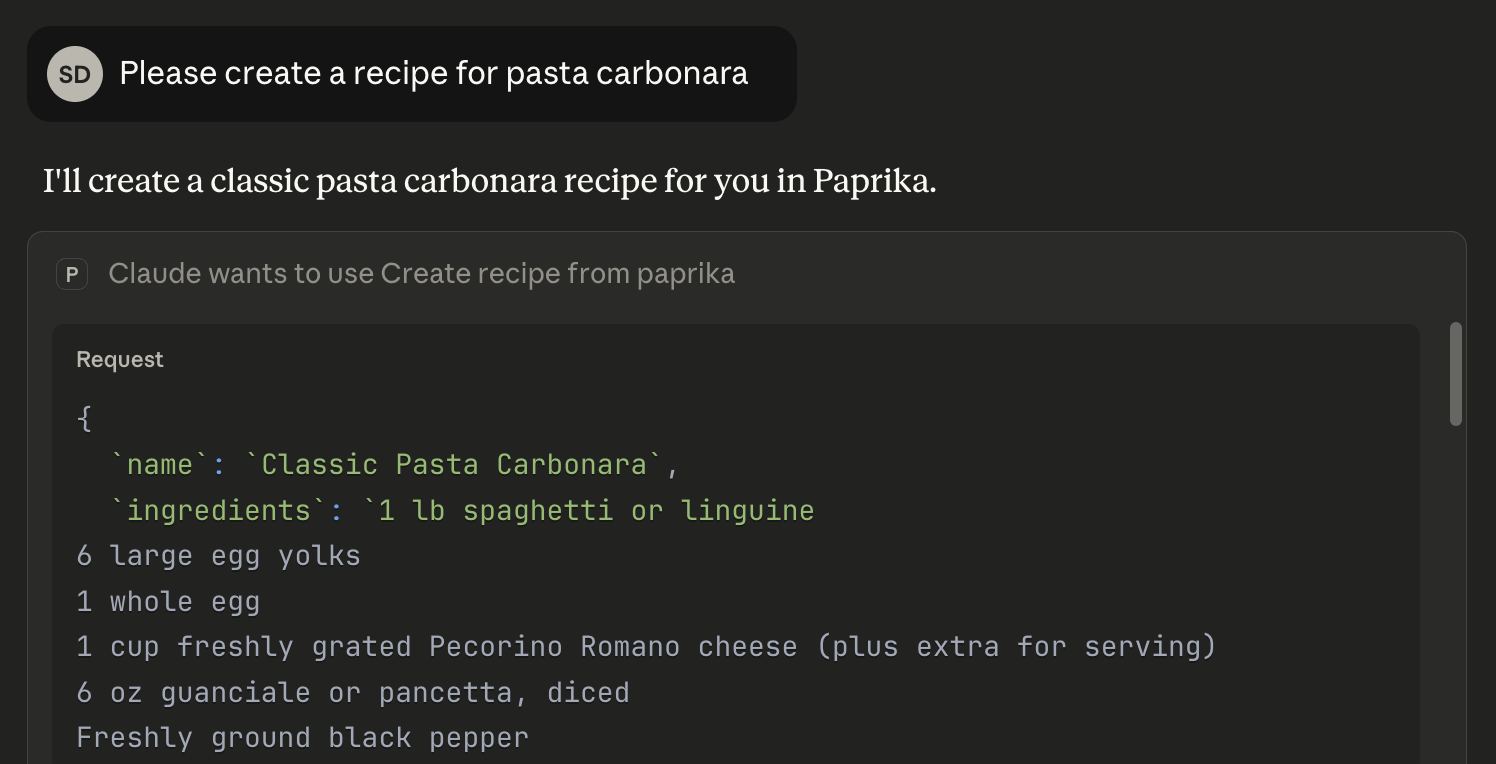
What it does
- Just talk to add recipes - No forms, no clicking around. Describe it and it's saved
- AI food photos - Automatically generates images with Flux (~$0.002/image, totally optional)
- Find stuff fast - Search by ingredient, cooking time, or just random words you remember
- Update anything - Change one field or rewrite the whole thing
- Syncs everywhere - Everything updates in your Paprika apps automatically, you see the same thing on your computer, phone, or tablet.
Quick Start
What you need
- Python 3.8+ (probably already have it)
- Paprika Recipe Manager with cloud sync turned on
- Claude Desktop, Claude Code, or any other MCP client
Installation
Two commands and you're done:
pipx install paprika-mcp
paprika-mcp setup
The setup wizard will ask for your Paprika login, find your MCP clients (Claude Desktop, Claude Code, etc.), and configure everything automatically.
That's it. Restart your MCP client and you're ready to go.
Manual setup (if you prefer)
If you want to configure things yourself:
Install:
pipx install paprika-mcp
Configure Claude Desktop - Edit ~/Library/Application Support/Claude/claude_desktop_config.json (macOS) or %APPDATA%\Claude\claude_desktop_config.json (Windows):
{
  "mcpServers": {
    "paprika": {
      "command": "pipx",
      "args": ["run", "paprika-mcp"],
      "env": {
        "PAPRIKA_USERNAME": "[email protected]",
        "PAPRIKA_PASSWORD": "your_password",
        "REPLICATE_API_TOKEN": "optional_token_for_images"
      }
    }
  }
}
Other MCP clients (Claude Code, VS Code, Cursor, etc.) use the same config structure, just different file locations.
Restart your MCP client (full quit and reopen).
How to use it
Just talk to Claude like you're texting a friend about recipes:
Create recipes:
Create a Spaghetti Carbonara recipe with:
- 400g spaghetti, 4 eggs, 100g pancetta, 50g Parmesan, black pepper

Instructions:
1. Cook pasta, fry pancetta until crispy
2. Beat eggs with Parmesan
3. Mix hot pasta with pancetta, add eggs off heat
4. Season and serve

Servings: 4, Prep: 10 mins, Cook: 15 mins
Search and filter:
Show me all pasta recipes sorted by prep time
Find recipes with chicken and tomatoes
What can I make in under 30 minutes?
Update recipes:
Change the Carbonara recipe to serve 6 people
Add "Use room temperature eggs" to the notes
Update just the prep time to 15 minutes
Regenerate images:
Regenerate the Carbonara image with rustic style and darker lighting
Create a new photo with close-up view and more cheese visible
CLI Commands
Besides running as an MCP server, there are some handy commands:
# Run the MCP server (this happens automatically when MCP clients call it)
paprika-mcp

# Interactive setup wizard
paprika-mcp setup

# Reconfigure your credentials
paprika-mcp config

# Test if your Paprika login works
paprika-mcp test

# See recent logs from Claude Desktop
paprika-mcp logs

# Show version
paprika-mcp version
AI Image Generation
By default, new recipes get an AI-generated photo using Flux from Black Forest Lab (via Replicate). You'll need a Replicate account and API token.
Setup:
- Make an account at replicate.com
- Grab your API token from replicate.com/account/api-tokens
- Add
REPLICATE_API_TOKENto your Claude Desktop config (see above)
Cost: Around $0.002 per image (pretty cheap)
Don't want images?
Create a recipe without generating an image
Make it look better:
Regenerate image for "Pasta Carbonara" with: overhead view, rustic style, darker background
Works with Multiple MCP Clients
This server works with any MCP-compatible client, not just Claude Desktop:
- Claude Desktop - The desktop app
- Claude Code - CLI tool for coding projects
- VS Code - With the MCP extension
- Cursor - AI code editor
- Windsurf - Another AI editor
- Goose - Terminal-based AI assistant
- Any other tool that supports MCP
The setup wizard (paprika-mcp setup) will find and configure any of these automatically.
Available Tools
| Tool | Description |
|---|---|
create_recipe |
Create new recipes with auto-generated images (default) |
update_recipe |
Update any fields while preserving the rest |
list_recipes |
List recipes with pagination, sorting, and filtering |
read_recipe |
Get complete details for a single recipe |
delete_recipe |
Move recipe to trash (requires confirmation) |
search_recipes |
Search by text across all recipe fields |
filter_recipes_by_ingredient |
Find recipes containing specific ingredients |
filter_recipes_by_time |
Filter by prep time or cook time constraints |
regenerate_recipe_image |
Generate new AI photos with custom styling |
Advanced Features
Brief Ingredients Pattern
You can add quick ingredient lists to recipe descriptions so you don't have to dig through the measurements:
Ingredients: Spaghetti, Pancetta, Eggs, Parmesan, Pepper

Classic Roman pasta with silky egg sauce and crispy pancetta.
Makes it way easier to check if you have everything before you start cooking.
Pagination and Sorting
Got a ton of recipes? You can page through them and sort however you want:
Show me recipes 50-100 sorted by name
List the next 20 recipes starting from position 40
Sort recipes by prep time, quickest first
Field Selection
Don't need everything? Just ask for the fields you want:
Show just recipe names and UIDs
List recipes but exclude directions and notes
Mix it up
You can combine all this stuff:
Find recipes with "chicken", sort by prep time, show first 10 with only name and ingredients
When stuff breaks
Can't log in
Error: Authentication failed
- Make sure your login works at paprikaapp.com
- Cloud sync needs to be on in your Paprika app
- Double-check you typed your credentials right in the config
Claude can't see the server
Connection issues
- Use full paths in the config (no
~/shortcuts) - Point to your venv's Python:
/full/path/to/venv/bin/python - Actually quit Claude Desktop (Cmd+Q on Mac) and reopen it
Import errors
- Activate your virtual environment:
source venv/bin/activate - Reinstall everything:
pip install -r requirements.txt
Image problems
No images showing up
- Check that
REPLICATE_API_TOKENis in your Claude Desktop config - Make sure your token works at replicate.com/account
- Don't worry, your recipe still saves fine without the image
Images look wrong
- Try
regenerate_recipe_imagewith better instructions - Be specific: "less sauce", "more garnish", "darker background"
Check the logs
If something's really broken, look at the logs:
- macOS:
~/Library/Logs/Claude/mcp*.log - Windows:
%APPDATA%\Claude\Logs\mcp*.log
Development
Run tests:
pytest tests/ -v
Format code:
ruff format src/ tests/
Contributing
Want to help out? Cool. Open an issue to talk about changes or just submit a PR.
License
MIT License - see LICENSE for details.
Thanks to
- Anthropic for MCP and Claude
- Paprika Recipe Manager for making a great recipe app
- Black Forest Lab for the Flux image generation model
- Replicate for hosting the AI models
Note: This is just a side project, not officially affiliated with Paprika or Anthropic.
Questions? Open an issue
Installing Paprika Mcp Python Server
This server has no published package — it is built from source. Open the repository and follow its README.
▸ github.com/sandordaroczi/paprika-mcp-python-serverFAQ
Is Paprika Mcp Python Server MCP free?
Yes, Paprika Mcp Python Server MCP is free — one-click install via Unyly at no cost.
Does Paprika Mcp Python Server need an API key?
No, Paprika Mcp Python Server runs without API keys or environment variables.
Is Paprika Mcp Python Server hosted or self-hosted?
Self-hosted: the server runs locally on your machine via the install command above.
How do I install Paprika Mcp Python Server in Claude Desktop, Claude Code or Cursor?
Open Paprika Mcp Python Server on unyly.org, pick your client tab (Claude Desktop, Claude Code, Cursor) and press Install — the config is generated automatically, no JSON editing.
Related MCPs
Fetch
Web content fetching and conversion for efficient LLM usage.
AWS KB Retrieval
Retrieval from AWS Knowledge Base using Bedrock Agent Runtime.
 by modelcontextprotocol
Spring AI MCP Server
Provides auto-configuration for setting up an MCP server in Spring Boot applications.
llm-analysis-assistant
A very streamlined mcp client that supports calling and monitoring stdio/sse/streamableHttp, and can also view request responses through the /logs page. It also
 by xuzexin-hz
Compare Paprika Mcp Python Server with
Not sure what to pick?
Find your stack in 60 seconds
Author?
Embed badge for your README
Browse similar
All ai MCPs