loading…
en/
Browse all
React Native Ai Devtools
FreeMaintainedExecBro — MCP server giving AI agents eyes and hands into React Native apps. Logs, REPL, state inspection, tap, screenshot.

About
ExecBro — MCP server giving AI agents eyes and hands into React Native apps. Logs, REPL, state inspection, tap, screenshot.
README
[!IMPORTANT] Already using ExecBro?
npxcaches packages indefinitely, so you may be stuck on an old version without realizing it. Update your MCP config to usenpx -y react-native-ai-devtools@latest(see Setup) so every session pulls the latest release with new tools and bug fixes. New installs after this change auto-update automatically.
Ships as the npm package
react-native-ai-devtools.
Give your AI assistant eyes and hands into your running React Native app. Like Chrome DevTools — but for AI agents.
Build, debug, and verify features end-to-end — without leaving the chat.
ExecBro is the runtime bridge between your AI coding assistant and your running React Native app — exposing MCP tools to read logs and network, inspect component state, capture screenshots, tap the UI, and run JS. Zero config, no SDK or code changes required — an optional SDK unlocks richer log and network capture when you want it.
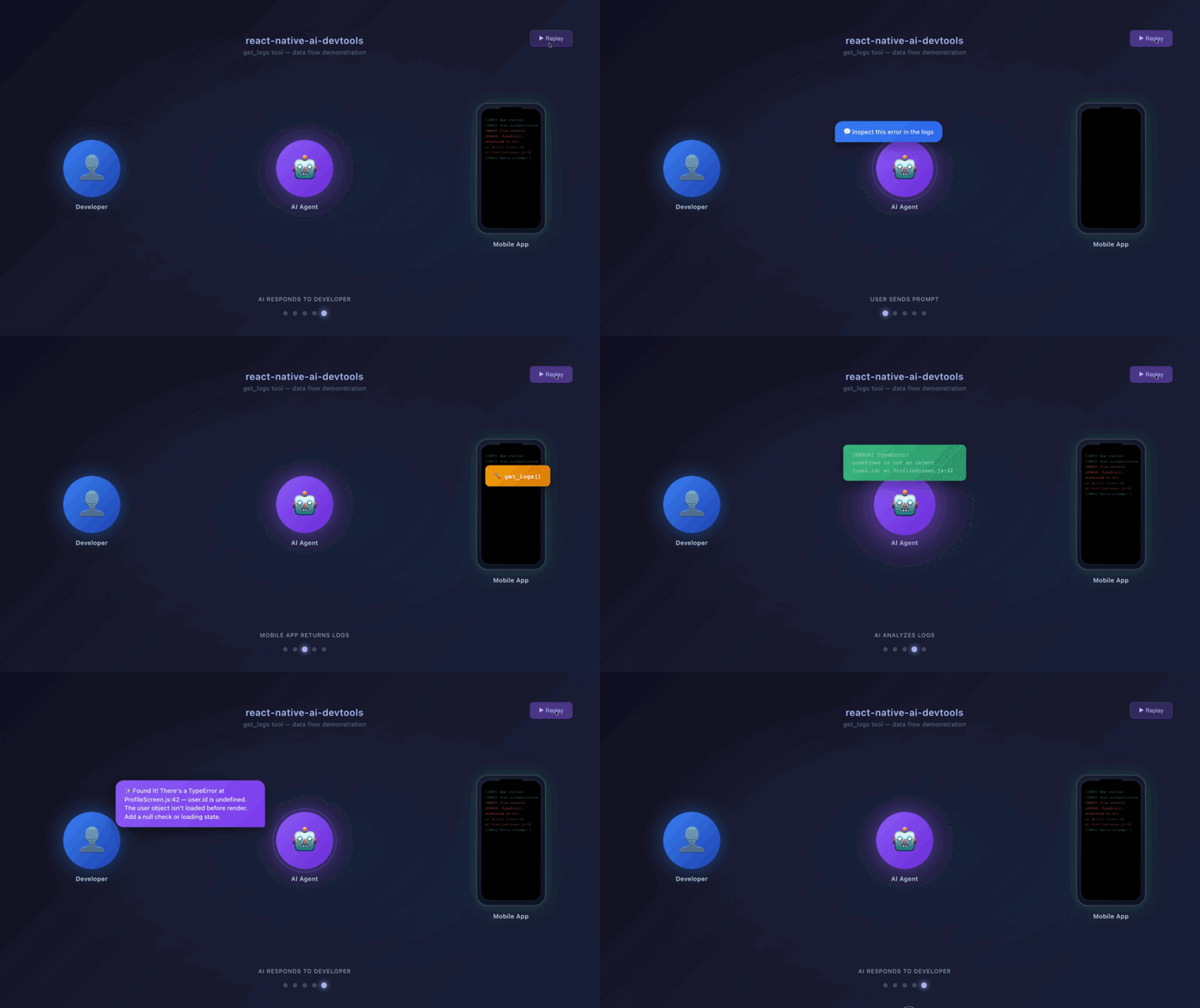
Get started
Feedback & Feature Requests
Please run this at the end of your session to help me make the tools better. ExecBro is built for AI agents, so the most valuable feedback comes from the agent itself — paste this prompt to your agent:
Write a report about your experience with the ExecBro tools — where you were struggling and what could be improved. Save it as a Markdown file for me, then submit it using the
send_feedbacktool (type"feedback") so it becomes a GitHub issue.
It takes 30 seconds: your agent runs send_feedback, hands you a pre-filled GitHub issue URL (environment info already attached), and you click submit — no GitHub setup, no copy-pasting. Real friction logs from real sessions are what shape the roadmap and get fixed first, so please send one. 🙏 And if you just have a quick idea or question, drop into GitHub Discussions to share feedback, request features, and vote on what gets built next.
Pricing
ExecBro is free and open — every feature, no usage limits, no account required. Use it as much as you like. The tools you run locally stay free; that's the model.
Features
Runtime Interaction
- Console Log Capture - Capture
console.log,warn,error,info,debugwith filtering and search. Note: on a cold start (first app launch), logs emitted before the MCP server connects are missed — subsequent reloads capture everything. Install the optional SDK to buffer logs from the very first line of app startup - Network Request Tracking - Monitor HTTP requests/responses with headers, timing, and body content. Like logs, early network requests on cold start may be missed before the connection is established. Install the optional SDK for full capture from app startup including request/response bodies
- JavaScript Execution - Run code directly in your app (REPL-style) and inspect results
- Global State Debugging - Discover and inspect Apollo Client, Redux stores, Expo Router, and custom globals
- Bundle Error Detection - Get Metro bundler errors and compilation issues with file locations
Device Control
- iOS Simulator - Screenshots, app management, URL handling, boot/terminate (via simctl)
- Android Devices - Screenshots, app install/launch, package management (via ADB)
- Unified Tap - Single
taptool with automatic fallback chain: fiber tree → accessibility → OCR → coordinates. Auto-detects platform, accepts pixels from screenshots. Returns post-tap screenshot and verifies visual change by default - Unified Swipe - Single
swipetool that auto-routes to iOS or Android based on the connected device. Accepts screenshot pixel coordinates, handles per-platform conversion, and returns averification.meaningfulsignal so agents detect end-of-list, non-scrollable surfaces, and missed coordinates. Essential for scrolling virtualized lists (FlatList/SectionList) where off-screen items aren't in the fiber tree - UI Automation - Swipe, long press, key events, and text input on both platforms. On Bridgeless/Fabric apps,
clear_focused_inputanddismiss_keyboardoperate on whatever has focus, andios_input_text/android_input_textacceptreplace:trueto overwrite pre-filled values — all three update React state throughonChangeTextso controlled components (Formik, react-hook-form, useState) stay consistent - Accessibility Inspection - Query UI hierarchy to find elements by text, label, or resource ID
- OCR Text Extraction - Extract visible text with tap-ready coordinates via Google Cloud Vision (works on any screen content)
Multi-Device Debugging
- Connect All Devices -
scan_metroautomatically discovers and connects to all Bridgeless targets on each Metro port - Device Targeting - Every tool accepts an optional
deviceparameter for targeting specific devices by name (case-insensitive substring match) - Per-Device Buffers - Logs and network requests are captured separately per device for clean debugging
- Cross-Platform Comparison - Debug iOS and Android side-by-side, comparing logs, network traffic, and component trees
Under the Hood
- Auto-Discovery - Scans Metro on ports 8081, 8082, 19000-19002 automatically
- Multi-Device Support - Connects to all Bridgeless targets simultaneously, with per-device log and network buffers
- Auto-Reconnection - Exponential backoff (up to 8 attempts) when connection drops
- Efficient Buffering - Circular buffers: 500 logs, 200 network requests
- Platform Support - Expo SDK 54+ (Bridgeless) and React Native 0.70+ (Hermes)
Setup
No installation required — every client below uses npx to fetch the latest version on demand. Pick your agent:
- Claude Code · Claude Desktop · Codex CLI · Cursor · VS Code Copilot · Windsurf · Zed · Gemini CLI
After adding the server, fully restart the client (quit and relaunch, not just reload) so it picks up the new configuration.
Claude Code
# Global (all projects)
claude mcp add execbro --scope user -- npx -y react-native-ai-devtools@latest

# Project-specific
claude mcp add execbro --scope project -- npx -y react-native-ai-devtools@latest
Or edit ~/.claude.json (user) / .mcp.json (project) manually:
{
    "mcpServers": {
        "execbro": {
            "type": "stdio",
            "command": "npx",
            "args": ["-y", "react-native-ai-devtools@latest"]
        }
    }
}
Claude Desktop
Edit the config at:
- macOS:
~/Library/Application Support/Claude/claude_desktop_config.json - Windows:
%APPDATA%\Claude\claude_desktop_config.json
{
    "mcpServers": {
        "execbro": {
            "command": "npx",
            "args": ["-y", "react-native-ai-devtools@latest"]
        }
    }
}
You can also open this file from Settings → Developer → Edit Config. Fully quit and relaunch Claude Desktop after saving.
Codex CLI (OpenAI)
codex mcp add execbro -- npx -y react-native-ai-devtools@latest
Or edit ~/.codex/config.toml directly:
[mcp_servers.execbro]
command = "npx"
args = ["-y", "react-native-ai-devtools@latest"]
Cursor
Docs. Add via Cmd+Shift+P → "View: Open MCP Settings", or edit .cursor/mcp.json (project) / ~/.cursor/mcp.json (global):
{
    "mcpServers": {
        "execbro": {
            "command": "npx",
            "args": ["-y", "react-native-ai-devtools@latest"]
        }
    }
}
VS Code Copilot
Requires VS Code 1.102+ with Copilot (docs). Add via Cmd+Shift+P → "MCP: Add Server", or edit .vscode/mcp.json:
{
    "servers": {
        "execbro": {
            "type": "stdio",
            "command": "npx",
            "args": ["-y", "react-native-ai-devtools@latest"]
        }
    }
}
Windsurf
Docs. Edit ~/.codeium/windsurf/mcp_config.json:
{
    "mcpServers": {
        "execbro": {
            "command": "npx",
            "args": ["-y", "react-native-ai-devtools@latest"]
        }
    }
}
Zed
Docs. Open the Agent Panel settings → "Add Custom Server", or add to settings.json:
{
    "context_servers": {
        "execbro": {
            "command": "npx",
            "args": ["-y", "react-native-ai-devtools@latest"],
            "env": {}
        }
    }
}
Gemini CLI
Edit ~/.gemini/settings.json (user) or .gemini/settings.json (project):
{
    "mcpServers": {
        "execbro": {
            "command": "npx",
            "args": ["-y", "react-native-ai-devtools@latest"]
        }
    }
}
Android
Android works out of the box — all device control tools use ADB, which ships with Android Studio. Verify it's available:
adb devices
iOS Simulator — UI Automation Setup
iOS UI automation tools (tap, swipe, text input, accessibility queries) require a UI driver. Install one of the following:
Option A: AXe CLI (default)
AXe is a standalone CLI for iOS simulator automation. No daemon required — single binary, simple setup. Used by default; no IOS_DRIVER env var needed.
brew install cameroncooke/axe/axe
Verify: axe --version
Note: AXe text input only supports US keyboard layout characters.
Option B: IDB (alternative)
IDB (iOS Development Bridge) is a tool built by Meta for automating iOS Simulators. Requires a background daemon. Use this if you prefer IDB or hit AXe limitations.
brew install idb-companion
Verify: idb_companion --list 1
Opt in by setting IOS_DRIVER=idb in your MCP server configuration:
{
    "mcpServers": {
        "execbro": {
            "type": "stdio",
            "command": "npx",
            "args": ["-y", "react-native-ai-devtools@latest"],
            "env": { "IOS_DRIVER": "idb" }
        }
    }
}
What works without a UI driver:
| Capability | Without AXe/IDB | With AXe/IDB |
|---|---|---|
| Screenshots | Yes (simctl) | Yes |
| App install/launch/terminate | Yes (simctl) | Yes |
| URL opening | Yes (simctl) | Yes |
| Boot simulator | Yes (simctl) | Yes |
| Tap / swipe / gestures | No | Yes |
| Text input | No | Yes |
| Accessibility tree queries | No | Yes |
| Element finding / waiting | No | Yes |
| Hardware buttons (Home, Lock) | No | Yes |
Troubleshooting: If you see errors like
"IDB is not installed"or"AXe is not installed"in tap results, install the appropriate driver with the commands above and retry.
Requirements
- Node.js 18+
- React Native app running with Metro bundler
- iOS UI automation: AXe CLI (
brew install cameroncooke/axe/axe, default) or Facebook IDB (brew install idb-companion, opt in viaIOS_DRIVER=idb) — required for tap, swipe, text input, accessibility on iOS Simulator - Optional for offline OCR fallback: Python 3.6+ (only needed when cloud OCR is unavailable, see OCR Setup)
Claude Code Skills
Pre-built skills for common debugging workflows — session setup, log inspection, network debugging, and more. See the skills guide for the full list and installation instructions.
Available Tools
See the full tool reference for all tools with descriptions. Key tools:
| Tool | Description |
|---|---|
scan_metro |
Start here — scan for Metro servers and auto-connect |
get_logs / search_logs |
Capture and search console logs with filtering and summaries |
get_network_requests |
Monitor HTTP requests with method/status filtering |
get_screen_layout |
Screen map of visible components with positions, sizes, and text content |
tap |
Unified tap — auto-detects platform, tries fiber → accessibility → OCR → coordinates |
ios_input_text / android_input_text |
Type text into the focused field. replace:true clears pre-filled values first (Fabric) |
clear_focused_input |
Clear the focused TextInput via React onChangeText, keeping controlled state in sync |
dismiss_keyboard |
Blur the focused input and close the on-screen keyboard |
execute_in_app |
Run JS expressions in the app runtime (REPL-style) |
ios_screenshot / android_screenshot |
Take device screenshots |
Usage
Start your React Native app:
npm start
# or
expo start
In Claude Code, scan for Metro:
Use scan_metro to find and connect to MetroGet logs:
Use get_logs to see recent console output
Detailed Guides
| Guide | Description |
|---|---|
| Console Logging | get_logs parameters, filtering, summary mode, TONL format, token optimization |
| Network Tracking | SDK setup for full capture, filtering, request details, statistics |
| App Inspection | Debug globals (Apollo, Redux, Expo Router), execute_in_app, limitations |
| Layout & Component Inspection | get_screen_layout, component tree, inspect_at_point, find_components |
| Device Interaction | Unified tap, platform-specific gestures, text input, key events |
| OCR Text Extraction | Cloud Vision OCR, offline fallback, language config, workflows |
| Claude Code Skills | Pre-built skills for session setup, debugging, and automation |
| Full Tool Reference | Complete list of all 40+ tools with descriptions |
Supported React Native Versions
| Version | Architecture | Engine | Status |
|---|---|---|---|
| Expo SDK 54+ | Bridgeless (New Arch) | Hermes | ✓ Fully supported |
| RN 0.76+ | Bridgeless (New Arch) | Hermes | ✓ Fully supported |
| RN 0.73 - 0.75 | Bridge (Old Arch) | Hermes | ✓ Fully supported (best network capture via CDP) |
| RN 0.70 - 0.72 | Bridge (Old Arch) | Hermes / JSC | ✓ Supported |
| RN < 0.70 | Bridge | JSC | Not tested |
How It Works
- Fetches device list from Metro's
/jsonendpoint - Connects to the main JS runtime via CDP (Chrome DevTools Protocol) WebSocket
- Enables
Runtime.enableto receiveRuntime.consoleAPICalledevents - Network capture via two paths:
- With SDK: Reads from the SDK's in-app buffer via
Runtime.evaluate— captures all requests from startup with full headers and bodies, including cold-start events that CDP would miss - Without SDK: Enables CDP
Network.enable(on supported targets) or injects a JS fetch interceptor as fallback. On cold start, events emitted before the CDP connection is established are lost; subsequent reloads capture everything
- With SDK: Reads from the SDK's in-app buffer via
- Stores logs and network requests in circular buffers for retrieval
Connection Management
Explicit Connection
The server does not auto-connect on startup. Call scan_metro to discover and connect to Metro servers. This prevents multiple MCP server instances (from parallel agent sessions) from competing for the single CDP WebSocket slot, which would cause connection thrashing and dropped tools.
Graceful Shutdown
When the MCP server process is terminated (SIGINT/SIGTERM), it closes all CDP WebSocket connections and cancels reconnection timers, freeing the CDP slot immediately for other sessions.
Reconnection on Disconnect
When the connection to Metro is lost (e.g., app restart, Metro restart, or network issues):
- The server automatically attempts to reconnect
- Uses exponential backoff: 500ms, 1s, 2s, 4s, 8s (up to 8 attempts)
- Re-fetches device list to handle new WebSocket URLs
- Preserves existing log and network buffers
Connection Gap Warnings
If there was a recent disconnect, get_logs and get_network_requests will include a warning:
[WARNING] Connection was restored 5s ago. Some logs may have been missed during the 3s gap.
Monitor Connection Health
Use get_connection_status to see detailed connection information:
=== Connection Status ===

--- React Native (Port 8081) ---
  Status: CONNECTED
  Connected since: 2:45:30 PM
  Uptime: 5m 23s
  Recent gaps: 1
    - 2:43:15 PM (2s): Connection closed
Troubleshooting
No devices found
- Make sure the app is running on a simulator/device
- Check that Metro bundler is running (
npm start)
Wrong device connected
The server prioritizes devices in this order:
- React Native Bridgeless (SDK 54+)
- Hermes React Native
- Any React Native (excluding Reanimated/Experimental)
Logs not appearing
- Ensure the app is actively running (not just Metro)
- Try
clear_logsthen trigger some actions in the app - Check
get_appsto verify connection status - On cold start (first launch): The CDP connection is established after the app's early initialization code has already run, so startup logs and network requests are missed. Once connected, use
reload_app— the subsequent reload captures everything from the beginning because the connection is already in place. To capture startup events on every launch, install the optional SDK
Telemetry & Data Collection
This package collects anonymous usage telemetry to help improve the product. No personal information is collected.
What is collected
| Data | Purpose |
|---|---|
| Tool names | Which MCP tools are used most |
| Success/failure | Error rates for reliability improvements |
| Duration (ms) | Performance monitoring |
| Session start/end | Retention analysis |
| Platform | macOS/Linux/Windows distribution |
| Server version | Adoption of new versions |
Not collected: No file paths, code content, network data, or personally identifiable information.
Auto-registration
On first tool use, the package automatically registers your installation with our backend. No account or login is required — the Tool works fully out of the box.
Why we do this: The product roadmap includes features that build on installation identity — project memory (your AI assistant gets smarter with every session by remembering navigation maps, element signatures, and debug patterns), cloud sync across machines, team collaboration with shared debugging context, and a dashboard for managing your installations. Auto-registration lays the groundwork so these features work seamlessly when they ship, without requiring a disruptive setup step later.
What is sent:
- A random installation ID (UUID)
- A device fingerprint (one-way SHA-256 hash — cannot be reversed to recover its components)
- Platform, hostname, OS version, and server version
What is NOT sent: No source code, file paths, console logs, network data, component names, or any content from your app. The fingerprint exists solely to prevent installation hijacking — it ties your installation to your physical machine so no one else can claim it.
Registration is fire-and-forget — it never blocks your work, fails silently if the network is unavailable, and can be disabled entirely (see Opt-out below). See PRIVACY.md for full details on data handling, storage, and your rights.
Opt-out
To disable telemetry and auto-registration, add RN_DEBUGGER_TELEMETRY to the env field in your MCP server configuration:
{
    "mcpServers": {
        "execbro": {
            "type": "stdio",
            "command": "npx",
            "args": ["-y", "react-native-ai-devtools@latest"],
            "env": { "RN_DEBUGGER_TELEMETRY": "false" }
        }
    }
}
All debugging tools work normally with telemetry disabled. For the complete privacy policy, see PRIVACY.md.
Tap failure artifacts
When the tap tool fails or produces no visible change on screen, the package uploads a small JSON bundle and up to three downscaled PNG screenshots (before, after, and after-with-marker showing exactly where the tap landed) to a 10-day-retention store so we can diagnose and fix tap reliability issues. We do not use this data to train AI models and do not share it with third parties. See PRIVACY.md for details.
To opt out while keeping the rest of the package working:
"env": { "RN_AI_DEVTOOLS_DISABLE_FAILURE_ARTIFACTS": "1" }
Build attestation
Official npm builds are stamped with a secret build token at publish time (via npm run inject-token in CI, which requires the BUILD_TOKEN secret). Builds from a source checkout carry an inert placeholder and are labeled "fork" in our telemetry dashboard. The token is never committed to source.
License
MIT
How to install
Run in your terminal:
claude mcp add react-native-ai-devtools --env IOS_DRIVER="" --env RN_AI_DEVTOOLS_DISABLE_FAILURE_ARTIFACTS="" --env RN_DEBUGGER_TELEMETRY="" -- npx -y react-native-ai-devtools
